Create Global Cluster
This feature is available only on Business Critical (SaaS) and BYOC deployments.
This feature is available in all AWS regions and in the following Google Cloud regions: gcp-us-central1 and gcp-us-east4. It is not available on Microsoft Azure.
This guide explains how to create a global cluster.
If you need to enable the global cluster feature for an existing cluster, see Manage Cluster.
Before you start
-
Ensure you are a Project Admin.
-
Currently, this feature is available in all AWS regions and in the Google Cloud us-central1 and us-east4 regions. To create a global cluster in Google Cloud regions, contact us.
-
Global clusters are compatible only with Milvus 2.6.x.
Create a global cluster
-
Via web console
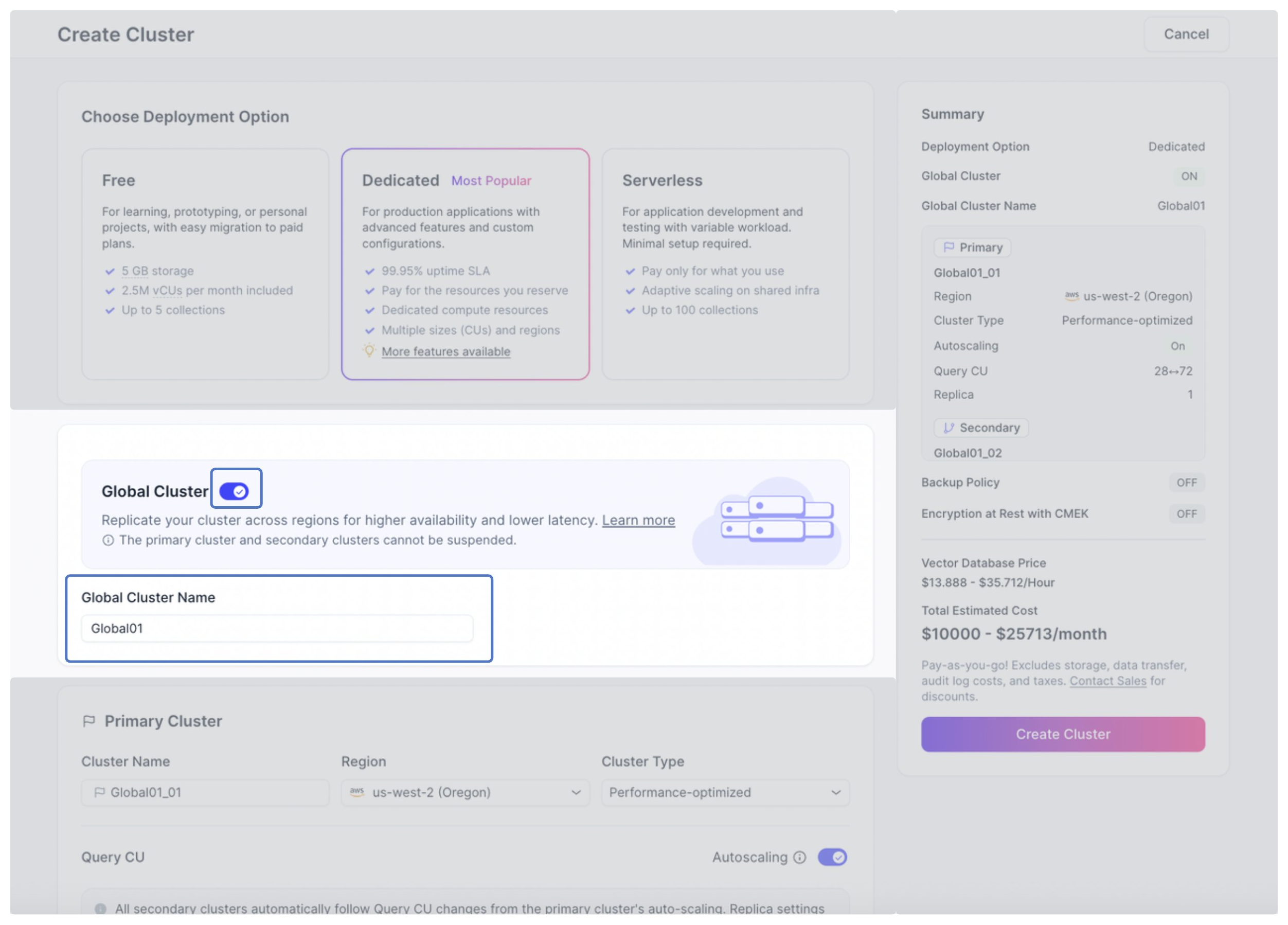
1Turn on the switch next to Global Cluster in Cluster Settings.
2Provide a name for the global cluster.
 3
3Configure the primary cluster.
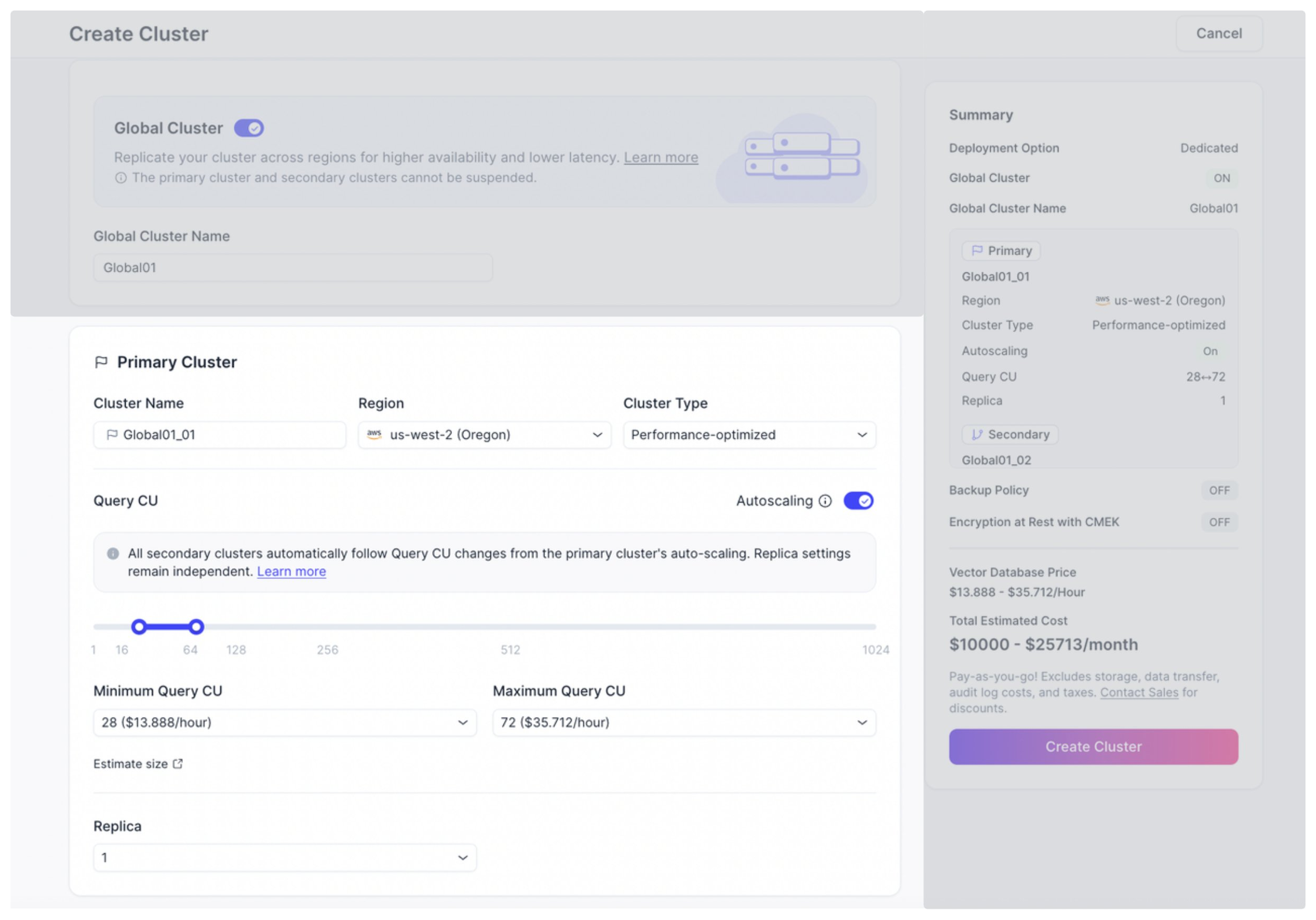
The following table explains the parameters.
Parameter Description Cluster Name The name of the primary cluster. Region The region where the primary cluster is deployed. Cluster Type The cluster type of the primary cluster. All secondary clusters use the same cluster type as the primary cluster. Query CU Auto-scaling is enabled by default. You can configure the minimum and maximum number of Query CUs for auto-scaling by entering values in the input boxes or dragging the slider. For details about auto-scaling, see Auto-scaling.
You can also disable autoscaling.
The number of Query CUs for secondary clusters follows the primary cluster.Replica The number of replicas for the primary cluster. The number of replicas can differ between the primary cluster and each secondary cluster. 4Configure the secondary cluster(s). You can create up to 5 secondary clusters.
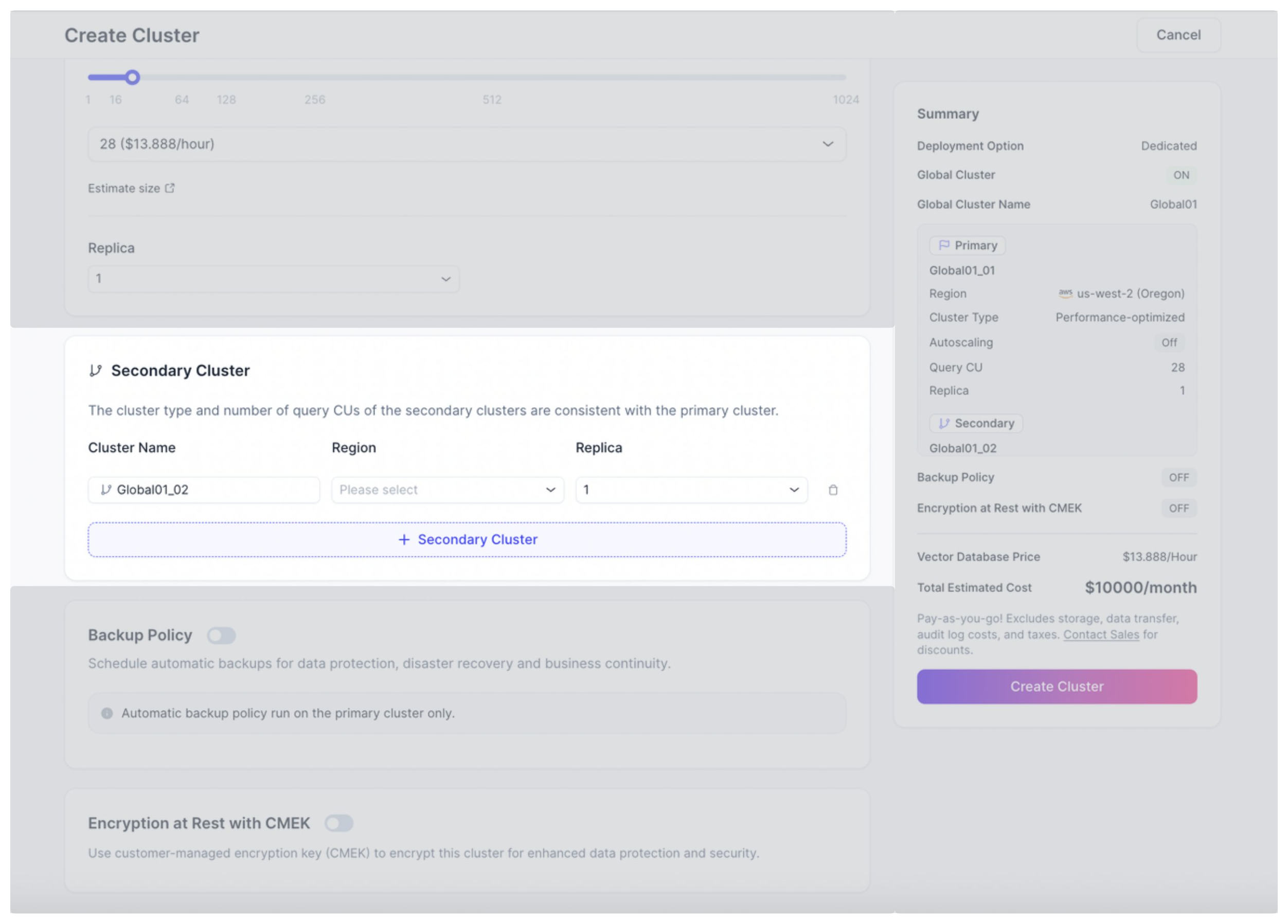
The following table explains the parameters.
Parameter Description Cluster Name The name of the secondary cluster. Region The region where the secondary cluster is deployed. Replica The number of replicas for the secondary cluster. The number of replicas can differ between the primary cluster and each secondary cluster. 5Click Create.
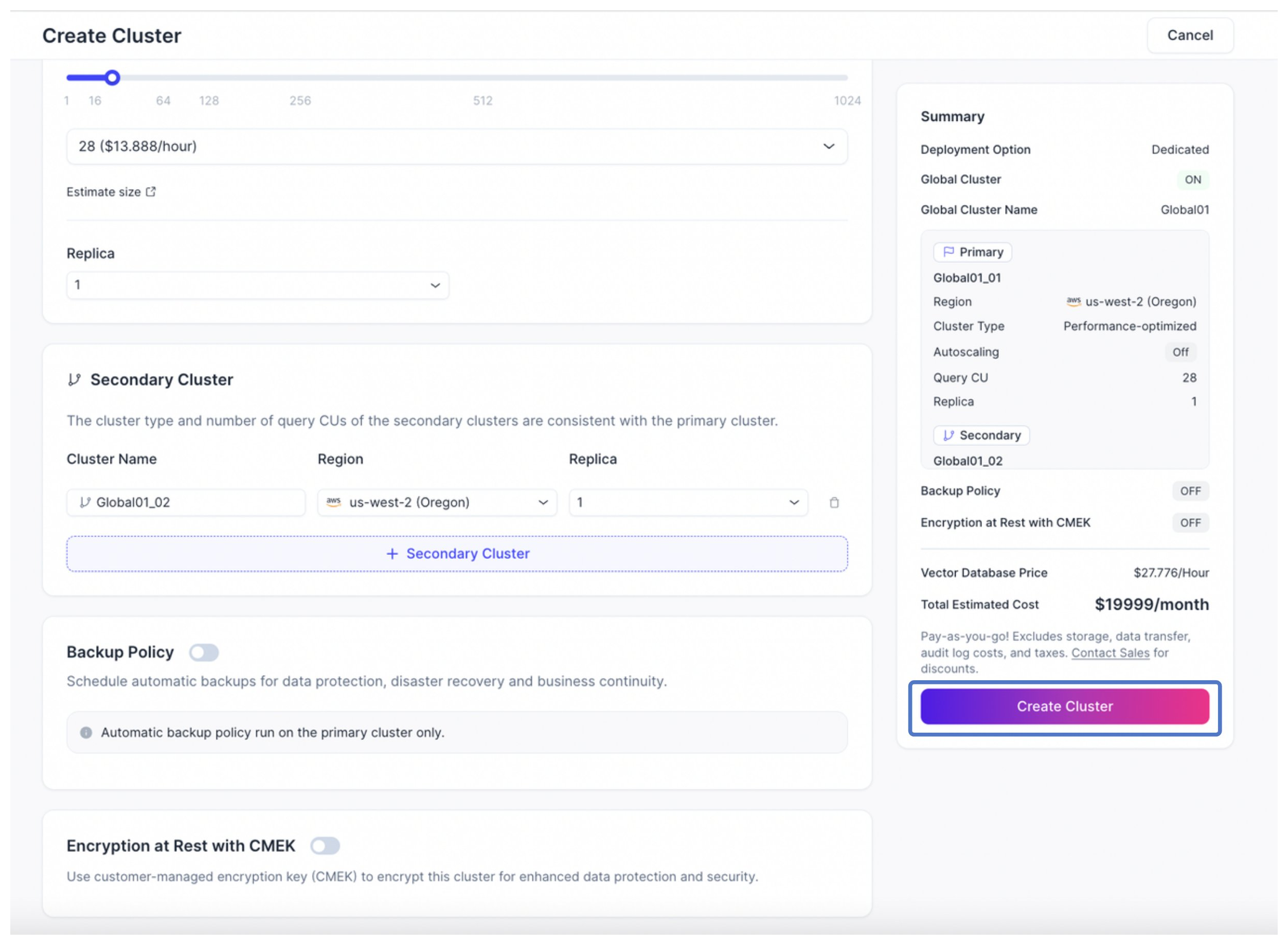
After you create a global cluster, Zilliz Cloud:
-
Provisions a global cluster and both its primary and secondary clusters. All primary and secondary clusters appear in CREATING status.
-
Once the provision of both the primary and secondary clusters completes, the clusters appear in RUNNING status and supports data replication.
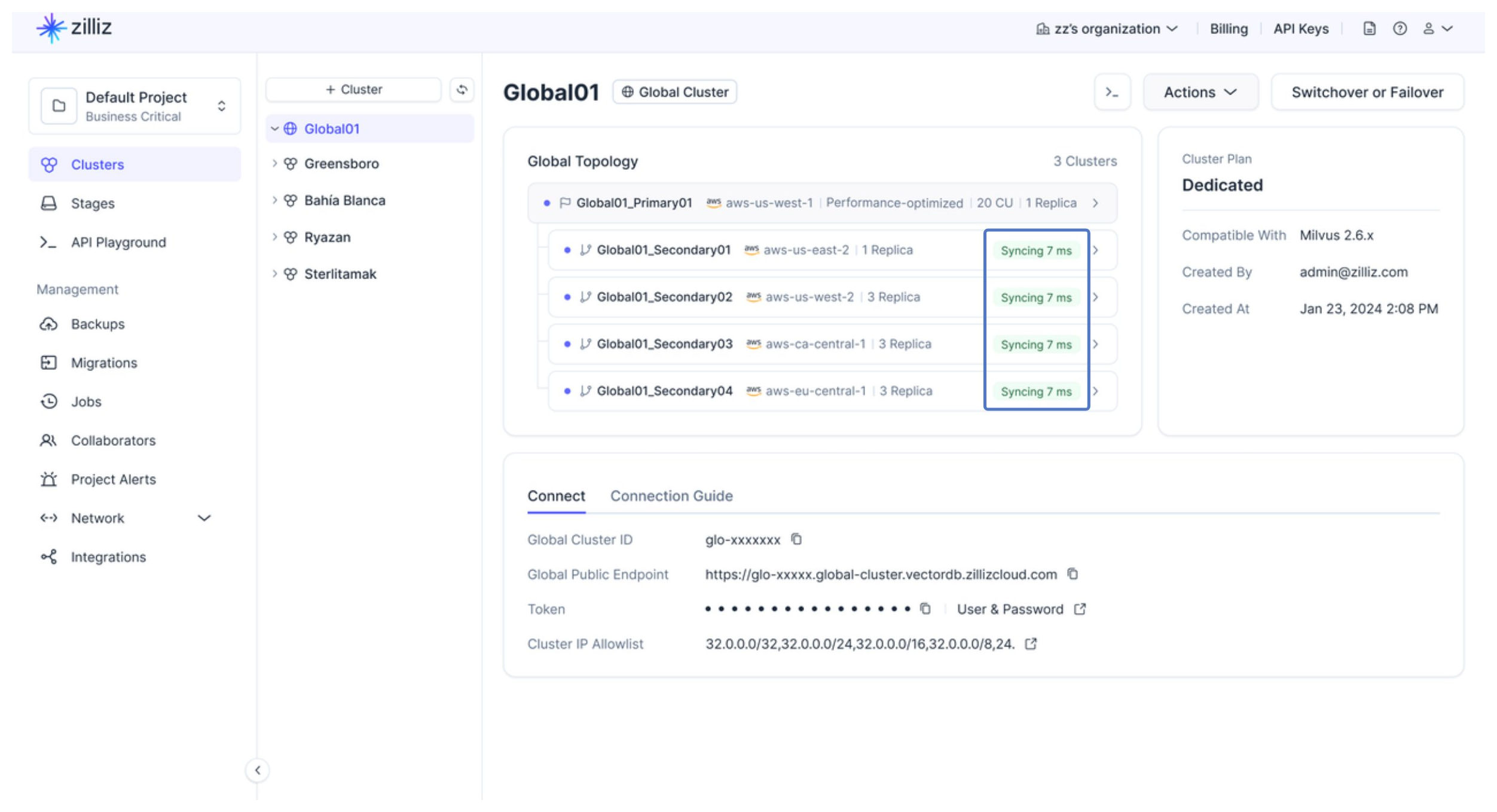
You can monitor the data synchronization status and lag on the Global Topology tab of the Global Cluster page.
-
-
Via RESTful API
The following example creates a global cluster with 1 primary cluster deployed in AWS us-west-2 and 1 secondary cluster deployed in AWS eu-west-1. For details about the API, see Create Global Cluster.
bashcurl --request POST \--url "https://api.cloud.zilliz.com/v2/globalClusters/create" \--header "Authorization: Bearer ${API_KEY}" \--header "Accept: application/json" \--header "Content-Type: application/json" \--data-raw '{"globalClusterName": "my-global-cluster","projectId": "proj-xxxxxxxxxxxxxxxxxxxxxx","cuType": "Performance-optimized","cuSize": 4,"primaryCluster": {"clusterName": "primary-cluster","regionId": "aws-us-west-2"},"secondaryClusters": [{"clusterName": "secondary-cluster-eu","regionId": "aws-eu-west-1"}]}'The following is an example of the output.
json{"code": 0,"data": {"globalClusterId": "glo-xxxxxxxxxxxxxxxx","username": "db_admin","password": "********","jobId": "job-xxxxxxxxxxxxxxxx"}}When creating a global cluster, you can also configure Query CU autoscaling and set the replica count separately for the primary and secondary clusters. The following is an example.
bashcurl --request POST \--url "https://api.cloud.zilliz.com/v2/globalClusters/create" \--header "Authorization: Bearer ${API_KEY}" \--header "Accept: application/json" \--header "Content-Type: application/json" \--data-raw '{"globalClusterName": "my-global-cluster","projectId": "proj-xxxxxxxxxxxxxxxxxxxxxx","cuType": "Performance-optimized","autoscaling": {"cu": {"min": 4,"max": 16}},"primaryCluster": {"clusterName": "primary-cluster","regionId": "aws-us-west-2","replica": 2},"secondaryClusters": [{"clusterName": "secondary-cluster-eu","regionId": "aws-eu-west-1","replica": 1}]}'