Integrate with Google Cloud Storage
This page explains how to authorize a Zilliz Cloud GCP BYOC or BYOC-I data plane to access an external Google Cloud Storage bucket. You create a bucket-scoped custom IAM role and grant it directly to the data plane's storage Google service account (GSA).
The Zilliz Cloud integration wizard displays the exact Google Cloud Service Account email to authorize. This is the storage GSA for the selected data plane. Grant that displayed principal bucket-level access; do not create, download, or upload a long-lived service account key.
Access flow

Before you start
Ensure that:
-
Your GCP BYOC or BYOC-I data plane is running.
-
You have Organization Owner or Project Admin access to the Zilliz Cloud project.
-
You can create a project-level custom IAM role in the Google Cloud project that owns the bucket.
-
You can update the IAM policy on the target Cloud Storage bucket.
-
The bucket uses a single Region that matches the selected BYOC data plane Region.
A bucket integration is Region-specific. Multi-region and dual-region buckets do not match a single BYOC data plane Region. Use a regional bucket in the data plane's Region.
Step 1: Start the integration in Zilliz Cloud
Log in to the Zilliz Cloud console.
Open your GCP BYOC project and select Integrations in the left navigation.
Under Google Cloud Storage, click + Integration.
Enter a unique Integration Name and, optionally, an Integration Description.
Click Next.
Step 2: Create a custom Cloud Storage role
In the Google Cloud console, select the project that owns the external bucket.
Open IAM & Admin > Roles and click + Create role.
Enter a title such as Zilliz Bucket Integration, add the following permissions, and create the role.
storage.buckets.get
storage.objects.create
storage.objects.list
storage.objects.get
| Permission | Purpose |
|---|---|
storage.buckets.get | Read bucket metadata and validate its location. |
storage.objects.get | Read objects for external volumes and other read workflows. |
storage.objects.list | List objects and prefixes in the bucket. |
storage.objects.create | Write new objects for export and log-forwarding workflows. |
Step 3: Specify the external Cloud Storage bucket
Return to Zilliz Cloud and click Next.
In Region, select the Region of the BYOC data plane that will access the bucket.
In the Cloud Storage Buckets page, confirm that the target bucket uses the same Region.
In Bucket Name, enter only the bucket name. Do not include gs://, an object prefix, or a trailing slash.
Click Next.
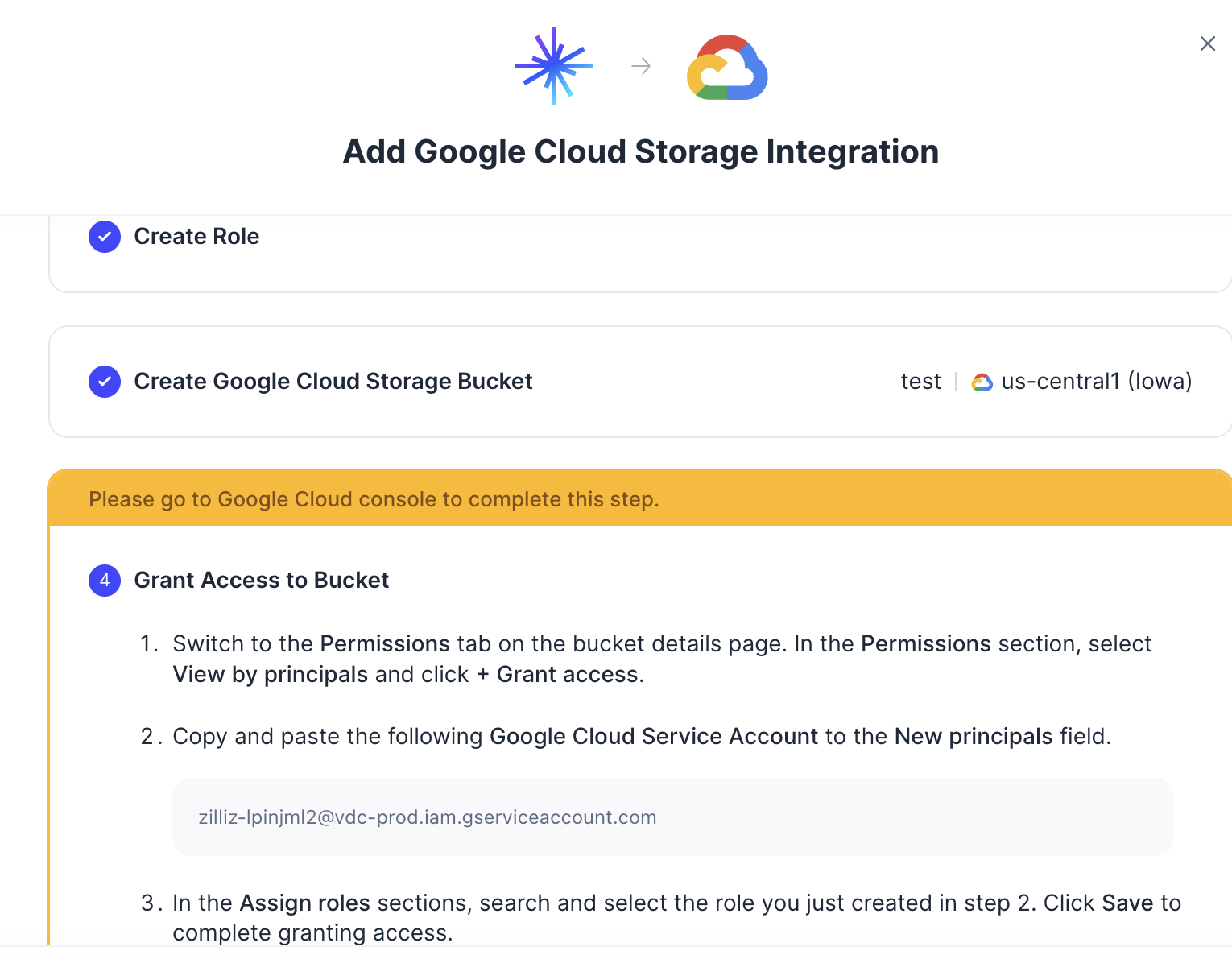
Step 4: Grant the BYOC storage GSA access
On the target bucket's details page, open the Permissions tab.
Select View by principals and click + Grant access.
In step 4 of the Zilliz Cloud integration wizard, copy the displayed Google Cloud Service Account email and paste it into New principals. This displayed account is the storage GSA.
Under Assign roles, select the custom role created in step 2.
Click Save.
Principal
<BYOC_STORAGE_SERVICE_ACCOUNT>@<BYOC_PROJECT_ID>.iam.gserviceaccount.com

Role
projects/<BUCKET_PROJECT_ID>/roles/<CUSTOM_ROLE_ID>

Scope
Target Cloud Storage bucket
Do not derive the email from a naming convention or substitute the GKE node service account, management service account, booter service account, or a Kubernetes service account. Copy the value displayed for the current integration.
Step 5: Validate and add the integration
Return to Zilliz Cloud and click Validate Integration.
If you granted the role recently, allow time for Google Cloud IAM propagation and retry validation.
When the status changes to Successful, click Add. The Google Cloud Storage integration is now available to supported workflows in the same Zilliz Cloud project and Region.
Security recommendations
-
Create a dedicated custom role for bucket integrations and keep it limited to the four listed permissions.
-
Grant the role on the target bucket rather than at project or organization scope.
-
Keep Public Access Prevention enabled unless another workload has an explicit requirement.
-
Do not create a service account key. The data plane uses its storage GSA through GKE Workload Identity.
-
If an organization policy, IAM deny policy, VPC Service Controls perimeter, or Cloud KMS policy applies, ensure it permits the required data path.
Troubleshooting
| Validation result | Likely cause | What to check |
|---|---|---|
bucket region not match | The bucket location differs from the selected BYOC data plane Region. | Use a regional bucket in the exact data plane Region. |
verify bucket access failed | The service account cannot read bucket metadata. | Confirm the custom role contains storage.buckets.get and is granted on the correct bucket. |
| Principal not found | The displayed storage GSA email was copied incorrectly or belongs to a different integration. | Copy the Google Cloud Service Account again from step 4 of the current Zilliz Cloud integration wizard and retry the IAM grant. |
| Integration validates but a later workflow cannot read or write | An object permission is missing or blocked by another policy. | Check storage.objects.get, storage.objects.list, and storage.objects.create, plus organization deny and KMS policies. |