INVERTED
When you need to perform frequent filter queries on your data, INVERTED indexes can dramatically improve query performance. Instead of scanning through all documents, Zilliz Cloud uses inverted indexes to quickly locate the exact records that match your filter conditions.
When to use INVERTED indexes
Use INVERTED indexes when you need to:
-
Filter by specific values: Find all records where a field equals a specific value (e.g.,
category == "electronics") -
Filter text content: Perform efficient searches on
VARCHARfields -
Query JSON field values: Filter on specific keys within JSON structures
Performance benefit: INVERTED indexes can reduce query time from seconds to milliseconds on large datasets by eliminating the need for full collection scans.
How INVERTED indexes work
An INVERTED index in Zilliz Cloud maps each unique field value (term) to the set of document IDs where that value occurs. This structure enables fast lookups for fields with repeated or categorical values.
As shown in the diagram, the process works in two steps:
-
Forward mapping (ID → Term): Each document ID points to the field value it contains.
-
Inverted mapping (Term → IDs): Zilliz Cloud collects unique terms and builds a reverse mapping from each term to all IDs that contain it.
For example, the value "electronics" maps to IDs 1 and 3, while "books" maps to IDs 2 and 5.
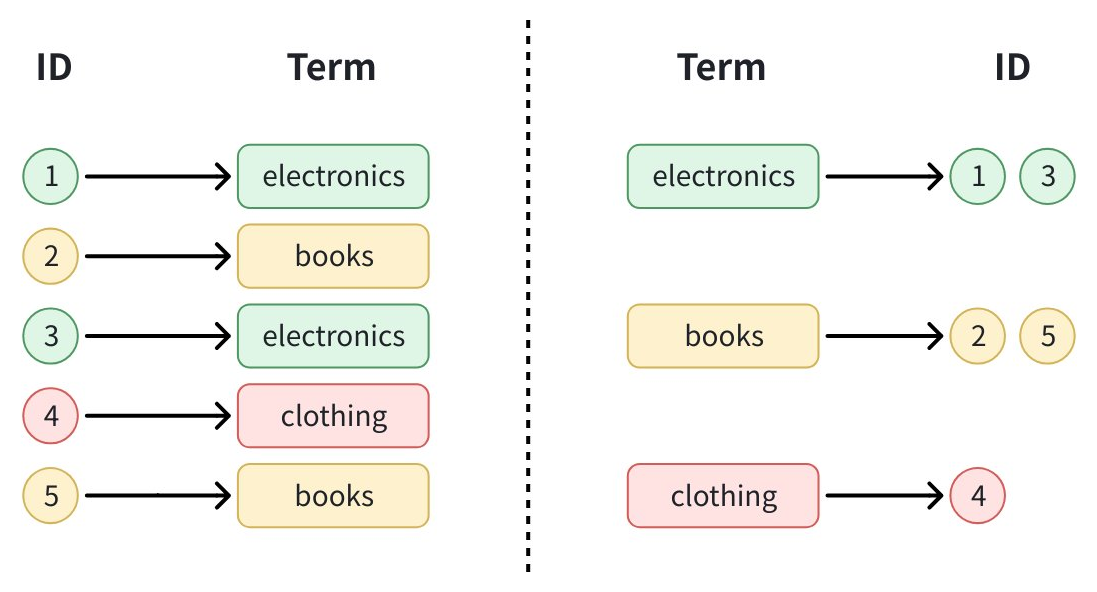
When you filter for a specific value (e.g., category == "electronics"), Zilliz Cloud simply looks up the term in the index and retrieves the matching IDs directly. This avoids scanning the full dataset and enables fast filtering, especially for categorical or repeated values.
INVERTED indexes support all scalar field types, such as BOOL, INT8, INT16, INT32, INT64, FLOAT, DOUBLE, VARCHAR, JSON, and ARRAY. However, the index parameters for indexing a JSON field are slightly different from regular scalar fields.
Create indexes on non-JSON fields
To create an index on a non-JSON field, follow these steps:
-
Prepare your index parameters:
- Python
- Java
- Go
- Rust
- C++
- NodeJS
- cURL
pythonfrom pymilvus import MilvusClientclient = MilvusClient(uri="YOUR_CLUSTER_ENDPOINT") # Replace with your server address# Create an empty index parameter objectindex_params = client.prepare_index_params()javaimport io.milvus.v2.client.ConnectConfig;import io.milvus.v2.client.MilvusClientV2;// Initialize Milvus clientMilvusClientV2 client = new MilvusClientV2(ConnectConfig.builder().uri("YOUR_CLUSTER_ENDPOINT") // Replace with your server address.build());goimport ("context""fmt""github.com/milvus-io/milvus/client/v3/milvusclient")ctx, cancel := context.WithCancel(context.Background())defer cancel()// Initialize Milvus clientclient, err := milvusclient.New(ctx, &milvusclient.ClientConfig{Address: "YOUR_CLUSTER_ENDPOINT", // Replace with your server address})if err != nil {fmt.Println(err.Error())// handle error}rustuse milvus::v2::prelude::*;// Initialize Milvus clientlet config = ConnectConfig::new().uri("YOUR_CLUSTER_ENDPOINT"); // Replace with your server addresslet client = ClientV2::new(&config).await?;c++#include "milvus/MilvusClientV2.h"// Initialize Milvus clientauto client = milvus::MilvusClientV2::Create();auto status = client->Connect(milvus::ConnectParam("YOUR_CLUSTER_ENDPOINT")); // Replace with your server addressif (!status.IsOk()) {std::cout << status.Message() << std::endl;}javascriptimport { MilvusClient } from "@zilliz/milvus2-sdk-node";// Initialize Milvus clientconst client = new MilvusClient({address: "YOUR_CLUSTER_ENDPOINT", // Replace with your server address});bashexport CLUSTER_ENDPOINT="YOUR_CLUSTER_ENDPOINT" # Replace with your server addressexport TOKEN="YOUR_CLUSTER_TOKEN" -
Add the
INVERTEDindex:- Python
- Java
- Go
- Rust
- C++
- NodeJS
- cURL
pythonindex_params.add_index(field_name="category", # Name of the field to indexindex_type="INVERTED", # Specify INVERTED index typeindex_name="category_index" # Give your index a name)javaimport io.milvus.v2.common.IndexParam;// Add the INVERTED indexIndexParam indexParam = IndexParam.builder().fieldName("category") // Name of the field to index.indexType(IndexParam.IndexType.INVERTED) // Specify INVERTED index type.indexName("category_index") // Give your index a name.build();goimport "github.com/milvus-io/milvus/client/v3/index"// Add the INVERTED indexidx := index.NewInvertedIndex() // Specify INVERTED index typeidx.WithIndexName("category_index") // Give your index a namerust// Add the INVERTED indexlet index_params = vec![IndexParam::new().field_name("category") // Name of the field to index.index_type(IndexType::Inverted) // Specify INVERTED index type.index_name("category_index"), // Give your index a name];c++// Add the INVERTED indexmilvus::IndexDesc index_desc("category", "category_index", milvus::IndexType::INVERTED); // field name, index name, index typejavascriptimport { IndexType } from "@zilliz/milvus2-sdk-node";// Add the INVERTED indexconst indexParams = {field_name: "category", // Name of the field to indexindex_type: IndexType.INVERTED, // Specify INVERTED index typeindex_name: "category_index", // Give your index a name};bash# Add the INVERTED indexexport indexParams='[{"fieldName": "category", # Name of the field to index"indexName": "category_index", # Give your index a name"params": {"index_type": "INVERTED" # Specify INVERTED index type}}]' -
Create the index:
- Python
- Java
- Go
- Rust
- C++
- NodeJS
- cURL
pythonclient.create_index(collection_name="my_collection", # Replace with your collection nameindex_params=index_params)javaimport io.milvus.v2.service.index.request.CreateIndexReq;import java.util.Collections;// Create the indexclient.createIndex(CreateIndexReq.builder().collectionName("my_collection") // Replace with your collection name.indexParams(Collections.singletonList(indexParam)).build());goimport "github.com/milvus-io/milvus/client/v3/milvusclient"// Create the index_, err = client.CreateIndex(ctx, milvusclient.NewCreateIndexOption("my_collection", "category", idx)) // Replace with your collection nameif err != nil {fmt.Println(err.Error())// handle error}rust// Create the indexclient.create_index(CreateIndexRequest::builder().collection_name("my_collection") // Replace with your collection name.index_params(index_params).build()?,).await?;c++// Create the indexstatus = client->CreateIndex(milvus::CreateIndexRequest().WithCollectionName("my_collection") // Replace with your collection name.WithIndexes({std::move(index_desc)}));if (!status.IsOk()) {std::cout << status.Message() << std::endl;}javascript// Create the indexawait client.createIndex({collection_name: "my_collection", // Replace with your collection namefield_name: indexParams.field_name,index_type: indexParams.index_type,index_name: indexParams.index_name,});bash# Create the indexcurl --request POST \--url "${CLUSTER_ENDPOINT}/v2/vectordb/indexes/create" \--header "Authorization: Bearer ${TOKEN}" \--header "Content-Type: application/json" \-d "{\"collectionName\": \"my_collection\", # Replace with your collection name\"indexParams\": $indexParams}"
Create indexes on JSON fields
You can also create INVERTED indexes on specific paths within JSON fields. This requires additional parameters to specify the JSON path and data type:
- Python
- Java
- Go
- Rust
- C++
- NodeJS
- cURL
# Build index params
index_params.add_index(
field_name="metadata", # JSON field name
index_type="INVERTED",
index_name="metadata_category_index",
params={
"json_path": "metadata[\"category\"]", # Path to the JSON key
"json_cast_type": "varchar" # Data type to cast to during indexing
}
)
# Create index
client.create_index(
    collection_name="my_collection", # Replace with your collection name
    index_params=index_params
)
import io.milvus.v2.common.IndexParam;
import io.milvus.v2.service.index.request.CreateIndexReq;
import java.util.Collections;
import java.util.HashMap;
import java.util.Map;

// Build index params
Map<String, Object> extraParams = new HashMap<>();
extraParams.put("json_path", "metadata[\"category\"]"); // Path to the JSON key
extraParams.put("json_cast_type", "varchar"); // Data type to cast to during indexing

IndexParam jsonIndexParam = IndexParam.builder()
        .fieldName("metadata") // JSON field name
        .indexType(IndexParam.IndexType.INVERTED)
        .indexName("metadata_category_index")
        .extraParams(extraParams)
        .build();

// Create index
client.createIndex(CreateIndexReq.builder()
        .collectionName("my_collection") // Replace with your collection name
        .indexParams(Collections.singletonList(jsonIndexParam))
        .build());
import (
    "github.com/milvus-io/milvus/client/v3/index"
    "github.com/milvus-io/milvus/client/v3/milvusclient"
)

// Build index params
jsonIdx := index.NewJSONPathIndex(index.Inverted, "varchar", "metadata[\"category\"]") // indexType, json_cast_type, json_path
jsonIdx.WithIndexName("metadata_category_index")

// Create index
_, err = client.CreateIndex(ctx, milvusclient.NewCreateIndexOption("my_collection", "metadata", jsonIdx)) // Replace with your collection name
if err != nil {
    fmt.Println(err.Error())
    // handle error
}
use std::collections::HashMap;

// Build index params
let json_index_params = vec![
    IndexParam::new()
        .field_name("metadata") // JSON field name
        .index_type(IndexType::Inverted)
        .index_name("metadata_category_index")
        .extra_params(HashMap::from([
            ("json_path".into(), "metadata[\"category\"]".into()), // Path to the JSON key
            ("json_cast_type".into(), "varchar".into()), // Data type to cast to during indexing
        ])),
];

// Create index
client
    .create_index(
        CreateIndexRequest::builder()
            .collection_name("my_collection") // Replace with your collection name
            .index_params(json_index_params)
            .build()?,
    )
    .await?;
// Build index params
milvus::IndexDesc json_index_desc("metadata", "metadata_category_index", milvus::IndexType::INVERTED); // JSON field name, index name, index type
json_index_desc.AddExtraParam("json_path", "metadata[\"category\"]"); // Path to the JSON key
json_index_desc.AddExtraParam("json_cast_type", "varchar"); // Data type to cast to during indexing

// Create index
status = client->CreateIndex(milvus::CreateIndexRequest()
                                 .WithCollectionName("my_collection") // Replace with your collection name
                                 .WithIndexes({std::move(json_index_desc)}));
if (!status.IsOk()) {
    std::cout << status.Message() << std::endl;
}
import { IndexType } from "@zilliz/milvus2-sdk-node";

// Build index params
await client.createIndex({
    collection_name: "my_collection", // Replace with your collection name
    field_name: "metadata", // JSON field name
    index_type: IndexType.INVERTED,
    index_name: "metadata_category_index",
    params: {
        json_path: "metadata[\"category\"]", // Path to the JSON key
        json_cast_type: "varchar", // Data type to cast to during indexing
    },
});
# Build index params
curl --request POST \
--url "${CLUSTER_ENDPOINT}/v2/vectordb/indexes/create" \
--header "Authorization: Bearer ${TOKEN}" \
--header "Content-Type: application/json" \
-d '{
    "collectionName": "my_collection", # Replace with your collection name
    "indexParams": [
        {
            "fieldName": "metadata", # JSON field name
            "indexName": "metadata_category_index",
            "params": {
                "index_type": "INVERTED",
                "json_path": "metadata[\"category\"]", # Path to the JSON key
                "json_cast_type": "varchar" # Data type to cast to during indexing
            }
        }
    ]
}'
For detailed information about JSON field indexing, including supported paths, data types, and limitations, refer to JSON Indexing.
Drop an index
Use the drop_index() method to remove an existing index from a collection.
In your cluster compatible with Milvus v2.6.x, you can drop a scalar index directly once it’s no longer needed—no need to release the collection first.
- Python
- Java
- Go
- Rust
- C++
- NodeJS
- cURL
client.drop_index(
    collection_name="my_collection",   # Name of the collection
    index_name="category_index" # Name of the index to drop
)
import io.milvus.v2.client.ConnectConfig;
import io.milvus.v2.client.MilvusClientV2;
import io.milvus.v2.service.index.request.DropIndexReq;

MilvusClientV2 client = new MilvusClientV2(ConnectConfig.builder()
        .uri("YOUR_CLUSTER_ENDPOINT")
        .token("YOUR_CLUSTER_TOKEN")
        .build());

client.dropIndex(DropIndexReq.builder()
        .collectionName("my_collection")
        .indexName("category_index")
        .build());
import "github.com/milvus-io/milvus/client/v3/milvusclient"

err := client.DropIndex(ctx, milvusclient.NewDropIndexOption("my_collection", "category_index"))
if err != nil {
    log.Fatal(err)
}
use milvus::v2::prelude::*;

let client = ClientV2::new(&ConnectConfig::new().uri("YOUR_CLUSTER_ENDPOINT").token("YOUR_CLUSTER_TOKEN")).await?;

client
    .drop_index(
        DropIndexRequest::builder()
            .collection_name("my_collection")
            .index_name("category_index")
            .build()?,
    )
    .await?;
#include <iostream>
#include "milvus/MilvusClientV2.h"

auto client = milvus::MilvusClientV2::Create();

milvus::ConnectParam connect_param{"YOUR_CLUSTER_ENDPOINT", "YOUR_CLUSTER_TOKEN"};
auto status = client->Connect(connect_param);
if (!status.IsOk()) {
    std::cout << status.Message() << std::endl;
}

status = client->DropIndex(milvus::DropIndexRequest()
                           .WithCollectionName("my_collection")
                           .WithIndexName("category_index"));
if (!status.IsOk()) {
    std::cout << status.Message() << std::endl;
}
import { MilvusClient } from "@zilliz/milvus2-sdk-node";

const client = new MilvusClient({
    address: "YOUR_CLUSTER_ENDPOINT",
    token: "YOUR_CLUSTER_TOKEN"
});

await client.dropIndex({
    collection_name: "my_collection",
    index_name: "category_index"
});
export CLUSTER_ENDPOINT="YOUR_CLUSTER_ENDPOINT"
export TOKEN="YOUR_CLUSTER_TOKEN"

curl --request POST \
--url "${CLUSTER_ENDPOINT}/v2/vectordb/indexes/drop" \
--header "Authorization: Bearer ${TOKEN}" \
--header "Content-Type: application/json" \
-d '{
    "collectionName": "my_collection",
    "indexName": "category_index"
}'
Best practices
-
Create indexes after loading data: Build indexes on collections that already contain data for better performance
-
Use descriptive index names: Choose names that clearly indicate the field and purpose
-
Monitor index performance: Check query performance before and after creating indexes
-
Consider your query patterns: Create indexes on fields you frequently filter by
Next steps
-
Learn about AUTOINDEX.
-
See JSON Indexing for advanced JSON indexing scenarios