Manage On-Demand Cluster
This feature is available only with the Enterprise plan or higher.
This guide describes how to view, inspect, and drop on-demand clusters in Zilliz Cloud.
On-demand clusters provide compute for on-demand search workloads. They spin up when requests arrive and scale back to zero when idle, based on the auto-suspend timeout configured when the cluster is created.
To manage an on-demand cluster, you need to be a Project Admin in the target project. For details about the roles and permissions, see Manage Platform Users.
View all on-demand clusters
Use this operation to list the on-demand clusters in a project and region.
Via RESTful API
curl --request GET \
--url "${BASE_URL}/v2/clusters/onDemandClusters?projectId=proj-xxxxxxxxxxxxxxx®ionId=aws-us-west-2" \
--header "Authorization: Bearer ${TOKEN}" \
--header "Accept: application/json"
Example response:
{
    "code": 0,
    "data": {
        "count": 2,
        "onDemandClusters": [
            {
                "projectId": "proj-xxxxxxxxxxxxxxx",
                "clusterId": "inxx-xxxxxxxxxxxxxxx",
                "clusterName": "Cluster-01",
                "regionId": "aws-us-west-2",
                "cuSize": 8,
                "status": "RUNNING",
                "endpoint": "https://proj-xxxxxxxxxxxxxxx.aws-us-west-2.api.zillizcloud.com",
                "privateLink": "",
                "createdBy": "john.doe@zilliz.com",
                "createTime": "2024-04-21T10:15:15Z",
                "autoSuspend": 60,
                "description": "An on-demand cluster for vector search workloads."
            },
            {
                "projectId": "proj-xxxxxxxxxxxxxxx",
                "clusterId": "inxx-xxxxxxxxxxxxxxx",
                "clusterName": "Cluster-02",
                "regionId": "aws-us-west-2",
                "status": "RUNNING",
                "cuSize": 8,
                "endpoint": "https://proj-xxxxxxxxxxxxxxx.aws-us-west-2.api.zillizcloud.com",
                "privateLink": "",
                "createdBy": "john.doe@zilliz.com",
                "createTime": "2024-04-21T10:15:16Z",
                "autoSuspend": 60,
                "description": "An on-demand cluster for vector search workloads."
            }
        ]
    }
}
Via web console
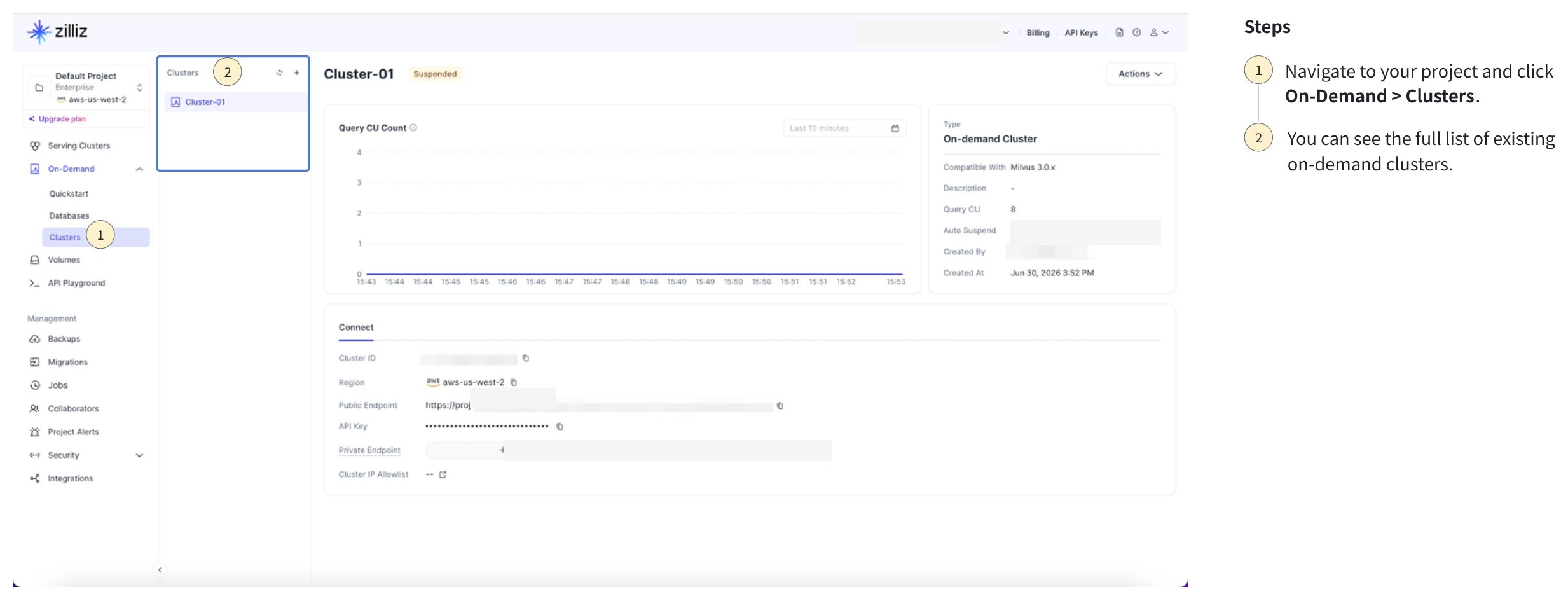
In the Zilliz Cloud console, open the target project.
Go to On-Demand Compute > Clusters.
Review the on-demand cluster list, including cluster name, cluster ID, status, CU size, endpoint, creator, and creation time.
Check the details of an on-demand cluster
Use this operation to inspect one on-demand cluster by cluster ID.
Via RESTful API
curl --request GET \
--url "https://${BASE_URL}/v2/on-demand-compute?projectId=proj-09ee1f4b1151d5dd1edbc5®ionId=aws-us-west-2" \
--header "Authorization: Bearer ${API_KEY}" \
--header "Accept: application/json"
Example response:
{
  "code": 0,
  "data": {
    "projectId": "proj-09ee1f4b1151d5dd1edbc5",
    "regionId": "aws-us-west-2",
    "status": "enabled"
  }
}
Via web console
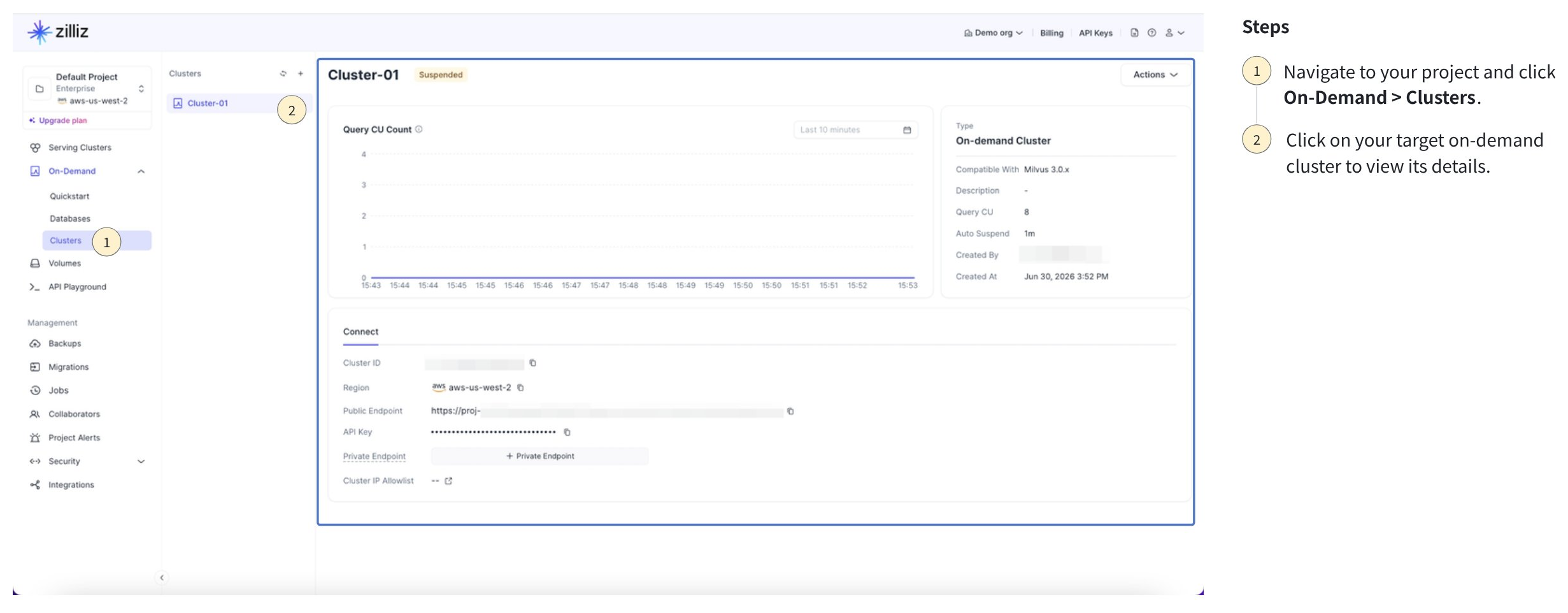
In the Zilliz Cloud console, open the target project.
Go to On-Demand Compute > Clusters.
Click the target cluster to view its details.
Understand cluster status
An on-demand cluster automatically changes status based on request activity.
| Status | Description |
|---|---|
RUNNING | The cluster has active compute resources and can serve search or query requests. |
SUSPENDED | The cluster has scaled to zero after the configured idle timeout. It stops incurring compute costs while suspended. |
DELETING | The cluster is being dropped and cannot be used. |
When a request arrives for a suspended on-demand cluster, Zilliz Cloud spins up compute resources for the workload. When no requests are received within the configured autoSuspend period, the cluster scales back to zero.
Rename an on-demand cluster
-
Via RESTful API
The following example modifies the cluster name. For details, see Update On-Demand Cluster.
bashcurl --request PATCH \--url "${BASE_URL}/v2/clusters/onDemandClusters/${CLUSTER_ID}" \--header "Authorization: Bearer ${TOKEN}" \--header "OrgId: org-xxxxxxxxxxxxxxxxxxx" \--header "Content-Type: application/json" \-d '{"clusterName": "New Cluster Name"}'The following is an example output.
json{"code": 0,"data": {"clusterId": "inxx-xxxxxxxxxxxxxxx","prompt": "successfully submitted. Cluster is being upgraded, which is expected to take several minutes. You can access data about the creation progress and status of your cluster by DescribeCluster API. Once the cluster status is RUNNING, you may access your vector database using the SDK."}} -
Via Web console
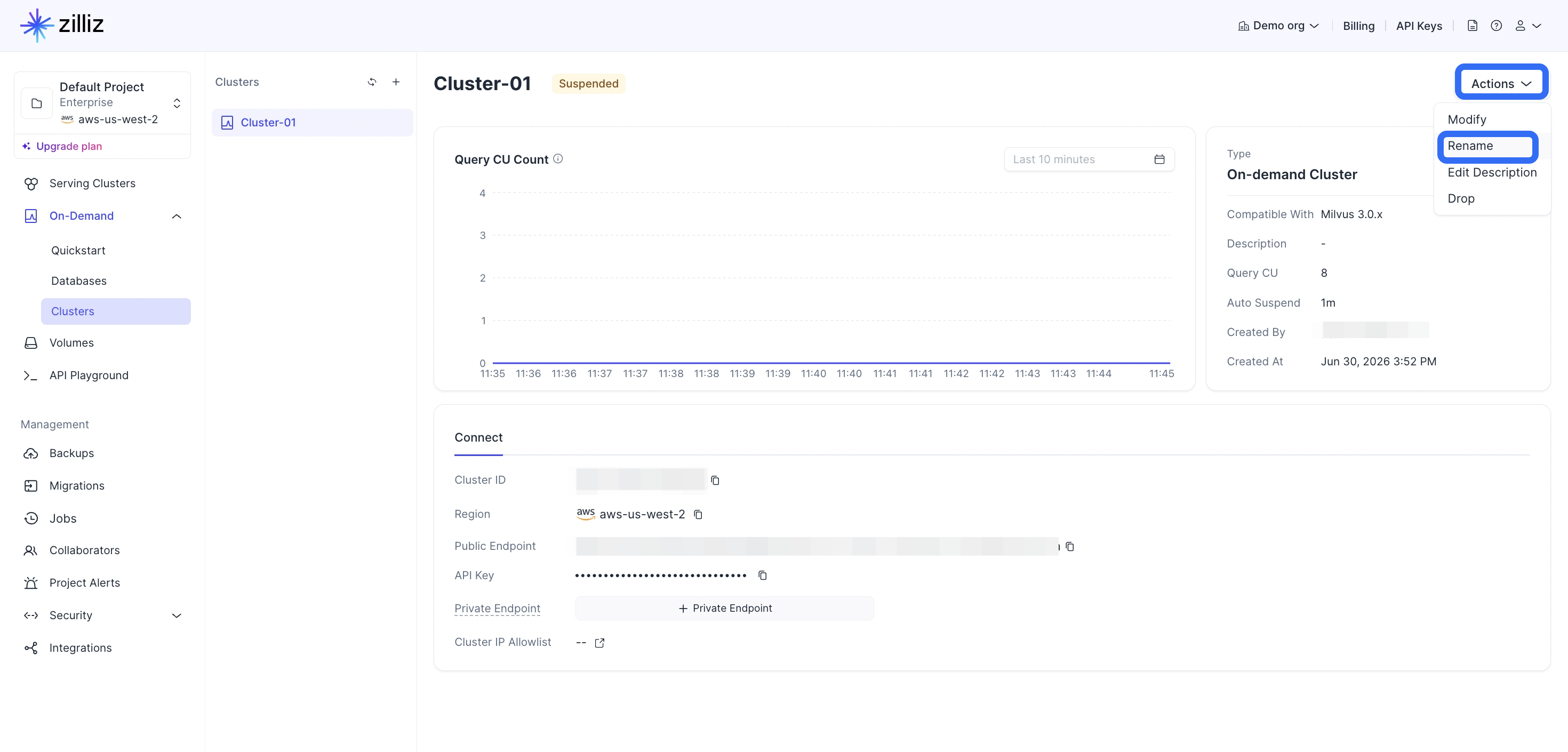
1Navigate to your target on-demand cluster.
2Click on Actions and then select Rename.
 3
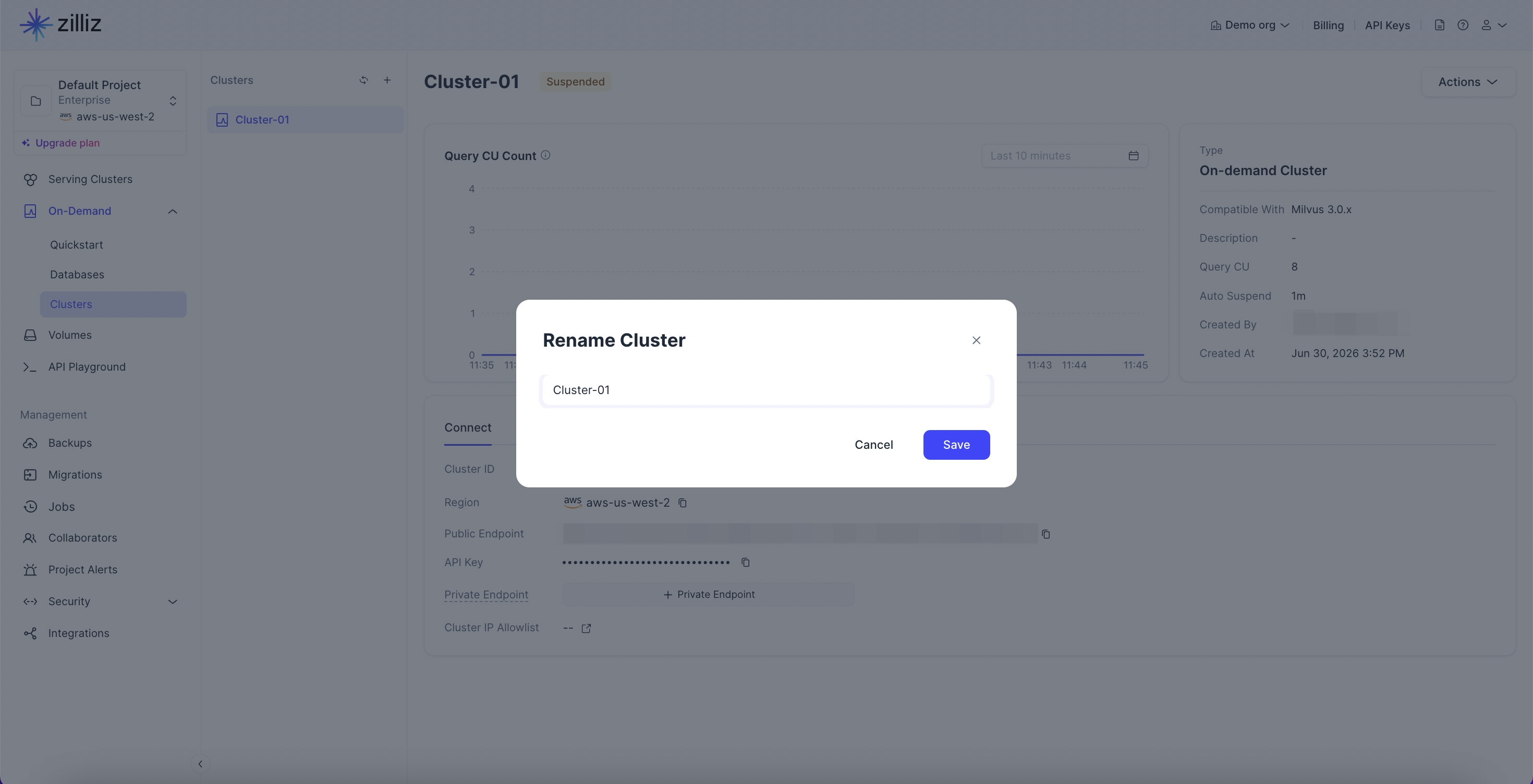
3Enter the new name of the cluster and click on Save.
Edit the description of an on-demand cluster
-
Via RESTful API
The following example modifies the cluster description. For details, see Update On-Demand Cluster.
bashcurl --request PATCH \--url "${BASE_URL}/v2/clusters/onDemandClusters/${CLUSTER_ID}" \--header "Authorization: Bearer ${TOKEN}" \--header "OrgId: org-xxxxxxxxxxxxxxxxxxx" \--header "Content-Type: application/json" \-d '{"description": ""}'The following is an example output.
json{"code": 0,"data": {"clusterId": "inxx-xxxxxxxxxxxxxxx","prompt": "successfully submitted. Cluster is being upgraded, which is expected to take several minutes. You can access data about the creation progress and status of your cluster by DescribeCluster API. Once the cluster status is RUNNING, you may access your vector database using the SDK."}} -
Via Web console
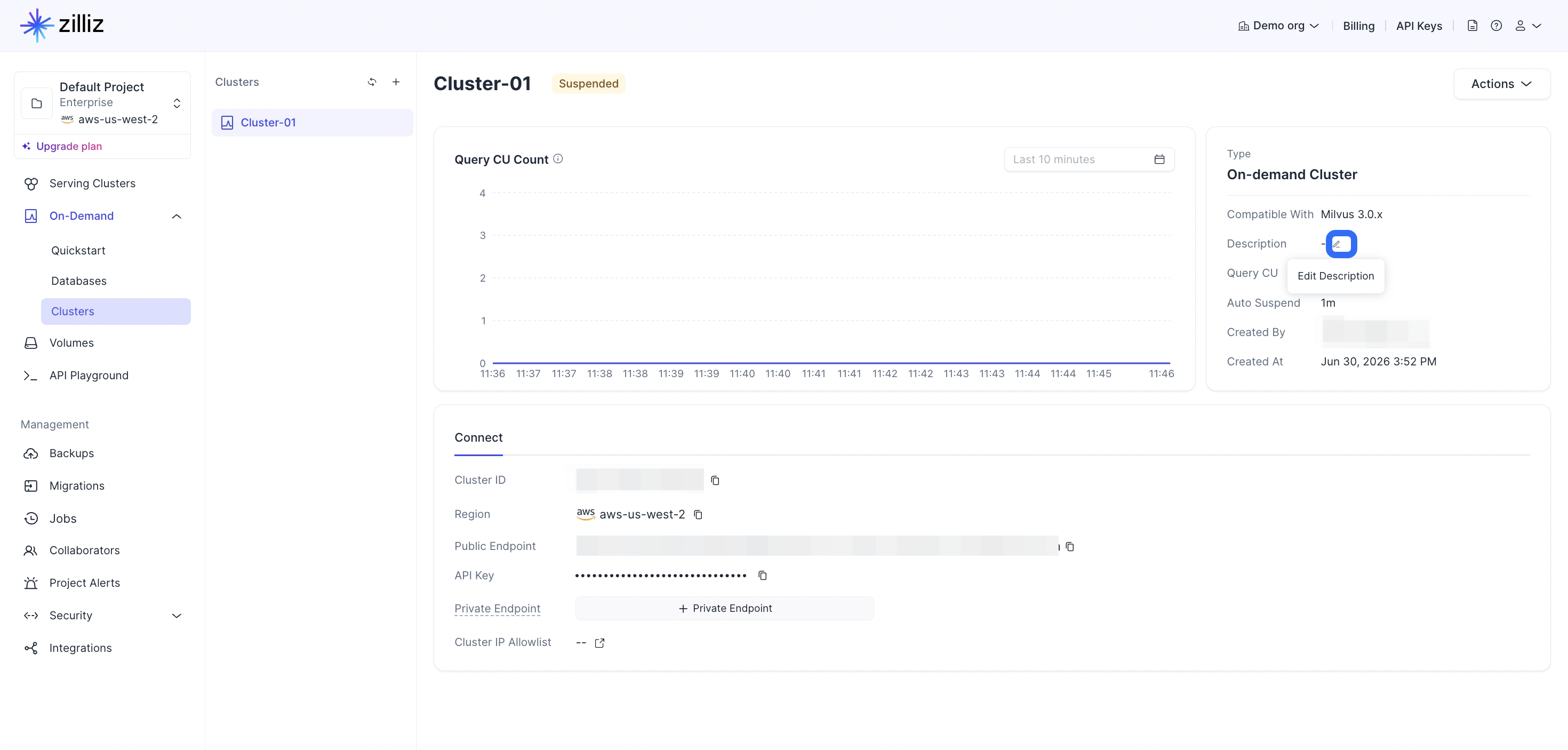
1Navigate to your target on-demand cluster.
2Hover on the description and click on the Edit description icon.
 3
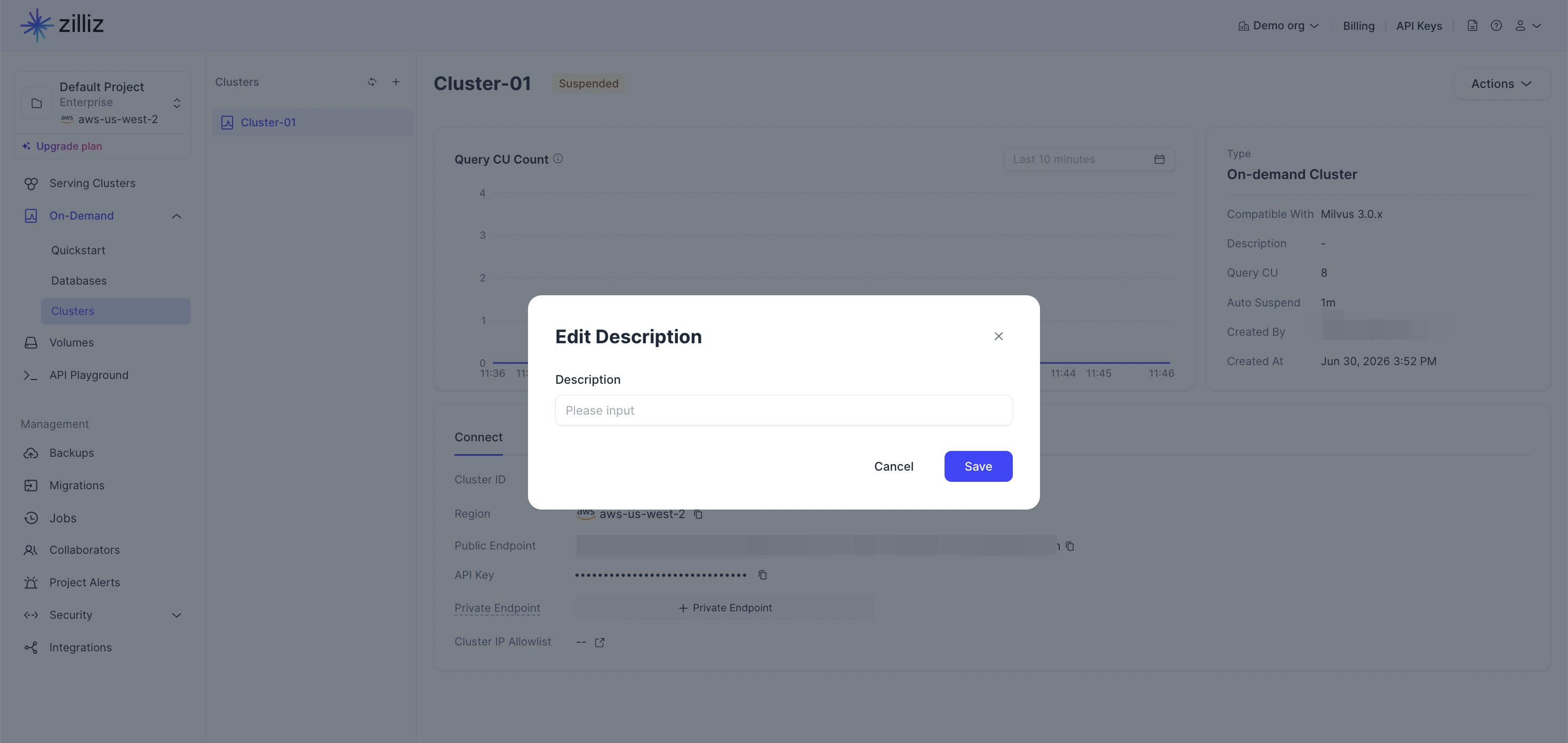
3Enter the new description of the cluster and click on Save.
Modify an on-demand cluster
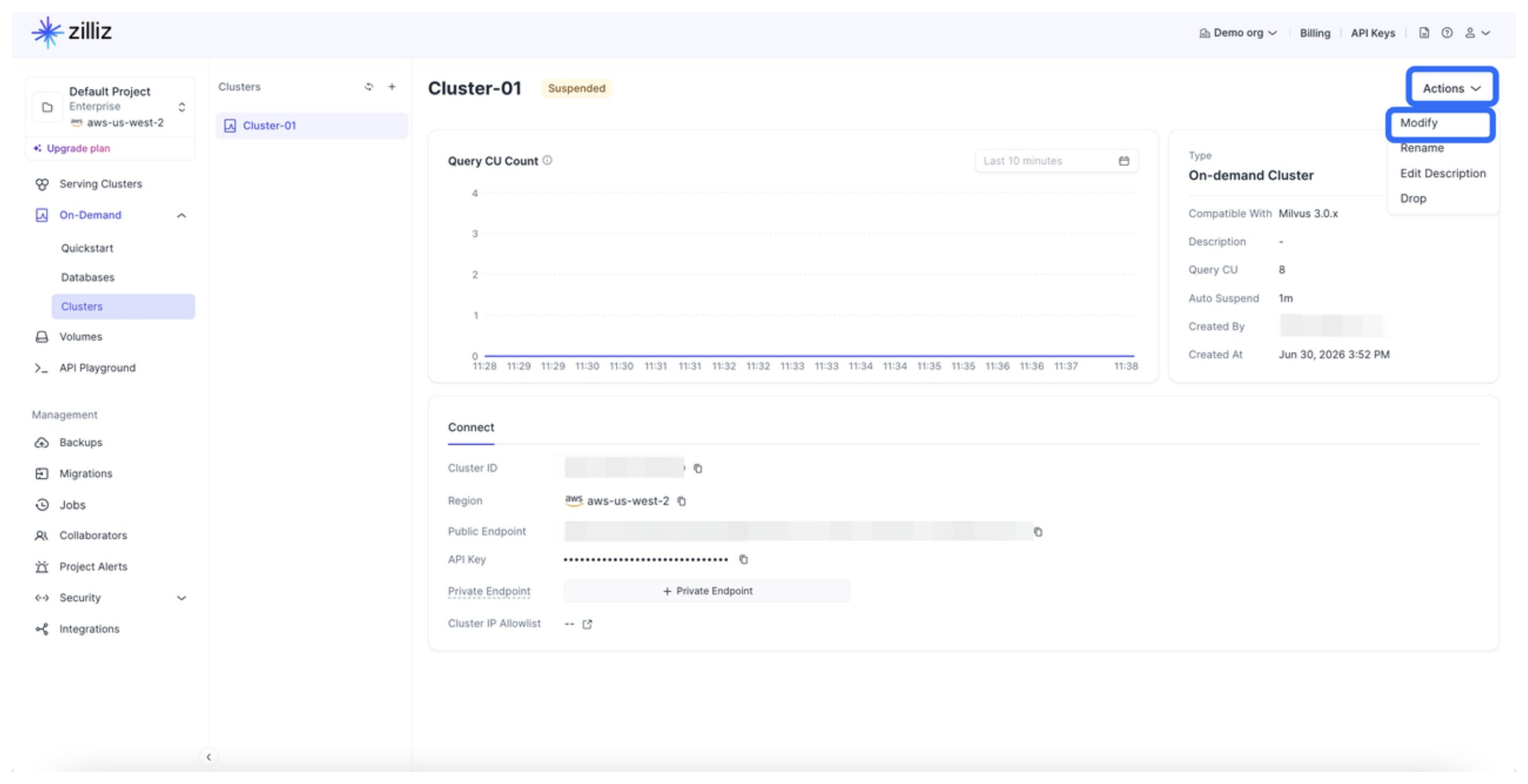
You can modify the settings, such as the name, description, and auto-suspend settings of an on-demand cluster.
-
Via RESTful API
You can modify the name, description, auto-suspend time, and the number of query CUs of an existing on-demand cluster. For details, see Update On-Demand Cluster.
bashexport TOKEN="YOUR_API_KEY"export CLUSTER_ID="inxx-xxxxxxxxxxxxxxx"curl --request PATCH \--url "https://${BASE_URL}/v2/clusters/onDemandClusters/in07-7d6ac8697204a6a" \--header "Authorization: Bearer ${API_KEY}" \--header "Accept: application/json" \--header "Content-Type: application/json" \--data-raw '{"autoSuspend": "5m","clusterName": "my-on-demand-updated","description": "Updated on-demand cluster description","cuSize": 32}'The following is an example output.
bash{"code": 0,"data": {"clusterId": "inxx-xxxxxxxxxxxxxxx","prompt": "Successfully submitted."}} -
Via web console
You can modify the cluster name, description, auto-suspend time, and number of query CUs of an existing on-demand cluster via the web console.
Configure a keep-warm schedule
A keep-warm schedule keeps an on-demand cluster running during recurring weekly windows. When a keep-warm window starts, Zilliz Cloud resumes the on-demand cluster if it is suspended. During the window, Auto Suspend is suppressed. When the window ends, the on-demand cluster follows its existing auto-suspension policy again.
Keep-warm schedule does not turn off Auto Suspend permanently and does not actively suspend an on-demand cluster when a keep-warm window ends.
To suspend an on-demand cluster during a keep-warm window, disable or delete the keep-warm schedule first.
Each on-demand cluster can have one keep-warm schedule. A schedule can contain 1 to 10 weekly rules. Each rule uses the organization's system time zone and includes the days of the week, a start time, and an end time.
Via RESTful API
Use the existing on-demand cluster APIs to configure keep-warm schedules. The keep-warm configuration is carried by the keepWarm object in the create, describe, and update APIs.
Create a keep-warm schedule
To configure a keep-warm schedule when creating an on-demand cluster, include keepWarm in the create request.
The following example creates an on-demand cluster with a keep-warm schedule for weekdays from 09:00 to 18:00.
curl --request POST \
  --url "${BASE_URL}/v2/clusters/createOnDemandCluster" \
  --header "Authorization: Bearer ${TOKEN}" \
  --header "OrgId: org-xxxxxxxxxxxxxxxxxxx" \
  --header "Content-Type: application/json" \
  -d '{
    "projectId": "proj-xxxxxxxxxxxxxxxxxxx",
    "regionId": "aws-us-west-2",
    "cuSize": 8,
    "clusterName": "my-on-demand-cluster",
    "autoSuspend": "5m",
    "keepWarm": {
      "enabled": true,
      "schedules": [
        {
          "daysOfWeek": [1, 2, 3, 4, 5],
          "startTime": "09:00",
          "endTime": "18:00"
        }
      ]
    }
  }'
Example response:
{
  "code": 0,
  "data": {
    "clusterId": "inxx-xxxxxxxxxxxxxxx",
    "prompt": "successfully submitted. Cluster is being created."
  }
}
View a keep-warm schedule
The following example checks the keep-warm schedule of an on-demand cluster.
curl --request GET \
  --url "${BASE_URL}/v2/clusters/onDemandClusters/${CLUSTER_ID}" \
  --header "Authorization: Bearer ${TOKEN}" \
  --header "OrgId: org-xxxxxxxxxxxxxxxxxxx" \
  --header "Accept: application/json"
Example response:
{
  "code": 0,
  "data": {
    "clusterId": "inxx-xxxxxxxxxxxxxxx",
    "clusterName": "my-on-demand-cluster",
    "status": "RUNNING",
    "autoSuspend": 300,
    "keepWarmActive": true,
    "keepWarm": {
      "enabled": true,
      "systemTimezone": "Asia/Shanghai",
      "schedules": [
        {
          "daysOfWeek": [1, 2, 3, 4, 5],
          "startTime": "09:00",
          "endTime": "18:00"
        }
      ],
      "nextTransitionAt": "2026-09-15T10:00:00Z",
      "nextTransitionType": "END"
    }
  }
}
If no schedule is configured, keepWarm is null and keepWarmActive is false.
Update a keep-warm schedule
To update a keep-warm schedule, send a PATCH request with the complete keepWarm object. Zilliz Cloud replaces the existing schedule with the submitted schedules.
The following example updates the keep-warm schedule of an existing on-demand cluster.
curl --request PATCH \
  --url "${BASE_URL}/v2/clusters/onDemandClusters/${CLUSTER_ID}" \
  --header "Authorization: Bearer ${TOKEN}" \
  --header "OrgId: org-xxxxxxxxxxxxxxxxxxx" \
  --header "Content-Type: application/json" \
  -d '{
    "keepWarm": {
      "enabled": true,
      "schedules": [
        {
          "daysOfWeek": [1, 2, 3, 4, 5],
          "startTime": "09:00",
          "endTime": "18:00"
        }
      ]
    }
  }'
Example response:
{
  "code": 0,
  "data": {
    "clusterId": "inxx-xxxxxxxxxxxxxxx"
  }
}
Disable a keep-warm schedule
To disable a keep-warm schedule, send a PATCH request with the complete keepWarm object and set enabled to false.
Disabling a schedule keeps all configured rules. If the on-demand cluster is in a keep-warm window, Zilliz Cloud exits keep-warm mode immediately. The schedule does not suspend the on-demand cluster.
The following example disables an existing keep-warm schedule.
curl --request PATCH \
  --url "${BASE_URL}/v2/clusters/onDemandClusters/${CLUSTER_ID}" \
  --header "Authorization: Bearer ${TOKEN}" \
  --header "OrgId: org-xxxxxxxxxxxxxxxxxxx" \
  --header "Content-Type: application/json" \
  -d '{
    "keepWarm": {
      "enabled": false,
      "schedules": [
        {
          "daysOfWeek": [1, 2, 3, 4, 5],
          "startTime": "09:00",
          "endTime": "18:00"
        }
      ]
    }
  }'
Example response:
{
  "code": 0,
  "data": {
    "clusterId": "inxx-xxxxxxxxxxxxxxx"
  }
}
Delete a keep-warm schedule
Deleting a keep-warm schedule removes the schedule and all rules. It does not delete the on-demand cluster, data, events, or audit records.
To delete a keep-warm schedule, send a PATCH request with an empty schedules list.
curl --request PATCH \
  --url "${BASE_URL}/v2/clusters/onDemandClusters/${CLUSTER_ID}" \
  --header "Authorization: Bearer ${TOKEN}" \
  --header "OrgId: org-xxxxxxxxxxxxxxxxxxx" \
  --header "Content-Type: application/json" \
  -d '{
    "keepWarm": {
      "enabled": false,
      "schedules": []
    }
  }'
Example response:
{
  "code": 0,
  "data": {
    "clusterId": "inxx-xxxxxxxxxxxxxxx"
  }
}
Via web console

Navigate to your target on-demand cluster.
Open the Actions menu and click Manage Keep-warm.
Turn on Enable Keep-warm Schedule.
In Schedule Rules, add one or more weekly rules.
For each rule, configure the repeat days, start time, and end time.
Review the next transition time.
Click Save.
The cluster details page shows the keep-warm schedule status. If a schedule is configured, it also shows the next transition time.
If the on-demand cluster is currently in a keep-warm window, the page shows a secondary Keep-warm tag next to the primary cluster status.

Disabling a schedule keeps all configured rules. If the on-demand cluster is in a keep-warm window, Zilliz Cloud exits keep-warm mode immediately. The schedule does not suspend the on-demand cluster. To disable a keep-warm schedule, turn off Enable Keep-warm Schedule and click Save as shown below.

Drop an on-demand cluster
Once you drop an on-demand cluster, it is removed immediately and cannot be recovered. This action cannot be undone.
Via RESTful API
curl --request DELETE \
     --url "${BASE_URL}/v2/clusters/onDemandClusters/inxx-xxxxxxxxxxxxxxx" \
     --header "Authorization: Bearer ${TOKEN}" \
     --header "Accept: application/json"
Example response:
{
  "code": 0,
  "data": {
    "clusterId": "inxx-xxxxxxxxxxxxxxx",
    "status": "DELETING"
  }
}
Via web console
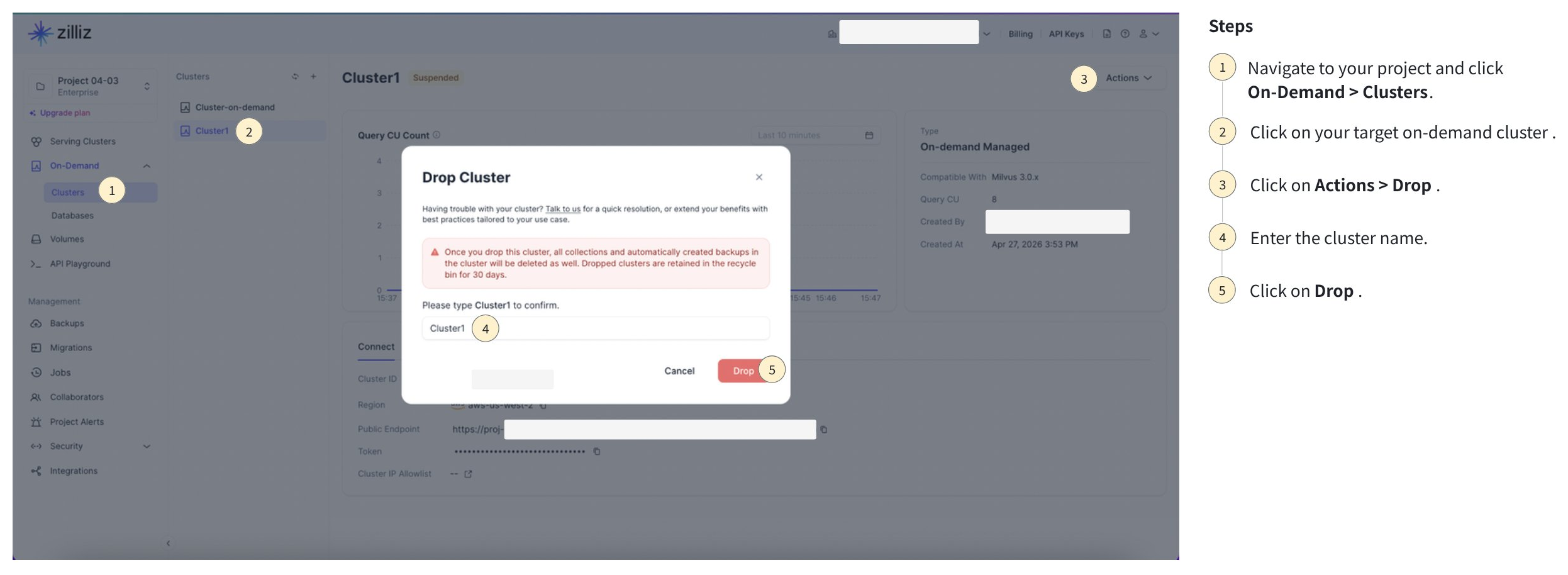
In the Zilliz Cloud console, open the target project.
Go to On-Demand Compute > Clusters.
Select the target on-demand cluster.
Drop the cluster and confirm the operation.
Related topics
-
To create an on-demand cluster, see Create On-Demand Cluster.
-
To connect through a project endpoint, see Connect for On-Demand Search.