Subscribe to a Private Offer on AWS Marketplace
A private offer on AWS Marketplace is a custom purchasing option created for your organization by Zilliz. Unlike a public offer, which uses the standard pricing and terms shown on the AWS Marketplace product page, a private offer can include negotiated pricing, custom contract terms, a specific contract duration, and a defined payment schedule.
Use a private offer when your organization needs custom commercial terms, such as discounted pricing, committed spend, enterprise procurement terms, or a contract that is tied to a specific AWS account. Private offers are only visible to the AWS account IDs that Zilliz includes in the offer.
If you need a private offer for Zilliz Cloud, contact your Zilliz account executive. Provide the AWS account ID that should receive the offer, your expected contract term, usage requirements, and any procurement or billing requirements your organization needs to include.
Before you start
Before you subscribe to a private offer on AWS Marketplace, make sure:
-
You have a Zilliz Cloud account and organization.
-
You have an AWS account ID that should receive and accept the private offer.
-
You have the permission to subscribe to AWS Marketplace products, such as the
AWSMarketplaceManageSubscriptionsmanaged policy. -
You are an Organization Owner or Organization Billing Admin on Zilliz Cloud. These permissions are required to link a Marketplace subscription to a Zilliz Cloud organization.
Subscribe to a private offer
The following is an overview of the subscription process.
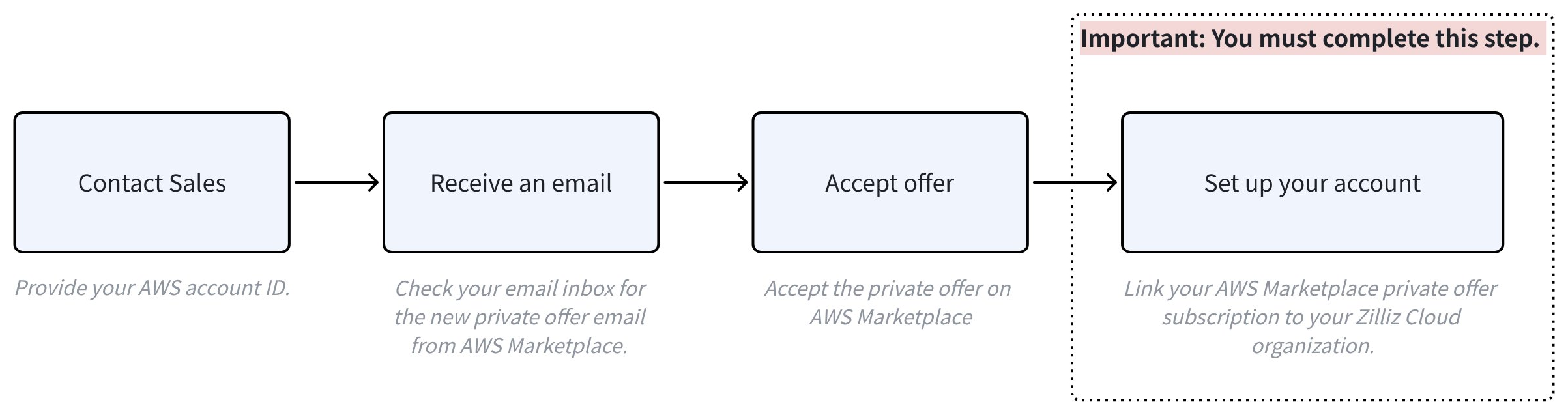
You can follow the detailed step-by-step guide below to subscribe to a Private Offer on AWS Marketplace.
Contact your Zilliz account executive for the private offer.
While contacting your Zilliz account executive, you need to provide your AWS account ID to receive the private offer.
Check your email inbox.
-
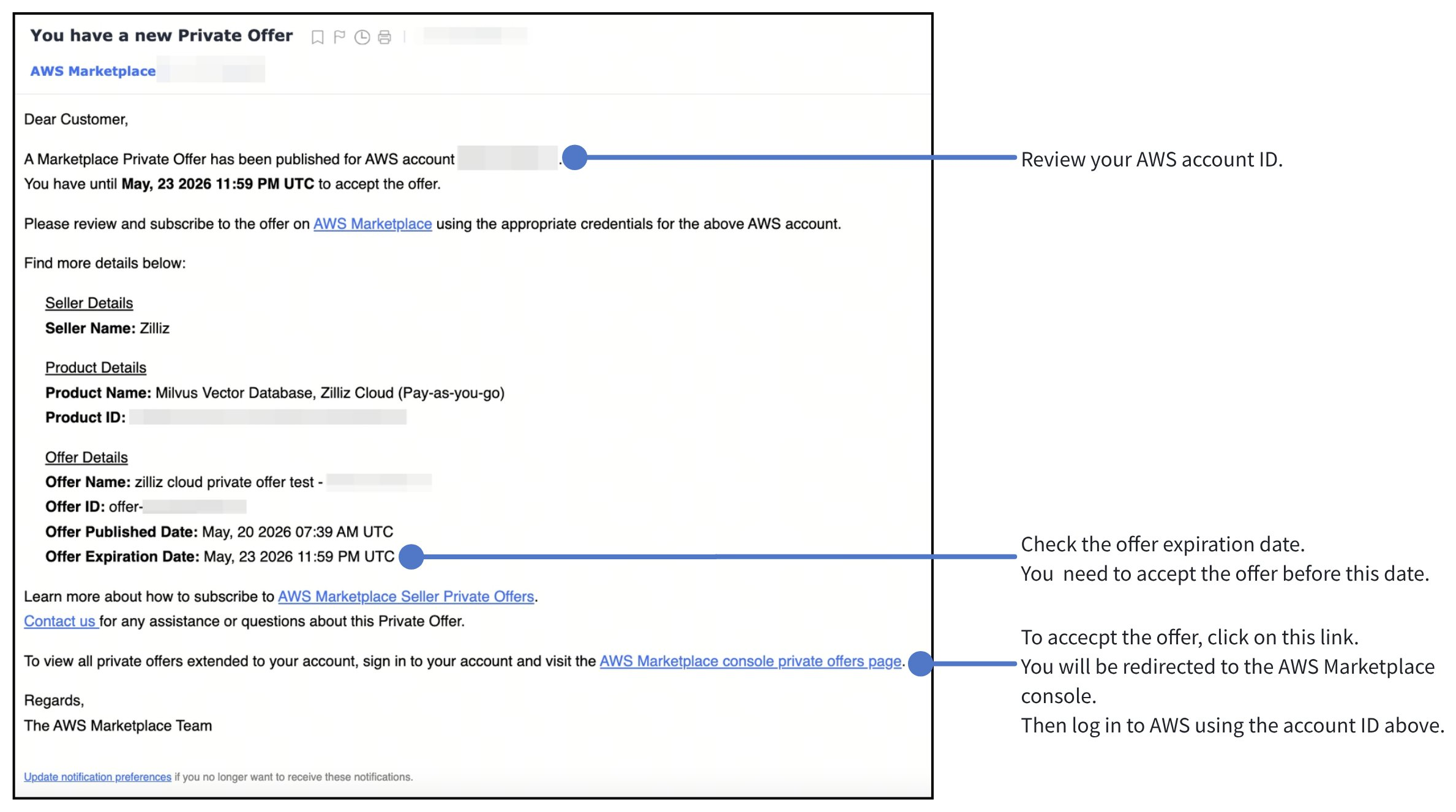
Look for an email from AWS Marketplace with the subject You have a new Private Offer. The email includes the AWS account ID that can access the offer.
-
Click the AWS Marketplace console private offers page link in the email. When prompted, sign in to AWS with the same account ID shown in the email. Otherwise, you may not be able to view the private offer.
 Note
NoteYou must accept the offer before its expiration date. If the offer has expired, contact your account executive.
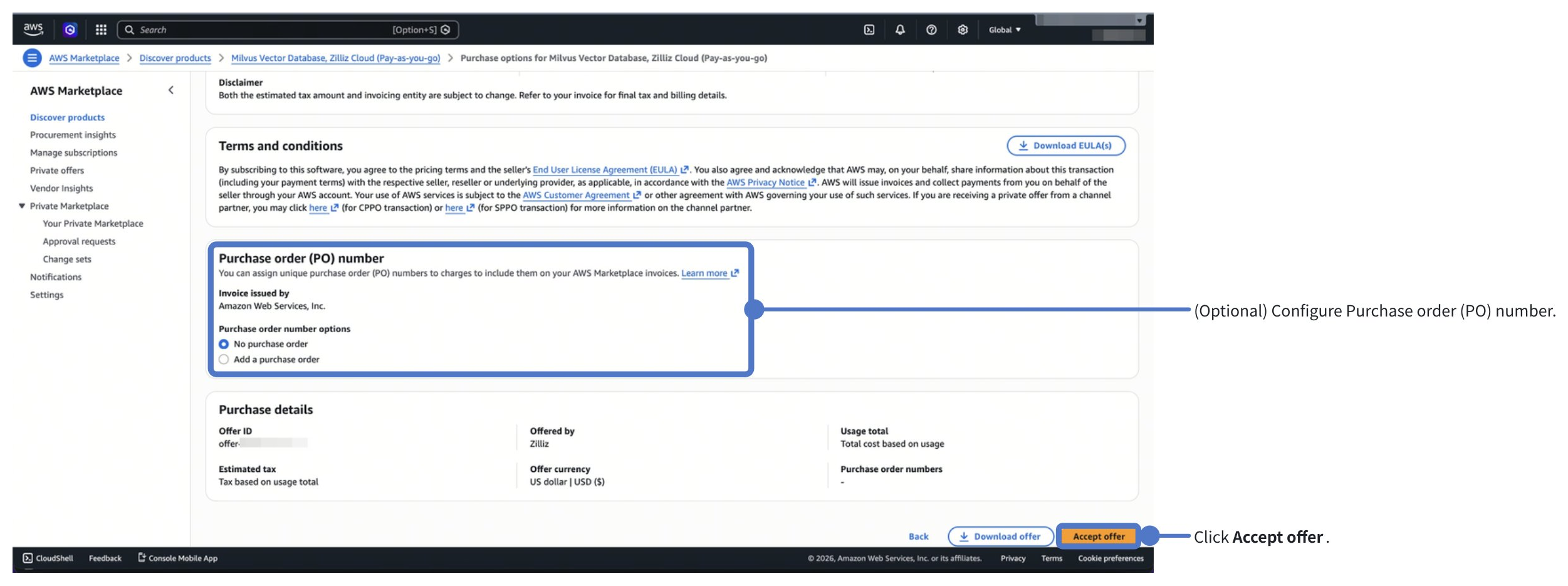
Review the offer details and accept the offer.
To include a purchase order (PO) number on your invoice, select Add a purchase order and enter the required information. If you do not need a purchase order, select No purchase order.
Click Accept offer.
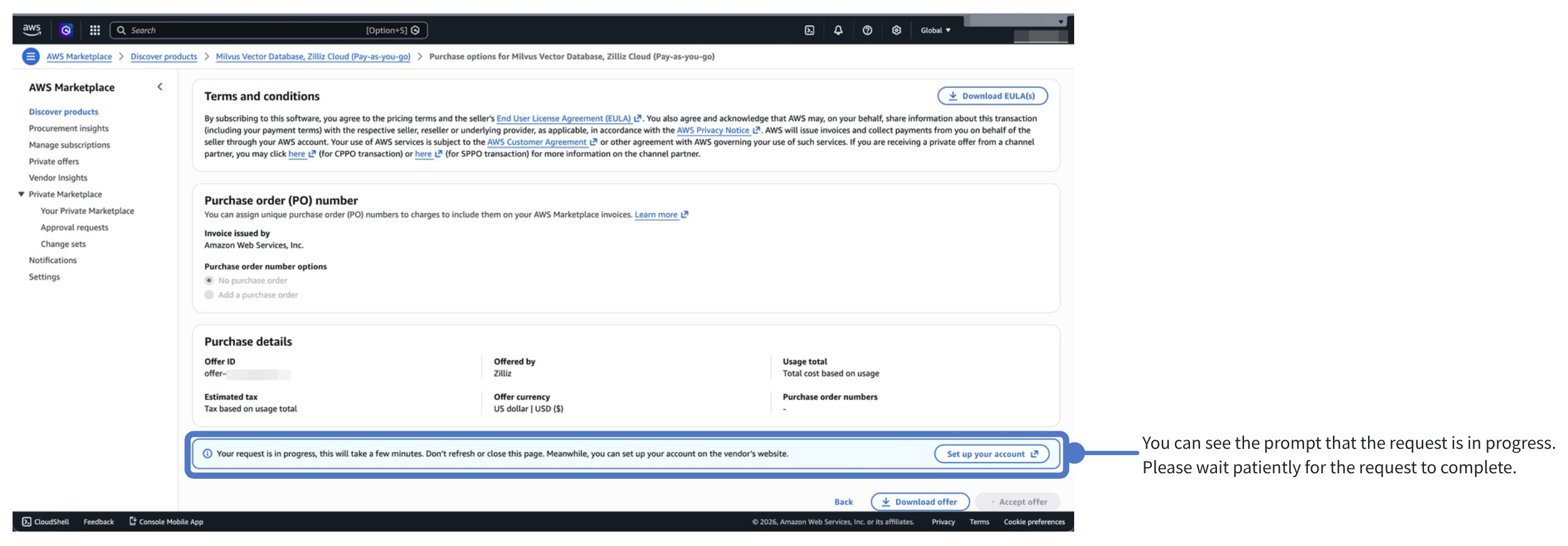
Wait for the request to complete.
AWS Marketplace displays a message "Your request is in progress, this will take a few minutes. Don't refresh or close this page. Meanwhile, you can set up your account on the vendor's website."
Set up your account.
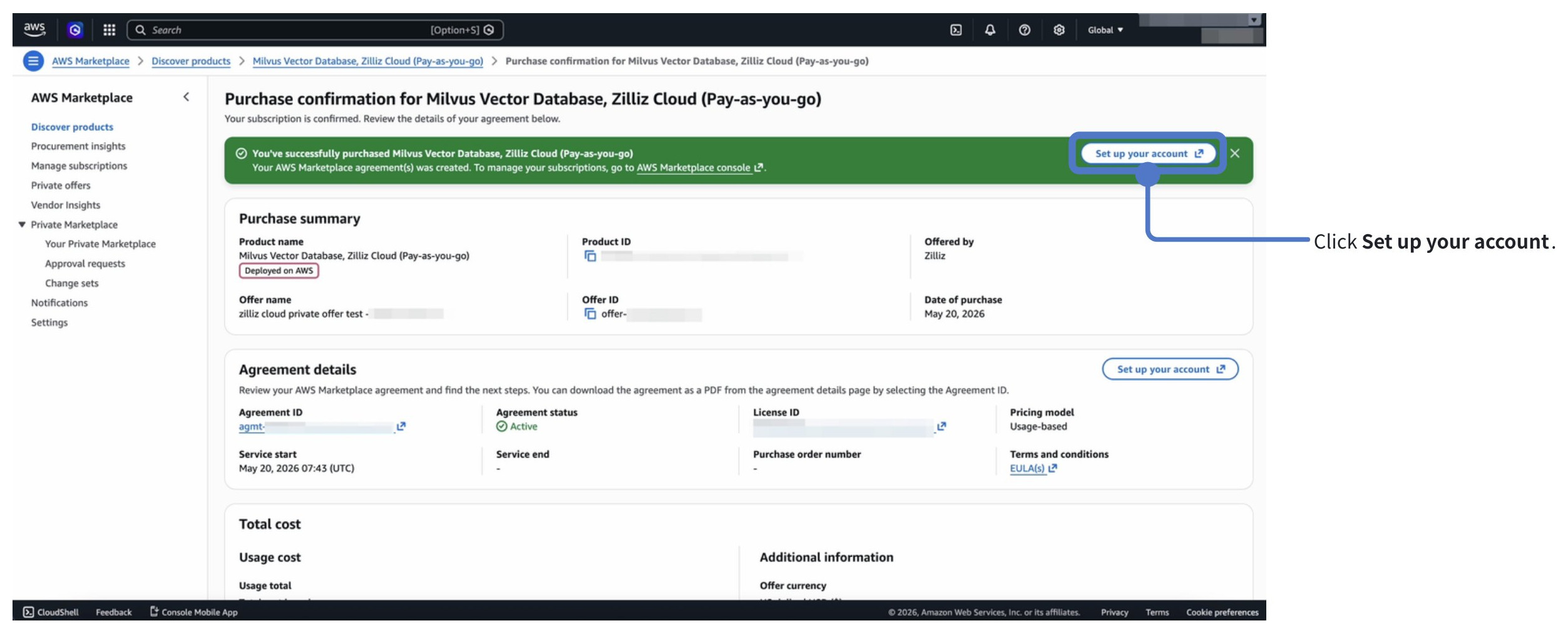
When the request is complete, a green confirmation banner appears at the top of the AWS Marketplace page.
Click Set up your account. You will be redirected to Zilliz Cloud.
You must complete this step. Otherwise, your private offer subscription is not linked to any Zilliz Cloud organization.
Link Marketplace subscription to Zilliz Cloud organization.
-
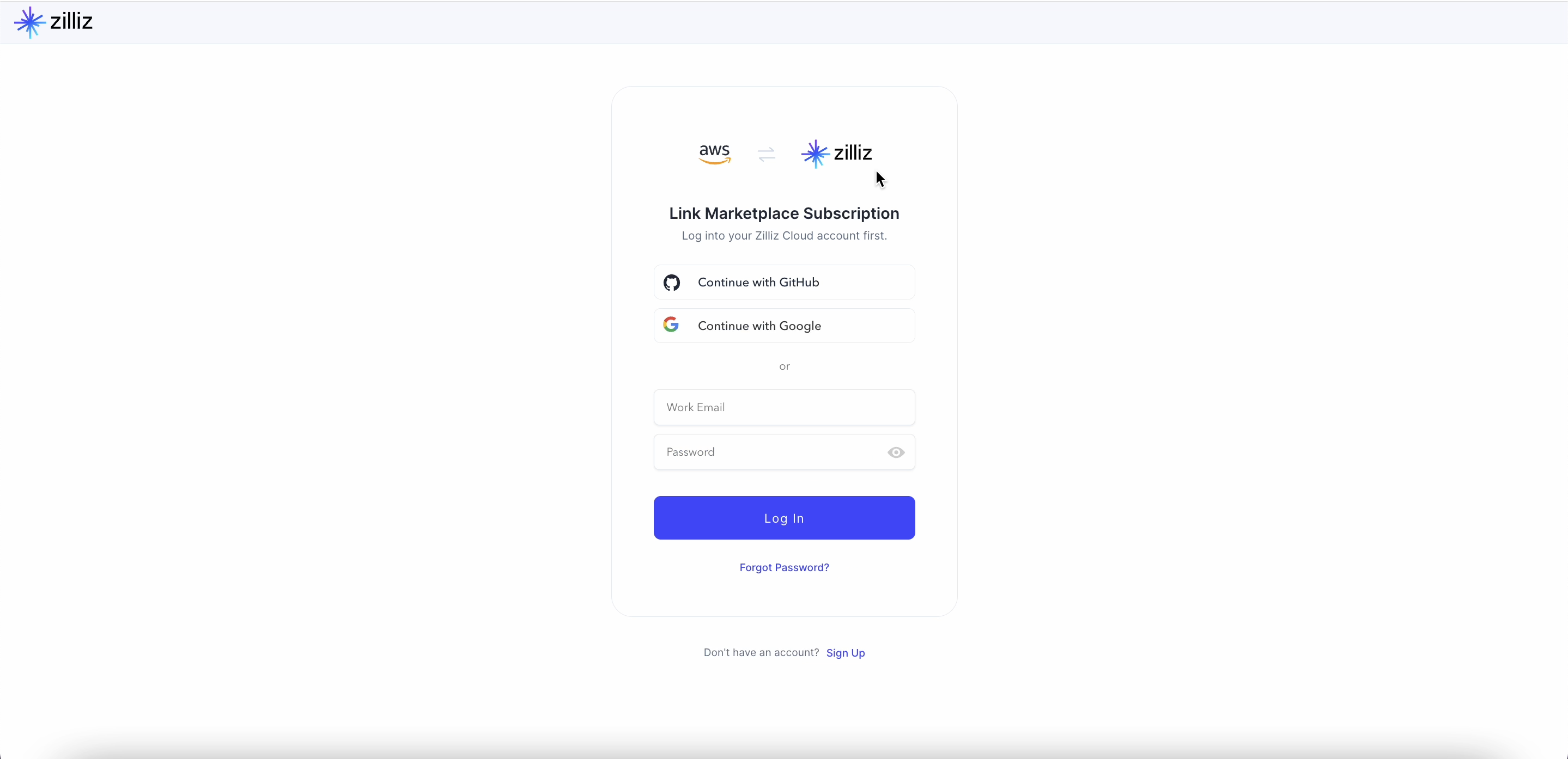
Log into your Zilliz Cloud account.
-
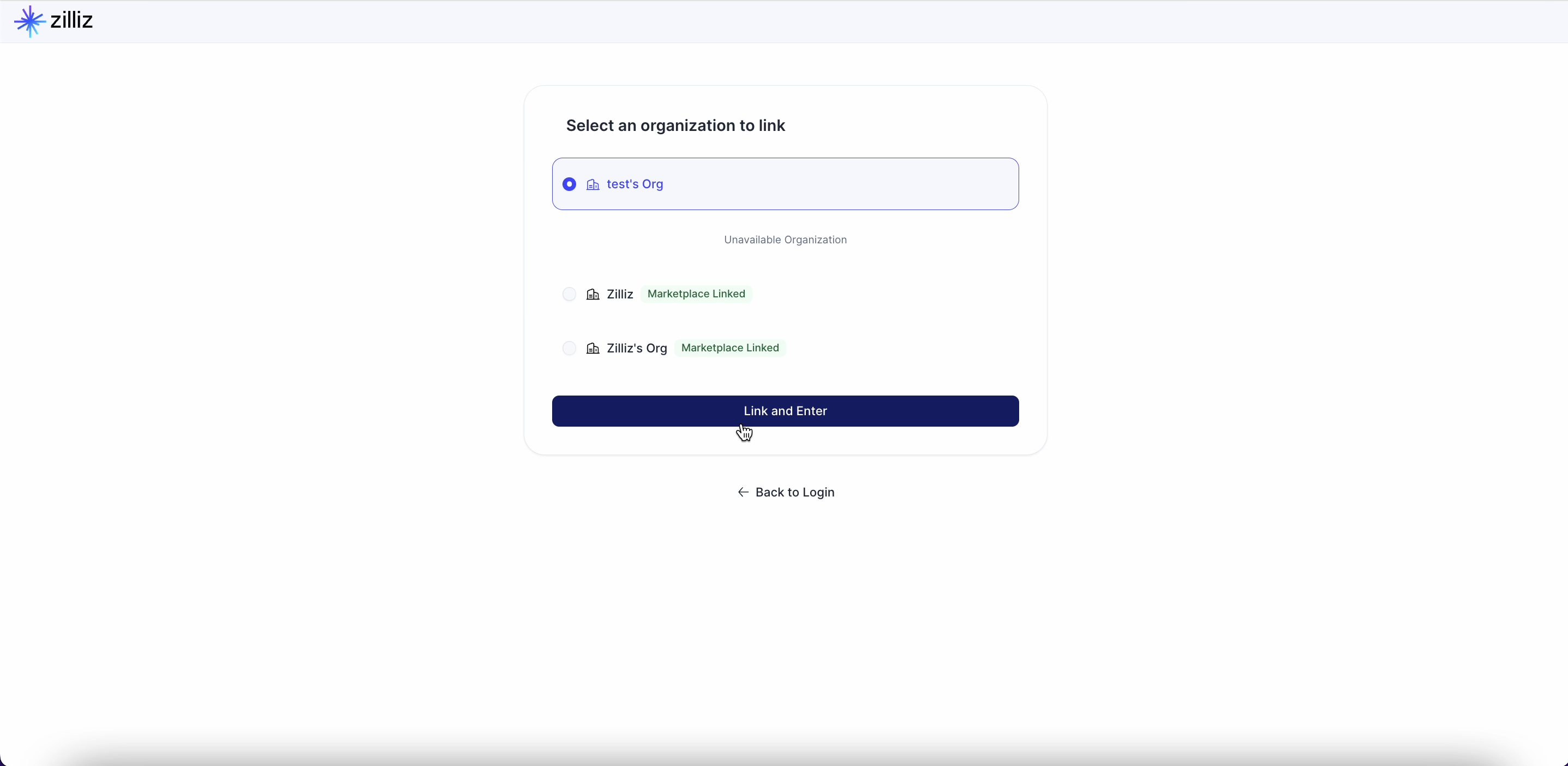
Select a Zilliz Cloud organization to link to the Marketplace subscription.
If no organization is available to select, or if you have any questions, contact Zilliz Support.
-
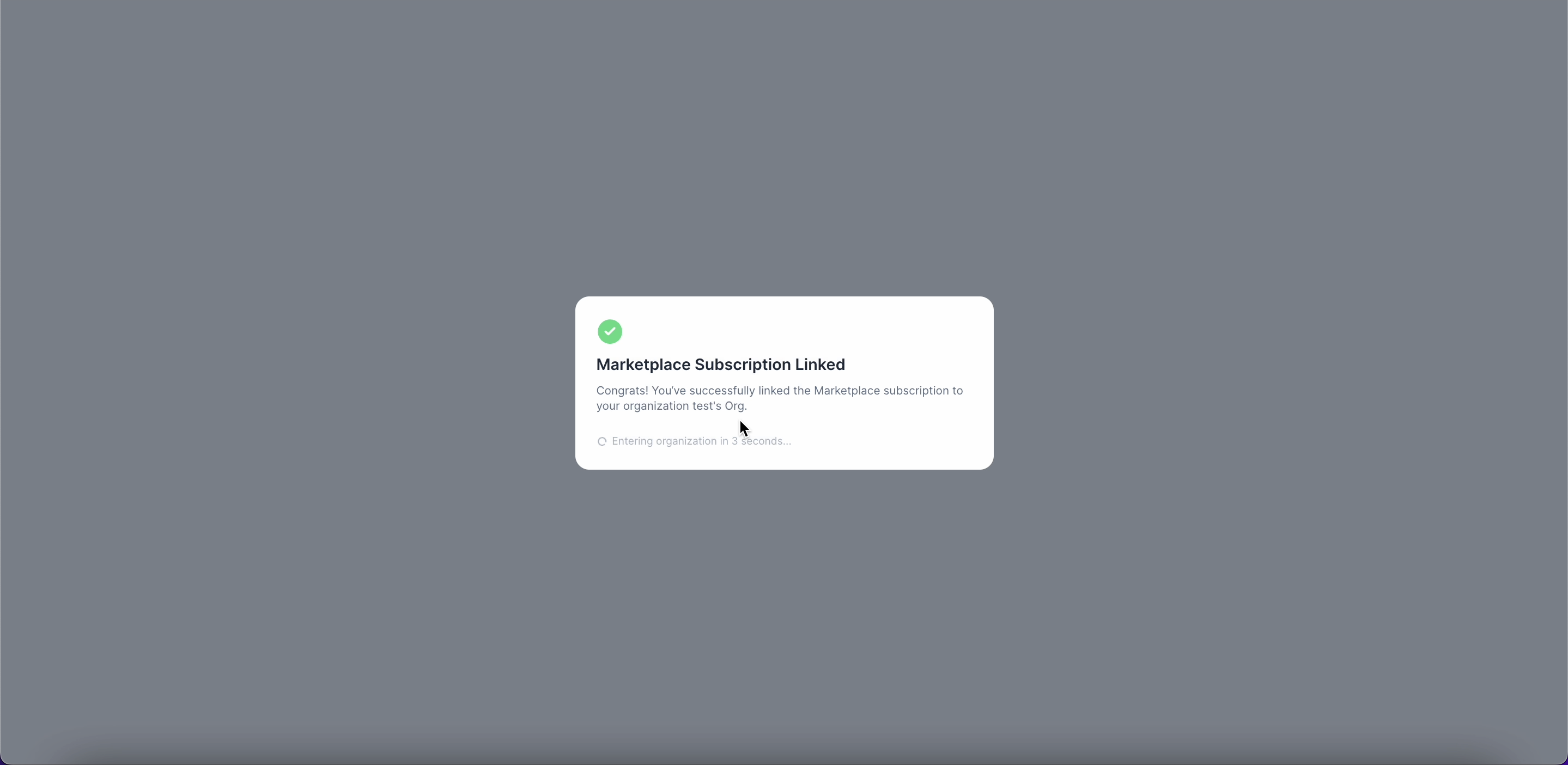
When the process is complete, the following confirmation window appears.
-
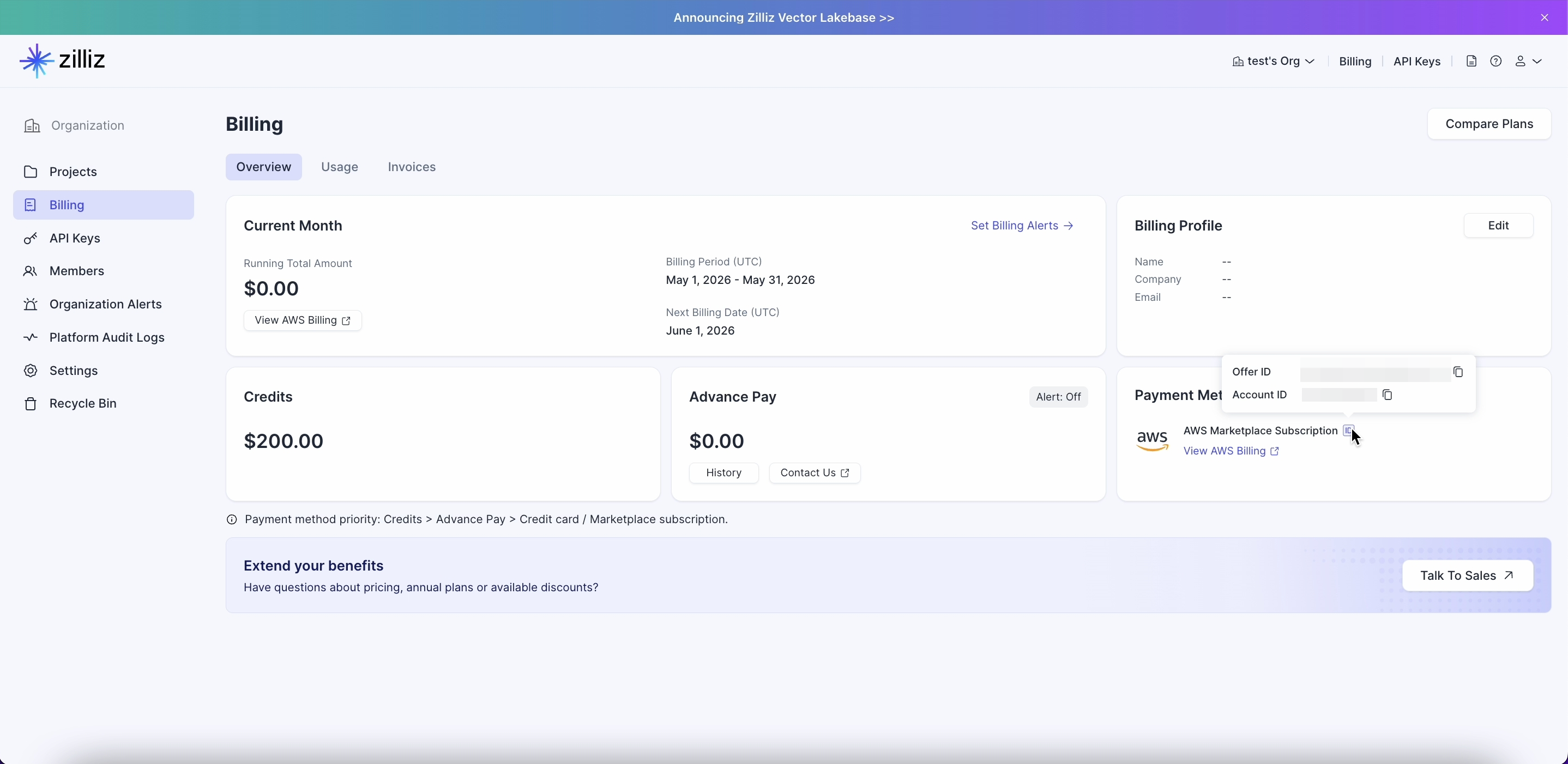
On the Zilliz Cloud Billing page, find the Payment Method section. You can verify your subscription by hovering on the ID icon.
Renew your private offer
When your private offer is close to expiration, Zilliz will send you a new private offer link for renewal. If you have questions about the renewal process, contact your account executive.
For AWS Marketplace, renewal works as accepting a new private offer. After you accept it, the new offer automatically replaces the previous one. You still need to link the new offer to your Zilliz Cloud organization again.
The following is an overview of the renewal process.
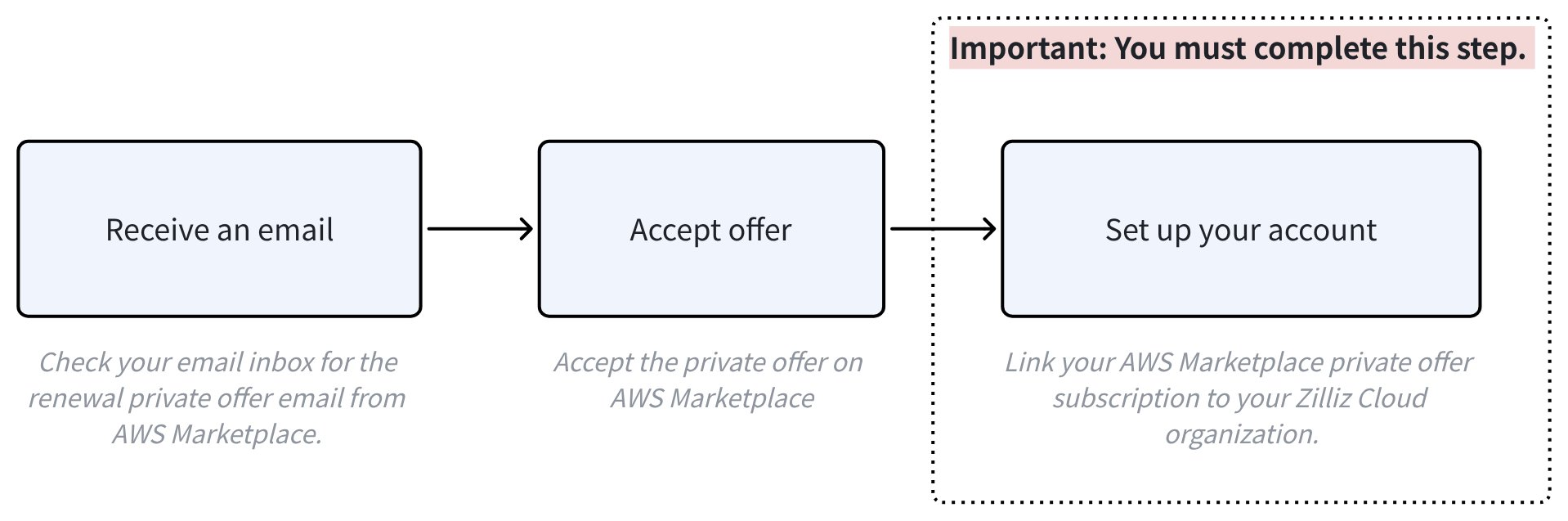
You can follow the detailed step-by-step guide below to subscribe to a Private Offer on AWS Marketplace.
Check your email inbox.
-
Look for an email from AWS Marketplace with the subject You have a new Private Offer. The email includes the AWS account ID that can access the offer.
-
Click the AWS Marketplace console private offers page link in the email. When prompted, sign in to AWS with the same account ID shown in the email.
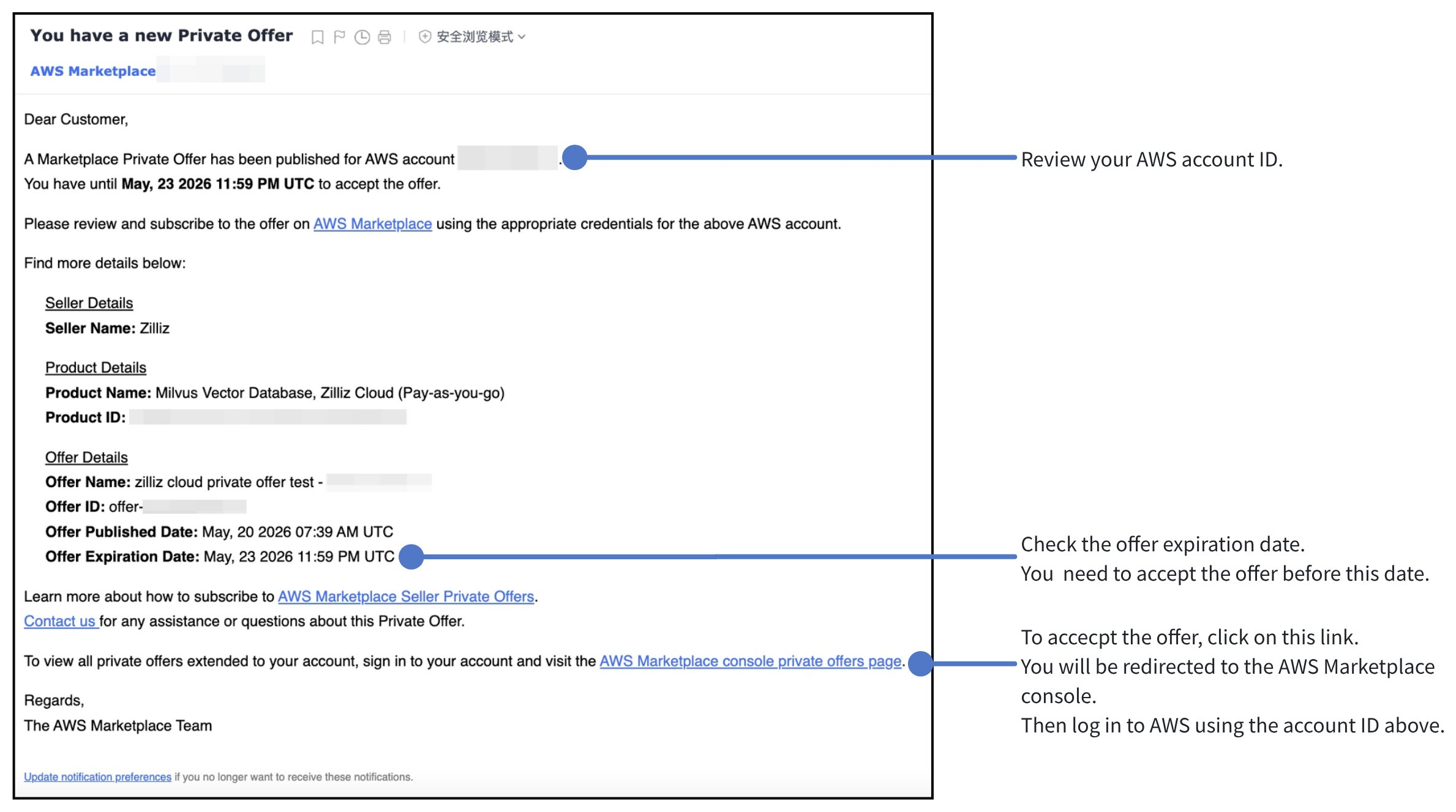
On the AWS Marketplace page, go to the Your offers section and confirm that the correct offer is selected. The Offer ID should match the ID shown in the email.
You will be prompted "Accepting this offer replaces your current agreement".
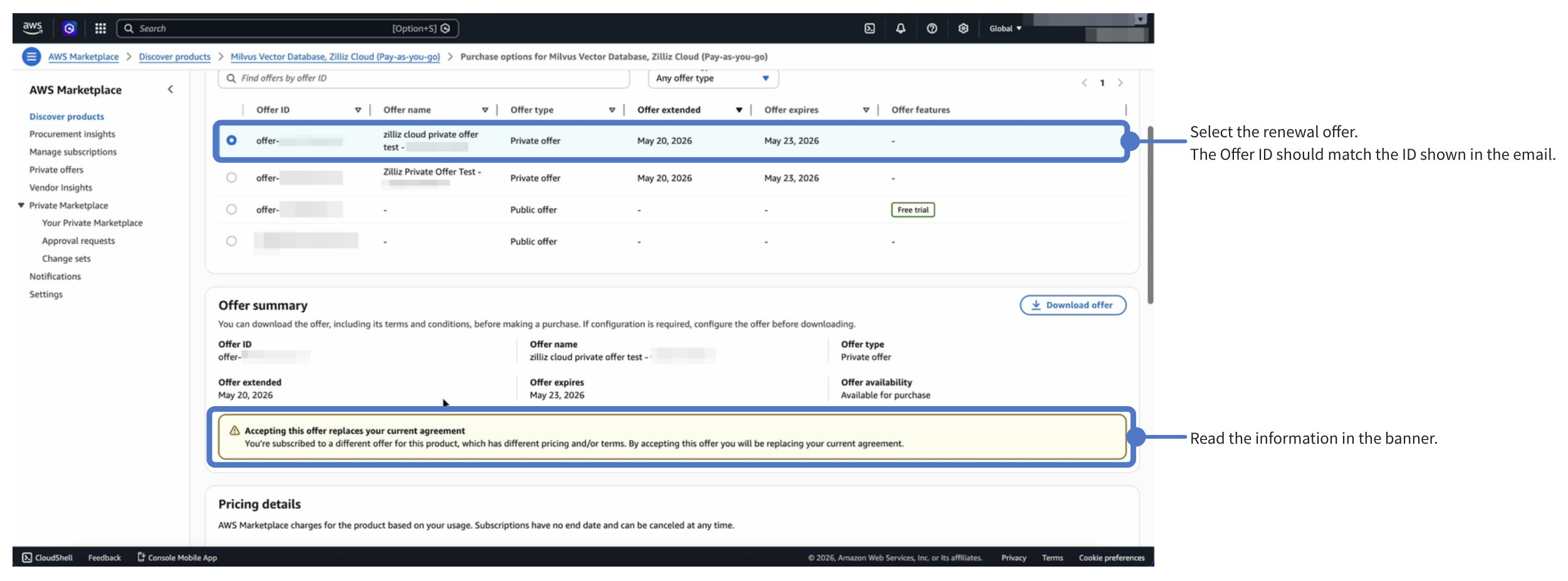
Review the offer details and accept the offer.
To include a purchase order (PO) number on your invoice, select Add a purchase order and enter the required information. If you do not need a purchase order, select No purchase order.
Click Accept offer.
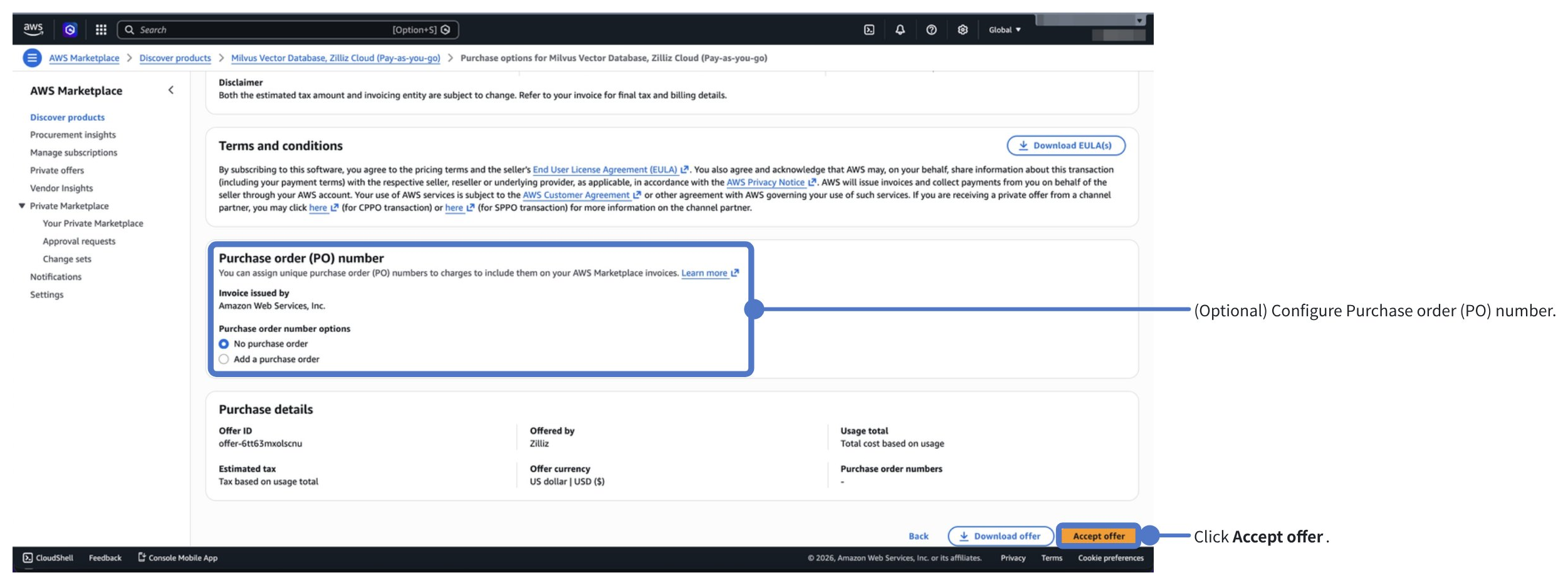
Wait for the request to complete.
AWS Marketplace displays a message "Your request is in progress, this will take a few minutes. Don't refresh or close this page. Meanwhile, you can set up your account on the vendor's website."
Do not click "Set up your account" at this point. Please wait until the request is complete.
If you click it before the request is complete, you may see "No organization available" when linking the offer to a Zilliz Cloud organization. This happens because the previous private offer has not been unlinked yet.
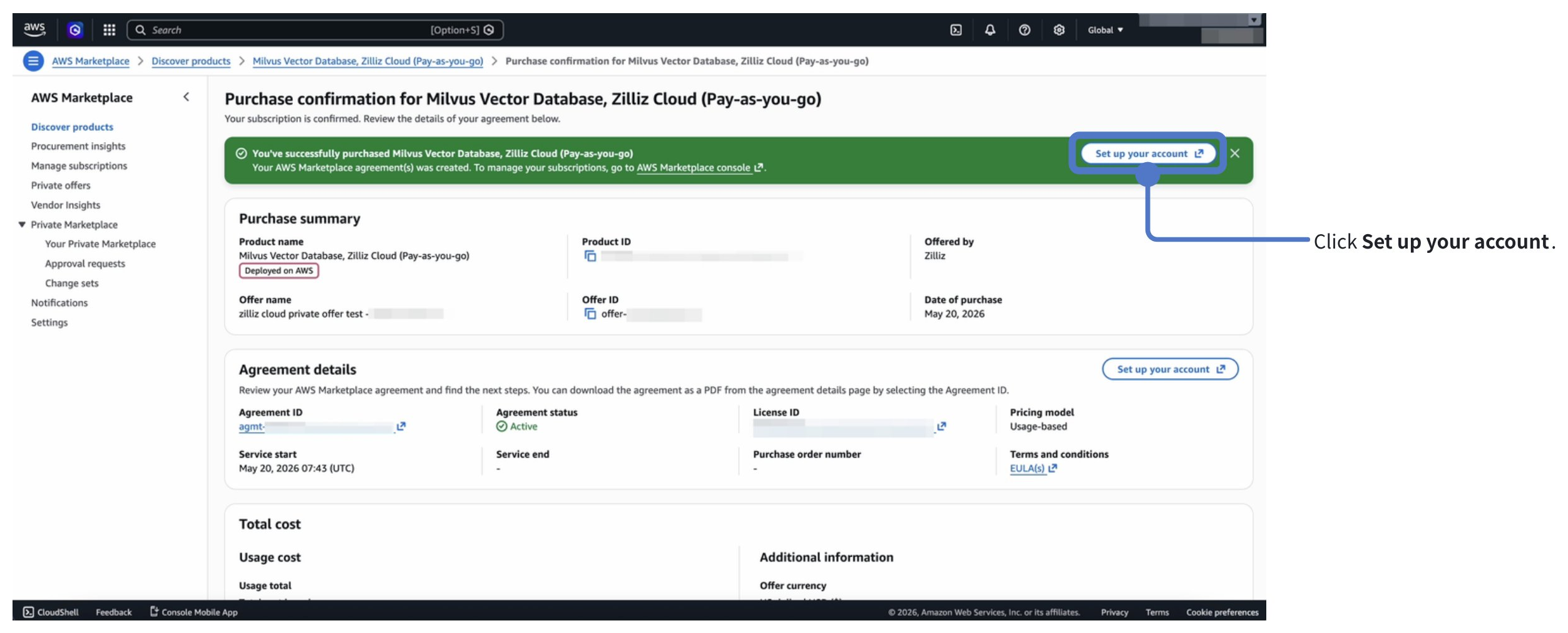
Set up your account.
When the request is complete, a green confirmation banner appears at the top of the AWS Marketplace page.
Click Set up your account. You will be redirected to Zilliz Cloud.
You must complete this step. Otherwise, your private offer subscription is not linked to any Zilliz Cloud organization.
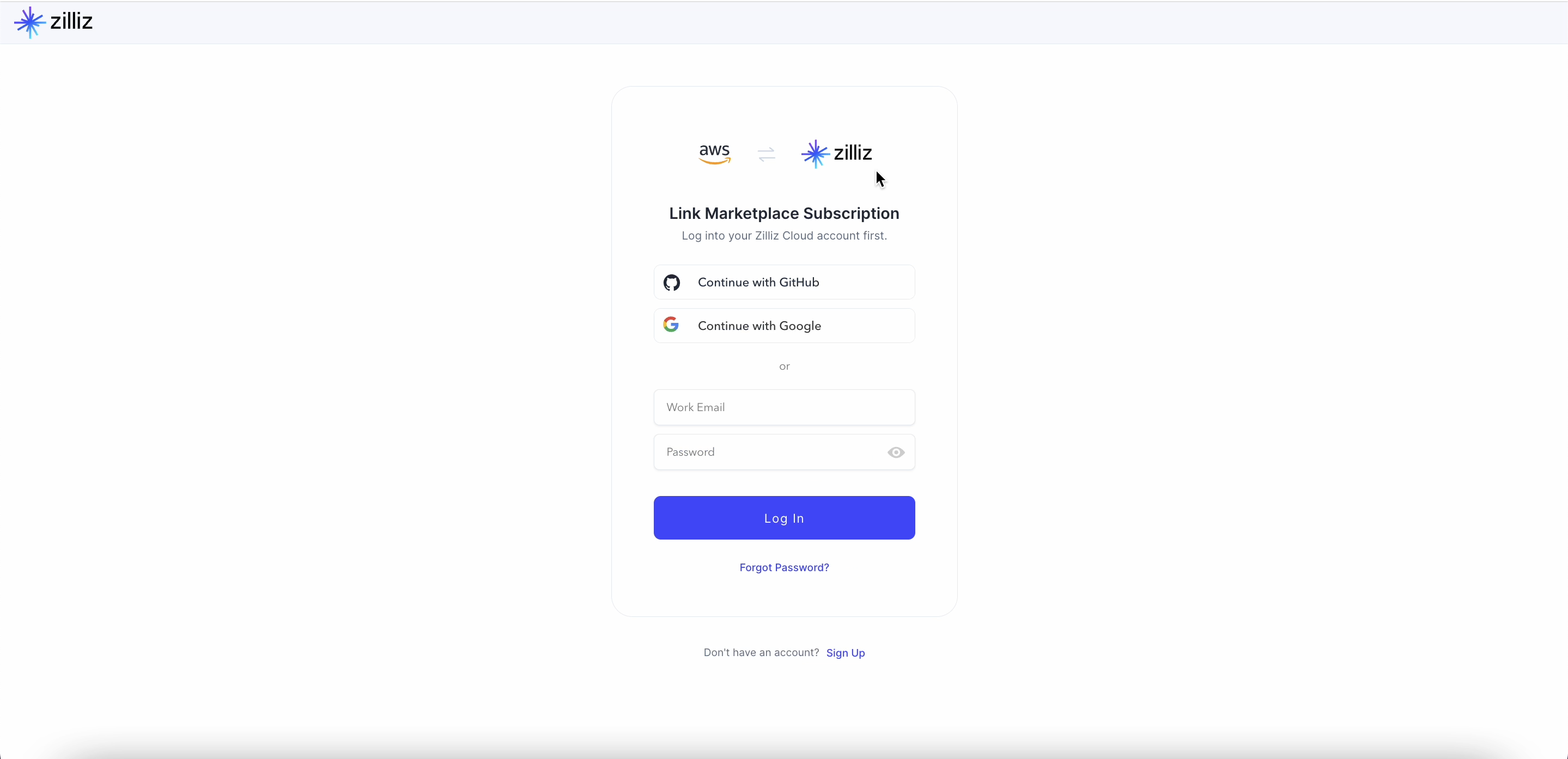
Link Marketplace subscription to Zilliz Cloud organization.
-
Log into your Zilliz Cloud account.
-
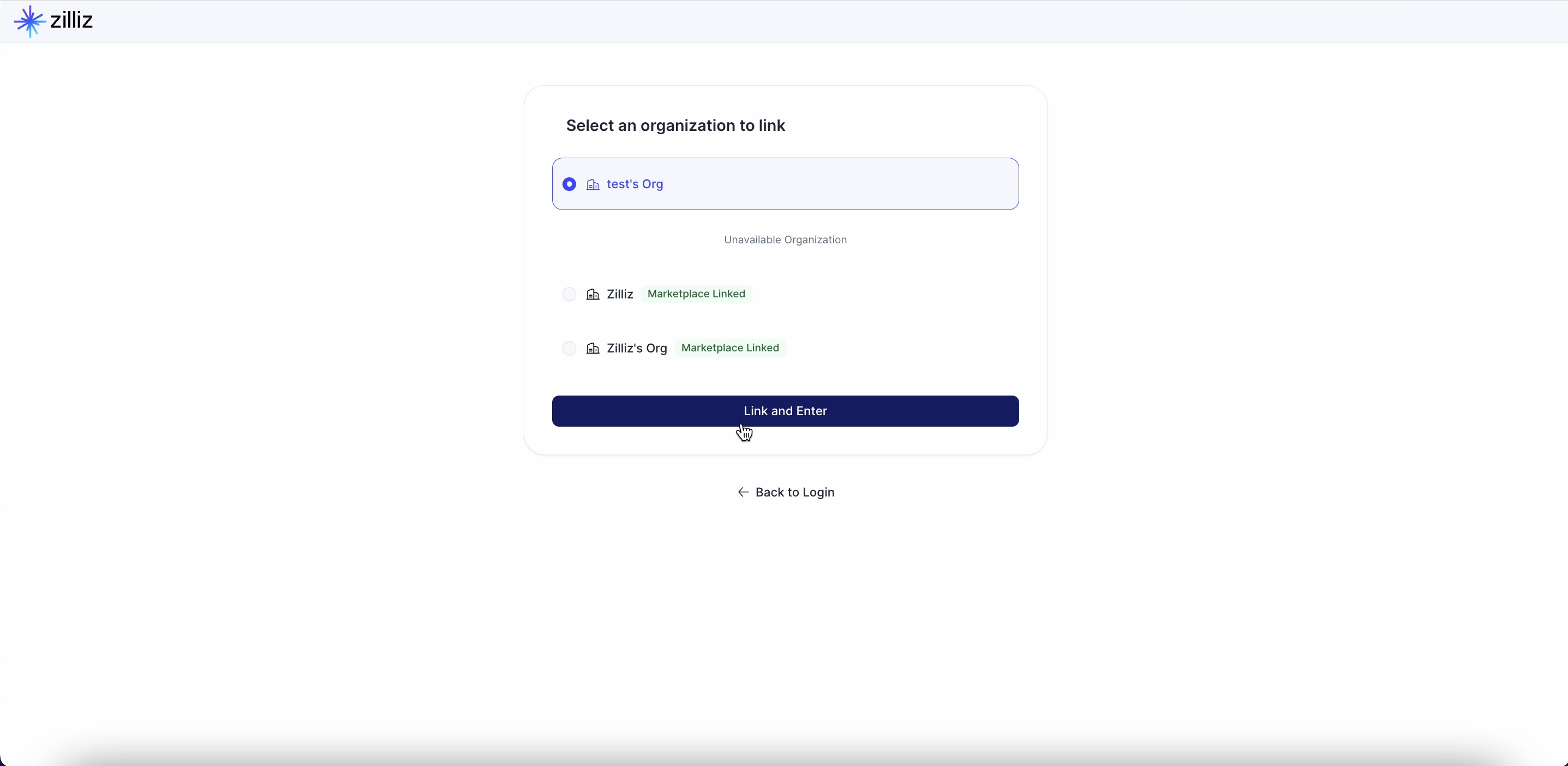
Select a Zilliz Cloud organization to link to the Marketplace subscription.
If no organization is available to select, or if you have any questions, contact Zilliz Support.
-
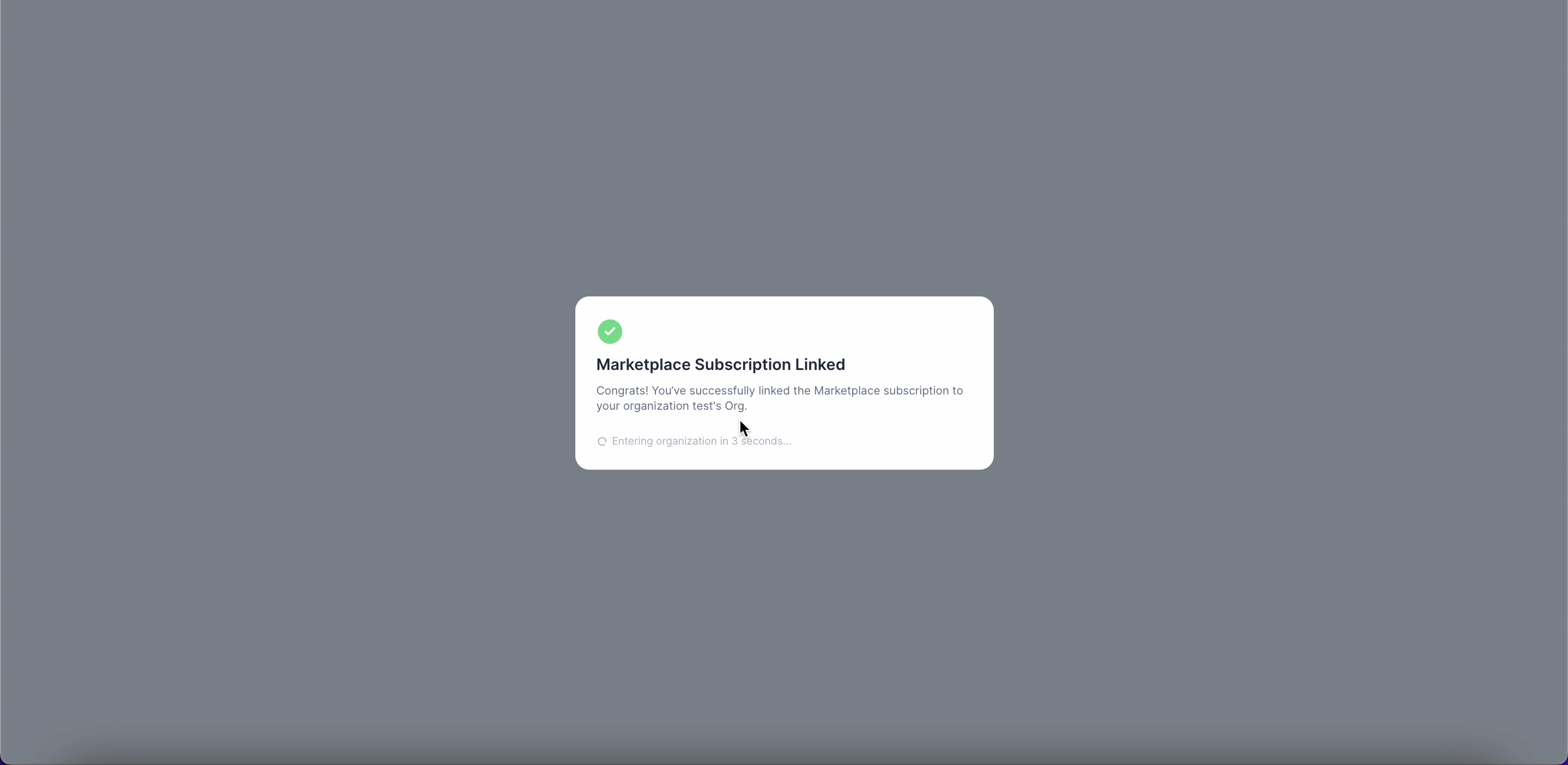
When the process is complete, the following confirmation window appears.
-
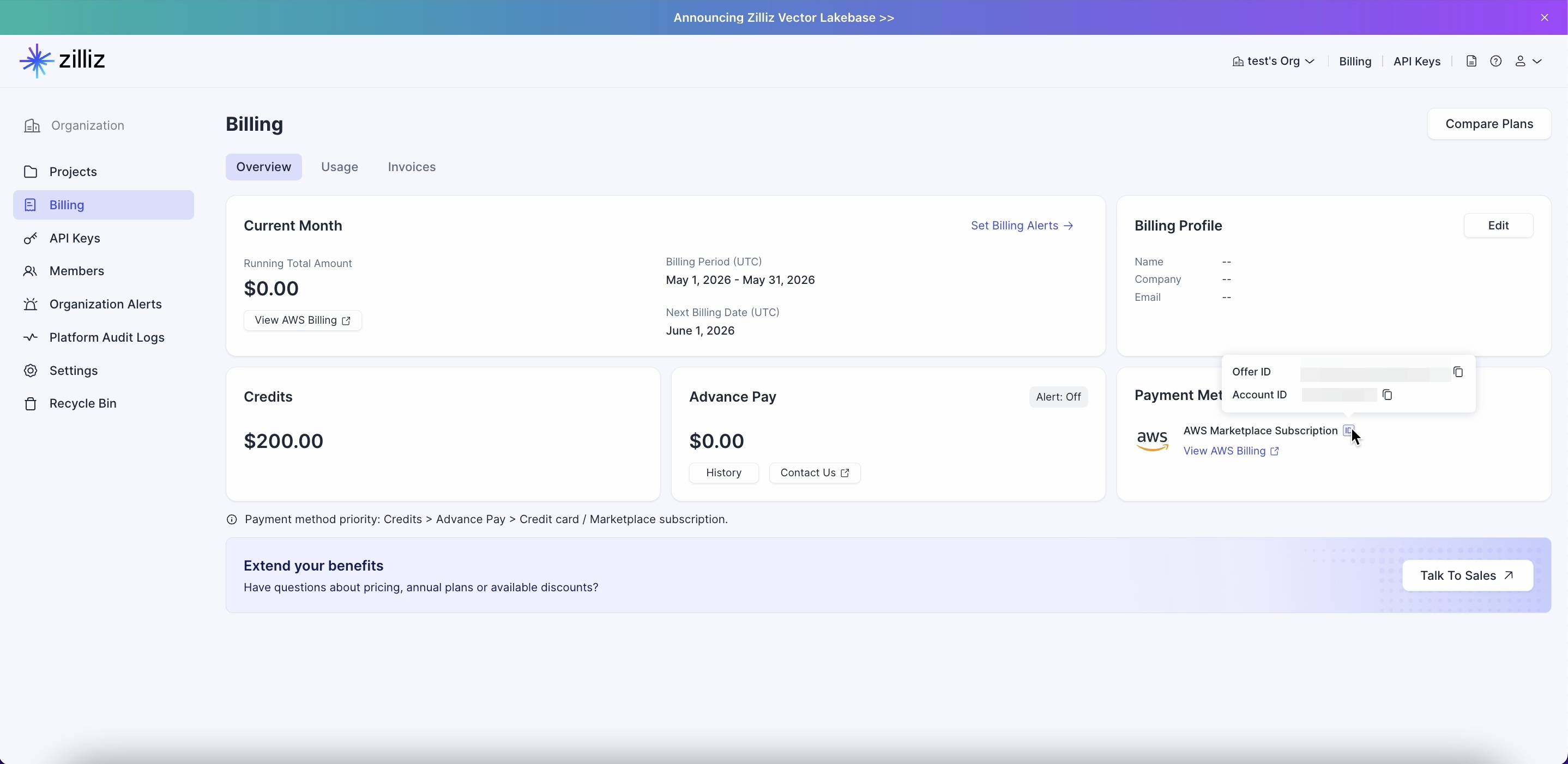
On the Zilliz Cloud Billing page, find the Payment Method section. You can verify your subscription by hovering on the ID icon.
Switch from a public offer to a private offer
Similar to private offer renewal, switching from a public offer to a private offer requires you to accept a new private offer. After you accept it, the new private offer automatically replaces the previous public offer. You still need to link the new offer to your Zilliz Cloud organization again.
Cancel private offer subscription
You can cancel your private offer subscription from AWS Marketplace.
After you cancel the subscription, your organization loses access to advanced Zilliz Cloud features. If your organization has no remaining credits, or if all credits have expired, it is frozen immediately.
Sign in to the AWS account that accepted the private offer.
Open the AWS Marketplace console and go to Manage subscriptions.
Find your Zilliz Cloud subscription and click on the agreement ID.
Under Agreement, open the Actions list and choose Cancel subscription.
In the Cancel subscription dialog box, enter confirm, then choose Yes, cancel subscription.
For details, refer to Canceling product subscriptions.
FAQ
What will happen if my private offer expires and is not renewed?
If your private offer expires and is not renewed, your AWS Marketplace subscription will lose the private offer terms. If no valid payment method or remaining credits are available for your Zilliz Cloud organization, access to advanced features will be disabled and the organization will be frozen.
What I can do if there is no organization available when linking a marketplace subscription to Zilliz Cloud?
There could be several reasons.
-
Insufficient permissions
This can happen when you do not have sufficient privileges. You will see an "Insufficient Permissions" tag next to the unavailable organization.
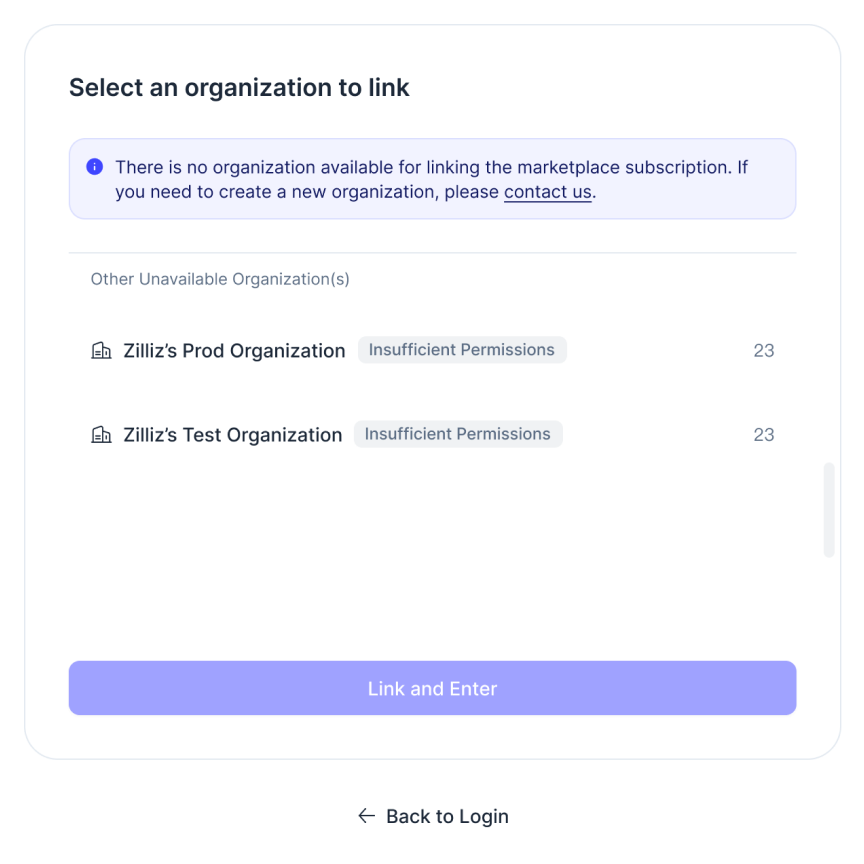
To link an organization with a marketplace subscription, you must be an Organization Owner or an Organization Billing Admin. But if you are only an Organization Member, you do not have the required permissions. Please contact the organization owner for assistance.
-
All organizations have already been successfully linked to a Marketplace subscription
This can happen when all your organizations are already linked to Marketplace subscriptions. You will see a "Marketplace Linked" tag next to the unavailable organization.
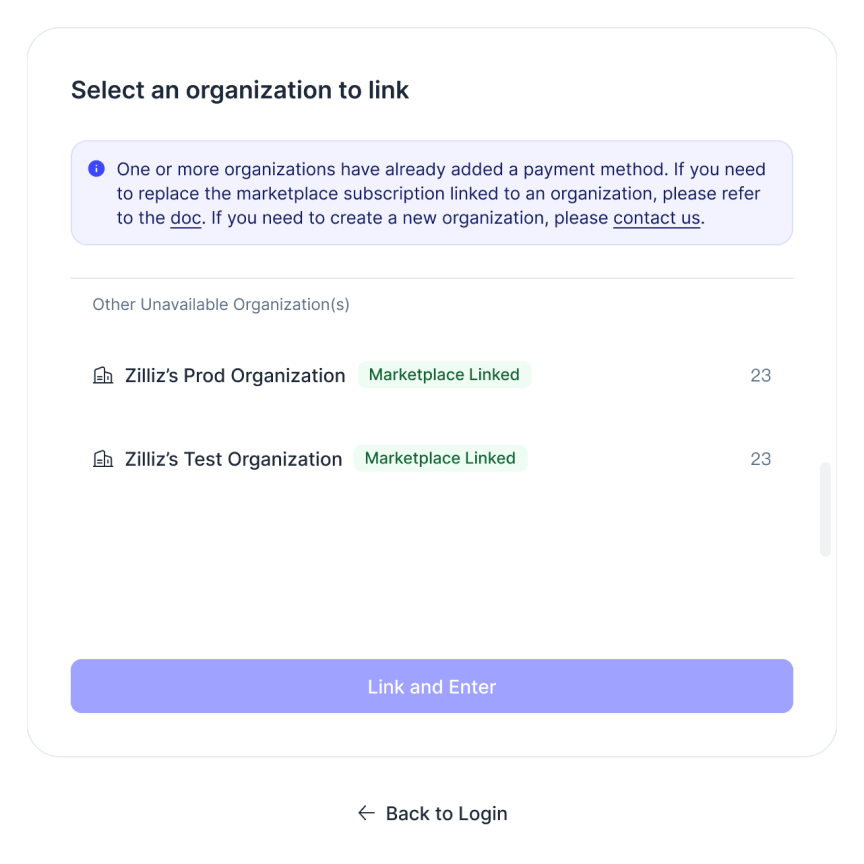
In this case,
-
If you need to update an existing marketplace subscription, please unlink the current subscription of the organization first and then set up a new subscription.
-
If you need multiple organizations for different Marketplace subscription, you can create an organization.
-
-
No organizations in the list
- This can happen if your account has been closed or if you have left all organizations. Your UI will be similar to the following.
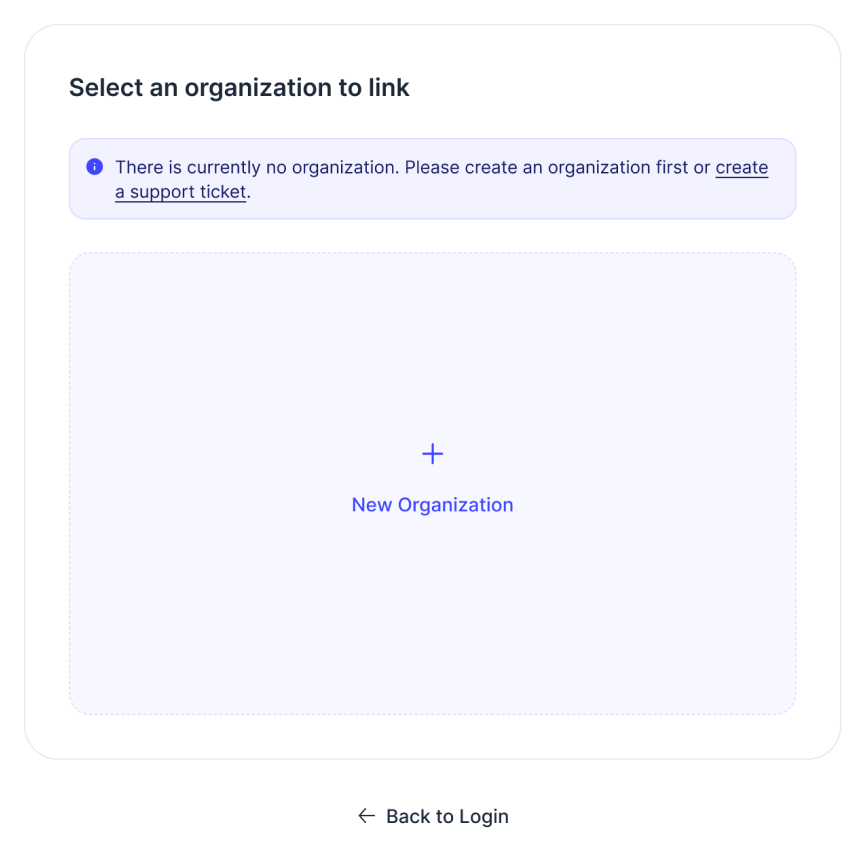
In this case, you can:
-
Ask other users to invite you to their organizations and grant you the role of an Organization Owner.