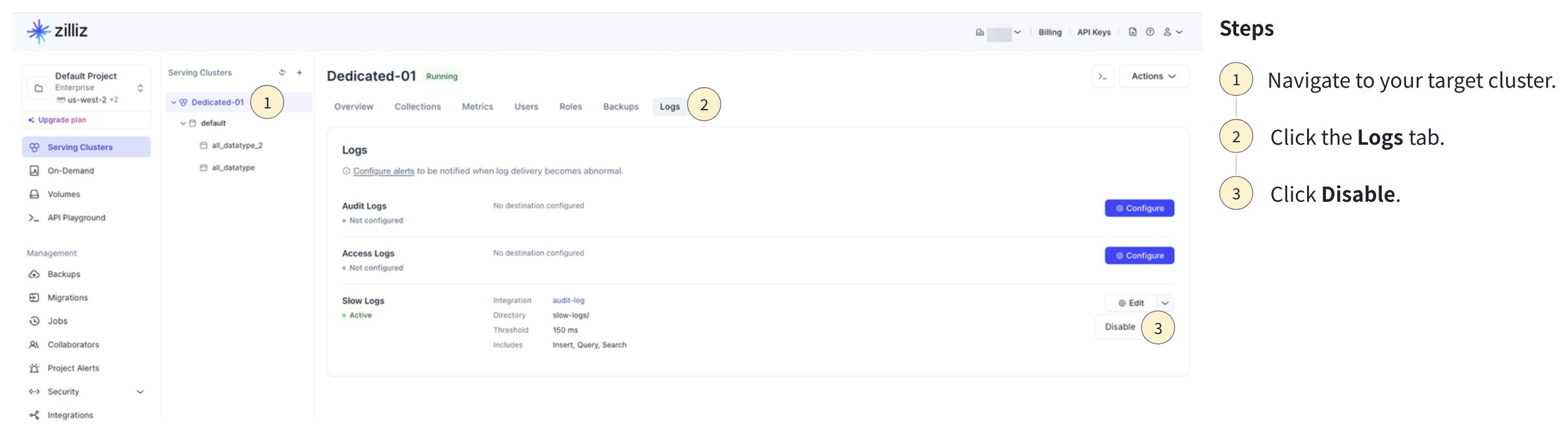
Configure Slow Logs
This guide covers the full lifecycle of slow logs on Zilliz Cloud: enabling, adjusting settings, and disabling.
-
This release logs slow Search, HybridSearch, and Query requests.
-
Slow logs are available only for Dedicated clusters on Enterprise projects. If your cluster is on a different plan or cluster type, consider upgrading it.
-
The Slow logs feature is free of charge.
Before you start
-
An object storage integration (AWS S3, Google Cloud Storage, or Azure Blob Storage) configured in the same region as your target cluster. For setup instructions, refer to Integrate with AWS S3, Integrate with Google Cloud Storage, or Integrate with Azure Blob Storage.
-
Organization Owner, Project Admin, or Cluster Admin permissions for the project. If you do not have the required permissions, contact your Zilliz Cloud administrator.
Enable slow logs
Open the Zilliz Cloud console and navigate to your target cluster.
Click the Logs tab.
Click on the Configure button on the Slow Logs card.
In the Slow Log Settings dialog box, configure the following settings:
-
Storage Integration: Select the integrated storage bucket where log files will be delivered.
-
Directory: Specify a directory within the bucket to store access logs.
-
Threshold: Specify the threshold for slow log collection. Operations whose execution time exceeds this value are recorded in slow logs. The default value is 150 ms.
Click Save.
Edit slow log settings
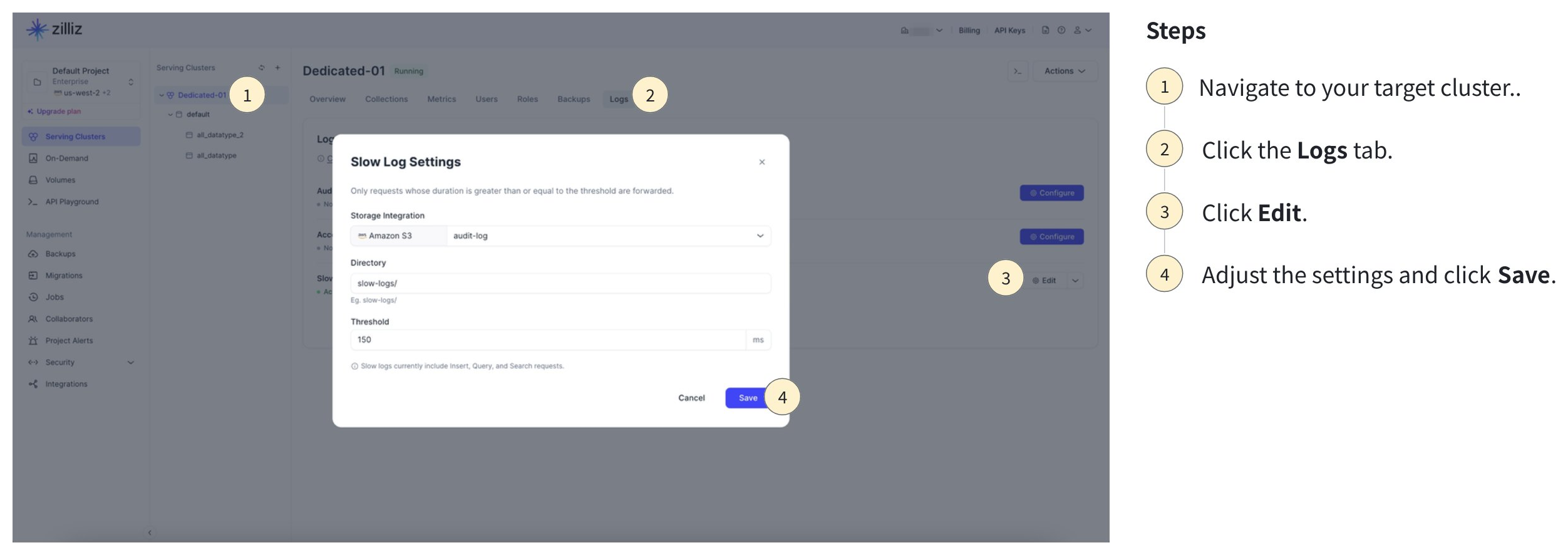
Open the Zilliz Cloud console and navigate to your cluster.
Click the Logs tab.
Click Edit.
Adjust the Storage Integration, Directory, or Threshold as needed.
Click Save. The updated settings take effect immediately for new log entries. Existing log files in your bucket are not affected.
Disable slow logs