External Migration Basics
External migration simplifies the process of moving your vector databases and search systems to Zilliz Cloud. Whether you're migrating from vector databases like Pinecone and Qdrant, or from search engines with vector capabilities like Elasticsearch and OpenSearch, Zilliz Cloud provides migration tools to ensure data integrity while minimizing migration complexity.
Supported data sources
Zilliz Cloud supports migration from leading vector databases and search platforms:
| Data Source | Type | Key Features |
|---|---|---|
| Pinecone | Vector database | Serverless indexes with similarity search |
| Qdrant | Vector database | Open-source engine, cloud and self-hosted |
| Elasticsearch | Search engine | Dense vector support with full-text search |
| PostgreSQL | Relational database | Vector extension (pgvector) support |
| Tencent Cloud VectorDB | Managed service | Managed vector database service |
| OpenSearch | Search platform | KNN plugin with vector capabilities |
| Chroma | Vector database | Chroma Cloud and self-hosted deployments |
Core capabilities
Our migration tools provide extensive configuration options to ensure your data structure fits perfectly on Zilliz Cloud:
Feature Category | Capability | Description |
|---|---|---|
Schema control | Field name customization | Rename fields during migration to match your preferred naming style |
Dynamic to fixed fields | Convert flexible metadata into fixed, structured fields for better performance. If your metadata includes text, converting it to a fixed field will create a | |
Additional fields | Add new fields beyond source data to accommodate evolving requirements | |
Data type mapping | Zilliz Cloud detects and maps field types automatically, with option to adjust manually | |
Collection setup | Smart naming | By default, Zilliz Cloud retains the source table name for the target collection; if a duplicate name is detected, the system issues an error alert so the user can rename it. For naming‐rule conflicts, such as when a source table name contains a hyphen ( |
Shard configuration | Set up data distribution to match how you plan to query your data | |
Partition strategies | Organize data using either automatic partitioning or custom groupings | |
Data integrity | Primary key handling | Create, keep, or modify unique identifiers for your records |
Field attributes | Set whether fields can contain null values and define default values | |
Validation checks | Access detailed migration reports showing migration details | |
Full Text Search | Enable Full Text Search for VARCHAR fields during migration | Configure in Advanced settings → Function to enable Full Text Search for VARCHAR fields during migration. If the source contains text in metadata, use Convert to Fixed Field to create VARCHAR from text metadata. See Full Text Search for details. |
Index creation control: Automatically create indexes after migration, or skip index creation and build indexes later. Configure this for the migration job in Index settings at the final confirmation step.
Migration process
The migration follows a three-phase approach designed to ensure data integrity and provide visibility throughout the process:
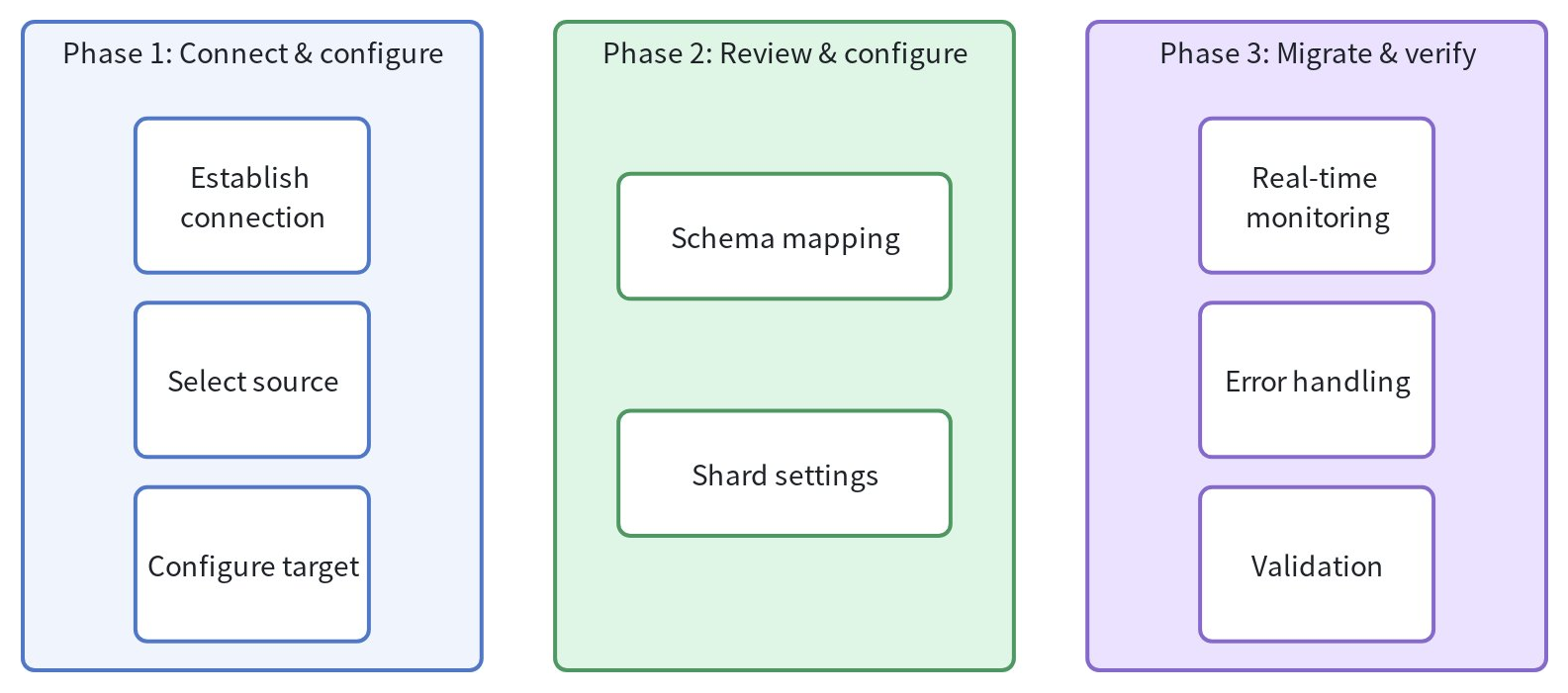
Phase 1: Connect & configure
-
Establish connection: Provide authentication credentials (API keys, connection strings) to access your source system and test connection
-
Select source data: Choose specific indexes, collections, or tables to migrate
-
Configure target: Select your Zilliz Cloud cluster and database as the destination
Phase 2: Review & configure
Review the schema mappings and shard settings, then choose the index creation setting before submitting the migration job.
Schema mapping
-
Automatic detection: The system identifies vector fields, scalar fields, and metadata
-
Field customization: Adjust field names and types as needed
-
Type conversion: Review and confirm data type mappings between source and target
-
Advanced options: Configure shards, partition keys, and nullable fields based on your requirements
Shard setting
For optimal performance, configure shards based on your data volume:
-
Small datasets (≤100M rows): Single shard typically sufficient
-
Large datasets (>1B rows): Contact support for optimal shard configuration
Index settings
At the final confirmation step, use Index settings to choose how this migration job handles indexes for the target collections.
-
Create indexes after migration is enabled by default. Leave it on to automatically create indexes according to the existing migration rules.
-
Turn it off to skip index creation and build indexes later, for example during a planned maintenance window.
If you turn off Create indexes after migration, no vector or scalar indexes are created by the migration job. Migrated collections remain Unloaded and cannot be searched or queried until you manually create indexes and load the collections.
Review the index setting in the confirmation information before clicking Migrate.
Phase 3: Migrate & verify
Once configuration is complete, execute the migration and track progress:
-
Real-time monitoring: Track migration status through the Jobs page
-
Progress indicators: View rows migrated, error counts, and estimated completion time
-
Error handling: Review detailed code logs if issues occur
-
Validation: Automatic row count verification ensures data completeness
Post-migration
After the migration completes successfully, follow the steps below before running searches or queries. If you skipped index creation, the job details show Indexes skipped.
-
Check indexes. If you left Create indexes after migration on, verify that automatic index creation succeeded. If you turned it off, manually create indexes on all vector fields. Create scalar indexes as needed for your workload. For index configuration, see AUTOINDEX Explained.
-
Load the collection. Once index creation is complete, manually load the collection and wait until it is loaded. This step is required whether indexes were created automatically or manually. See Load & Release.
-
Validate the migrated data. Compare collection and entity counts with the source and run sample searches or queries before directing application traffic to the target.
Limitations
Before starting your migration, be aware of these common limitations that apply across all supported data sources:
| Consideration | Impact | Solution |
|---|---|---|
| Empty source data | Cannot select empty indexes/tables | Ensure source contains data before migrating |
| Vector field requirements | Collections must contain vector data | Verify your source has vector fields before migration |
| Unsupported data types | Some specialized data types may not transfer | Review platform-specific guides for data type mappings |
Getting started
Ready to migrate your data to Zilliz Cloud?
Access migration portal
Log in to the Zilliz Cloud console
Navigate to Migrations and choose your source platform
Follow the guided workflow to complete your migration
Configure Full Text Search for text data
If your source contains text, you can configure Full Text Search during migration to improve text retrieval. See Full Text Search for details.
Platform-specific migration guides
For source-specific prerequisites, data type mappings, and handling rules, see the following guides: