Google Cloud KMS
This feature is available only on Business Critical (SaaS) and BYOC deployments.
This feature is available in AWS. It is not available on Google Cloud and Microsoft Azure.
Google Cloud Key Management Service (KMS) is a Google Cloud-managed service that makes it easy for you to create and control the keys used to encrypt and sign your data.
Overview
In Google Cloud KMS, an encryption key is represented as a CryptoKey, that belongs to a key ring in a specific Google Cloud location. When you configure CMEK for Zilliz Cloud, you provide the CryptoKey that Zilliz Cloud uses to encrypt data. The key ring organizes the key but is not itself an encryption key.
In typical cases, you do not use a CryptoKey to encrypt your data in a Zilliz Cloud cluster. Instead, you use the CryptoKey to encrypt an encryption zone key (EZK), use the EZK to encrypt a data encryption key (DEK), and use the DEK to encrypt your data.
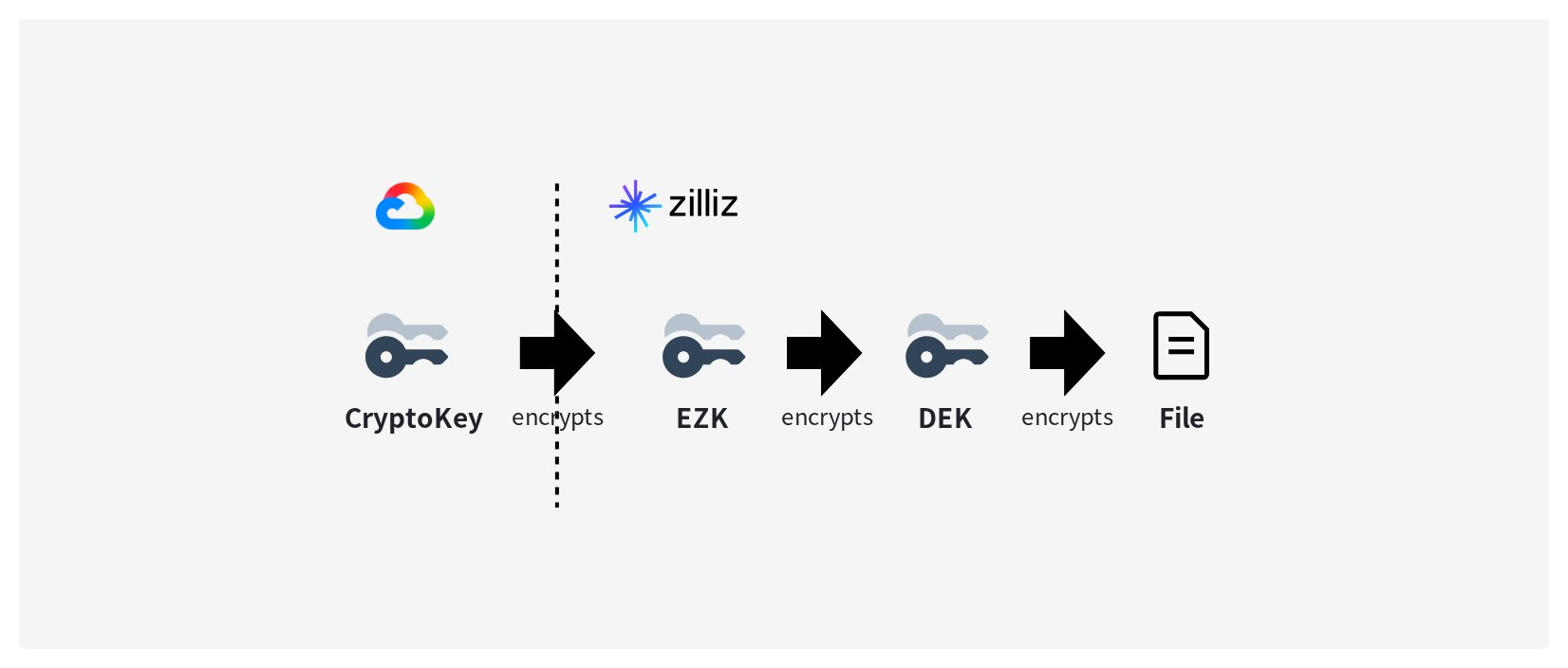
For details on how encryption works and its scope, refer to this section. For more information on the CMEK feature's limitations, refer to this section. To use the CMEK feature, follow the procedure on this page.
Before you start
- You have sufficient permissions to run key management commands.
Add Google Cloud CryptoKey
Each project allows up to 20 keys, regardless of the KMS providers. To add a Google Cloud CryptoKey to Zilliz Cloud, you can either use an existing key ring or create a new one and create the CryptoKey in it.
To add a Google Cloud CryptoKey, log in to the Zilliz Cloud console, choose Network > CMEK from the left navigation pane, go into one of your Business Critical projects located in an applicable Google Cloud region, click + CMEK, and follow the steps in the Add CMEK (Google Cloud KMS) dialog box to complete the process.
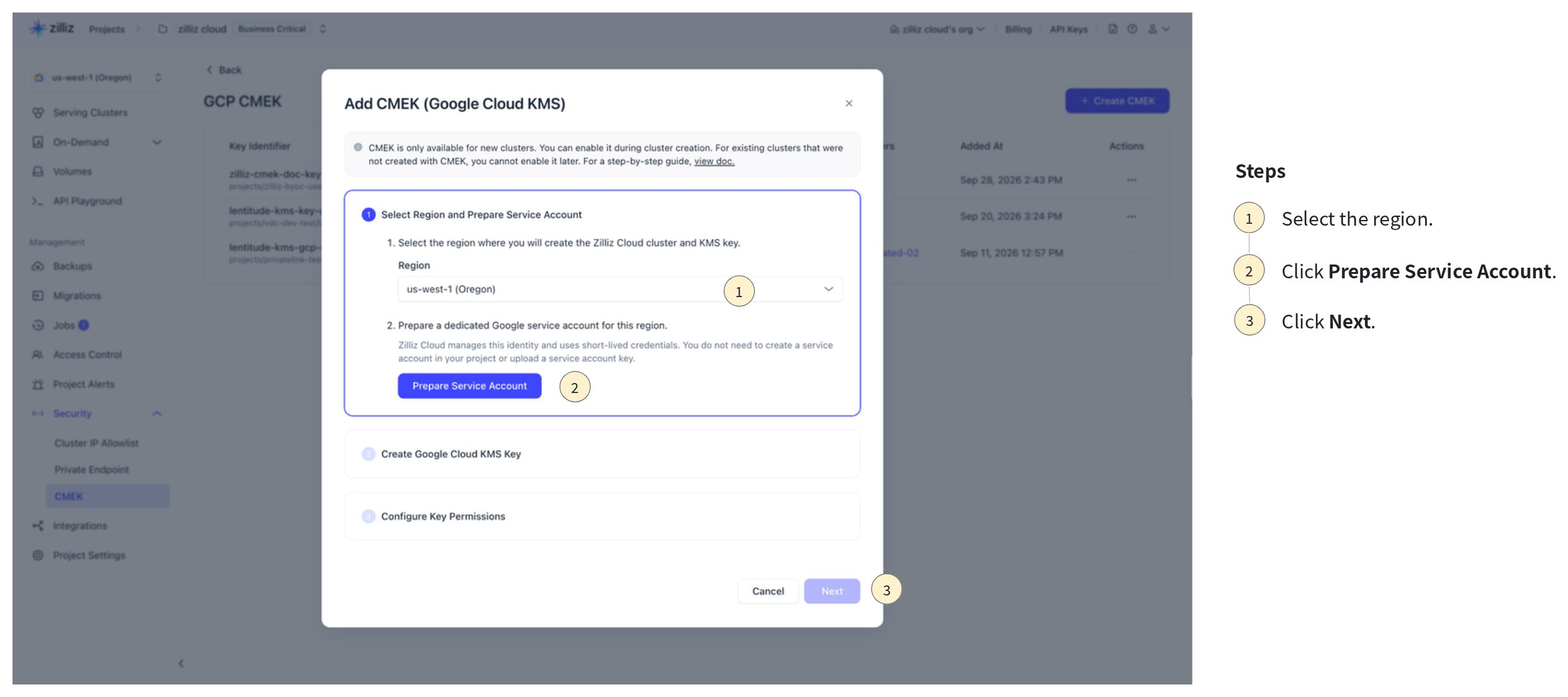
Select region and prepare service account.
-
Click the drop-down in the Select the region step.
-
Click Prepare Service Account in the Prepare a dedicated Google service account step.
Zilliz Cloud will generate a service account with short-lived credentials in the specified region. When you see Ready below the generated Service Account Email, click Next.
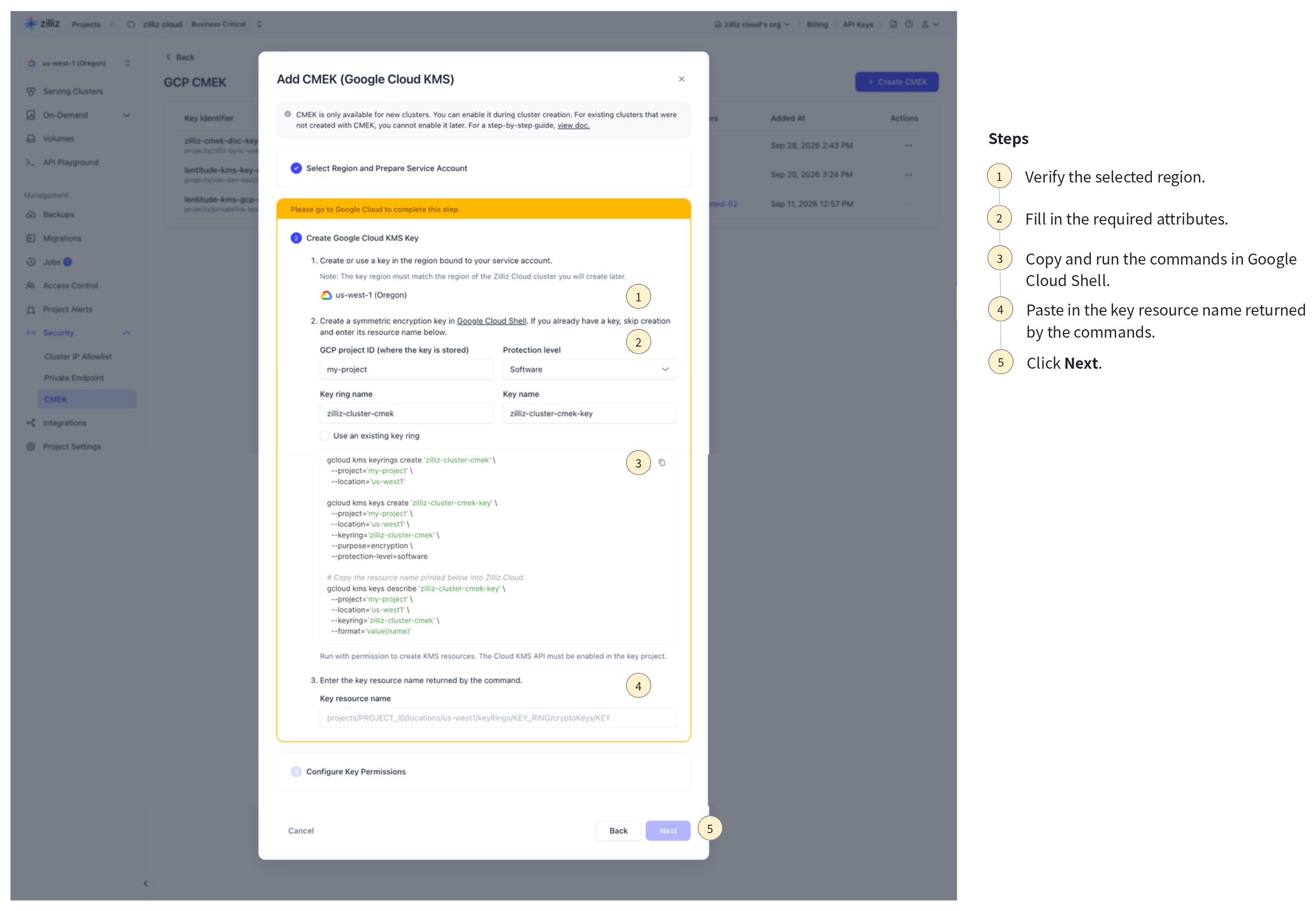
Create Google Cloud KMS key.
-
Verify the displayed region and fill in your GCP Project ID, Protection level, Key ring name, and Key name. The values specified in these slots modify the commands listed in the template below.
If you do not already have an existing key ring, the name specified in Key ring name will be used to create one. Otherwise, select Use an existing key ring. If you do, ensure that the specified key ring actually exists.
-
Copy the prepared commands and run them in Google Cloud Shell.
-
Copy the key resource name returned by the commands, and paste it in Key resource name.
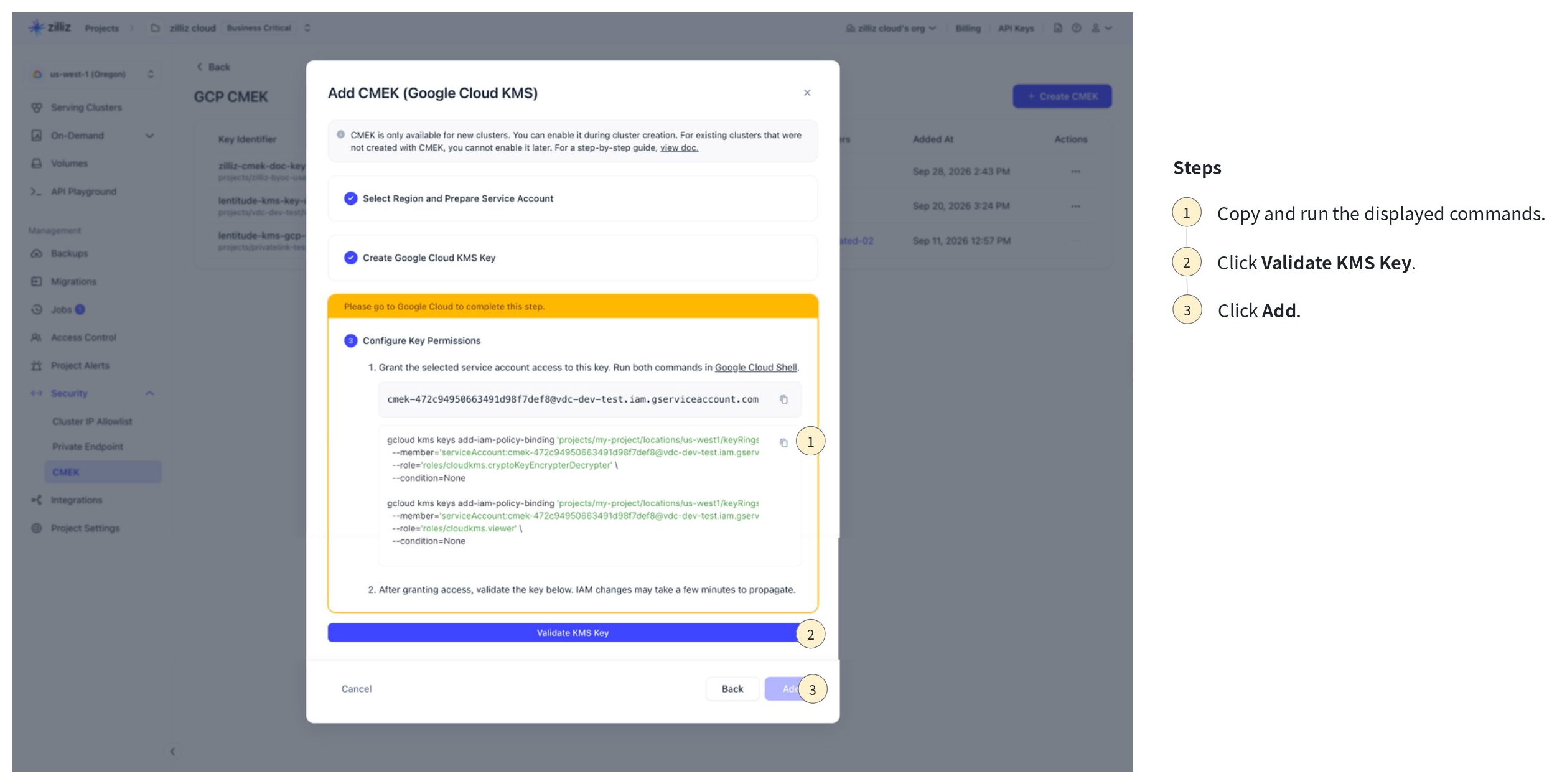
Configure key permissions.
-
Copy the commands displayed in the dialog box and run them in Google Cloud Shell.
Running these commands will associate the necessary key permissions to the Google Cloud service account prepared in step 1.
-
Click Validate KMS Key.
-
Once the key is validated, click Add to add the key.
Manage Google Cloud KMS Keys
You can view the added Google Cloud KMS keys on the Zilliz Cloud console.
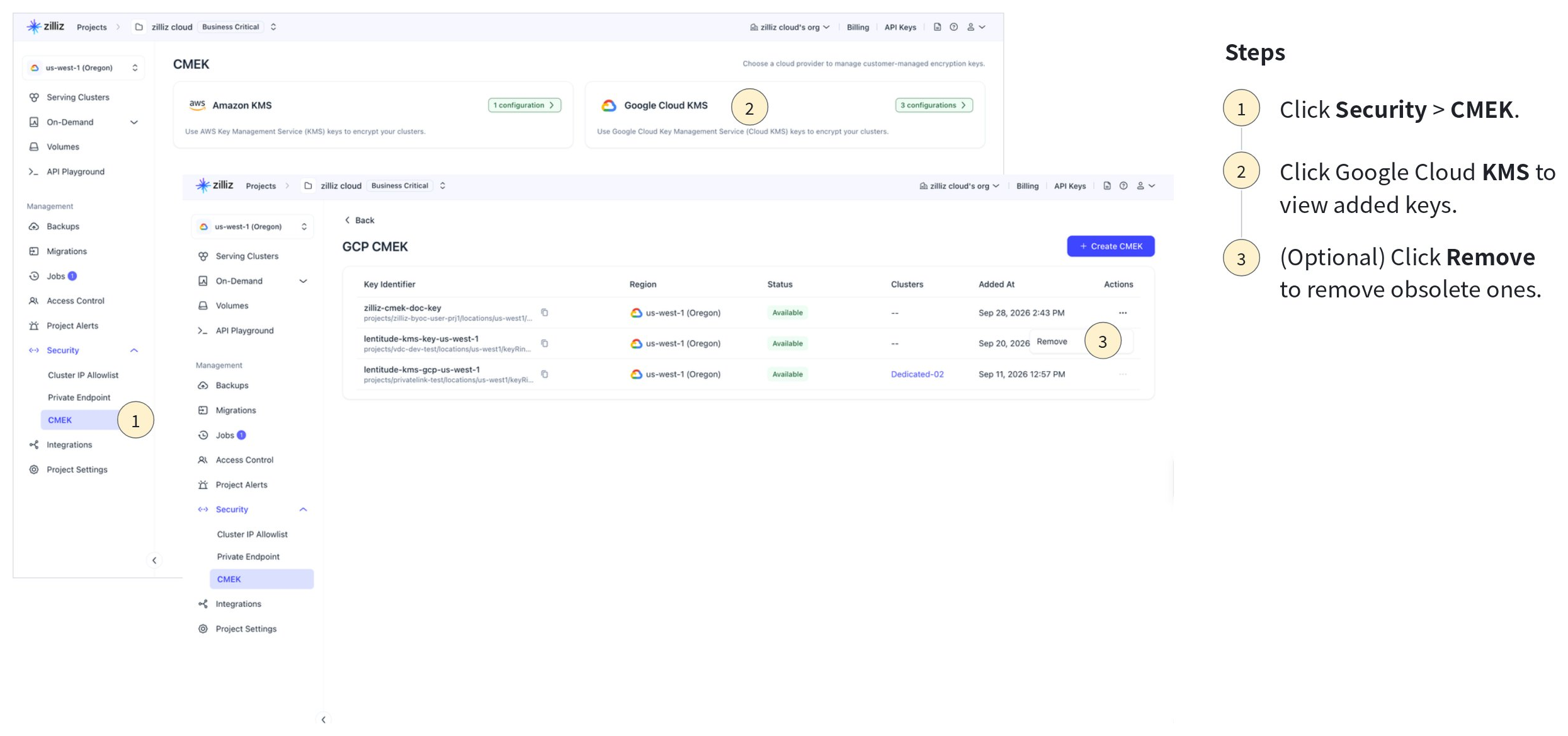
Zilliz Cloud will scan the availability of the listed keys every 10 minutes. You can also create project alerts regarding the status of the listed KMS keys. For details, refer to Manage Project Alerts.
When a KMS key is no longer needed, you can delete it if any clusters do not use it.
Use Google Cloud KMS keys
Once you have added a KMS key to Zilliz Cloud, you can use it to create encrypted clusters and to back up and restore them.
Create an encrypted cluster
You can select a KMS key available in the region where you want to create the cluster to encrypt it.
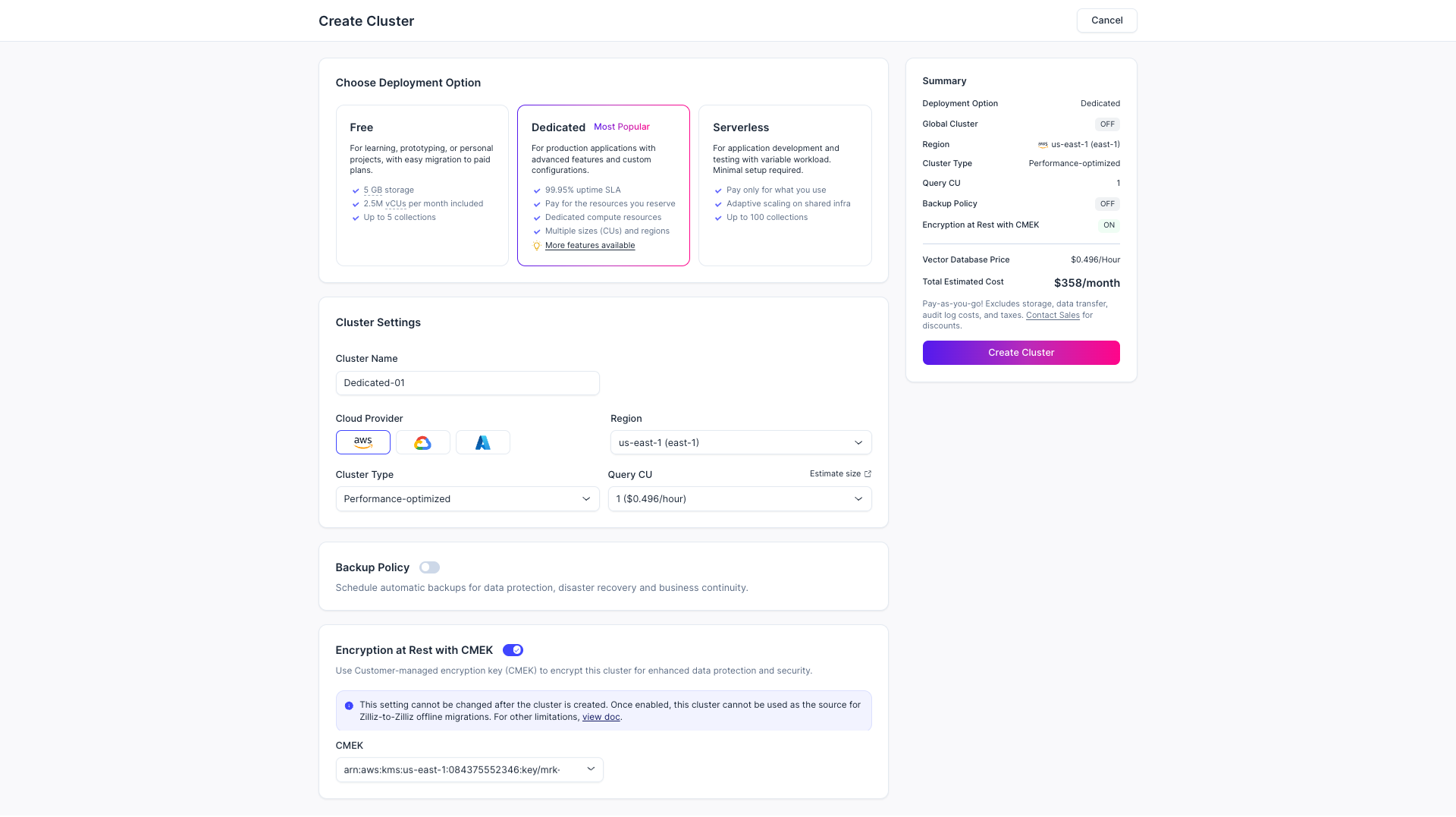
Once you have added a KMS key, you can create an encrypted cluster as follows:
Click Dedicated in the Choose Deployment Option section.
Choose the cloud provider and region for the cluster.
Enable Encryption at Rest with CMEK and select an existing KMS key. Only a KMS key in the same region as the cluster to create can be selected.
Review the summary, then click Create Cluster.
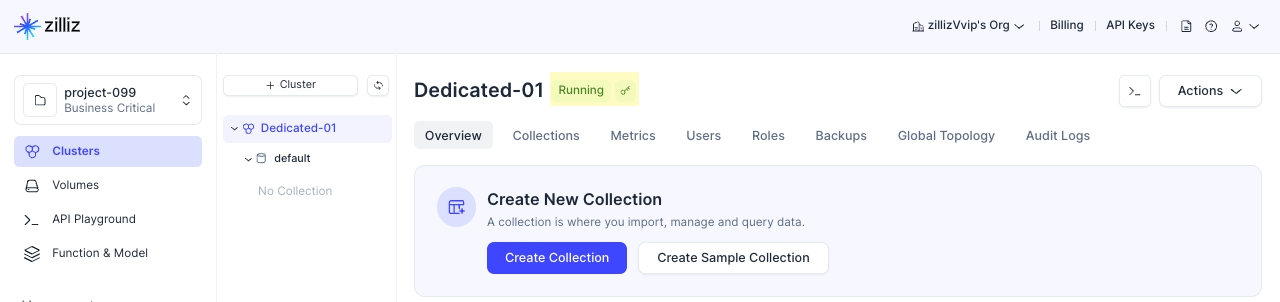
On the Overview page of an encrypted cluster, there is a key icon to the right of the cluster name, as shown in the above figure. All collections created in an encrypted cluster are encrypted by default.
Restore from an encrypted backup file
When you restore an encrypted backup to a new cluster, Zilliz Cloud will use the KMS key associated with the backup file to decrypt the data before restoration. Therefore, you can restore the backup to a new cluster with or without encryption.
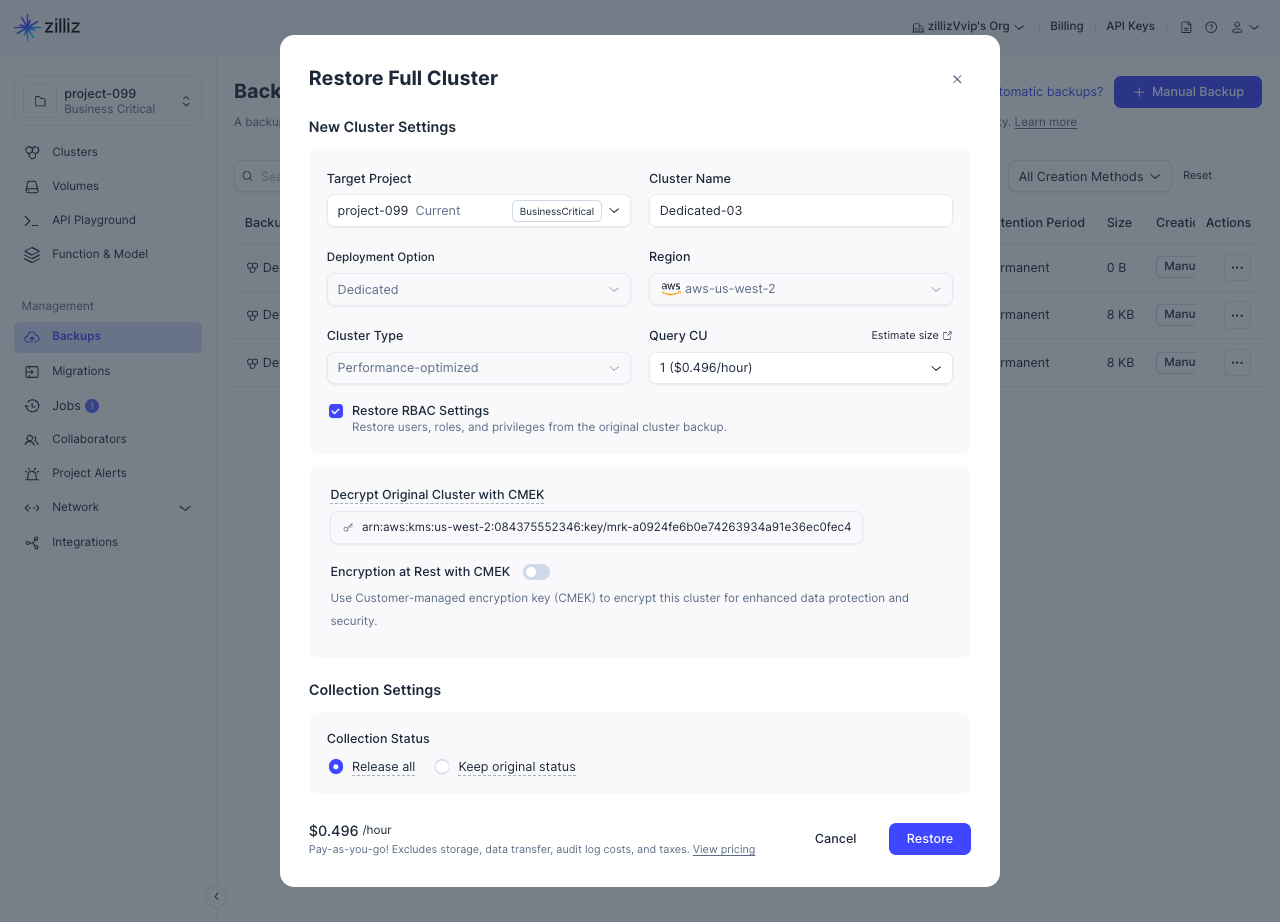
The restoration procedure from an encrypted backup is almost the same as a normal restoration, except for whether to enable Encryption at Rest with CMEK.

-
When this option is enabled, the cluster created after the restoration is encrypted using the KMS key specified below.
-
When this option is disabled, the cluster created after the restoration is unencrypted.