Integrate with an HTTPS Endpoint
To analyze Zilliz Cloud logs in your existing monitoring or security system, configure an HTTPS Endpoint integration as the forwarding destination. For example, you can send audit logs to your security system for investigation, or access and slow logs to your monitoring system for troubleshooting.
Your destination must provide an HTTPS service that accepts log data. This can be a log ingestion endpoint provided by your platform or an API maintained by your developers or operations team.
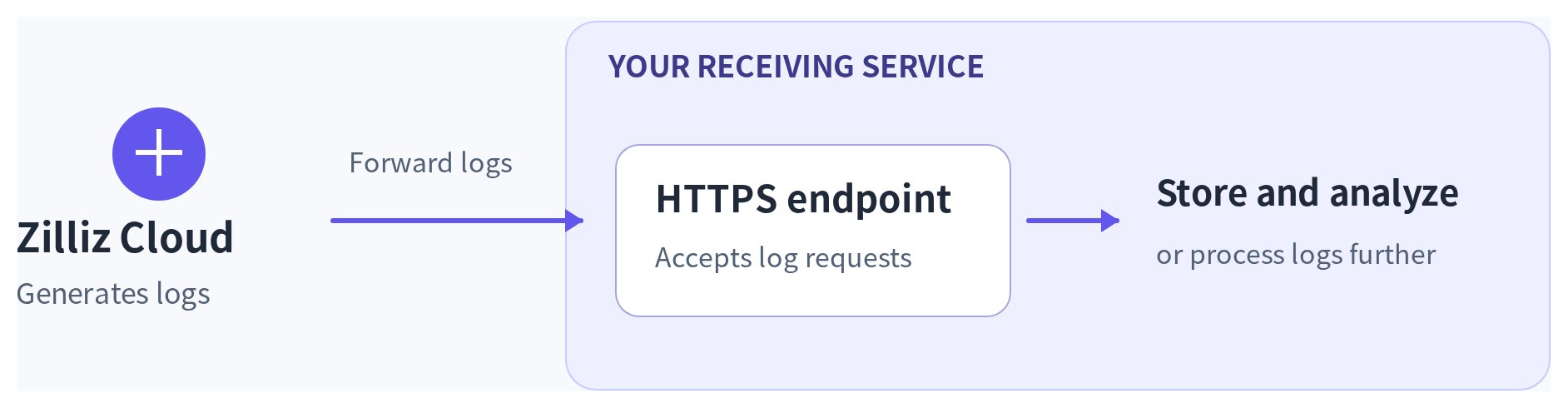
This guide walks you through connecting your receiving service and testing the connection. You can then enable forwarding for the logs you want to collect.
To forward logs to object storage, see Amazon S3, Google Cloud Storage, or Azure Blob Storage.
Before you start
Prepare an HTTPS receiving service before you create the integration. Use its log ingestion setup instructions, or ask the administrator or team that maintains it, to confirm the following connection requirements and collect the corresponding values:
-
Log ingestion URL: obtain the full HTTPS address that accepts logs. Confirm that the service is reachable from the environment sending your Zilliz logs and can process those log requests.
-
Authentication method: confirm whether the service requires an authentication header. If it does, obtain the header name, any prefix, and a receiver token. If it does not, you can leave Authentication Header disabled.
-
Server certificate: for a certificate issued by a private company CA that Zilliz Cloud does not already trust, obtain the CA certificate from the service owner or certificate administrator. A server certificate already trusted by Zilliz Cloud needs no additional CA certificate.
-
Client certificate authentication (mTLS): confirm whether the service requires clients to present a certificate. If it does, obtain a client certificate the service trusts and its matching private key. Otherwise, you can leave mTLS disabled.
If the service's instructions do not specify its authentication or certificate requirements, ask its owner to confirm them before filling out the integration form.
You also need access to the project and permission to create the integration. Check the forwarding guide for your log type for the permissions needed to enable forwarding.
Create an HTTPS Endpoint integration
Follow the demo or the steps below to create your integration. The demo uses Bearer authentication; your service may require different settings.
In the Zilliz Cloud console, select your project and open Integrations. Under HTTPS Endpoint, click + Integration.
Enter a name and the receiving service's URL.
| Field | Description |
|---|---|
| Integration Name | Enter a name that helps you identify the destination, such as security-log-receiver. |
| HTTPS Endpoint URL | Enter the full log ingestion URL supplied by your receiving service, such as https://logs.example.com/ingest. Use the ingestion interface, not the platform sign-in page or a Zilliz cluster endpoint. The URL must not contain embedded credentials or a fragment such as #section. |
If your service requires an authentication header, enable Authentication Header and fill in the fields below. Otherwise, leave it disabled.
| Field | Description |
|---|---|
| Header Name | Enter the authentication header name required by your receiver. Example: Authorization. |
| Prefix (Optional) | Enter the prefix required by your receiver, such as Bearer. Leave it empty if the header value has no prefix. |
| Token | Enter the token issued or accepted by your receiving service, without the prefix. Example placeholder: <receiver-token>. Replace the placeholder with your actual token; do not use your Zilliz Cloud API key. |
For example, to send Authorization: Bearer <receiver-token>, enter Authorization as the header name, Bearer as the prefix, and the actual token without Bearer. Check the header preview before continuing.
Configure certificates only if your service requires them.
-
No additional certificate requirements: leave CA Certificate empty and mTLS disabled if the server certificate is already trusted and the receiver does not require a client certificate.
-
Additional server trust required: fill in CA Certificate, for example when the receiver uses a private company CA that is not already trusted.
-
Client certificate required: enable mTLS and provide the client certificate and its matching private key.
| Field | Description |
|---|---|
| CA Certificate (Optional) | Paste the CA certificate supplied by the receiver owner or certificate administrator to verify the receiving server. Example placeholder: <CA certificate content>. |
| Client Certificate | With mTLS enabled, paste the client certificate trusted by your receiving service. Obtain it through the receiver owner or your security team. Example placeholder: <client certificate content>. |
| Client Private Key | Paste the private key that matches the client certificate, from the same certificate provisioning process. Example placeholder: <matching client private key>. Keep this value confidential. |
Paste the complete certificate or key content, not a filename. Your service may require both a CA certificate and mTLS; header authentication can also be used with mTLS.
Click Create to save the integration.
Your destination is now configured. Test the connection next, then enable forwarding for the logs you want to send.
Test the connection
On the HTTPS Endpoint page, click the integration name to open its details.
Under Connection Test, click Send Test Event.
If the test succeeds, the console displays The endpoint accepted the test event. This confirms that the receiver accepted a test event using the saved settings. If the test fails, check the URL, authentication, and certificates as described in Troubleshooting below.
A successful test does not start log forwarding. Continue below to enable it.
Enable log forwarding
Open the forwarding settings for the logs you want to send. Select your HTTPS Endpoint integration and an output format your receiving service can process, then enable forwarding using the corresponding guide:
-
Platform Audit Logs: select an integration you are authorized to use within the same organization. Its project does not limit the logs to that project's activity.
-
VectorDB Audit Logs, Access Logs, or Slow Logs: use an integration in the instance's project.
FAQ
-
Why does the connection test fail or no test request reach my receiver?
Check the full ingestion URL, receiver availability, and network access from the environment sending the logs. Access from your laptop alone does not confirm that Zilliz can reach the receiver.
-
What should I check if the receiver rejects authentication or reports a certificate error?
Check the header name, prefix, and token against the receiver's requirements. For TLS errors, check the server certificate's hostname, validity, and trust chain. For mTLS, check that the receiver trusts the client certificate and that its private key matches.
-
Why do no logs arrive after a successful connection test?
A successful test does not enable forwarding. Confirm that forwarding is enabled for the intended log type and destination. Check that the event produces that log type and meets any filters, sampling rules, or slow-log thresholds.
-
Why can I not search or analyze logs even though requests reach my receiver?
Ask the receiver owner to check parsing and downstream processing. Confirm that the receiver supports the selected format and routes logs to the intended storage or index.