Manage Global Cluster
This feature is available only on Business Critical (SaaS) and BYOC deployments.
This feature is available in all supported AWS regions. It is also available in Google Cloud regions us-central1 and us-east4 on request. This feature is not available on Microsoft Azure.
This page explains how to add and delete secondary clusters, convert a global cluster to a regular cluster, and drop a global cluster entirely.
Before you start
-
Ensure you are a Project Admin.
-
Note that the both the primary and secondary clusters cannot be suspended.
Add secondary cluster
To improve regional coverage, you can add additional secondary clusters in different regions to an existing global cluster.
A global cluster can only have up to 5 secondary clusters.
Once you add a new secondary cluster, Zilliz Cloud provisions it and begins replicating data from the primary. The new secondary cluster appears in CREATING status and transitions to RUNNING once the initial data sync completes.
-
Via web console
The following demo shows how to add one or more secondary clusters.
-
Via RESTful API
The following example adds a new secondary cluster named
secondary-cluster-apdeployed in AWS ap-southeast-1. For details about the API, see Add Secondary Clusters.bashcurl --request POST \--url "https://api.cloud.zilliz.com/v2/globalClusters/glo-xxxxxxxxxxxxxxxx/secondaryClusters" \--header "Authorization: Bearer ${API_KEY}" \--header "Accept: application/json" \--header "Content-Type: application/json" \--data-raw '{"secondaryClusters": [{"clusterName": "secondary-cluster-ap","regionId": "aws-ap-southeast-1"}]}'The following is an example output.
bash{"code": 0,"data": {"jobId": "job-xxxxxxxxxxxxxxxx"}}
Drop secondary cluster
You can drop a secondary cluster when you no longer need coverage in that region or want to reduce costs.
Once you drop a secondary cluster,
-
The deleted secondary cluster is removed from the global cluster topology.
-
Data replication to that cluster stops immediately.
You can drop a secondary cluster either via the web console or RESTful API.
-
Via web console
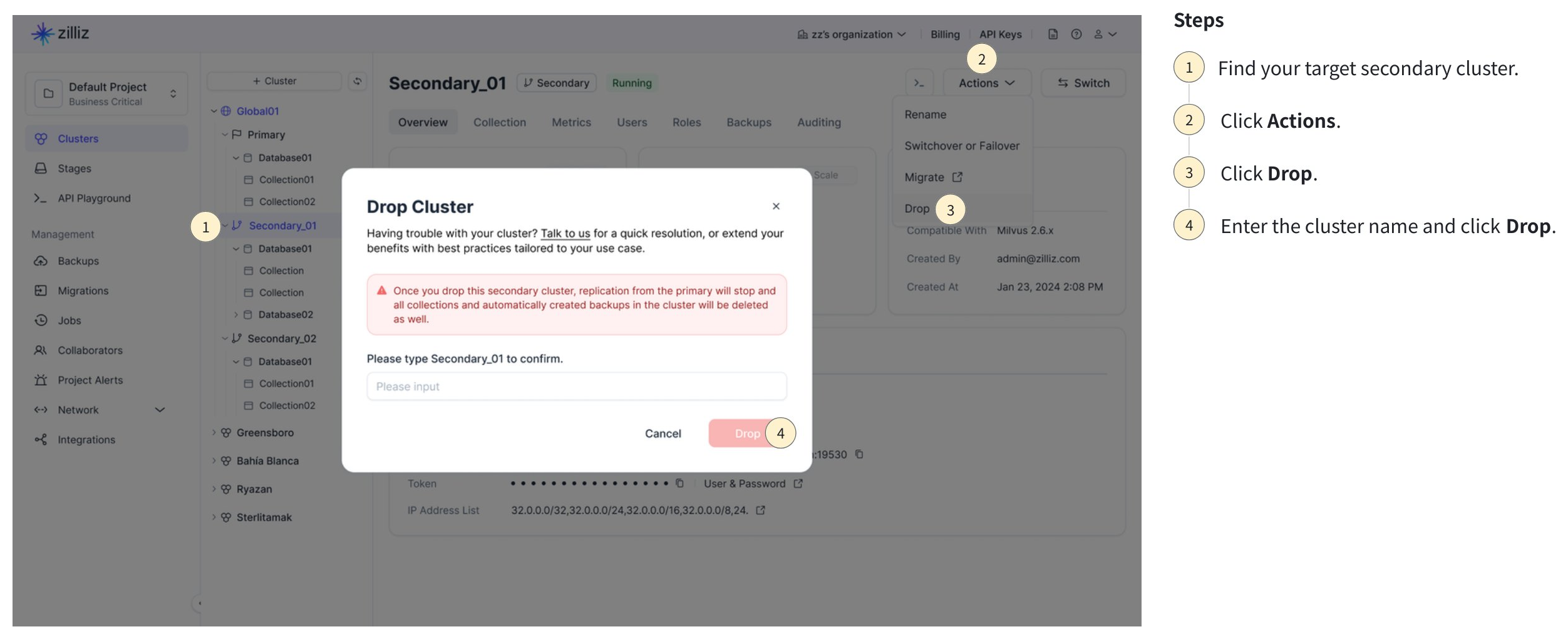
The following screenshot shows how to drop a secondary cluster.
-
Via RESTful API
The following example removes a secondary cluster. For details about the API, see Delete Global Member Cluster.
bashcurl --request DELETE \--url "https://api.cloud.zilliz.com/v2/globalClusters/glo-xxxxxxxxxxxxxxxx/clusters/in01-xxxxxxxxxxxxxxx" \--header "Authorization: Bearer ${API_KEY}" \--header "Accept: application/json"The following is an example output.
bash{"code": 0,"data": {"globalClusterId": "glo-xxxxxxxxxxxxxxxx","clusterId": "in01-xxxxxxxxxxxxxxx","prompt": "The cluster has been deleted. If you consider this action to be an error, you have the option to restore the deleted cluster from the recycle bin within a 30-day period. Kindly note, this recovery feature does not apply to free clusters."}}
Convert a global cluster to a regular cluster
If you no longer need multi-region capabilities but want to keep the primary cluster and its data, you can convert a global cluster back to a regular Dedicated cluster.
To convert a global cluster to a regular cluster, you need to:
Drop all secondary clusters.
On the Global Cluster page, click on Remove Global Endpoint from the Actions dropdown.
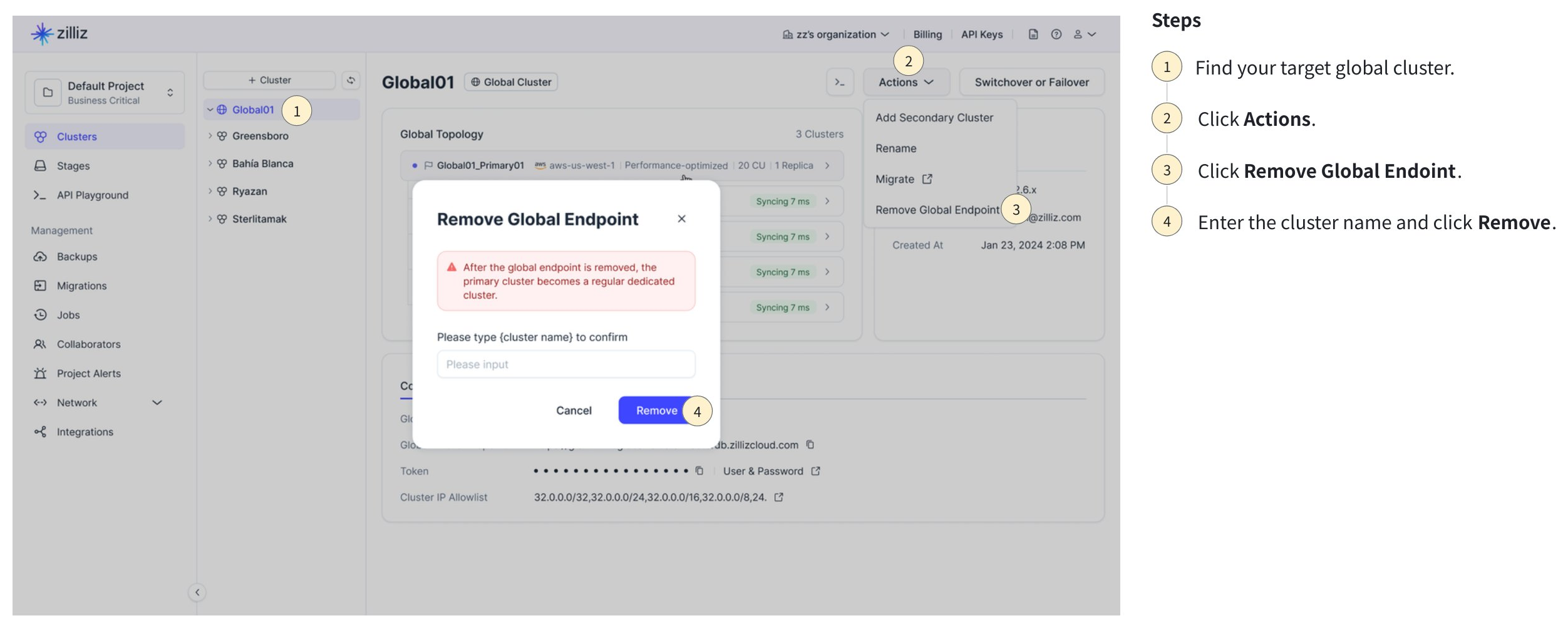
You can also remove the global endpoint via RESTful API. The following is an example. For details, see Remove Global Endpoint.
curl --request POST \
  --url "https://api.cloud.zilliz.com/v2/globalClusters/glo-xxxxxxxxxxxxxxxx/removeGlobalEndpoint" \
  --header "Authorization: Bearer ${API_KEY}" \
  --header "Accept: application/json"
Once the global endpoint is removed, any application connected via the global endpoint will be disconnected immediately. Please ensure to update the connection endpoint in your application code. The following table shows what happens after the conversion.
| Item | Behavior |
|---|---|
| Global endpoint | Deleted immediately. Clients using it are disconnected. |
| Primary cluster | Becomes a regular Dedicated cluster. Continues running with all data intact. |
| Data replication | Stopped. Data replication metrics are removed. |
| Global cluster metadata | Cleared (global cluster ID, topology). |
| Backup policy | Remains on the former primary cluster, unchanged. |
| Billing | Data transfer charges stop. The remaining cluster is billed as a regular Dedicated cluster. |
Drop global cluster
To drop a global cluster entirely, drop all secondary clusters first, then drop the primary cluster. The global cluster is automatically removed when the primary cluster is deleted.