Manage Platform Roles
This guide introduces the two types of platform roles in Zilliz Cloud: organization roles and project roles, and explains how to manage them.
Manage organization roles
Organization roles control organization-level access. Use organization roles to manage permissions for members, groups, organization settings, billing and subscriptions, security settings, organization alerts, platform audit log visibility, API keys, project management, and recycle bin operations.
Organization roles are for organization-level resources only. They do not define cluster, database, or collection permissions.
Predefined organization roles
The following table explains the 3 predefined organization roles.
| Role | Description | Can be edited? |
|---|---|---|
| Organization Owner | Full organization-level administration, including access control, settings, billing, security, service principals, and project role assignments. | No |
| Billing Admin | Manage billing and subscriptions with read-only access to relevant organization and project context. | No |
| Public | Baseline login-only role automatically granted to every organization member. | No |
Manage project roles
Project roles control access within a specific project. Use project roles to manage project members, cluster lifecycle operations, on-demand compute access, integrations, backups, migrations, alerts, volumes, and project-scoped data access.
A project role belongs to a specific project. When you assign a project role, the assignment applies only to the selected project.
Predefined project roles
The following table explains the 4 pre-defined project roles.
| Role | Best for | Typical permissions |
|---|---|---|
| Project Admin | Project owners and platform administrators. | Full project administration, including collaborators, roles, cluster lifecycle, compute, and data access. |
| Data Admin | Database administrators and platform engineers. | Data administration, such as scaling, backup, cluster operations, and data access. |
| Data Operator | Application teams and data engineers. | Read and write data operations with limited project administration. |
| Data Viewer | Analysts, developers, and read-only applications. | Read-only access for viewing, querying, and search workflows. |
Custom project roles
Create a custom project role when predefined roles do not match your team's responsibilities. A custom project role can combine platform permissions, compute permissions, and data access permissions within the project.
Create a custom project role
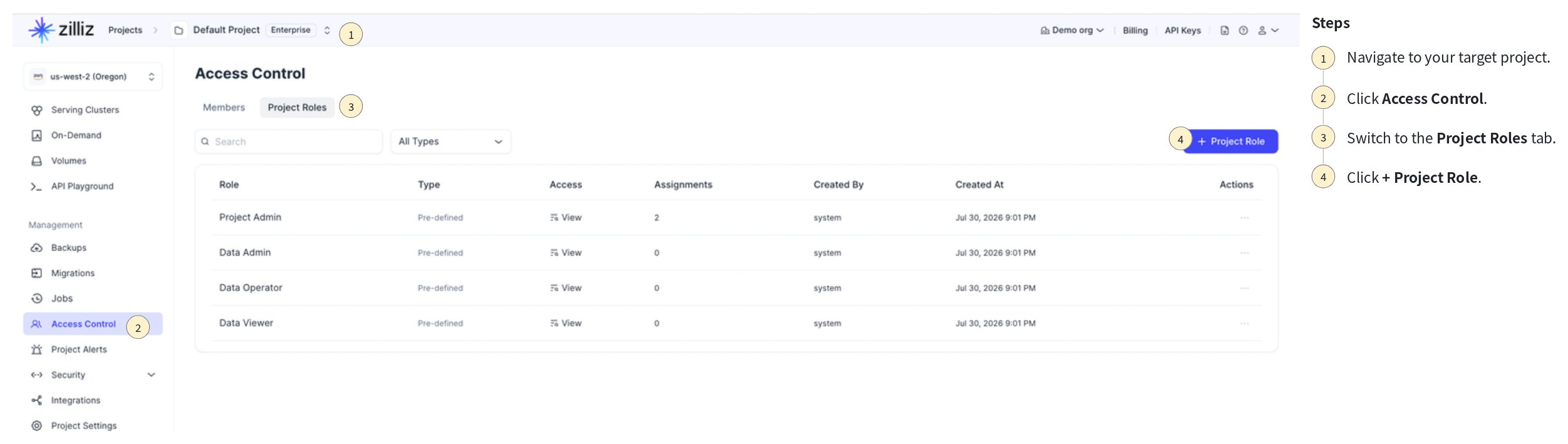
Open the target project.
Go to Access Control.
Open the Project Roles tab.
Click + Project Role.
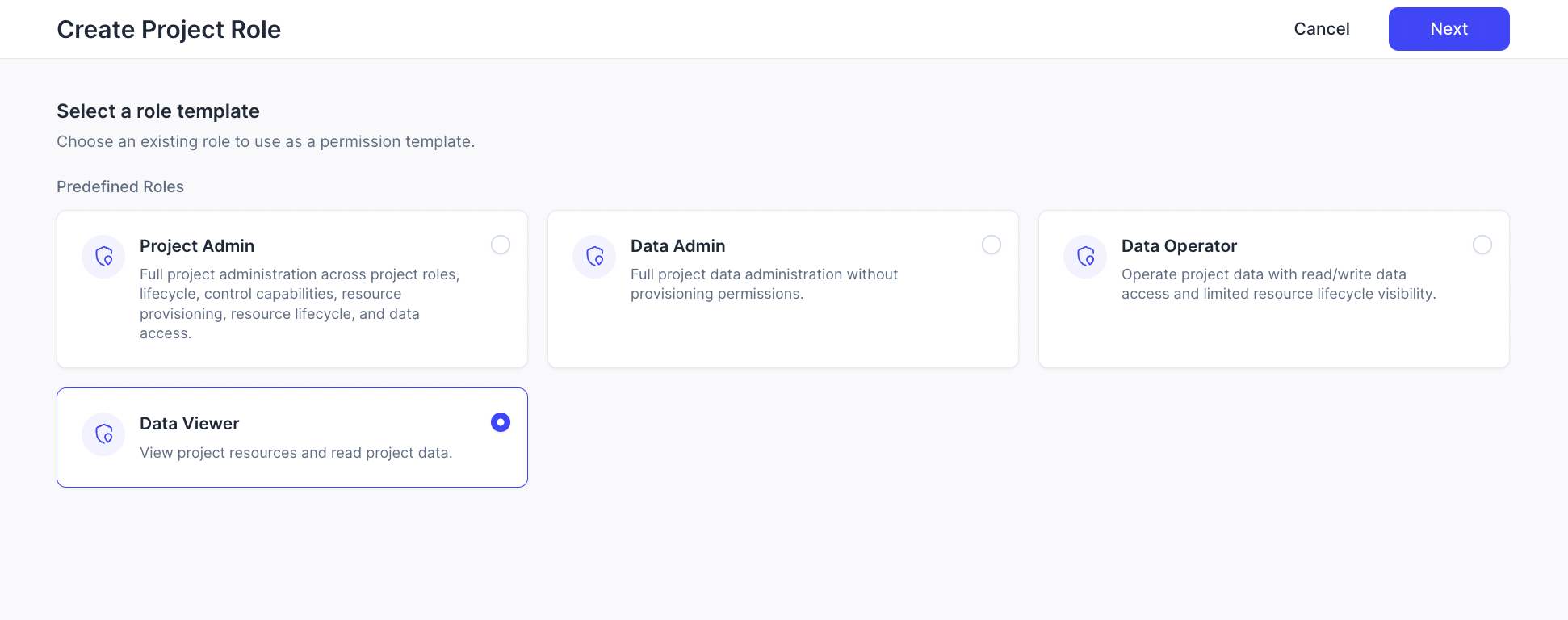
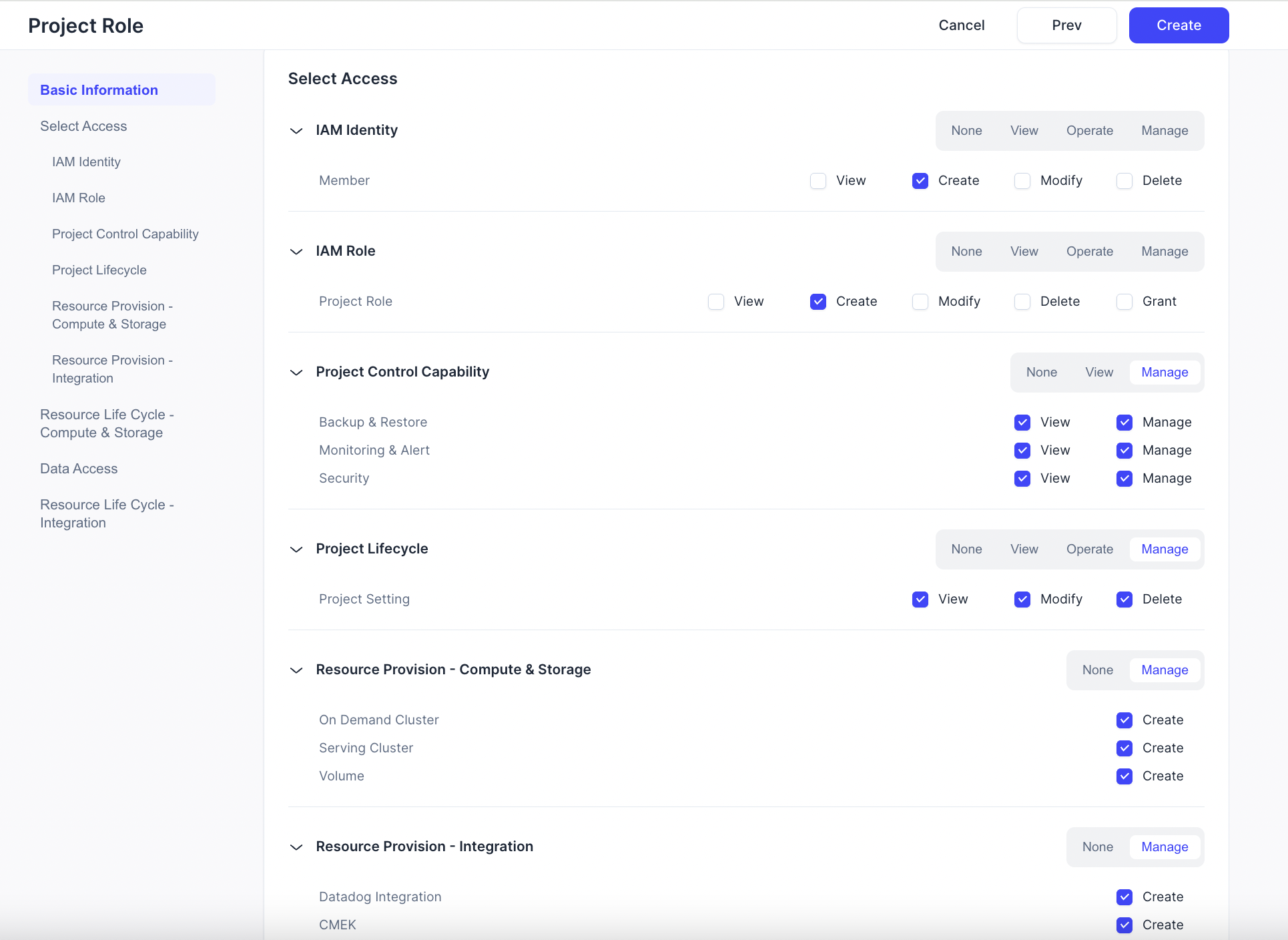
Select a role template and click Next.
Enter the custom role name and description.
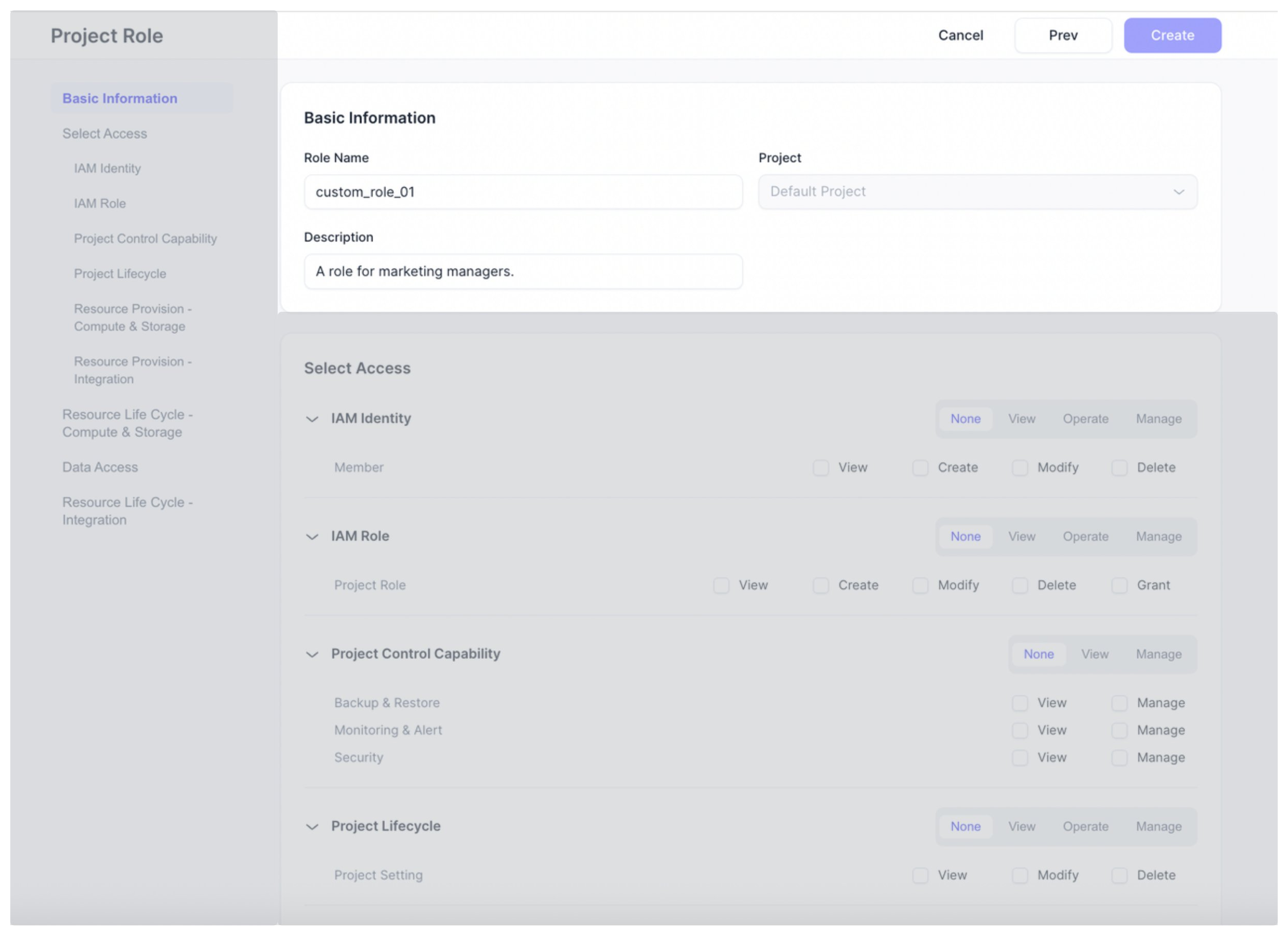
Configure role access and click Create. For a full list of the privileges you can add to a custom project role, see Resource Privilege Reference.
Edit a custom project role
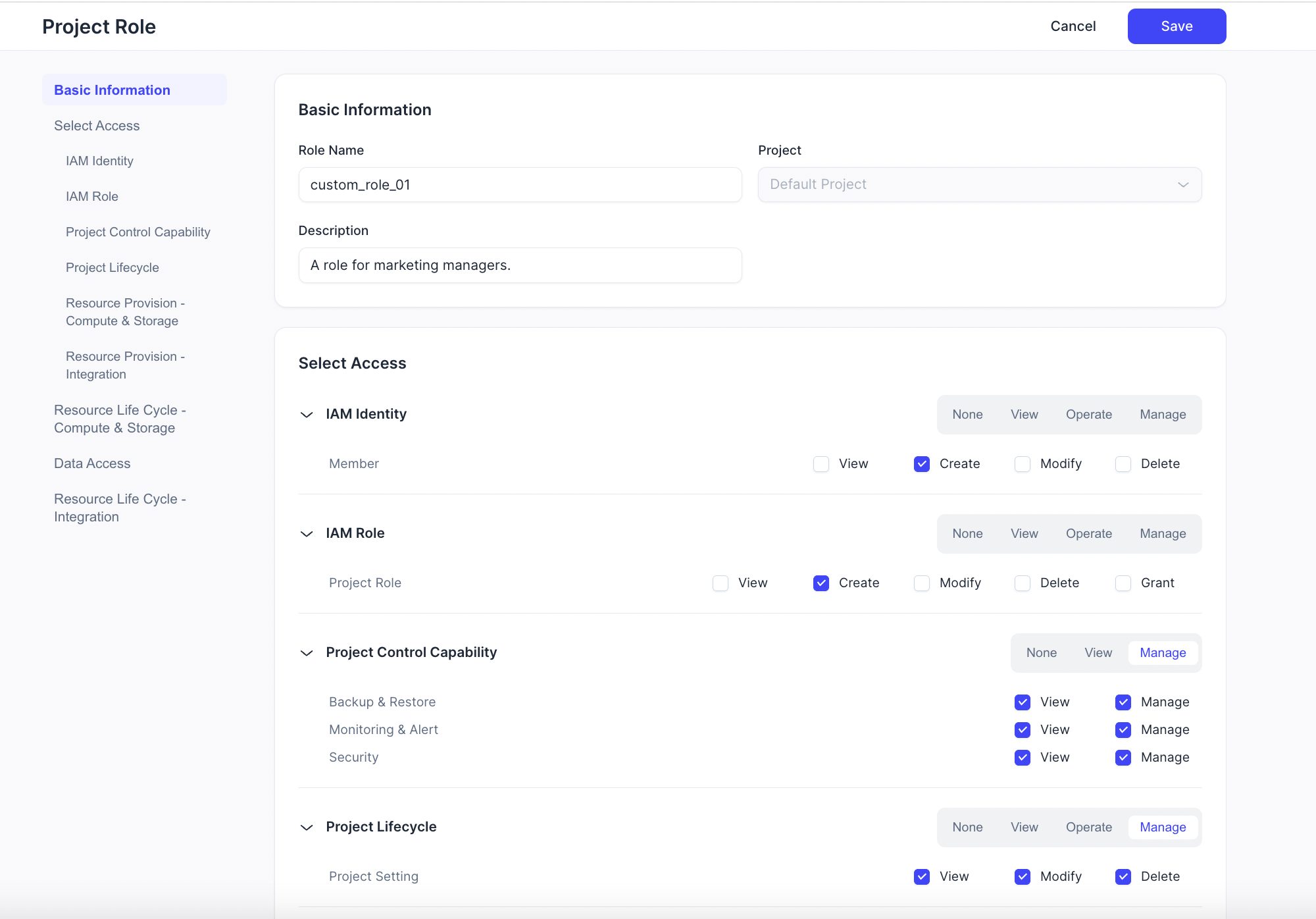
Edit a custom project role when the permission set needs to change. Changes apply to all users, groups, or customized API keys that are granted the role.
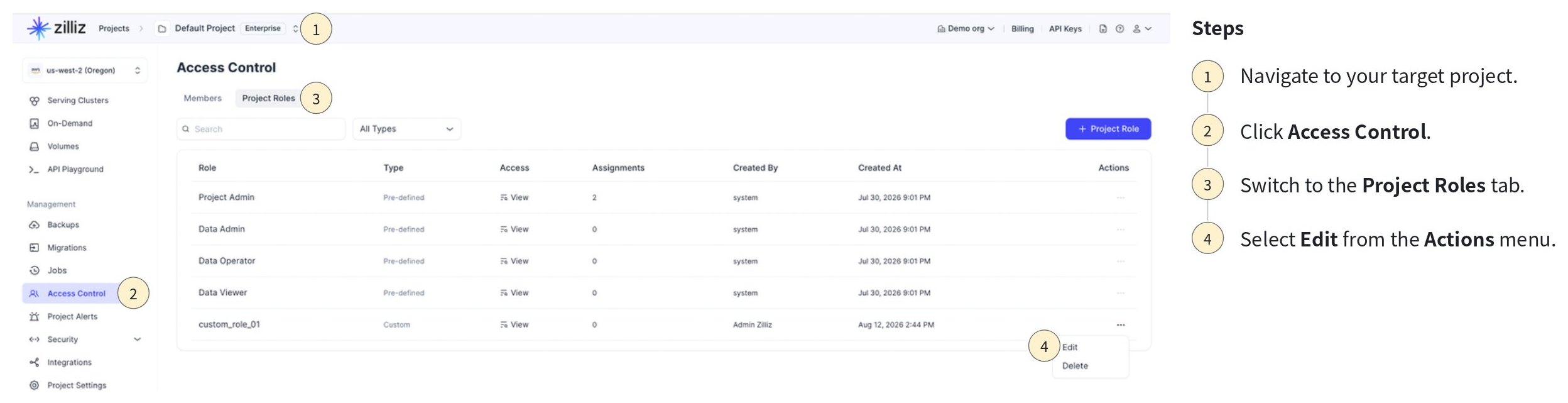
Open the target project.
Go to Access Control.
Open the Project Roles tab.
Find the target custom role, and select Edit from the Actions menu.
Update the role details or permissions and click Save.
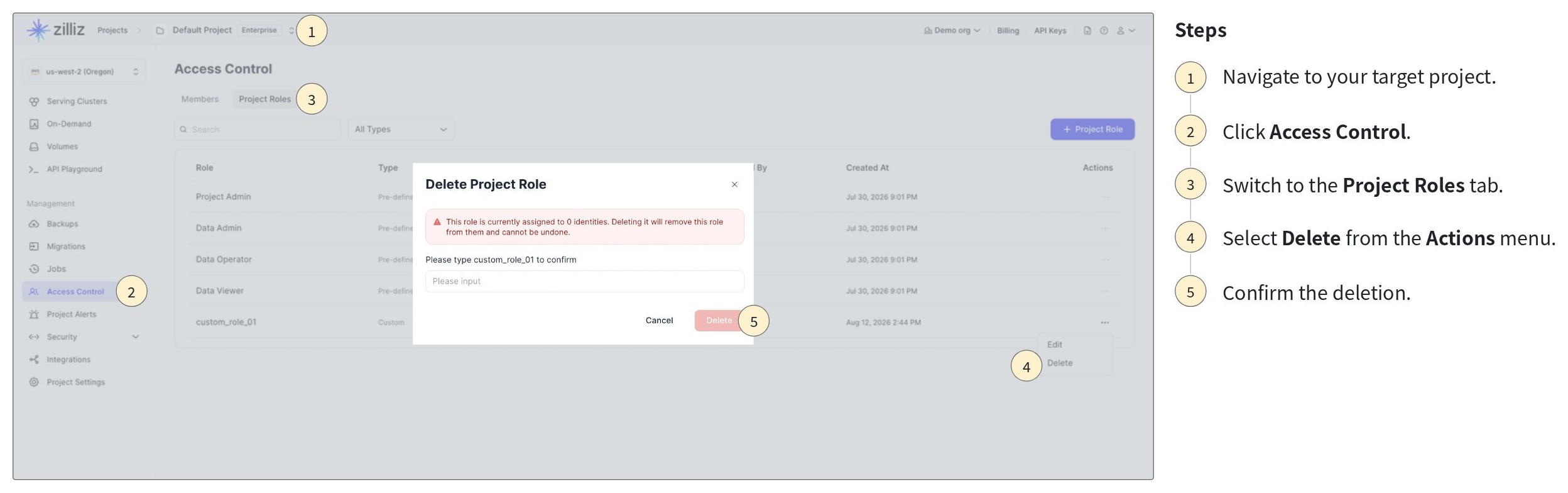
Delete a custom project role
You cannot delete a project role that is still assigned to users, groups, or service principals. Remove existing assignments before deleting the role.