Manage Platform Users
This guide introduces the two types of platform users in Zilliz Cloud: organization members and project users, and explains how to manage them.
Organization members
Organization members are users who belong to a Zilliz Cloud organization. They can sign in to the console and may be assigned organization roles, project access, or other permissions based on their responsibilities.
To manage organization members, you must have an organization role that includes member and role management permissions, such as Organization Owner or an equivalent custom organization role.
Invite organization members
Each organization can have up to 100 members.
The following image demonstrates how to invite an organization members.
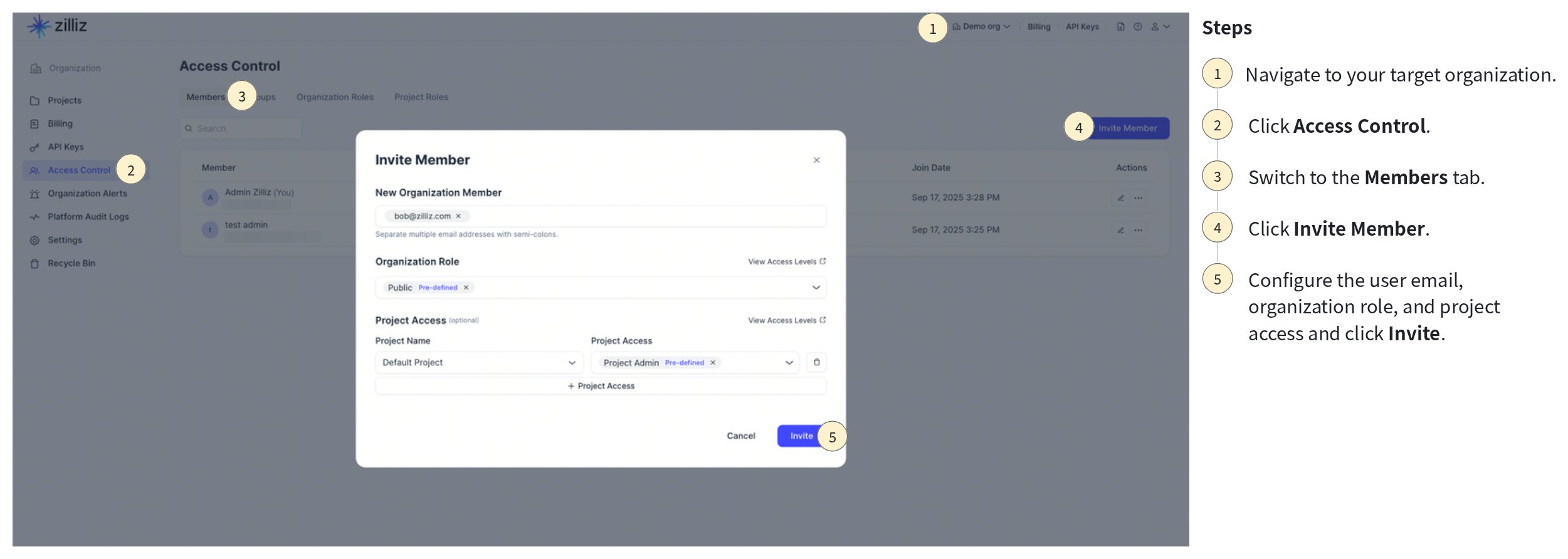
In the Zilliz Cloud console, navigate to your target organization.
Go to Access Control.
Switch to the Members tab
Click Invite Member.
Enter the following information:
-
Email address(es): you can enter one or more email addresses.
-
Organization role: select the appropriate organization role. The following table explains the pre-defined organization roles.
Role Use when Notes Public The member only needs baseline sign-in access before additional access is granted. Automatically granted to every organization member. It cannot be removed by itself. Organization Owner The member administers organization settings, members, roles, projects, security, and billing. Grant only to trusted administrators. Billing Admin The member manages billing and subscriptions. Designed for finance and procurement users who do not need broad technical access. -
(Optional) Project access: Set up the project access by selecting a project and one or more project roles.
Click Invite.
Invitation recipients will receive an email invitation that must be accepted within 48 hours to join the organization. Alternatively, you can copy the invitation link from the web console and share it with the invitees.
Revoke or resend an invitation
After you invite a user to join your organization, Zilliz Cloud sends an invitation email to the user. You can revoke or resend the invitation before the user accepts it.
The following image demonstrates how to revoke or resend an invitation.
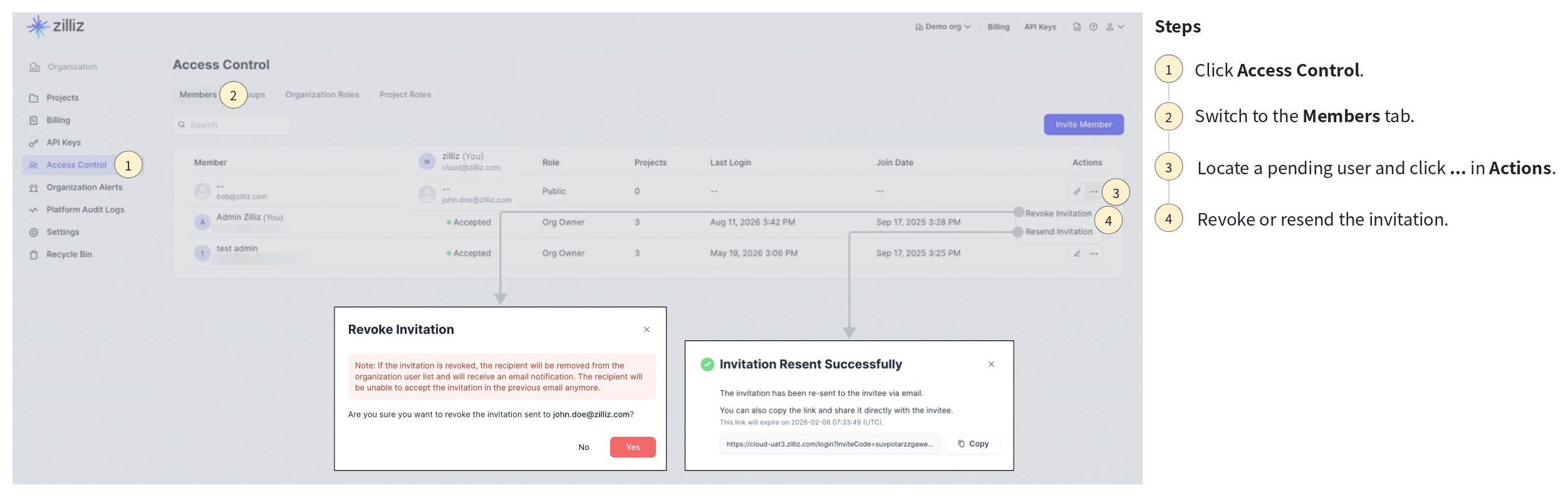
Click Access Control.
Switch to the Members tab.
Find the pending invitation and click ... in the Actions.
Click Resend Invitation or Revoke Invitation.
Edit the roles of organization members
After a user joins the organization, you can update the user's organization roles and project access. A user can have multiple organization roles and multiple project role assignments. The final permissions are the union of all direct role assignments and group-based role assignments.
The following image demonstrates how to edit the roles of an organization user.
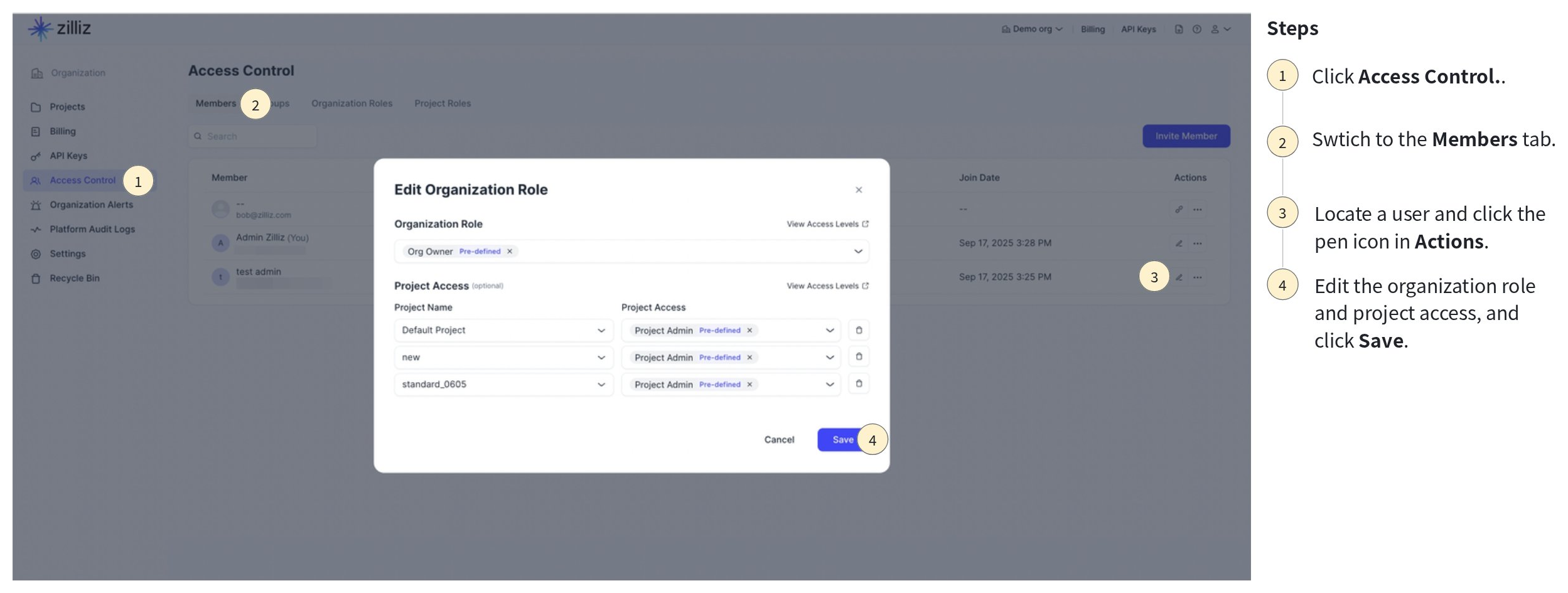
Click Access Control.
Switch to the Members tab.
Find the target member and click the pen icon (Edit Role) in Actions.
Update organization roles and project access.
Click Save.
View organization member details
Use the member details panel to review a member’s status, organization roles, project access, join time, last login time, and other details.
This is useful when checking why a member can access a project or why they cannot perform a specific operation.
Remove organization members
Remove a member when they should no longer belong to the organization. Removing an organization member removes organization membership and direct role assignments in the organization.
Upon removing a member, the corresponding personal API key will be immediately revoked and access will be denied. To prevent service disruption, please ensure that any personal keys utilized in your environments are replaced prior to removal. This action cannot be undone.
The following image demonstrates how to remove an organization user.
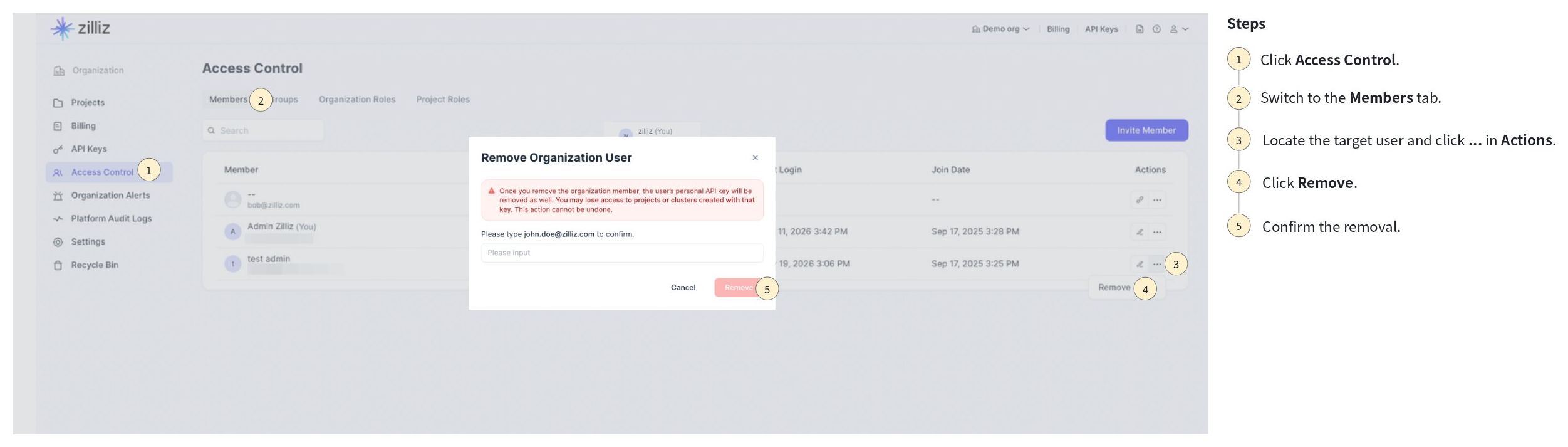
Click Access Control.
Switch to the Members tab.
Find the target user and click ... in the Actions.
Click Remove.
Confirm the removal.
Leave an organization
A member can leave an organization when they no longer need access. Each organization must keep at least one Organization Owner. If you are the only Organization Owner, assign another Organization Owner before leaving.
After you leave an organization, you can no longer access that organization and its resources unless another administrator invites you again.
You can leave an organization in either of the following ways:
-
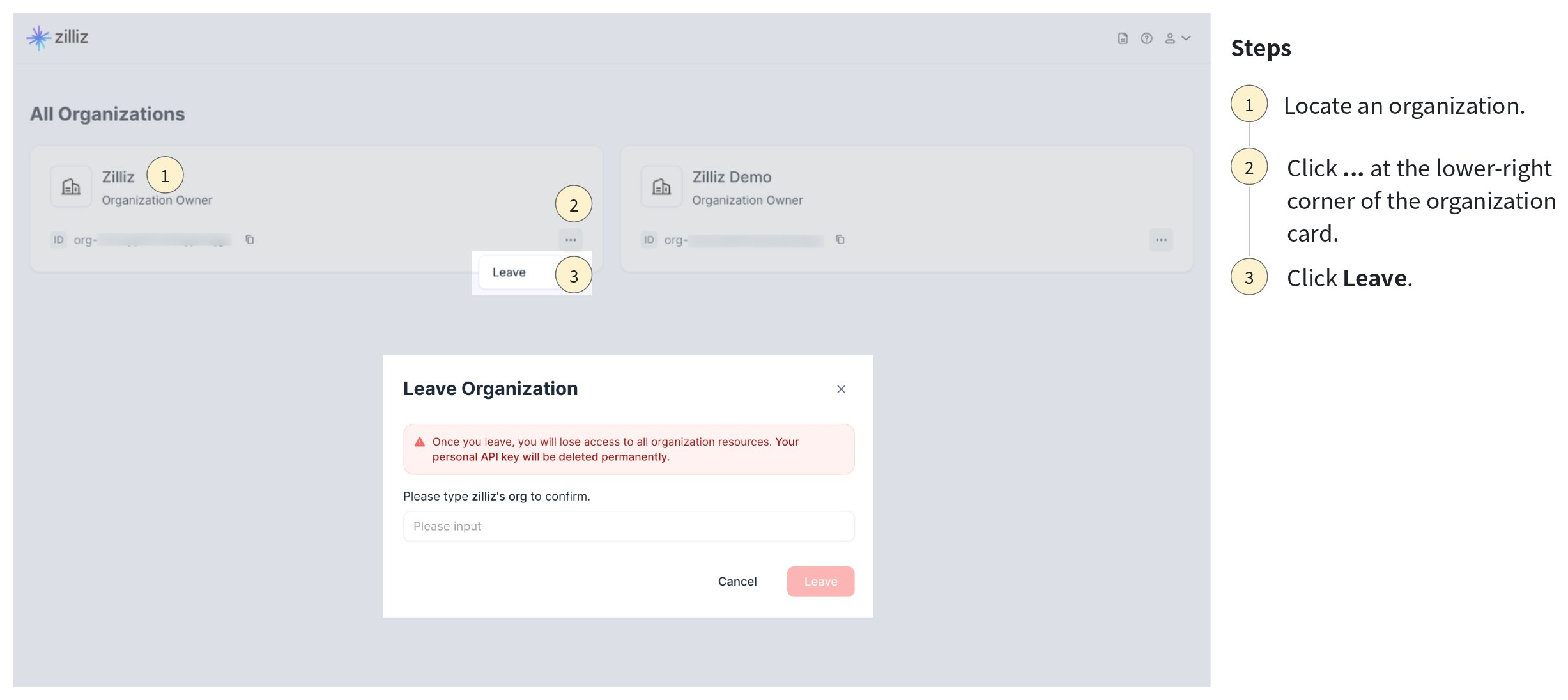
Leave an organization on the organization list page:
 1
1Locate an organization.
2Click ... at the lower-right corner of the organization card.
3Click Leave.
-
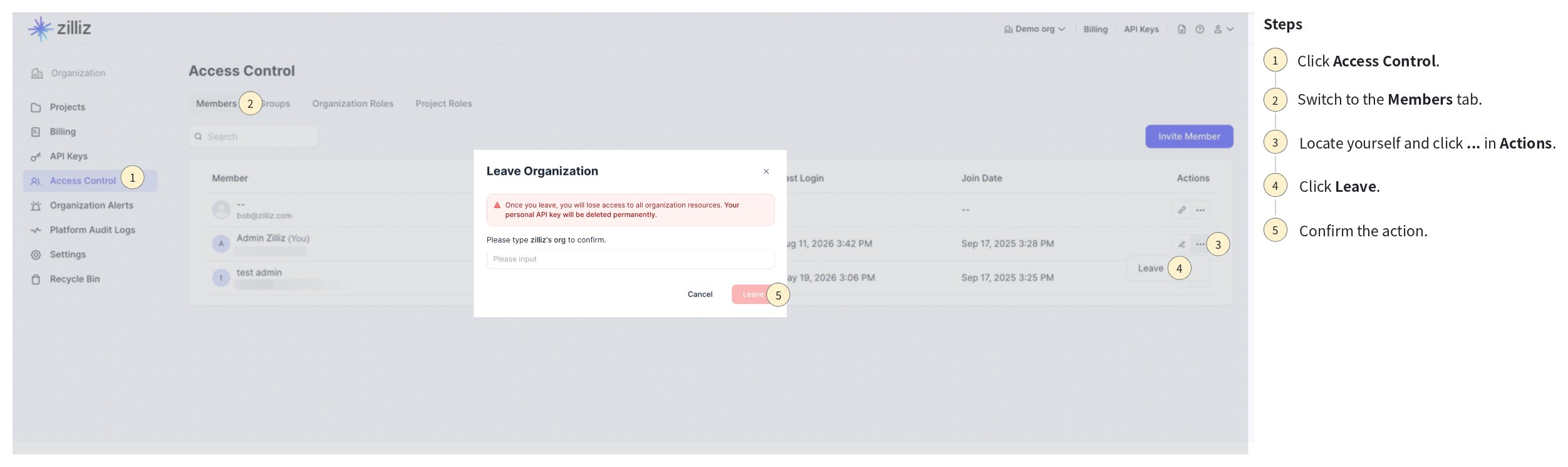
Enter an organization and leave it on the Organization Members page:
 1
1Click Access Control.
2Switch to the Members tab.
3Find yourself and click ... in the Actions.
4Click Leave.
5Confirm the action.
Project users
Project users, also called project members, are users or groups that have access to a specific project. Use project users to grant access to project resources without granting broad organization-level permissions.
Project access is explicit. A project role assignment must target a specific project. Zilliz Cloud does not support a cross-project wildcard assignment for all current and future projects.
The following table explains the relevant concepts for project user management.
| Concept | Explanation |
|---|---|
| Project member | A user or group that has been granted access to a specific project. |
| Project role | A role that controls what the member can do in the project. |
| Direct assignment | A role assigned directly to a user in the project. |
| Group assignment | A role assigned to a group. Users in the group inherit the role permissions. |
| Effective access | The union of direct project roles and group-based project roles. |
Invite project members
To grant project access, invite a user or group as a project member and assign one or more project roles.
The following image demonstrates how to invite a project user.
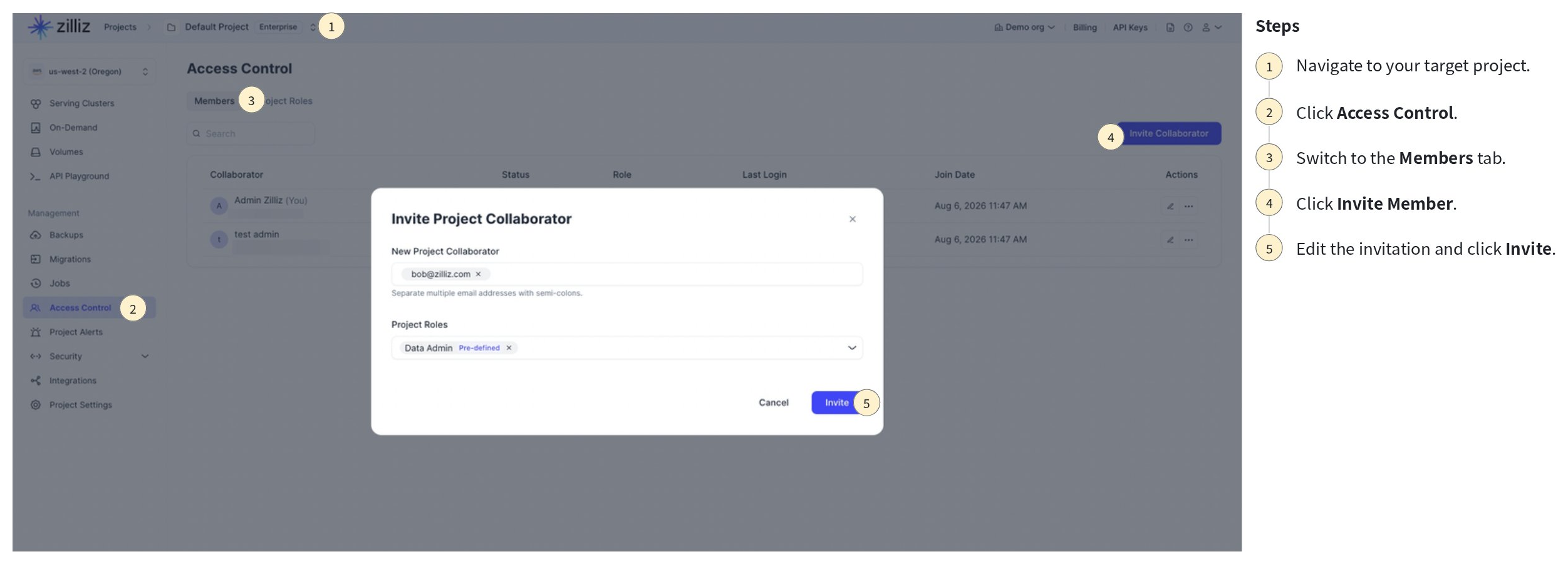
In the Zilliz Cloud console, open the target project.
Go to Access Control.
Switch to the Members tab.
Click Invite Member.
Enter the user email address(es) or select the user(s) to invite.
Select one or more project roles. The following table explains the project roles.
| Role | Best for | Typical access |
|---|---|---|
| Project Admin | Project owners and platform administrators. | Full project administration, including members, roles, cluster lifecycle, compute, and data access. |
| Data Admin | Database administrators and platform engineers. | Full project data administration without provisioning permissions. |
| Data Operator | Data engineers and application operators. | Read and write data operations without full project administration. |
| Data Viewer | Analysts, developers, and read-only applications. | Read, query, and inspect resources without write access. |
| Custom project role | Teams that need least-privilege project access. | Depends on the permission set configured in the role. |
Click Invite.
If you invite a user to a project and the user is not already an organization member, the user becomes a member of the organization after accepting the invitation.
Edit the roles of project members
Edit project access when a member's responsibilities change. For example, you can change a user from Data Viewer to Data Operator.
The following image demonstrates how to edit the roles of a project user.
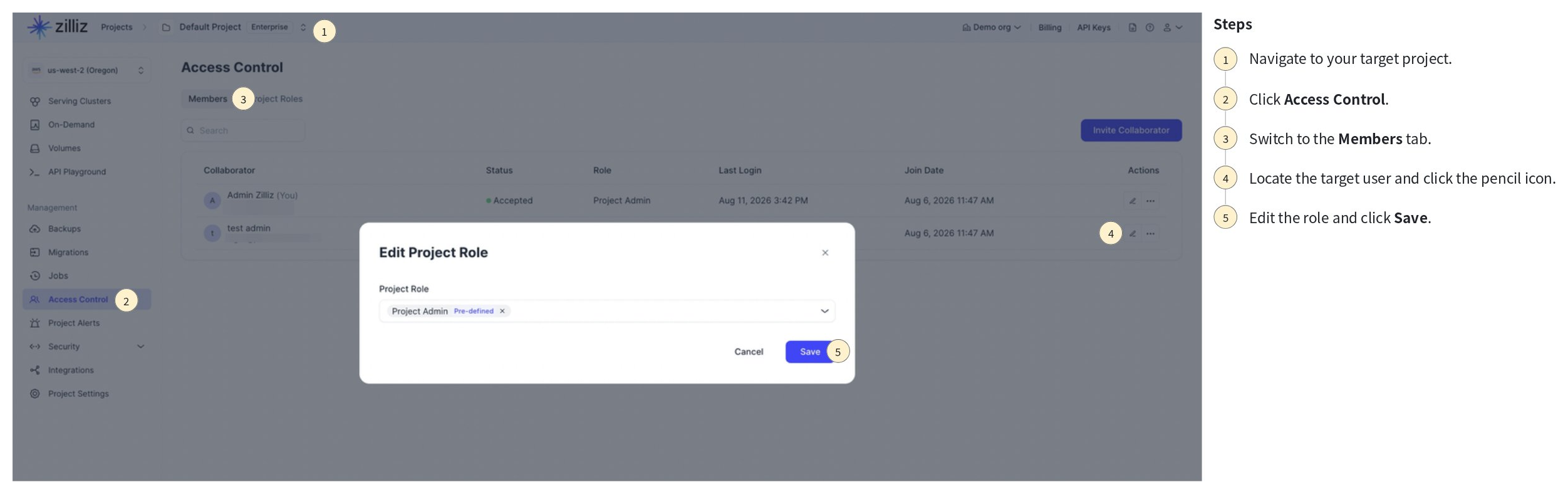
Go to Access Control.
Switch to the Members tab.
Find the target member and click the pen icon (Edit Role) in Actions.
Update the assigned project roles.
Click Save.
Remove project members
Remove a project user or group when the identity no longer needs access to the project. Removing project access does not remove the user from the organization.
The following image demonstrates how to remove a project user.
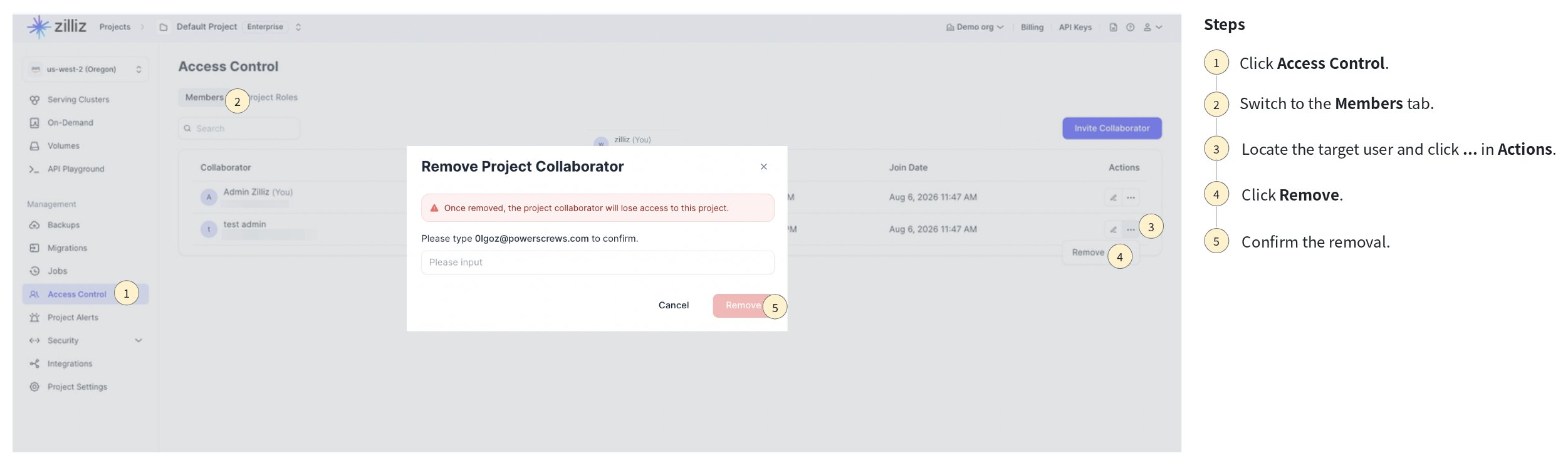
Click Access Control.
Switch to the Members tab.
Find the target user and click ... in the Actions.
Click Remove.
Confirm the removal.
Leave a project
A user can leave a project when they no longer need access. Each project must keep at least one Project Admin. If you are the only Project Admin, assign another Project Admin before leaving.
After you leave a project, you can no longer access that project and its resources unless another administrator invites you again.
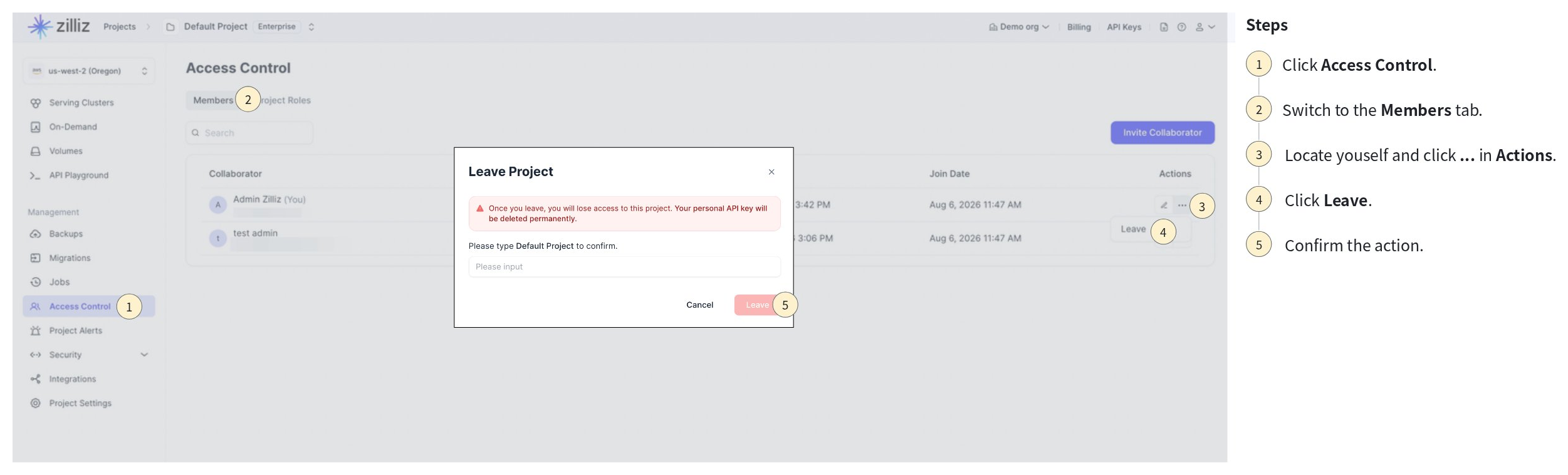
The following image demonstrates how to leave a project.