Restore from Backup Files
The restore feature in Zilliz Cloud lets you recover data from backup files in cases of accidental loss, corruption, or system failure—ensuring business continuity. It is a reliable way to recover from incidents, revert unintended changes, or clone a cluster for testing with minimal disruption.
This guide walks you through how to restore a full or partial cluster from backup files.
This feature is available only to Dedicated clusters.
Limits
- Access Control: You must be a project admin, organization owner, or have a custom role with backup privileges.
Restore a full cluster
You can restore an entire cluster, including all databases and collections, to a new cluster. This is useful for cloning environments for testing or recovery. To restore an entire cluster, the backup file must be a cluster backup.
During restoration, you may also configure the followings:
-
Choose whether to include RBAC settings.
-
Select the Milvus version of the restored new cluster.
-
For backup files created within the last 30 days, if the original cluster used an earlier Milvus GA version than the latest available GA version, you can choose the Milvus version for the restored cluster. By default, Zilliz Cloud restores the cluster to the latest GA Milvus version.
-
For backup files created more than 30 days ago, or backup files already using the latest Milvus GA version, the target Milvus version cannot be changed.
For example, suppose the latest available Milvus GA version is 2.6.x.
-
If you restore from a 2.5.x backup file created within the last 30 days, Zilliz Cloud restores the new cluster to 2.6.x by default, but you can choose to restore it to 2.5.x.
-
If you restore from a 2.5.x backup file created more than 30 days ago, Zilliz Cloud restores the new cluster to 2.6.x by default, and you cannot change the target Milvus version.
-
If you restore from a 2.6.x backup file, Zilliz Cloud restores the new cluster to 2.6.x, and you cannot change the target Milvus version.
-
-
Select whether to enable encryption at rest with CMEK. For details, see Customer-Managed Encryption Keys.
After the restore, a new password is generated for the db_admin user. Use this password to connect to the restored cluster.
Via web console
The following demo shows how to restore a full cluster on the Zilliz Cloud web console.
Via RESTful API
The following example restores a full cluster for an existing backup file to a new cluster named Dedicated-01-backup. For details about the RESTful API, see Restore Cluster Backup.
export API_KEY="YOUR_API_KEY"
export BASE_URL="https://api.cloud.zilliz.com"
export CLUSTER_ID="your-cluster-id"

curl --request POST \
     --url "${BASE_URL}/v2/clusters/${CLUSTER_ID}/backups/${BACKUP_ID}/restoreCluster" \
     --header "Authorization: Bearer ${API_KEY}" \
     --header "Accept: application/json" \
     --header "Content-type: application/json" \
     --data-raw '{
        "targetProjectId": "proj-20e13e974c7d659a83xxxx",
        "clusterName": "Dedicated-01-backup",
        "cuSize": 1,
        "collectionStatus": "KEEP",
        "restoreVersionPolicy": "ORIGINAL"
      }'
The following table explains the parameters.
Parameter | Description |
|---|---|
| ID of the target project where the restored cluster will be created. |
| Name of the restored cluster. |
| Query CU size of the restored cluster. |
| Whether to keep the collection load status after restore. Available options include:
|
| The compatible Milvus version of the restored cluster. Available options include:
|
The following is an example output. A restore job is generated and you can check the progress in the project job center.
{
  "code": 0,
  "data": {
    "clusterId": "inxx-xxxxxxxxxxxxxxx",
    "username": "db_admin",
    "password": "xxxxxxxxx",
    "jobId": "job-xxxxxxxxxxxxxx"
  }
}
Restore a partial cluster
You can also select to only restore specific databases and collections to an existing cluster.
Via web console
The following demo shows how to restore specific databases and collections in a cluster on the Zilliz Cloud web console.
Via RESTful API
The following example restores a collection from backup file to an existing cluster inxx-xxxxxxxxxxxxxxx. For details about the RESTful API, see Restore Collection Backup.
curl --request POST \
--url "${BASE_URL}/v2/clusters/${CLUSTER_ID}/backups/${BACKUP_ID}/restoreCollection" \
--header "Authorization: Bearer ${API_KEY}" \
--header "Content-Type: application/json" \
-d '{
    "destClusterId": "inxx-xxxxxxxxxxxxxxx",
    "dbCollections": [
        {
            "collections": [
                {
                    "collectionName": "medium_articles",
                    "destCollectionName": "restore_medium_articles",
                    "destCollectionStatus": "LOADED"
                }
            ]
        }
    ]
}'
The following is an example output. A restore job is generated and you can check the progress in the project job center.
{
  "code": 0,
  "data": {
    "jobId": "job-04bf9335838dzkeydpxxxx"
  }
}
Restore from an encrypted backup file
When you restore an encrypted backup to a new cluster, Zilliz Cloud will use the KMS key associated with the backup file to decrypt the data before restoration. Therefore, you can restore the backup to a new cluster with or without encryption.
This feature is available only to Dedicated clusters in a Business Critical project.
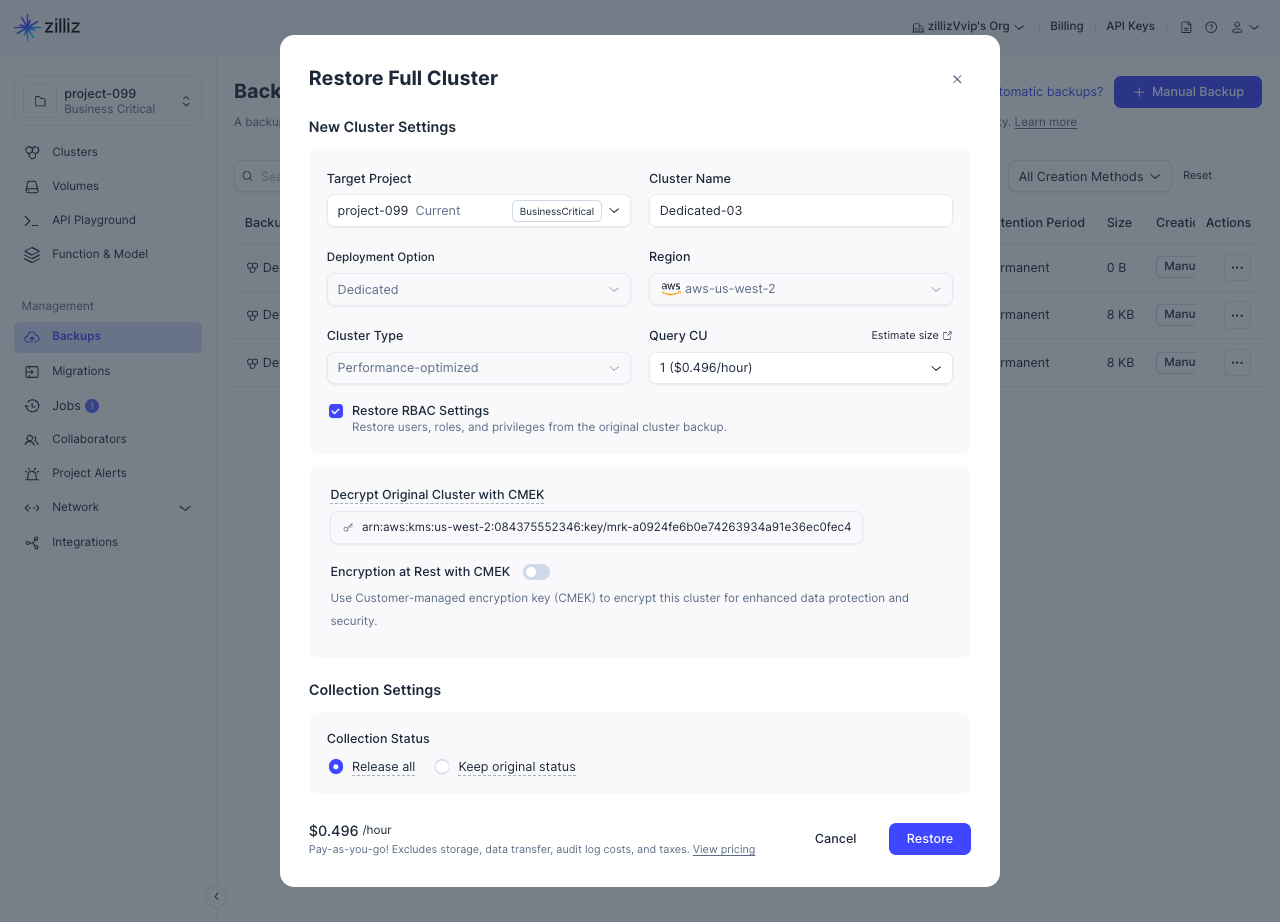
The restoration procedure from an encrypted backup is almost the same as a normal restoration, except for whether to enable Encryption at Rest with CMEK.

-
When this option is enabled, the cluster created after the restoration is encrypted using the KMS key specified below.
-
When this option is disabled, the cluster created after the restoration is unencrypted.
FAQ
What Milvus version will a restored cluster run?
By default, a full-cluster restore creates the target cluster with the latest GA major version supported by Zilliz Cloud.
-
For backup files created within the last 30 days, if the original cluster used an earlier Milvus GA version than the latest available GA version, you can choose the Milvus version for the restored cluster. By default, Zilliz Cloud restores the cluster to the latest GA Milvus version.
-
For backup files created more than 30 days ago, or backup files already using the latest Milvus GA version, the target Milvus version cannot be changed.
For example, suppose the latest available Milvus GA version is 2.6.x.
-
If you restore from a 2.5.x backup file created within the last 30 days, Zilliz Cloud restores the new cluster to 2.6.x by default, but you can choose to restore it to 2.5.x.
-
If you restore from a 2.5.x backup file created more than 30 days ago, Zilliz Cloud restores the new cluster to 2.6.x by default, and you cannot change the target Milvus version.
-
If you restore from a 2.6.x backup file, Zilliz Cloud restores the new cluster to 2.6.x, and you cannot change the target Milvus version.