Set Up Console IP Allowlist
This feature is available only with the Enterprise plan or higher, and BYOC deployments.
By default, your organization’s web console is accessible from any IP address. To restrict access and enhance security, configure a console IP allowlist so that uses can access the web console only from specified addresses, such as the IP of your office network.
The console IP allowlist applies only to the organization web console. It does not control access to project clusters. To restrict access to clusters, see Set up Cluster IP Allowlist.
Limits
-
Your Zilliz Cloud organization should have at least one running Dedicated cluster in an Enterprise project.
-
Your organization should have a valid payment method.
-
You are an Organization Owner.
-
You can only add a maximum of 100 IPs to the console allowlist.
Add IP address
You can add an IPv4 address (eg. 192.168.0.0) or a CIDR block (192.168.0.0/24) to the allowlist.
It is recommended to add your current IP and frequently used IPs to avoid lockouts.
0.0.0.0/0 allows access from any IPs.
Updates to the console IP allowlist take effect within 30 seconds.
The following demo shows how to add an IP address to the allowlist.
View IP address
After you configure the allowlist, you can review the IPs at any time.
The following demo shows how to view IP addresses in the allowlist.
Delete IP address
You can remove an IP or CIDR entry to deny console access from that source. If you delete all entries, the console becomes accessible from any IP.
Updates to the console IP allowlist take effect within 30 seconds.
The following demo shows how to delete an IP address from the allowlist.
FAQs
-
What can I do if I am locked out?
When you are locked out, you will see the screen below.
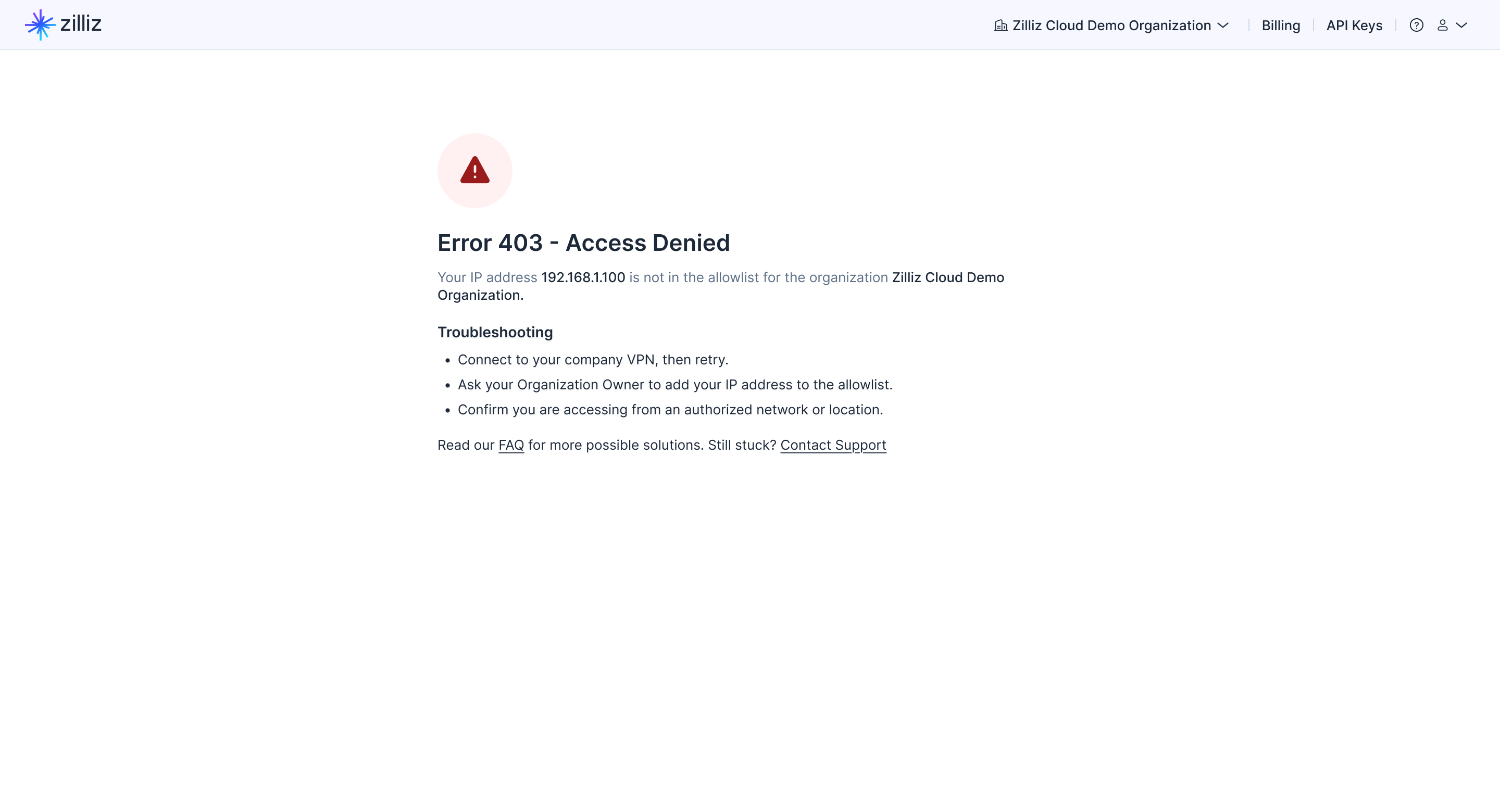
Please try the following recovery options:
-
Connect from a network whose IP is in the allowlist (e.g., office VPN).
-
Ask an Organization Owner who still has access to add your new IP.
-
If no owners can access the console, contact support for assistance.
-
-
What happens to currently signed-in users when I update the console IP allowlist?
Updates apply to new sign-ins. Existing sessions typically continue until they expire or the user signs out. To enforce the allowlist immediately, ask your organization users to log out and log back in.
-
Does SSO or MFA bypass the console IP allowlist?
No. SSO, MFA and organization console IP allowlists are separate controls.
-
Does the organization console IP allowlist affect cluster access?
No. The console IP allowlist only restricts access to the web console. To restrict access to clusters, configure the cluster IP allowlist.
-
What if I am using dynamic IPs?
If your Internet service provider (ISP) rotates addresses, consider allowing a small CIDR (e.g.,
/29or/28) that covers your range.