PingOne (SAML 2.0)
This feature is available only with the Enterprise plan or higher, and BYOC deployments.
This topic describes how to configure single sign-on (SSO) with Ping Identity (PingOne) using the SAML 2.0 protocol.
In this guide, Zilliz Cloud acts as the Service Provider (SP) and PingOne acts as the Identity Provider (IdP). You copy SP details from Zilliz Cloud to a PingOne SAML application, then provide the application's IdP details to Zilliz Cloud.
Before you start
-
You are the Organization Owner in the Zilliz Cloud organization where SSO is to be configured.
-
You have administrator permissions in PingOne to create and configure SAML applications and manage user access. Creating an environment also requires the Organization Admin role or equivalent permissions.
Configuration steps
Step 1: Access SP details in Zilliz Cloud console
Zilliz Cloud provides the Entity ID and Assertion Consumer Service (ACS URL) required to create the SAML application in PingOne.
Log in to the Zilliz Cloud console and go to the organization for which you want to configure SSO.
In the left-side navigation pane, click Settings.
Find the Single Sign-On (SSO) section and click Configure.
In the dialog box that appears, choose Ping Identity (SAML 2.0).
In the Service Provider Details card, copy the Entity ID and ACS URL. Keep this page open while you configure PingOne in another browser tab.
Copy both values from your organization's console. Do not substitute values from another organization or environment.
Step 2: Create a SAML app in PingOne
Configure PingOne with the SP details from Step 1, then configure the email attributes that Zilliz Cloud uses to identify users.
Log in to the PingOne admin console. Select an existing environment with the PingOne SSO service, or create a new environment with Workforce solution.
Go to Applications > Applications and click the + icon.
Enter an Application Name, such as zilliz-sso. Select SAML Application and click Configure.
Click Save to create the application.
On the application's Configuration tab, click the pencil icon. Set Subject NameID Format to urn:oasis:names:tc:SAML:1.1:nameid-format:emailAddress, then click Save.
On the Attribute Mappings tab, click the pencil icon. Change the existing saml_subject mapping and click Add to create the email mapping shown below.
| Application attribute | PingOne mapping | Purpose |
|---|---|---|
saml_subject | Email Address | Sets the SAML NameID value to the user's email address. |
email | Email Address | Provides the email attribute that Zilliz Cloud uses to match the user account. |
Select Required for the email mapping. The saml_subject mapping is already required and its checkbox cannot be changed. Click Save.
Turn on the toggle at the top of the application's details panel to enable the application.
On the Overview tab, locate Connection Details. Copy the IDP Metadata URL for use in Step 3.
Configure both email mappings. Setting the NameID format alone does not populate the email attribute.
Enable the PingOne application before importing its metadata into Zilliz Cloud. A disabled application's metadata URL can return 404, causing the import to fail.
If you prefer a file, click Download Metadata to download the metadata XML. For manual configuration, copy Single Signon Service from Connection Details and download the Signing Certificate. Choose X509 PEM (.crt) as the certificate format.
For details about PingOne application settings, see Adding an application and Editing an application - SAML.
Step 3: Configure IdP settings in Zilliz Cloud console
Return to the Configure Single Sign-On (SSO) dialog box in Zilliz Cloud. In the Identity Provider Details card, use one of the following methods.
| Method | What to enter in Zilliz Cloud |
|---|---|
| Metadata URL/File: URL | Paste the IDP Metadata URL copied from PingOne into IDP Metadata URL. |
| Metadata URL/File: XML file | Click Upload file and upload the XML obtained with Download Metadata. |
| Manual | Paste the PingOne Single Signon Service URL into Single Signon Service. Paste or upload the PingOne signing certificate into Signing Certificate. |
Use the metadata URL for the shortest setup. Choose the XML file if you prefer to upload metadata, or use Manual to provide the login URL and certificate separately.
For manual configuration, include the complete PEM certificate, including -----BEGIN CERTIFICATE----- and -----END CERTIFICATE-----.
Zilliz Cloud accepts certificate uploads with .pem, .cer, or .cert extensions. If PingOne downloads an X509 PEM certificate as .crt, paste its contents or rename the extension to .pem before uploading. Renaming a binary certificate does not convert it to PEM.
After entering the IdP details, click Save. When the SSO Configured Successfully dialog box appears, click OK.
In the organization's Single Sign-On (SSO) section, ensure SSO is enabled.
Saving the configuration does not verify that a user can sign in. Complete the following tasks before enabling SSO enforcement.
Post-configuration tasks
Task 1: Configure user access in PingOne
Check who can access the application before sharing the SSO login with users.
In PingOne, go to Applications > Applications and open your Zilliz Cloud application.
On the Access tab, click the pencil icon.
Under Group Membership Policy, select the groups that should access Zilliz Cloud. If you select multiple groups, choose whether users must belong to any or all applied groups.
Review the Admin Only Access setting. Leave Must have admin role cleared if non-administrator users need access.
Click Save and ensure your test user belongs to the required groups.
If no groups are applied, group membership is not required to access the application. For details, see PingOne's Application access control.
Task 2: Test SSO and grant project access
In the Zilliz Cloud console, go to your organization's Settings page. In the Single Sign-On (SSO) card, copy the Login URL and open it in a private browser window.
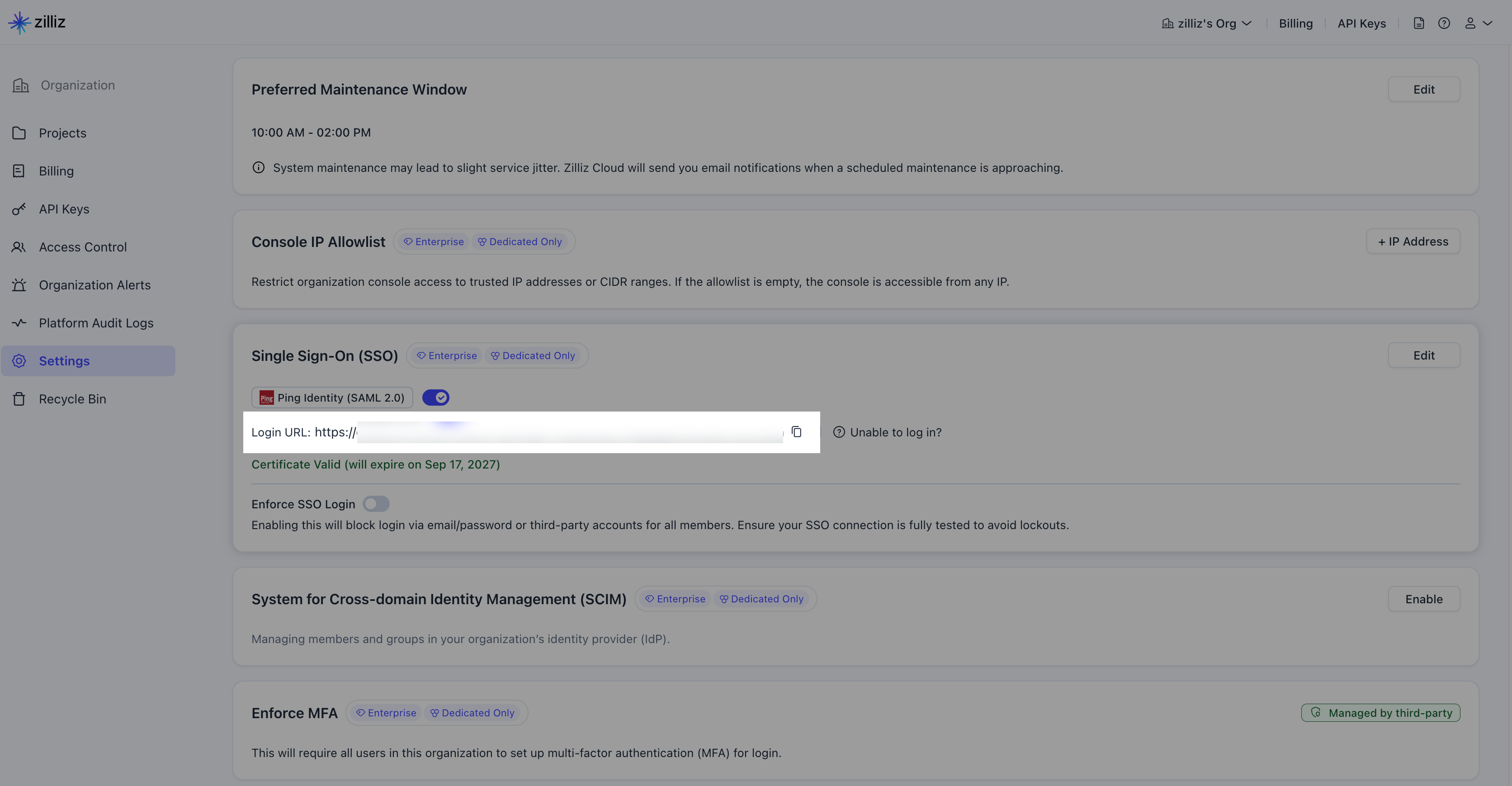
Authenticate in PingOne as the test user. Verify that you return to Zilliz Cloud and can access the intended organization.
Have an Organization Owner or Project Admin grant the user access to the required project. For instructions, see Manage Platform Users.
Verify that the user can open the project and perform the actions allowed by their assigned role.
New users are created when they first sign in through SSO. Organization membership does not automatically grant project access. Existing users with matching email addresses retain their roles and permissions.
After testing succeeds, share your organization's Zilliz Cloud SSO login URL with the users who have access to the PingOne application.
Task 3: (Optional) Enable SSO enforcement
After the connection is configured and intended users can sign in successfully, you can enable SSO enforcement to require SSO for non-exempt organization members.
Enabling SSO enforcement invalidates active sessions for non-exempt members and blocks their non-SSO login methods. Review the Organization Owner exemption rules and other effects before enabling it.
For instructions and exemption rules, see Enforce SSO in Your Organization.
FAQ
Why does importing the metadata URL fail?
First, check that the PingOne application is enabled. A disabled application can return 404 for its metadata URL. Copy IDP Metadata URL again from that application's Overview > Connection Details and retry. If URL import still fails, download the metadata XML and use the file upload option.
What should I check if a user cannot sign in?
-
Check that the PingOne application and Zilliz Cloud SSO are both enabled.
-
Compare PingOne's ACS URLs and Entity ID with the values shown in the target Zilliz Cloud organization.
-
Check that Subject NameID Format is
urn:oasis:names:tc:SAML:1.1:nameid-format:emailAddressand bothsaml_subjectandemailmap to Email Address. -
Verify that the PingOne user has an email address. For an existing Zilliz Cloud account, the email addresses must match.
-
Check the application's Access settings and the user's group membership.
-
For manual configuration, check that the URL is Single Signon Service and that the complete signing certificate belongs to the same PingOne application.
Why can a user sign in but not access a project?
SSO authentication and project authorization are separate. Grant the user the appropriate project role as described in Manage Platform Users.
What happens if the user already has a Zilliz Cloud account?
Zilliz Cloud matches the user by email address. If the user already belongs to the organization with that email address, their existing roles and permissions are retained.
Can I configure multiple SSO providers for the same organization?
Each Zilliz Cloud organization supports only one active SAML SSO configuration at a time.