Subscribe to a Free Trial on AWS Marketplace
This guide provides a step-by-step walkthrough of the subscription process.
Before you start
-
If you need the full version instead of the trial, you must subscribe again through a public offer or private offer.
-
Ensure you have an AWS Marketplace account.
-
Set your AWS Buyer ID's default payment method to the Invoicing Plan. Learn how to change your default payment method.
-
If your AWS account is part of an organization, you need to have permissions such as the
AWSMarketplaceManageSubscriptionsmanaged policy to make purchases.
Subscribe to a free trial
Visit AWS Marketplace and start subscribing to Zilliz Cloud as follows:
Search for Zilliz Cloud in the search box, then click Milvus Vector Database, Zilliz Cloud (Pay-as-you-go).
Or you can directly visit this page.
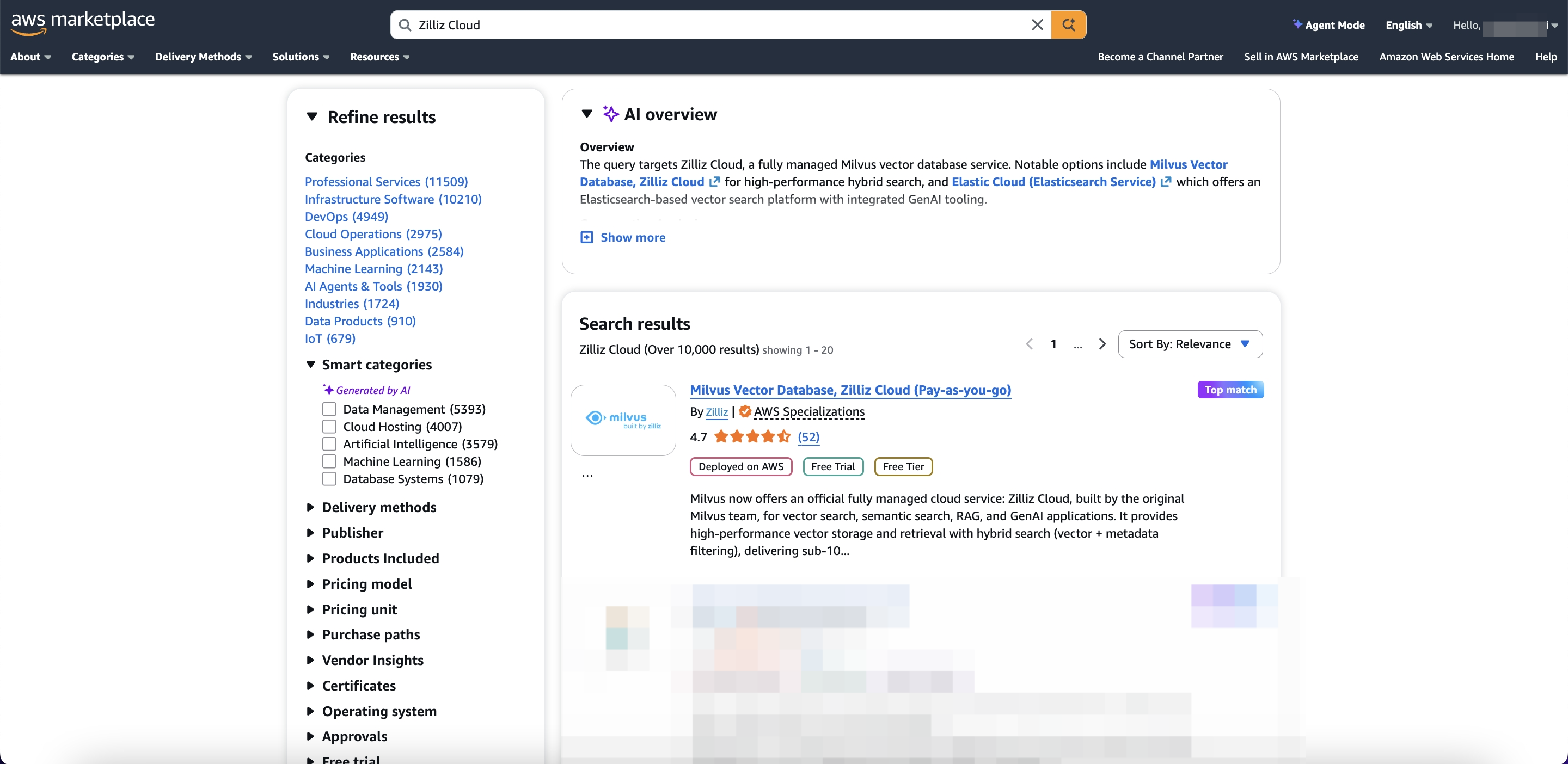
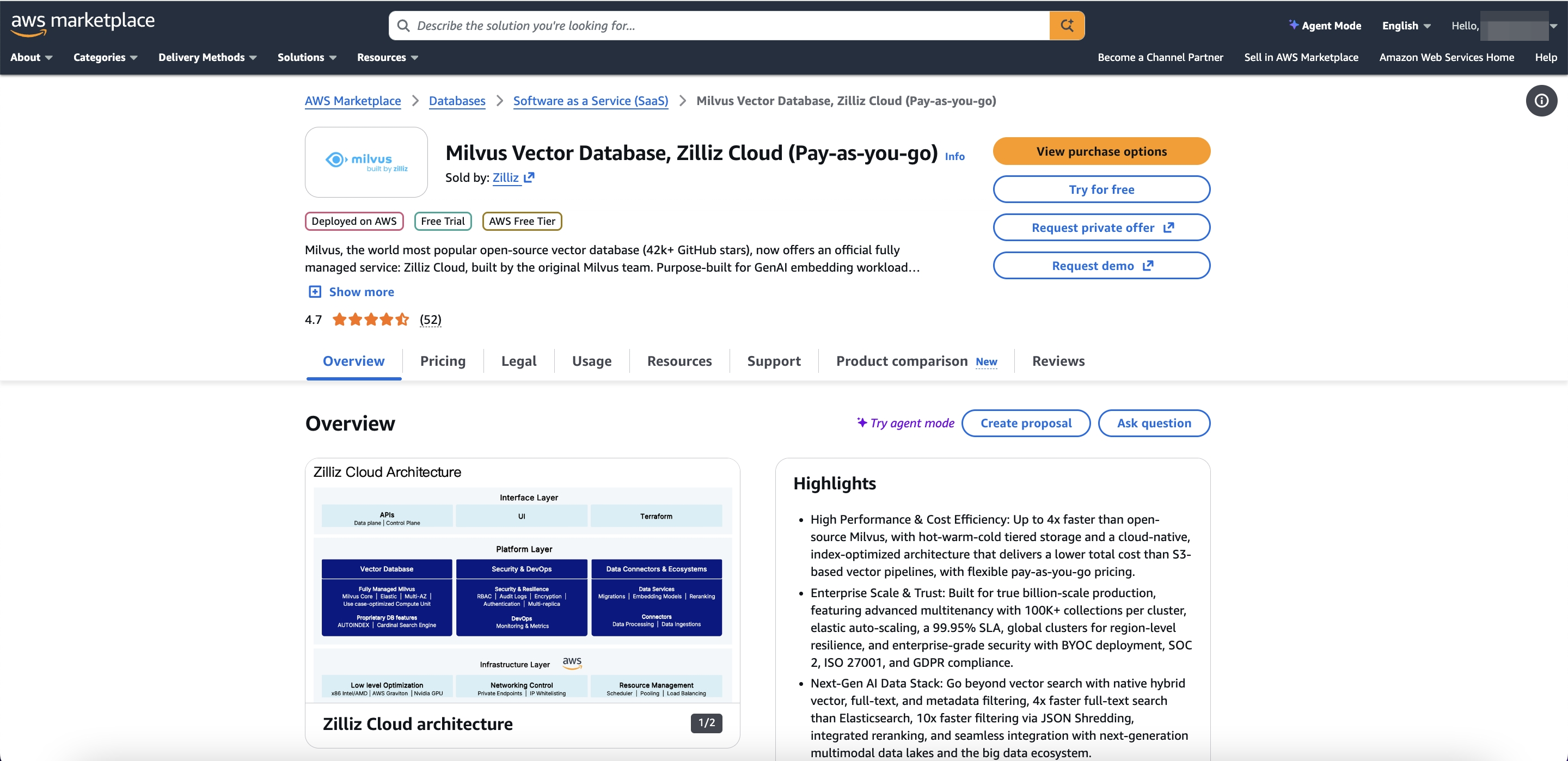
Click Try for free.
This option is a 30-day free trial offered by AWS. Once the free trial ends, you need to upgrade the subscription to continue using Zilliz Cloud.
Scroll down the page and click Subscribe.
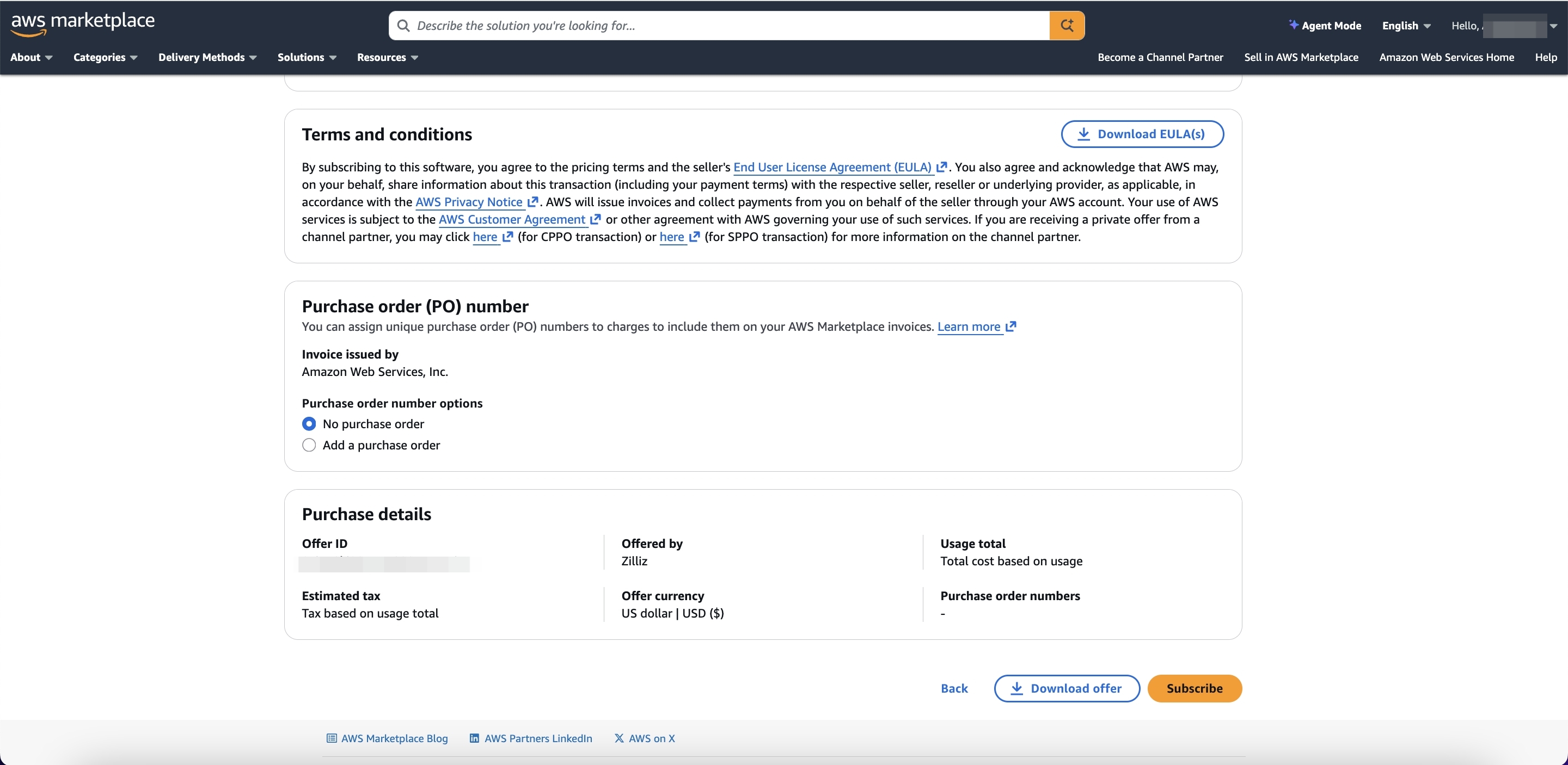
Follow the prompt to Set up your account on Zilliz Cloud.

In the new tab, follow the steps below to complete subscription.
-
If you already have a Zilliz Cloud account, simply log in. If not, choose a sign-up option and follow the process. Ensure all query strings in the URL are retained to link your AWS identity to your Zilliz Cloud account.
NotesAWS Marketplace uses query strings in the URL to pass your identity information to Zilliz Cloud. Any sign-up failures may result in the loss of these query strings. As a result, Zilliz Cloud may fail to associate your AWS identity with your account registered with us. If this happens, simply return to AWS Marketplace and click Set up your account again.
-
Link your subscription to an existing Zilliz Cloud organization.
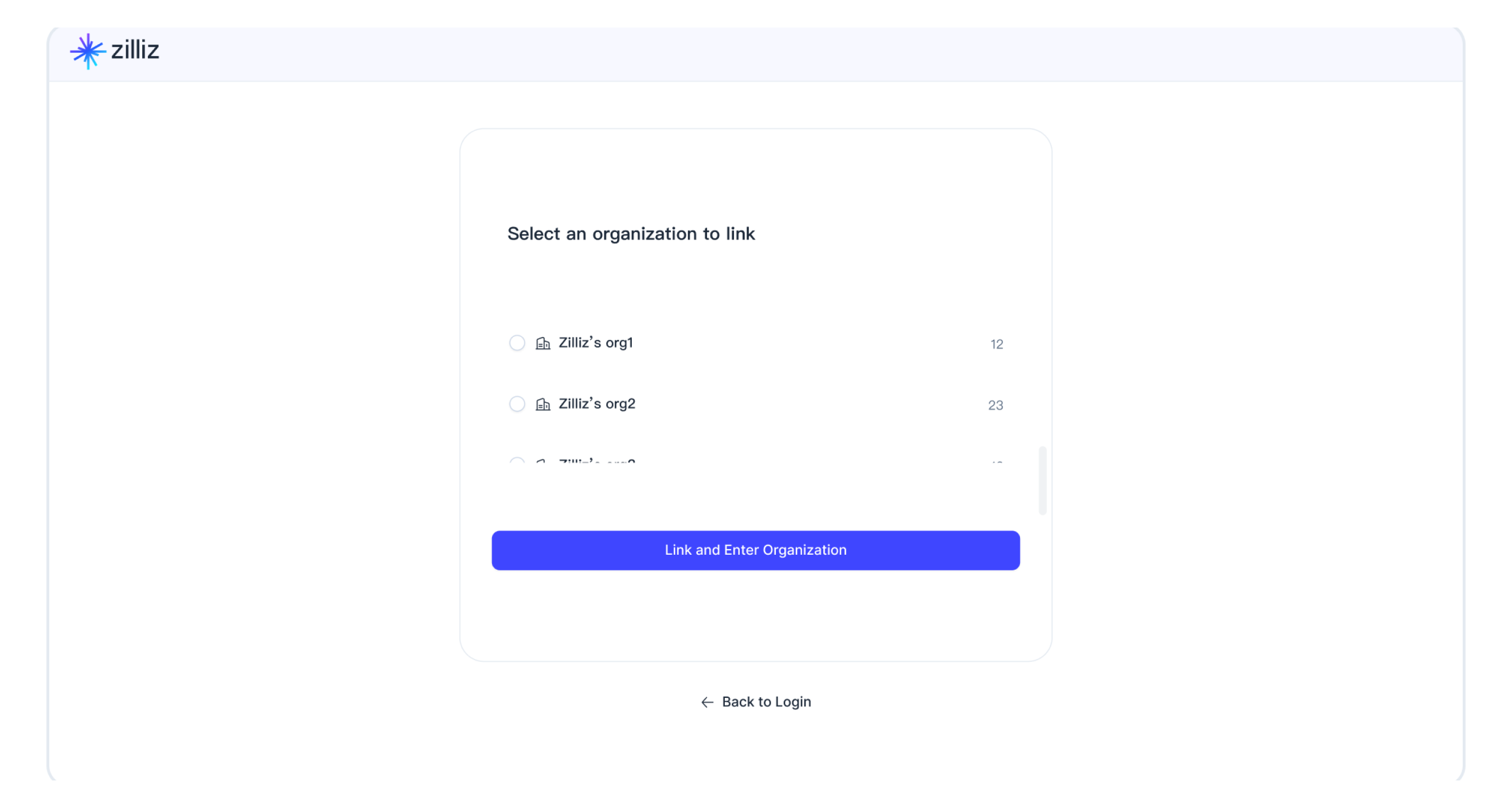
-
Complete authorization.
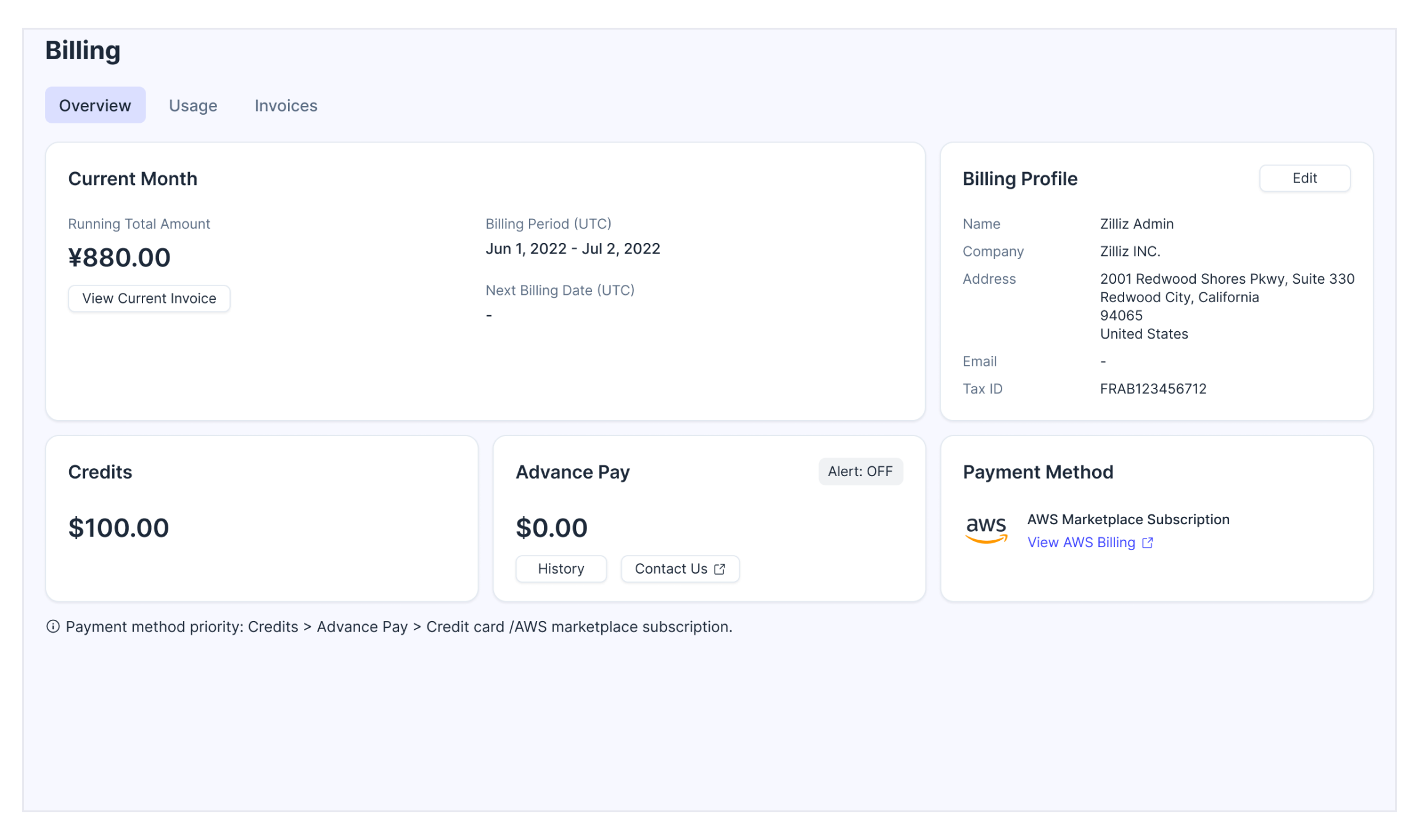
Go to Billing to ensure your AWS Marketplace subscription is set as your payment method.
Upgrade to paid subscription
When you start a free trial of Zilliz Cloud on AWS Marketplace, you get the same features as the regular Zilliz Cloud free trial. For details, see Try Zilliz Cloud For Free.
During the free trial, a Free Trial tag will appear next to AWS Marketplace Subscription on the Billing Overview page.
In addition, you can also view the trial details in the top banner.

For more advanced features, you can upgrade to a paid AWS subscription anytime. To upgrade, simply subscribe to a public offer. The new public offer subscription will automatically replace the previous free trial subscription.
Navigate to the Zilliz Cloud page on AWS Marketplace.
Click View purchase options.
Scroll down the page and click Subscribe.
Click Set up your account in the prompt.
Log into your Zilliz Cloud account and link the AWS Marketplace subscription to a Zilliz Cloud organization.
For detailed step-by-step guide, see Subscribe to a Public Offer on AWS Marketplace.
You can check if the upgrade is successful by navigating to the Payment Method card on the Billing Overview page. If the Free Trial tag next to AWS Marketplace Subscription disappears, the upgrade is successful.
Cancel free trial subscription
After you cancel the subscription, your organization loses access to advanced Zilliz Cloud features. If your organization has no remaining credits, or if all credits have expired, it is frozen immediately.
Sign in to the AWS account that accepted the private offer.
Open the AWS Marketplace console and go to Manage subscriptions.
Find your Zilliz Cloud subscription and click on the agreement ID.
Under Agreement, open the Actions list and choose Cancel subscription.
In the Cancel subscription dialog box, enter confirm, then choose Yes, cancel subscription.
For details, refer to Canceling product subscriptions.
FAQ
Will the AWS Marketplace Free Trial be automatically upgraded when it expires?
No. When the AWS Marketplace Free Trial ends, you must manually upgrade to a paid subscription to continue using Zilliz Cloud.
Will I receive notifications when the AWS Marketplace Free Trial is expiring soon?
Yes. AWS Marketplace sends email notifications before your free trial expires. The notifications are sent to the email address associated with the AWS account that started the trial.
What I can do if there is no organization available when linking a marketplace subscription to Zilliz Cloud?
There could be several reasons.
-
Insufficient permissions
This can happen when you do not have sufficient privileges. You will see an "Insufficient Permissions" tag next to the unavailable organization.
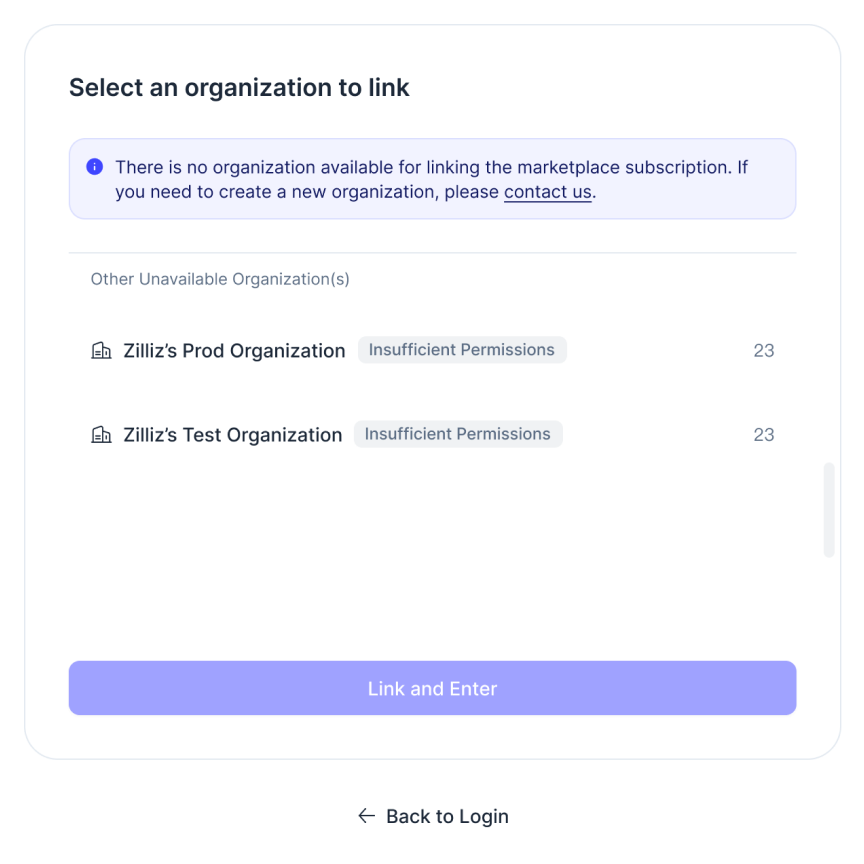
To link an organization with a marketplace subscription, you must be an Organization Owner or an Organization Billing Admin. But if you are only an Organization Member, you do not have the required permissions. Please contact the organization owner for assistance.
-
All organizations have already been successfully linked to a Marketplace subscription
This can happen when all your organizations are already linked to Marketplace subscriptions. You will see a "Marketplace Linked" tag next to the unavailable organization.
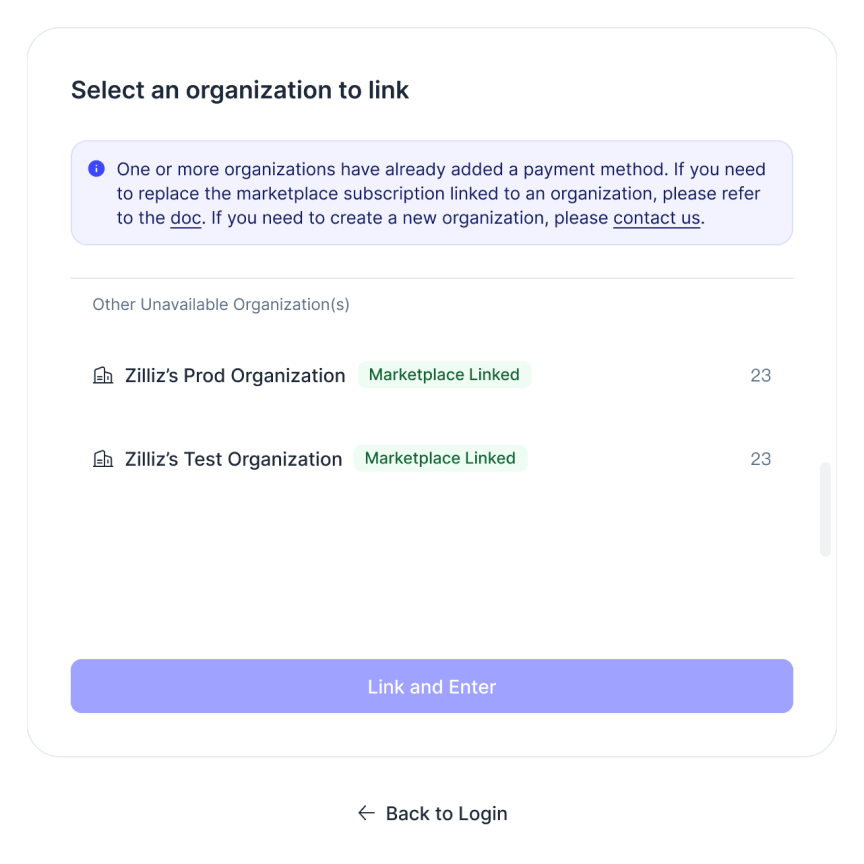
In this case,
-
If you need to update an existing marketplace subscription, please unlink the current subscription of the organization first and then set up a new subscription.
-
If you need multiple organizations for different Marketplace subscription, you can create an organization.
-
-
No organizations in the list
- This can happen if your account has been closed or if you have left all organizations. Your UI will be similar to the following.
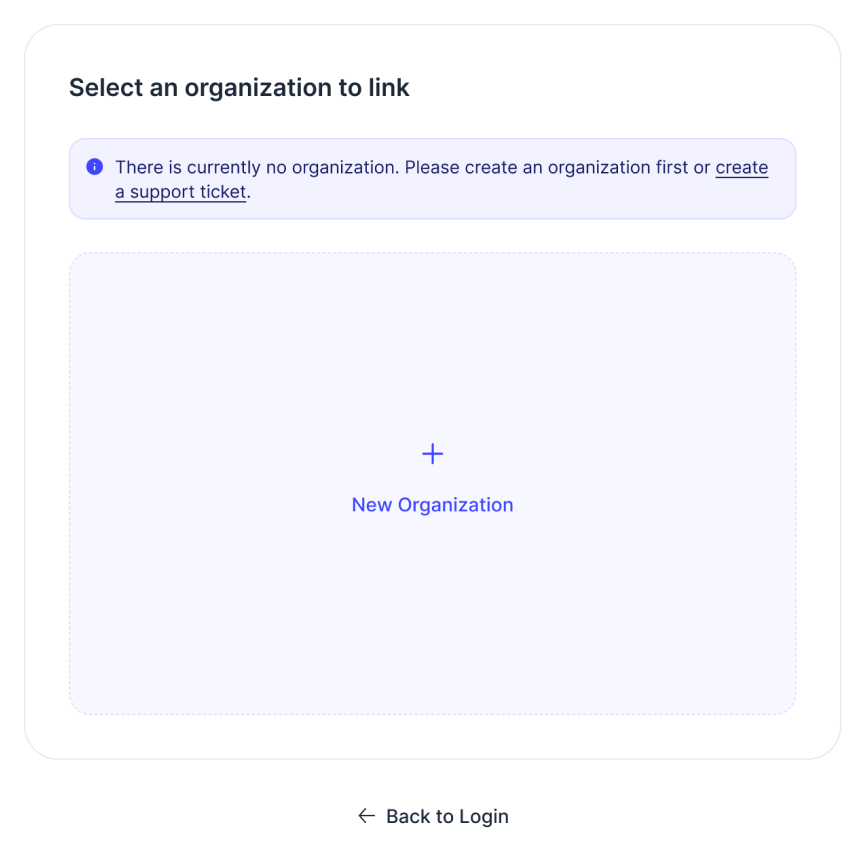
In this case, you can:
-
Ask other users to invite you to their organizations and grant you the role of an Organization Owner.