Update Payment Method
You can update your payment method when your organization needs to replace an expired card, move billing to a cloud marketplace, switch between marketplace accounts, or return from marketplace billing to credit card billing.
To manage payment method, you must be an Organization Owner or Organization Billing Admin.
Supported payment method changes
Zilliz Cloud supports the following payment method changes.
| From | To | How to update |
|---|---|---|
| Credit card | Credit card | Replace the added credit card in the Zilliz Cloud console. |
| Credit card | Marketplace subscription | Subscribe to Zilliz Cloud through the target marketplace and link the subscription to your Zilliz Cloud organization. After the subscription is linked, the payment method is updated automatically. The marketplace subscription automatically replaces the credit card information. |
| Marketplace subscription | Credit card | Cancel the current marketplace subscription, and then add a credit card in the Zilliz Cloud console. |
| Marketplace subscription | Marketplace subscription | Cancel the current marketplace subscription, subscribe through the new marketplace account, and link the new subscription to your Zilliz Cloud organization. |
Replace a credit card
For step-by-step guide, see Credit Card.
Switch from credit card to marketplace subscription
To switch from credit card billing to marketplace billing, follow the steps below.
Subscribe to Zilliz Cloud through cloud marketplaces.
Verify the update.
After the marketplace subscription is successful, the payment method is updated automatically. You do not need to manually remove the credit card.
You can verify the update on the Billing page.
Switch from marketplace subscription to credit card
To switch from marketplace billing to credit card billing, follow the steps below.
Cancel the current subscription from the cloud marketplace where you subscribed.
In the Zilliz Cloud console, go to Billing.
Add a credit card in the Payment Method section.
Your organization uses the credit card as the payment method after it is added successfully.
Switch between marketplace subscriptions
You can switch between marketplace subscriptions when you need to change the marketplace account used for billing, upgrade an AWS Marketplace free trial, or move from a public offer to a private offer.
The required steps depend on the type of change.
| Scenario | What to do |
|---|---|
| Change the marketplace account used for billing | Cancel the current marketplace subscription, subscribe again with the new marketplace account, and link the new subscription to your Zilliz Cloud organization. |
| Upgrade AWS Marketplace free trial | Upgrade or subscribe from the AWS Marketplace offer page, and then link the paid subscription to your Zilliz Cloud organization. |
| Switch from public offer to private offer | Accept the private offer. The private offer replaces the previous public offer. You still need to link the new offer to your Zilliz Cloud organization. |
Change Marketplace account
The following example shows how to change the AWS Marketplace account used for billing. The same process applies to Google Cloud Marketplace and Microsoft Marketplace.
We recommend completing the operations within 1 hour to avoid service interruption.
Sign in to AWS Marketplace with the original AWS account you used for the subscription.
Cancel your Zilliz Cloud subscription. Refer to Cancel your product subscription for more details.
Please rest assured that canceling the subscription will not delete your Zilliz Cloud data.
It takes a few minutes for AWS Marketplace to complete the cancellation process.
Sign out of your original AWS account.
Sign in to AWS Marketplace with a different AWS account that you want to use for the subscription.
Follow the steps in the Subscribe on AWS Marketplace section to complete your subscription to Zilliz Cloud with the new account.
When updating AWS Marketplace subscription, you must click the Set up your account button to link your new subscription with Zilliz Cloud organization.
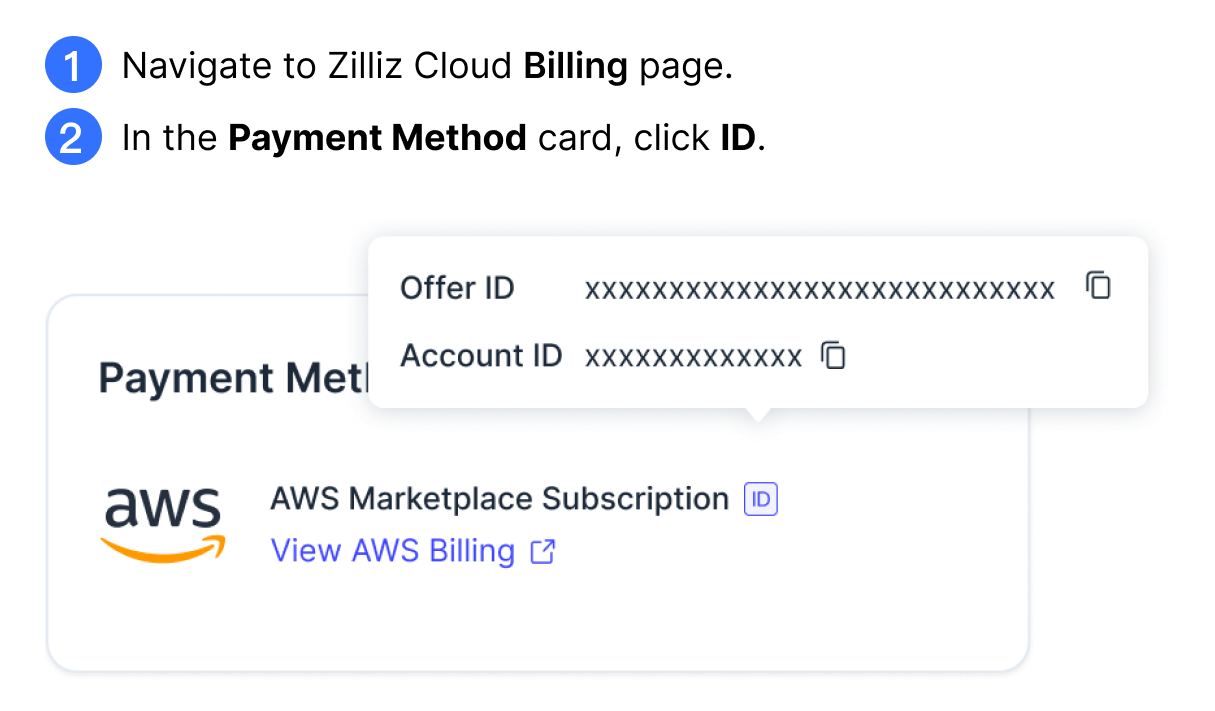
Verify the update in the Payment Method section on the Billing Overview page. Click on the Subscription ID and verify if the subscription Account ID has been updated to the new Marketplace account.
Upgrade AWS Marketplace free trial
If you are using an AWS Marketplace free trial, you can upgrade to a paid AWS Marketplace subscription. For details, see Upgrade to paid subscription.
After the upgrade is complete, verify the update in Zilliz Cloud. Go to the Billing Overview page and check the Payment Method section.
Switch from public offer to private offer
To switch from a marketplace public offer to a private offer, accept the private offer provided by Zilliz.
The new private offer automatically replaces the previous public offer after you accept it. You still need to link the new offer to your Zilliz Cloud organization.
For details, see switch from a public offer to a private offer.