AWS KMS
この機能は Business Critical(SaaS)および BYOC デプロイメントでのみ利用できます。
この機能は AWS で利用できます。Google Cloud および Microsoft Azure では利用できません。
AWS Key Management Service(KMS)は、データの暗号化と署名に使用するキーを簡単に作成・管理できる AWS マネージドサービスです。
概要
通常のケースでは、Zilliz Cloud クラスター内のデータを暗号化するために KMS キーを使用することはありません。代わりに、KMS キーを使用して暗号化ゾーンキー(EZK)を暗号化し、EZK を使用してデータ暗号化キー(DEK)を暗号化し、DEK を使用してデータを暗号化します。
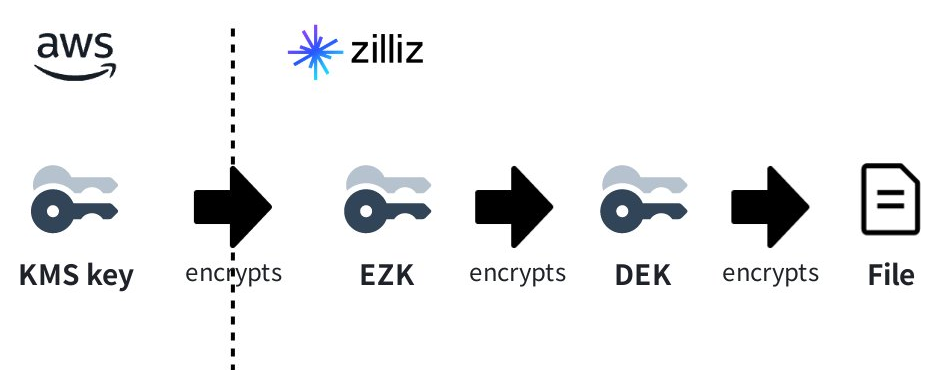
暗号化の仕組みとその範囲の詳細については、このセクション を参照してください。CMEK 機能の制限の詳細については、このセクション を参照してください。CMEK 機能を使用するには、このページの手順に従ってください。
事前準備
-
AWS CLI がインストールされているか、AWS CloudShell にアクセスできること。
詳細については、このページ を参照してください。
-
キー管理コマンドを実行するための十分な権限を持っていること。
KMS キーを追加する
各プロジェクトでは、KMS プロバイダーに関係なく、最大 20 個のキーを追加できます。既存の KMS キーを追加するか、Zilliz Cloud コンソールの指示に従って KMS キーを作成し、Zilliz Cloud に追加できます。
Select AWS IAM Role ステップのドロップダウンリストが空の場合は、事前に Zilliz Cloud Terraform provider を使用して CMEK ロールを追加する必要があります。
Select AWS IAM Role ステップのドロップダウンをクリックし、IAM ロールを選択して、Next をクリックします。
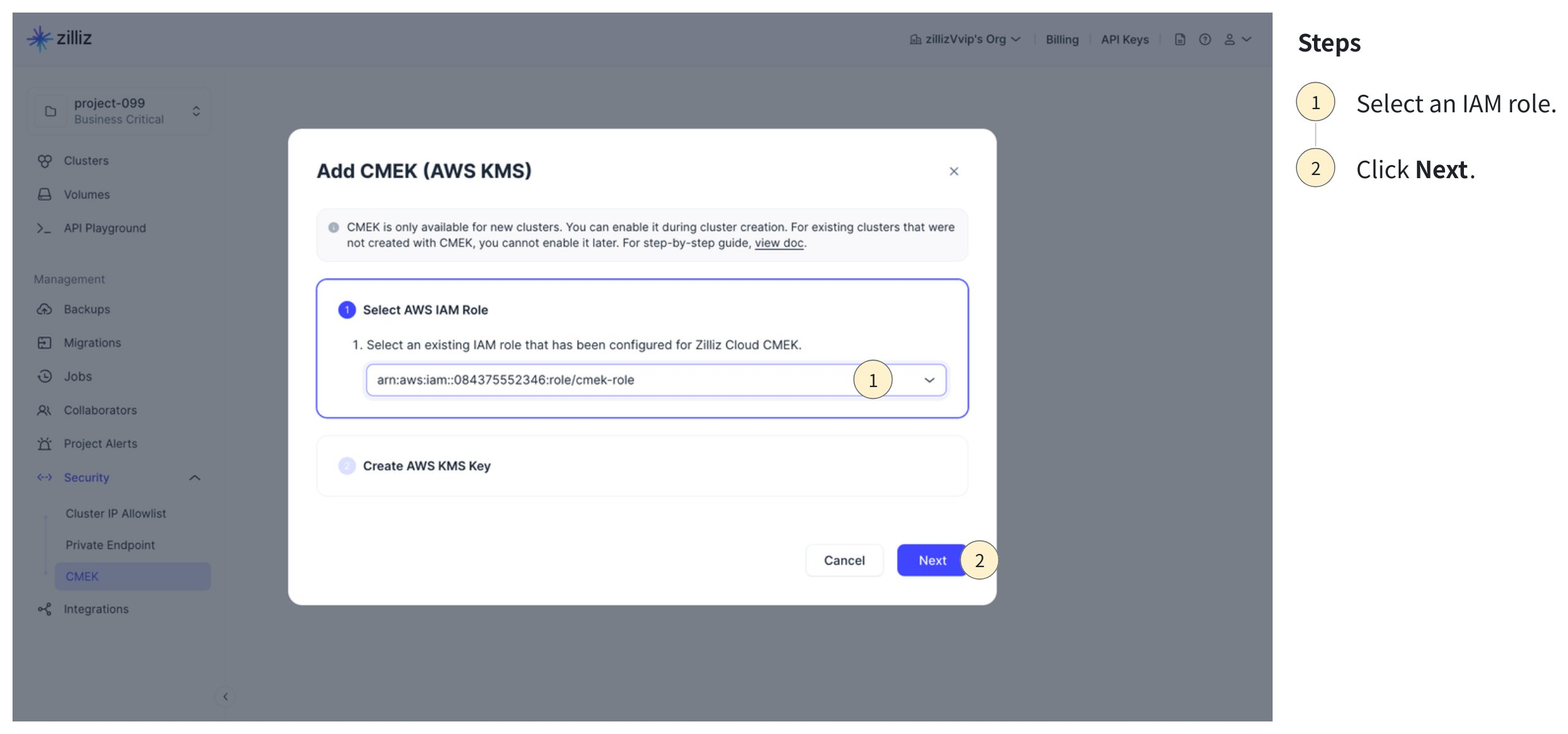
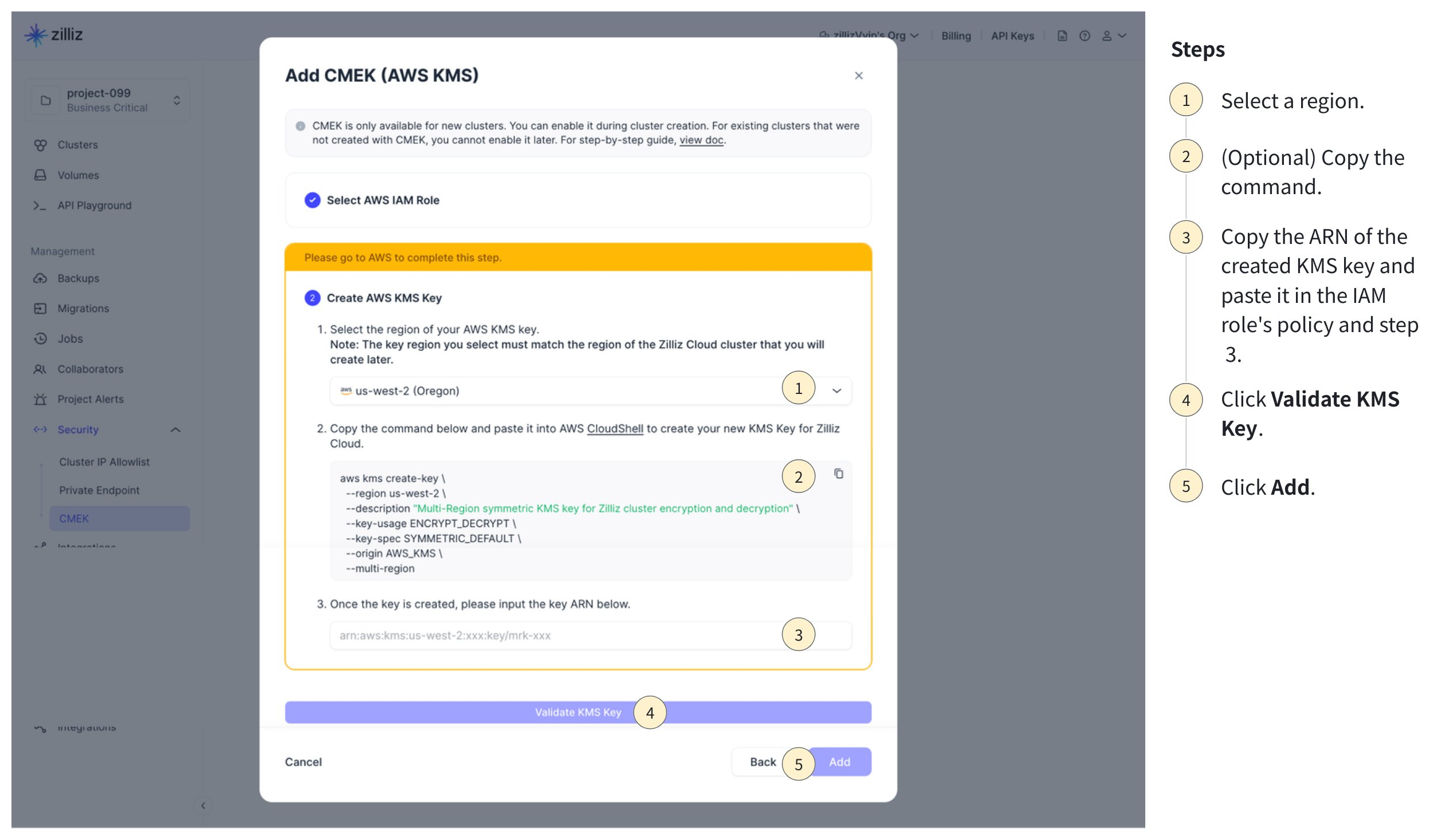
KMS キーを追加します。
-
ステップ 1 でターゲットリージョンを選択します。
-
(任意) ステップ 2 のコマンドをコピーし、AWS CloudShell で実行します。
このステップは任意です。指定した IAM ロールで作成済みの KMS キーがすでにある場合は、このステップをスキップして次に進むことができます。これは、マルチリージョンレプリカキーを追加する場合に便利です。
Notes暗号化された Zilliz Cloud クラスターをあるクラウドリージョンから別のクラウドリージョンにバックアップした後、ターゲットリージョンでバックアップを復号するには、元のクラスターを暗号化したのと同じキーを使用する必要があります。
この場合、キーをバックアップをホストするリージョンにレプリケートし、既存の IAM ロールを使用して Zilliz Cloud に送信できます。
マルチリージョンレプリカキーの作成の詳細については、AWS ドキュメントの このページ を参照してください。
-
次の場所に KMS キー ARN をコピーして貼り付けます。
-
IAM ロールのポリシー(AWS コンソール 上)。
ロール一覧でロールの名前をクリックし、Permissions タブでロールポリシーを見つけて、コピーした KMS キーを
Resourceノードに追加します。json{"Version": "2012-10-17","Statement": [{"Effect": "Allow","Action": ["kms:Decrypt","kms:Encrypt","kms:DescribeKey"],"Resource": ["arn:aws:kms:us-west-2:xxxx:key/mrk-...","PASTE-THE-COPIED-KEY-ARN-HERE"]}]} -
Zilliz Cloud の上記ダイアログボックス内のステップ 3。
-
-
ダイアログボックスの下部にある Validate KMS Key をクリックします。
-
検証が成功したら、Add をクリックします。
KMS キーを使用して Zilliz Cloud クラスターを暗号化すると、クラスターは 10 分ごとにキーの可用性を確認します。キーが利用可能であることを検出した後にのみ、キーは利用可能になります。
AWS KMS キーを管理する
追加した AWS KMS キーは、Zilliz Cloud コンソールで確認できます。
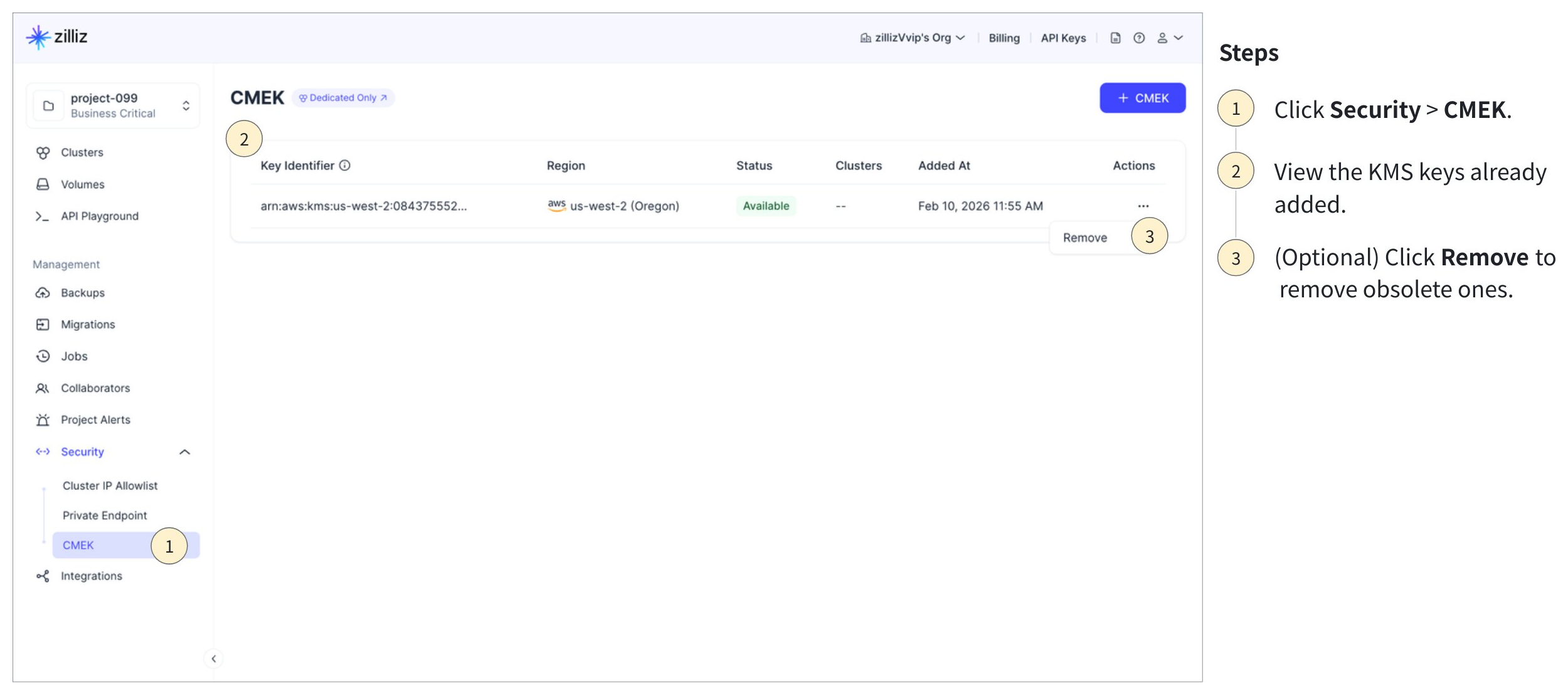
KMS キーが不要になった場合は、どのクラスターでも使用されていなければ削除できます。
AWS KMS キーを使用する
KMS キーを Zilliz Cloud に追加すると、そのキーを使用して暗号化されたクラスターを作成し、バックアップおよび復元できます。
暗号化されたクラスターを作成する
クラスターを作成するリージョンで利用可能な KMS キーを選択して、クラスターを暗号化できます。
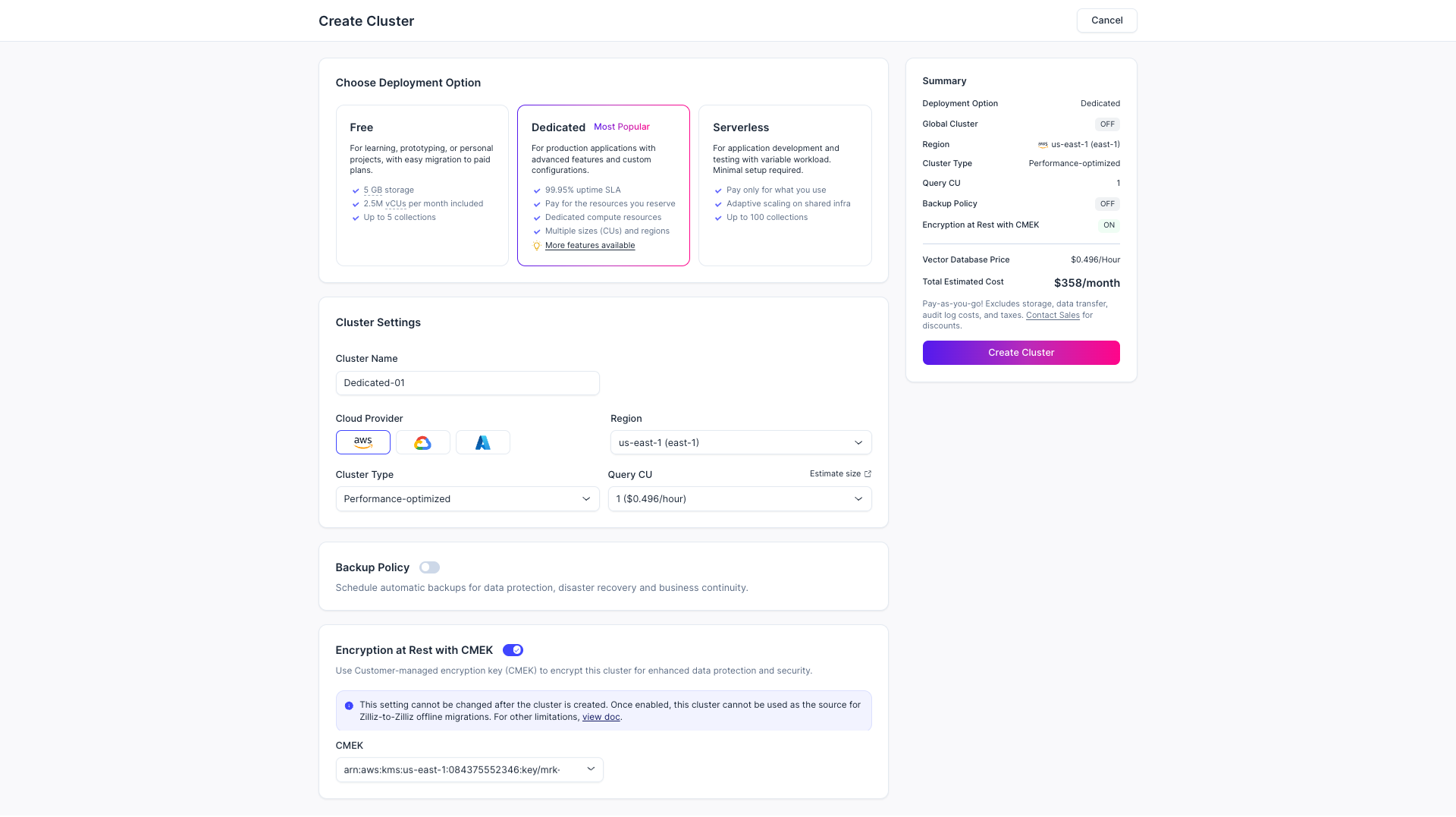
KMS キーを追加すると、次のように暗号化されたクラスターを作成できます。
Choose Deployment Option セクションで Dedicated をクリックします。
クラスターのクラウドプロバイダーとリージョンを選択します。
Encryption at Rest with CMEK を有効にし、既存の KMS キーを選択します。作成するクラスターと同じリージョンにある KMS キーのみを選択できます。
サマリーを確認し、Create Cluster をクリックします。
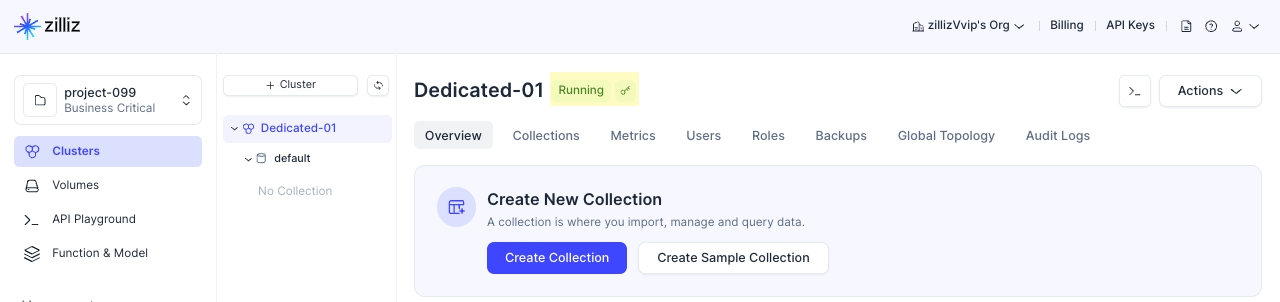
暗号化されたクラスターの Overview ページでは、上の図に示すように、クラスター名の右側にキーアイコンが表示されます。暗号化されたクラスターで作成されたすべてのコレクションは、デフォルトで暗号化されます。
暗号化されたバックアップファイルから復元する
暗号化されたバックアップを新しいクラスターに復元する場合、Zilliz Cloud は復元前に、バックアップファイルに関連付けられた KMS キーを使用してデータを復号します。そのため、バックアップは暗号化の有無にかかわらず新しいクラスターに復元できます。
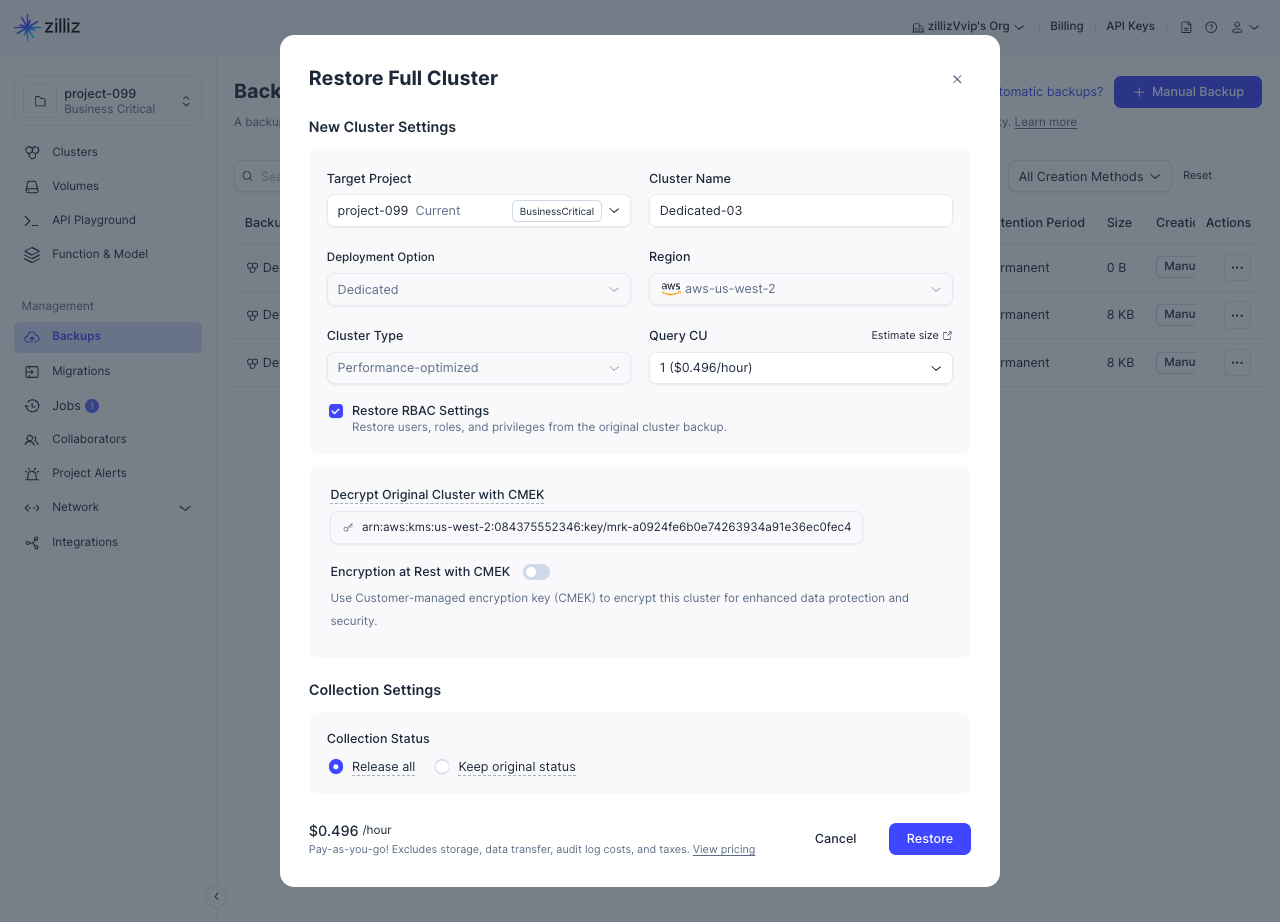
暗号化されたバックアップからの復元手順は、Encryption at Rest with CMEK を有効にするかどうかを除いて、通常の復元とほぼ同じです。

-
このオプションを有効にすると、復元後に作成されるクラスターは、以下で指定する KMS キーを使用して暗号化されます。
-
このオプションを無効にすると、復元後に作成されるクラスターは暗号化されません。