Microsoft Azure に BYOC-I をデプロイする
このページでは、Microsoft Azure Virtual Network 内に BYOC エージェントを使用して Bring-Your-Own-Cloud(BYOC)データプレーンをデプロイする方法について説明します。
-
Zilliz BYOC は現在 General Availability で提供されています。アクセス方法および実装の詳細については、Zilliz Cloud サポート までお問い合わせください。
-
このガイドでは、Microsoft Azure コンソール上で必要なリソースを段階的に作成する方法を示します。Terraform スクリプトを使用してインフラストラクチャをプロビジョニングしたい場合は、Terraform Provider を参照してください。
事前準備
以下を満たしていることを確認してください。
-
BYOC-I 組織のオーナーであること。
-
必要な権限 に記載された権限が付与されていること。
適用可能なリージョン
次の表は、Zilliz Cloud BYOC ソリューションがサポートする AWS クラウドリージョンの一覧です。Zilliz Cloud コンソール上でお使いのクラウドリージョンが見つからない場合は、support@zilliz.com までお問い合わせください。
大陸 | リージョン | 場所 |
|---|---|---|
北米 | East US | 米国バージニア州 |
East US 2 | 米国バージニア州 | |
Central US | 米国アイオワ州 | |
ヨーロッパ | Germany West Central | ドイツ、フランクフルト |
North Europe | アイルランド | |
アジア | Central India | インド、プネー |
手順
ステップ 1: デプロイ環境を準備する
デプロイ環境とは、Terraform 設定ファイルを実行して BYOC-I プロジェクトのデータプレーンをデプロイするよう構成されたローカルマシン、仮想マシン(VM)、または CI/CD パイプラインのことです。このステップでは、以下を行う必要があります。
-
Microsoft Azure 認証情報を設定します。
Microsoft Azure の認証情報には、サブスクリプション ID とリソースグループ名が含まれます。
Azure Portal (UI)
-
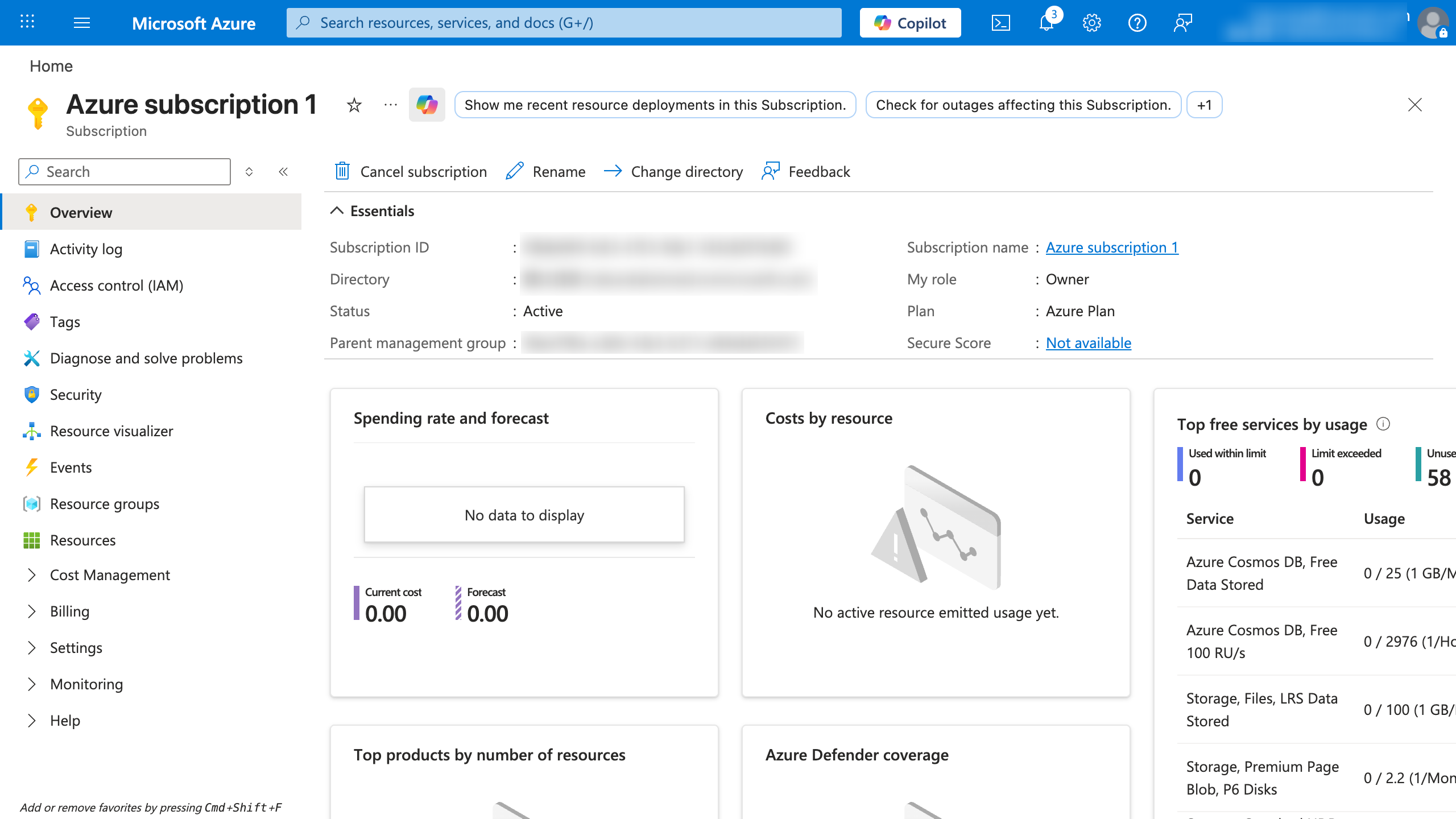
Subscription ID:
 1
1上部の検索バーまたはホームページから Subscriptions に移動します。
2使用するサブスクリプションを選択します。
3Overview ページの Essentials セクションで
Subscription IDを確認します。 -
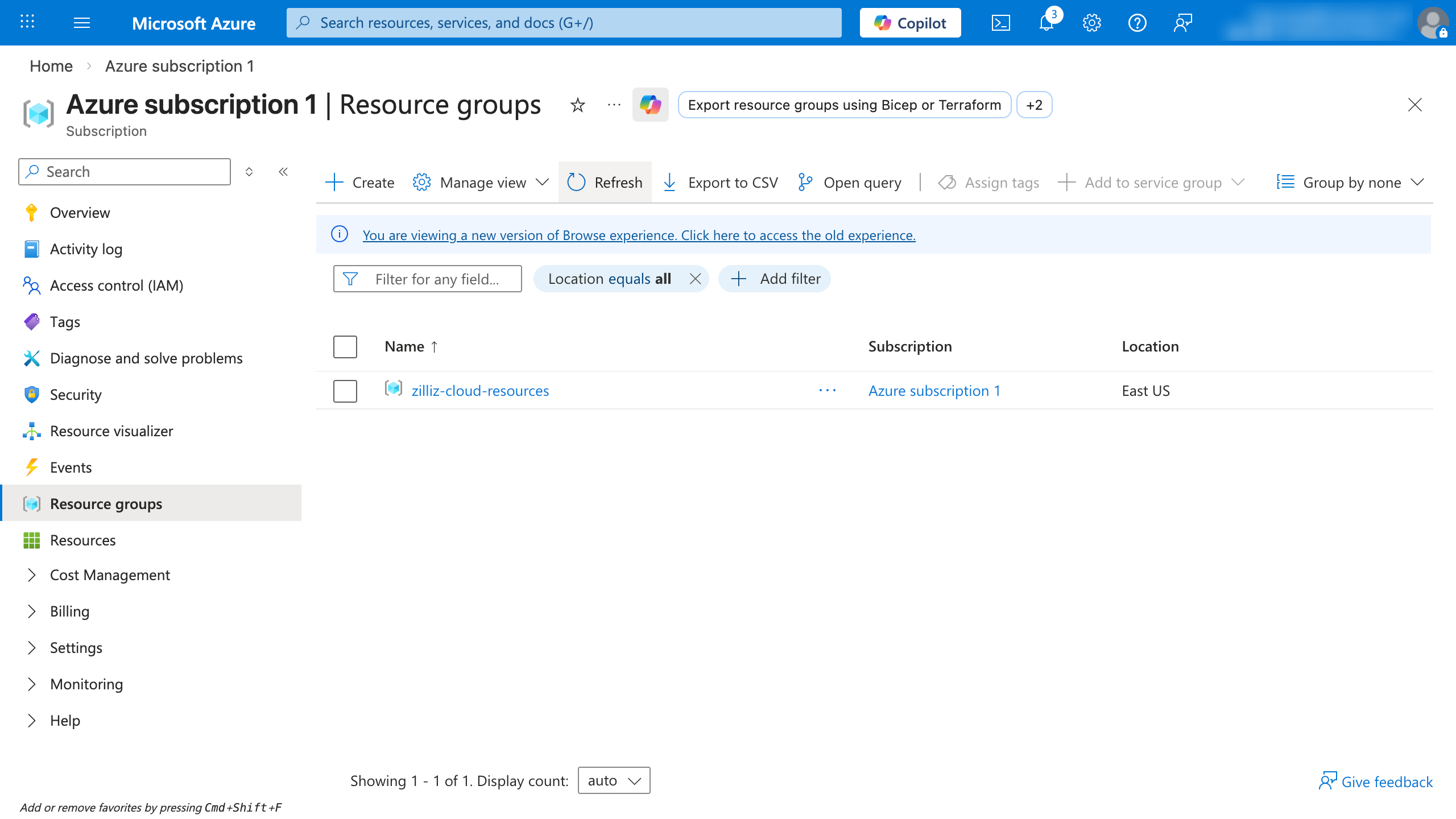
Resource Group Name:
リソースグループは、Azure ソリューションの関連リソースを保持するコンテナです。
 1
1左側のメニューから Resource groups に移動します。
2名前は Name 列に表示されます。
何も表示されない場合は、リソースグループを作成して Zilliz Cloud に提供する必要がある場合があります。後で Terraform スクリプトを実行すると、仮想マシン(VM)、仮想ネットワーク(VNet)、Azure Kubernetes Service(AKS)クラスターを含む、必要なすべてのリソースがリソースグループに追加されます。
-
-
アクセス制御(IAM)権限を追加します。
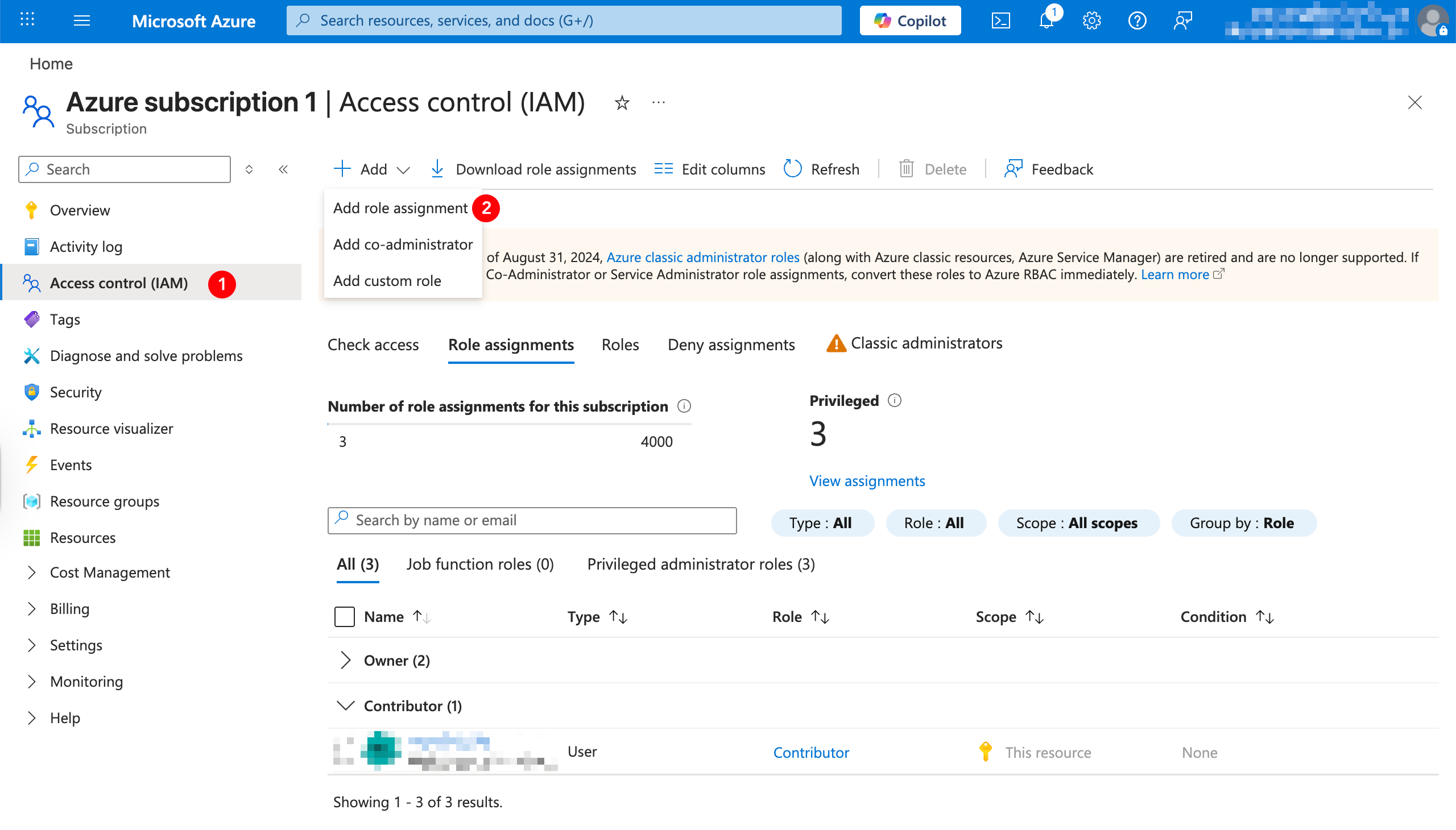
Terraform スクリプトを実行するロールに Contributor および User Access Administrator 権限を割り当てます。
 1
1左側のメニューから Access control (IAM) に移動します。
2+ Add をクリックし、ドロップダウンリストから Add role assignment を選択します。
3Role タブで Privileged administrator roles をクリックし、Contributor で絞り込んで Next をクリックします。
4Members タブの Assign access to で User, group, or service principal または Managed entity を選択し、+ Select members をクリックします。
Terraform スクリプトの実行にユーザー、グループ、またはサービスプリンシパルを使用する場合は、User, group, or service principal を選択します。それ以外の場合は Managed entity を選択します。
5Next をクリックし、設定を確認してから Review + assign をクリックして保存します。
6上記の手順を User Access Administrator ロールについて繰り返します。
-
最新の Terraform バイナリをインストールします。
Terraform のインストール方法の詳細については、このドキュメント を参照してください。
ステップ 2: プロジェクトを作成する
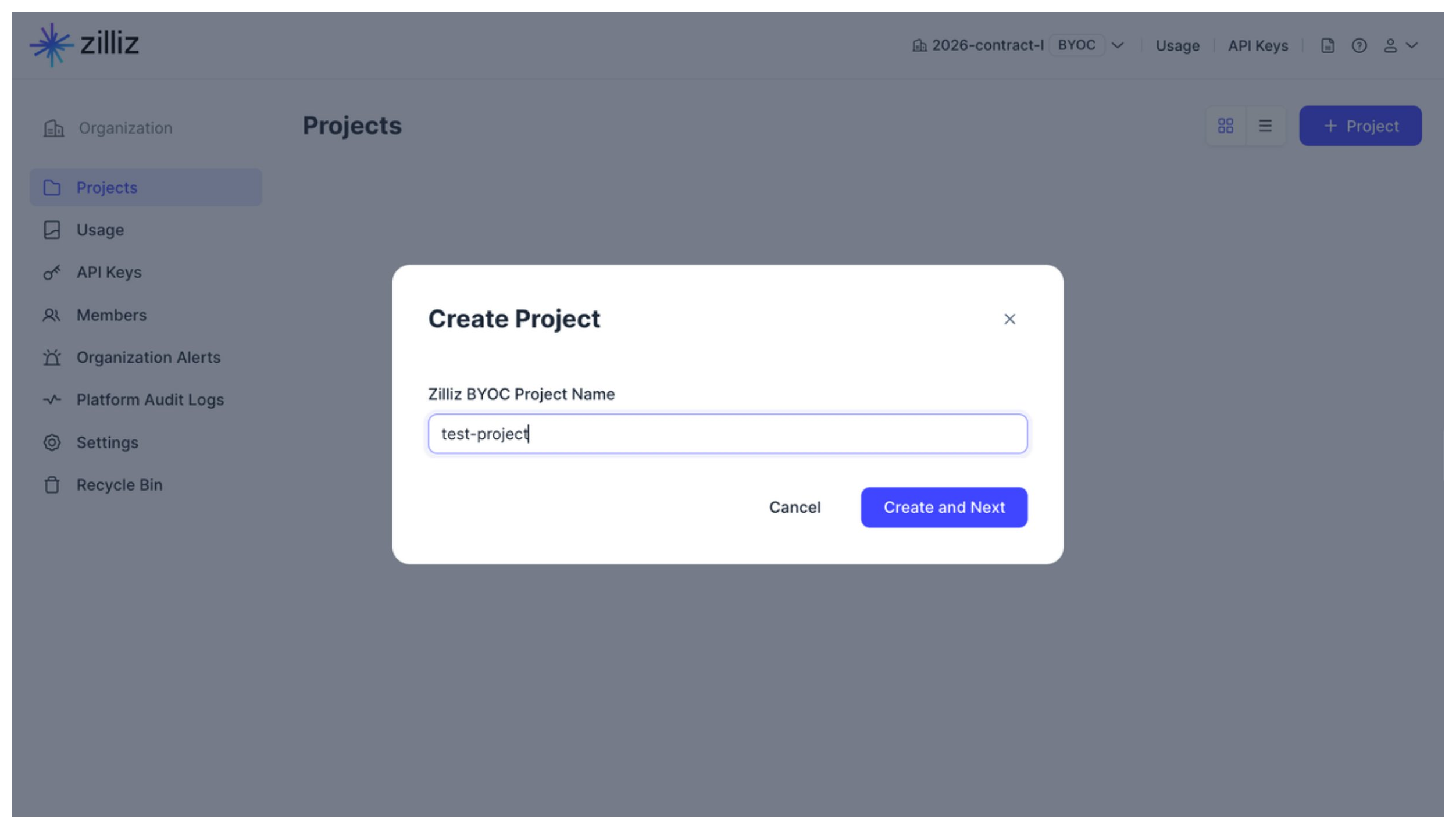
BYOC-I 組織内で Create Project ボタンをクリックしてデプロイを開始します。表示されるダイアログボックスで Zilliz BYOC Project Name を設定し、Create and Next をクリックします。
このステップの最後にプロジェクトが作成され、Deploy Data Plane ダイアログボックスにリダイレクトされます。
ステップ 3: データプレーンを準備する
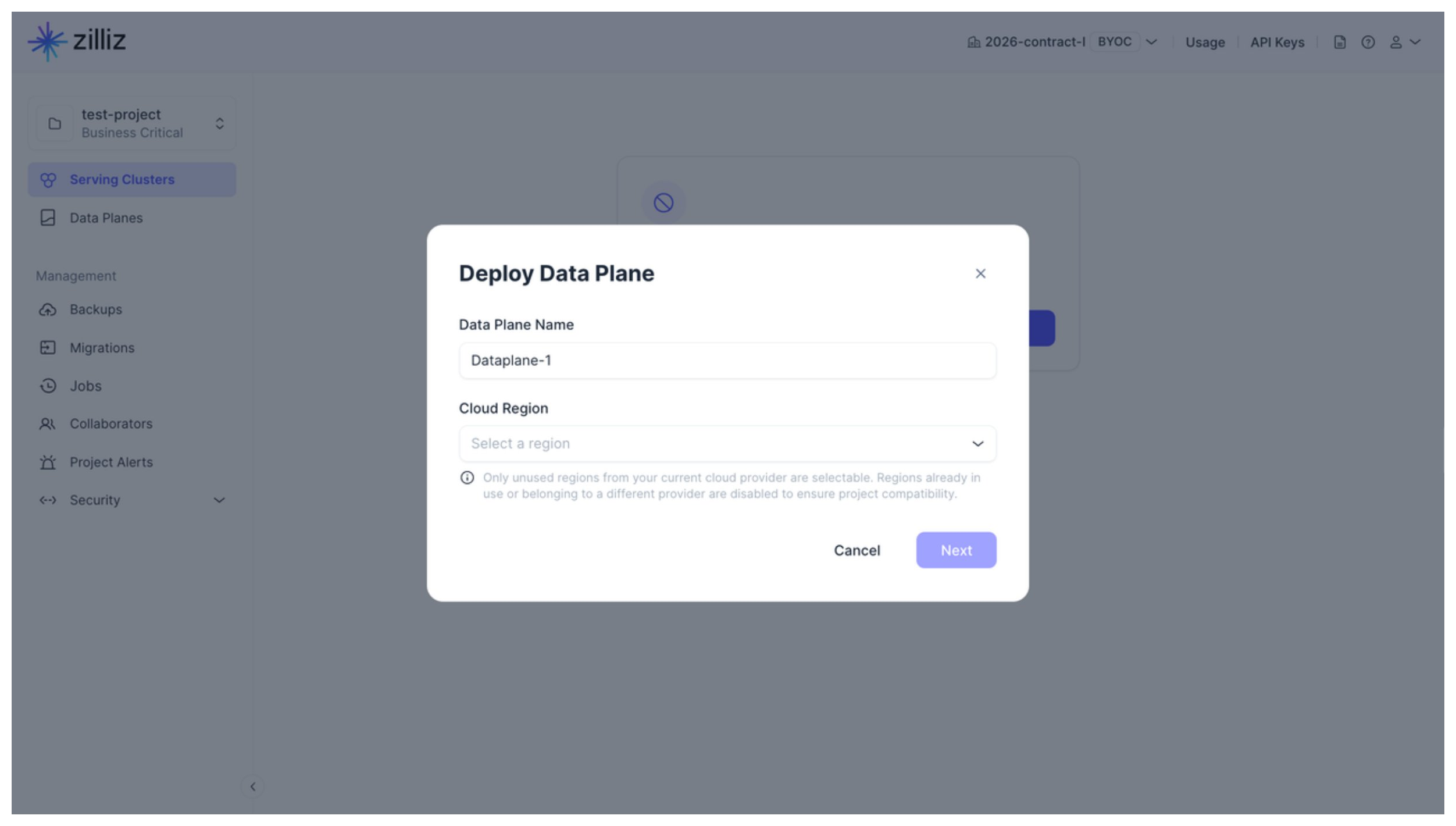
Data Plane Name と Cloud Region を設定し、Next をクリックします。
Cancel をクリックするとデータプレーンのデプロイを停止します。ただし、上で作成したプロジェクトは引き続き利用可能です。プロジェクト内でデータプレーンのデプロイはいつでも開始でき、1つのプロジェクトに複数のデータプレーンを追加できます。
Azure Private Service Connect を有効にするかどうかを決定します。
このオプションにより、現在のプロジェクト内のクラスターへのプライベート接続が可能になります。このオプションを有効にする場合は、プライベート接続用の VPC エンドポイントを作成する必要があります。
ステップ 1 で取得した Azure の Subscription ID と Resource Group Name を入力します。
Architecture で、アプリケーションに適したアーキテクチャタイプを選択します。
これにより、使用する Zilliz BYOC イメージのアーキテクチャタイプが決まります。利用可能なオプションは X86 と ARM です。
Resource Settings では、以下を行う必要があります。
-
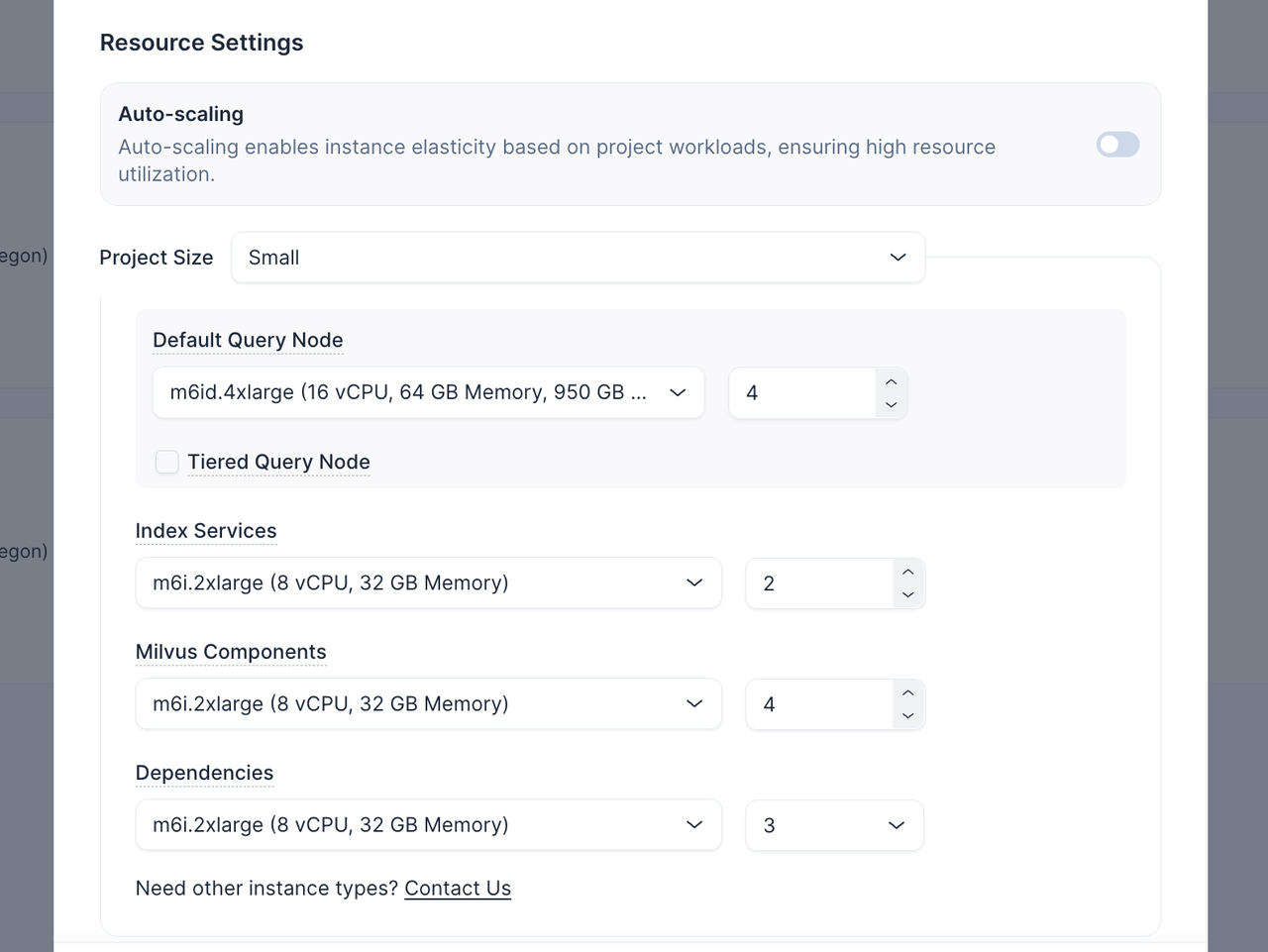
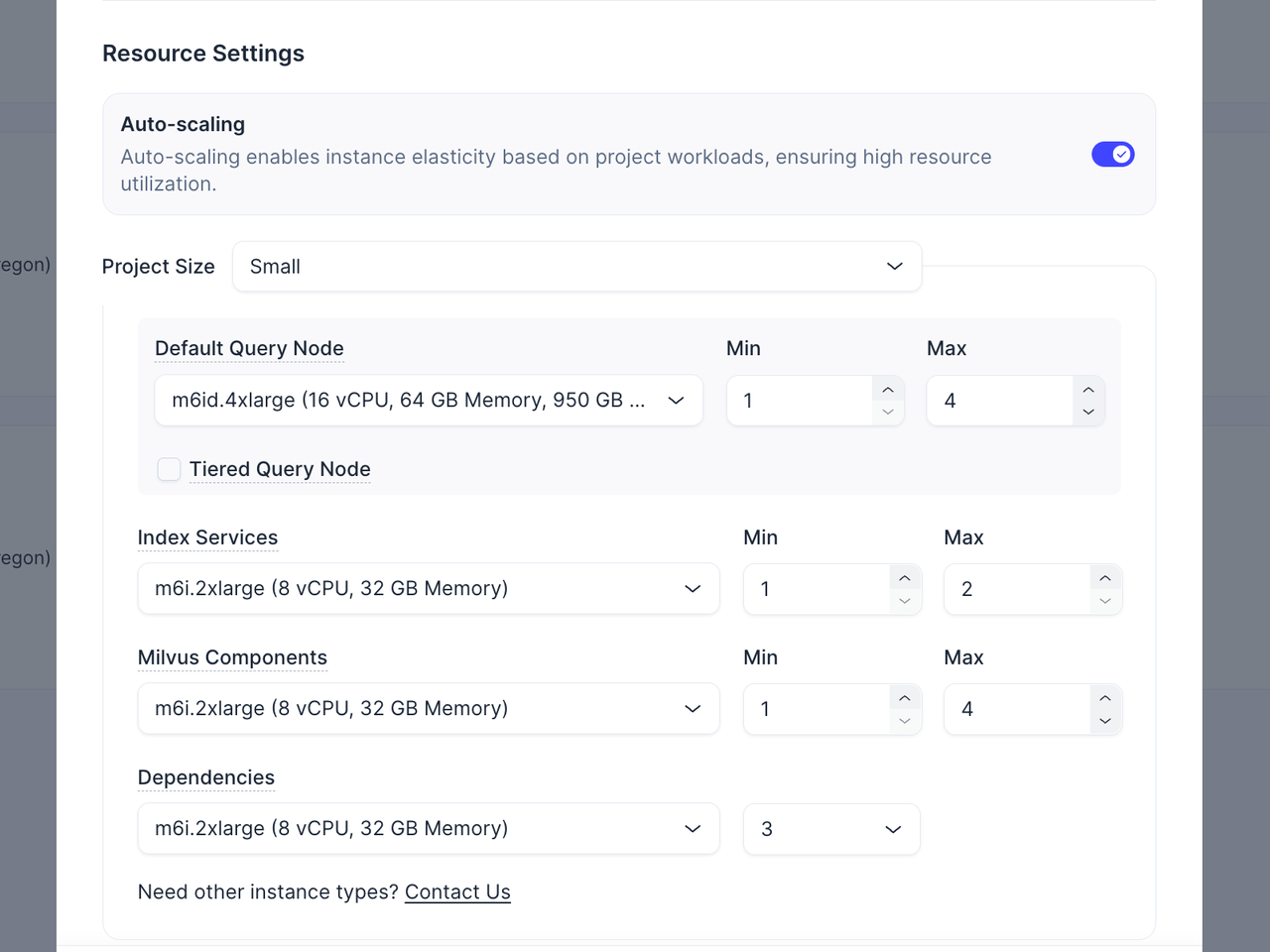
Auto-scaling を有効または無効にして、定義した範囲内でプロジェクトのワークロードに基づき VM インスタンス数を Zilliz Cloud が自動調整できるようにし、効率的なリソース利用を実現します。
-
Initial Project Size を構成します。
BYOC プロジェクトでは、クエリノード、インデックスサービス、Milvus コンポーネント、および依存関係で異なるタイプの VM インスタンスを使用します。これらのサービスおよびコンポーネントごとに、インスタンスタイプと台数を個別に設定できます。
Auto-scaling が無効な場合は、各プロジェクトコンポーネントに必要な VM インスタンス数を対応する Count フィールドに指定するだけです。
Auto-scaling を有効にすると、対応する Min および Max フィールドを設定して、実際のプロジェクトワークロードに基づき Zilliz Cloud が VM インスタンス数を自動スケールできるように範囲を指定する必要があります。
リソース設定を容易にするため、事前定義されたプロジェクトサイズオプションが 4つ用意されています。次の表は、これらのプロジェクトサイズオプションと、プロジェクト内で作成可能なクラスター数、および各クラスターに含めることができるエンティティ数との対応関係を示しています。
サイズ
最大クラスター数
最大エンティティ数(百万)
Performance-optimized CU
Capacity-optimized CU
Tiered-storage CU
Small
8 ~ 16 CU のクラスターを 3 個
1600 万 - 3200 万
6400 万 - 1 億 2800 万
3 億 2000 万 - 6 億 4000 万
Medium
16 ~ 64 CU のクラスターを 7 個
3200 万 - 1 億 2800 万
1 億 2800 万 - 5 億 1200 万
6 億 4000 万 - 26 億
Large
64 ~ 192 CU のクラスターを 12 個
1 億 2800 万 - 3 億 8400 万
5 億 1200 万 - 15 億
26 億 - 77 億
X-Large
192 ~ 576 CU のクラスターを 17 個
3 億 8400 万 - 12 億
15 億 - 46 億
77 億 - 230 億
Initial Project Size で Custom を選択し、すべてのデータプレーンコンポーネントの VM インスタンスタイプと台数を調整することで、設定をカスタマイズすることもできます。ご希望の VM インスタンスタイプが一覧にない場合は、追加のサポートについて Zilliz サポート までお問い合わせください。
-
Tiered Query Node を有効にするかどうかを決定します。
このオプションは、階層型ストレージクラスターを作成できるかどうかを決定します。このオプションを選択すると、階層型クエリノードのインスタンスタイプと台数を設定できます。
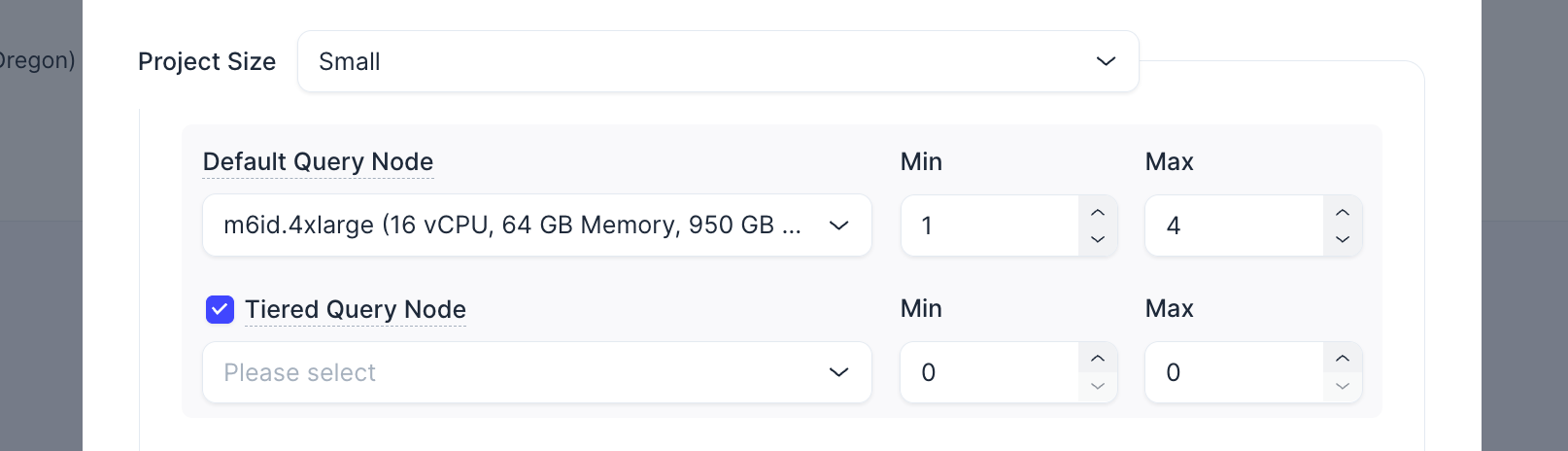 Notes
Notes-
Project Size での選択は、Tiered Storage Node の設定には影響しません。
-
Auto-scaling が無効な場合、Default Query Node の台数と Tiered Query Node の台数の合計は正の整数である必要があります。
-
Auto-scaling が有効な場合、Default Query Node と Tiered Query Node の両方の Min 値の合計は正の整数である必要があります。
-
Next をクリックします。
ステップ 4: データプレーンをデプロイする
ダイアログに表示される手順に従って、現在作成したプロジェクトのデータプレーンをデプロイします。
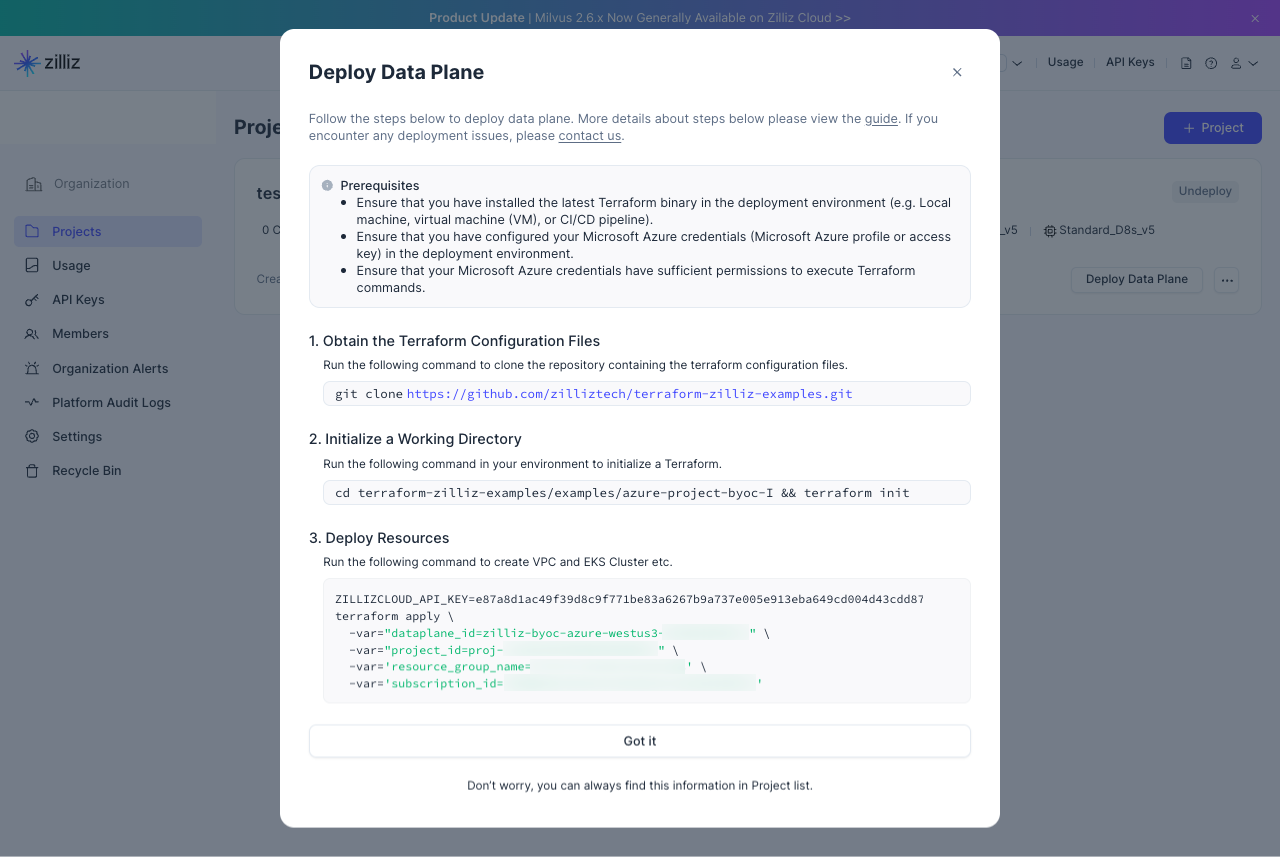
上記 Terraform スクリプトの実行方法の詳細については、Zilliz Cloud BYOC-I Project Setup Guide を参照してください。
プロジェクトのデータプレーンをデプロイしてクラスターを作成した後は、直接 VPC アクセスまたは Azure Private Link のいずれかを通じてこれらのクラスターに接続できます。詳細は、BYOC クラスターへの接続 を参照してください。
データプレーンを管理する
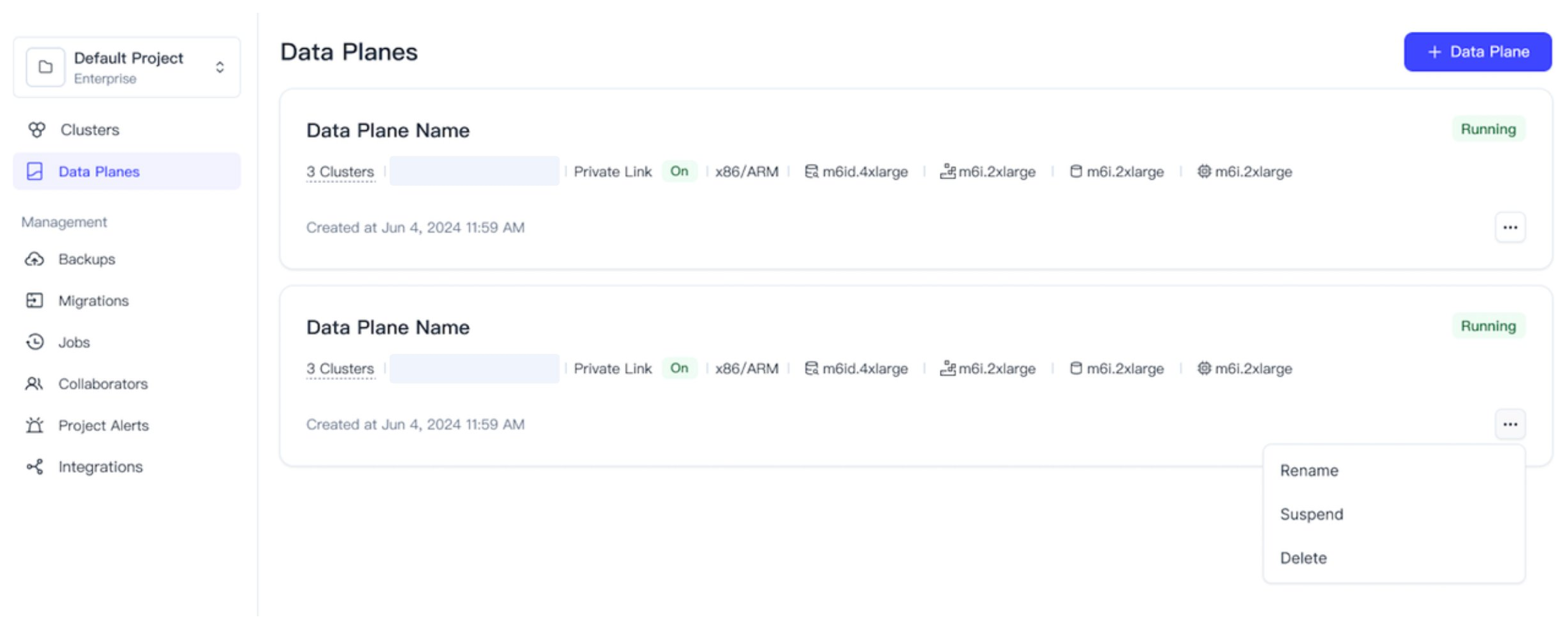
Undeploy タグが付いたデータプレーン
プロジェクトカード右上のステータスタグが Undeploy と表示されている場合、いつでもプロジェクトカード上の Deploy Data Plane ボタンをクリックして再度開くことができます。プロジェクトの名前を変更または削除するには、プロジェクトカード内の ... ボタンをクリックし、ドロップダウンメニューから Rename または Delete を選択します。
Deploying タグが付いたデータプレーン
デプロイ環境を準備して表示されたコマンドを実行した後は、BYOC エージェントが有効化されるまで待つ必要があります。プロジェクトカード上のステータスタグが Deploying と表示され、進行率が示されている間は、データプレーンの配置が完了するまでプロジェクトの名前変更や削除はできません。
Running タグが付いたデータプレーン
プロジェクトカード上のステータスタグが Running と表示されたら、そのプロジェクト内でクラスターの作成を開始できます。稼働中のプロジェクトの名前変更または削除を行うには、プロジェクト内にクラスターが存在しないことを確認してください。
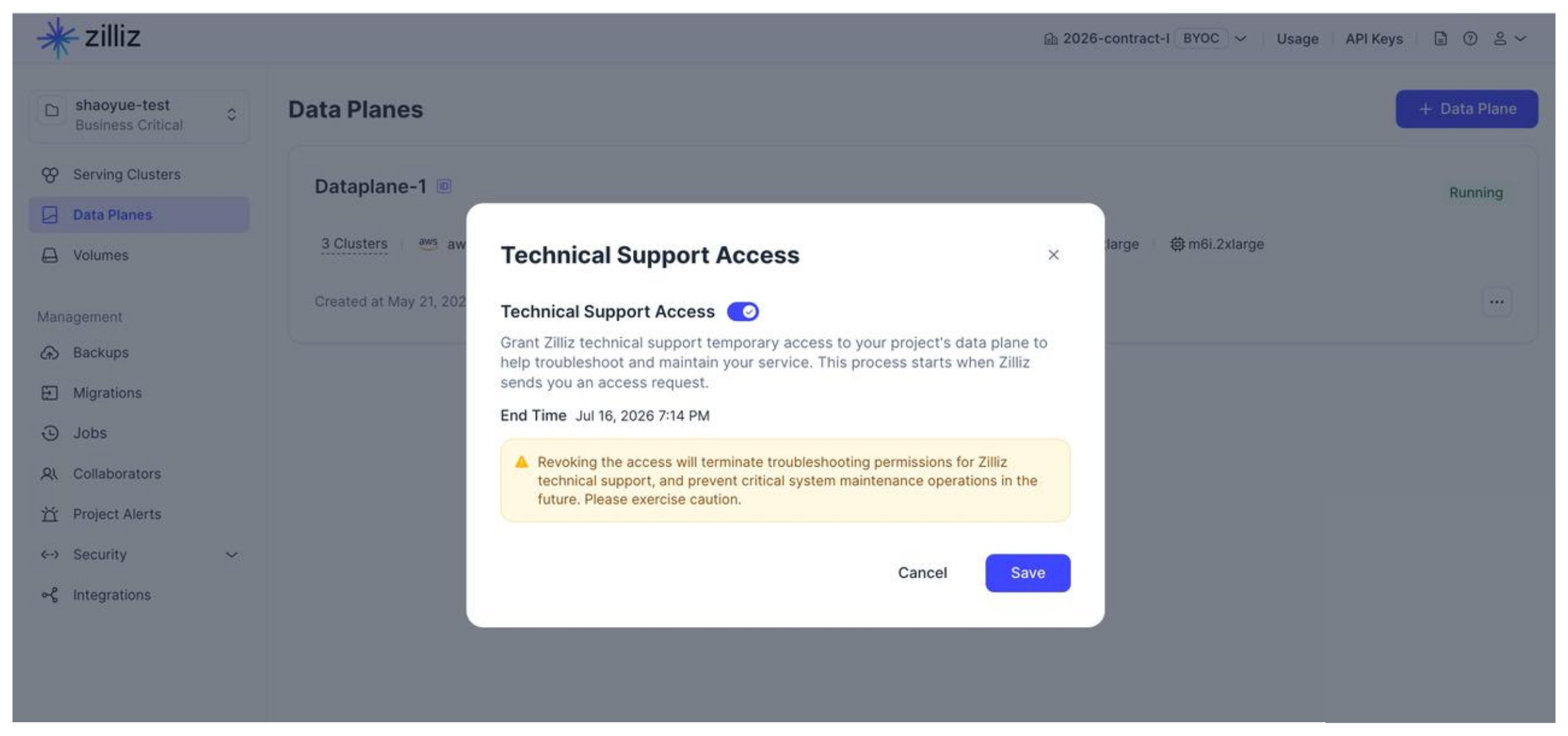
テクニカルサポートアクセス
トラブルシューティングおよび保守作業を支援するために、Zilliz Cloud はデフォルトでテクニカルサポートがプロジェクトのデータプレーンにアクセスできるようにしています。ガバナンスおよびセキュリティ要件を満たすために、これを無効にすることもできます。
次の手順では、特定された問題について Zilliz Cloud テクニカルサポートから連絡を受けた際に、無効化していたテクニカルサポートアクセスを再度有効にする方法を示します。
Zilliz Cloud がデータプレーン上の問題を特定し、かつテクニカルサポートアクセスが無効になっている場合、当社はその旨を通知し、テクニカルサポートアクセスを申請します。
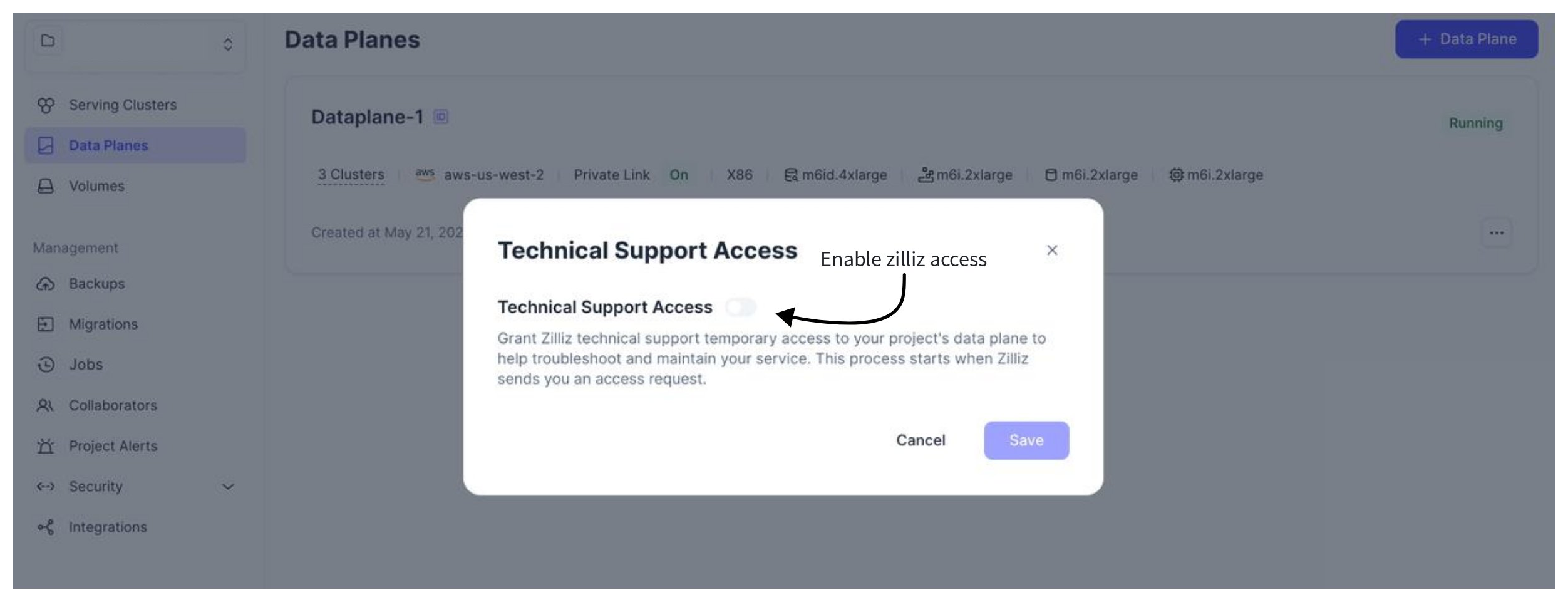
対象のデータプレーンを見つけ、データプレーンカード右下の ... をクリックし、ドロップダウンリストから Technical Support Access をクリックします。
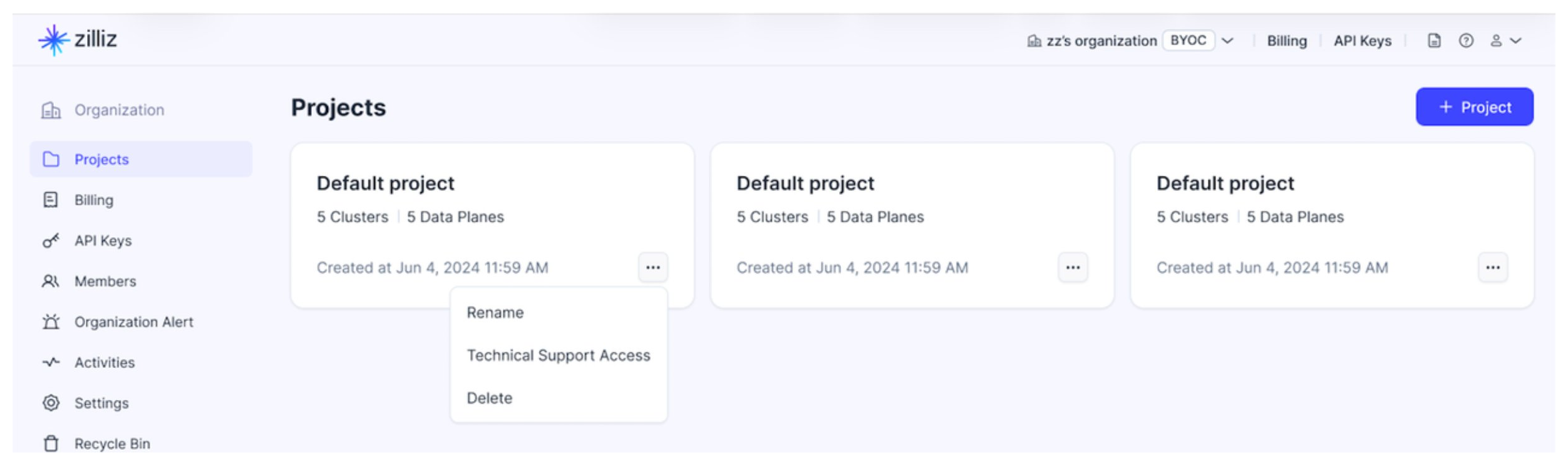
表示されたダイアログボックスで、Technical Support Access をオンにします。
すると、当社がアクセスを申請する理由と、Zilliz Cloud によって割り当てられた問題担当者の ID に関する情報が表示されます。Expected Duration でアクセス期間を決定し、Description に任意の要件を入力できます。すべて設定したら、Save をクリックします。
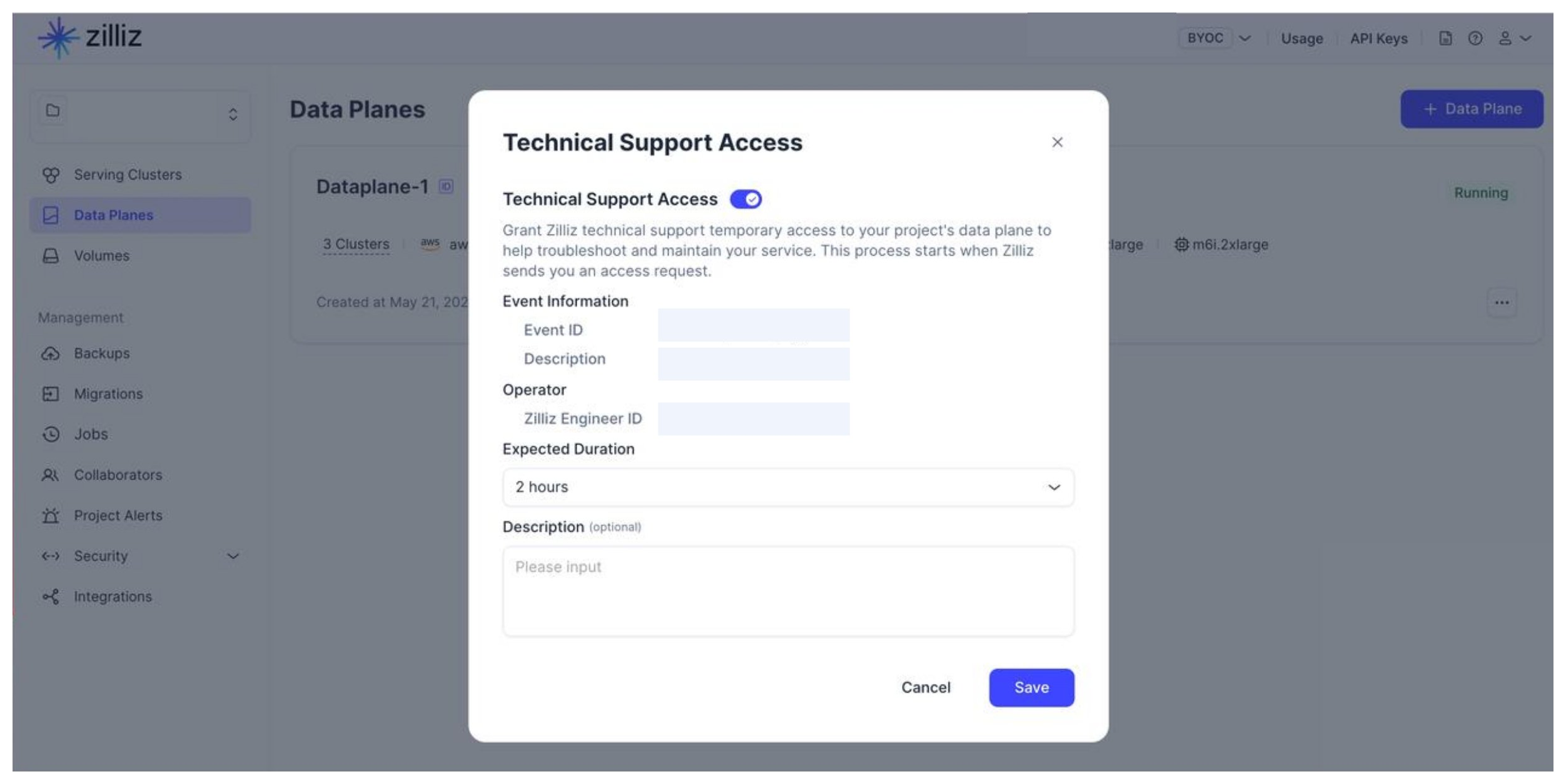
トラブルシューティング中にこのダイアログボックスを開くと、このアクセスの終了時刻が表示されます。テクニカルサポートアクセスは、有効期限が切れるか、明示的に無効にすると再び無効になります。