Google Cloud Storage との連携
このページでは、Zilliz Cloud の GCP BYOC または BYOC-I データプレーンが外部の Google Cloud Storage バケットにアクセスできるように認可する方法について説明します。バケットスコープのカスタム IAM ロールを作成し、それをデータプレーンのストレージ Google サービスアカウント(GSA)に直接付与します。
Zilliz Cloud の統合ウィザードには、認可する Google Cloud サービスアカウントのメールアドレスが正確に表示されます。これが、選択したデータプレーンのストレージ GSA です。表示されたプリンシパルにバケットレベルのアクセス権を付与してください。有効期間の長いサービスアカウントキーを作成、ダウンロード、またはアップロードしないでください。
アクセスフロー

事前準備
以下を満たしていることを確認してください。
-
GCP BYOC または BYOC-I データプレーンが稼働していること。
-
Zilliz Cloud プロジェクトに対する Organization Owner または Project Admin のアクセス権を持っていること。
-
バケットを所有する Google Cloud プロジェクトで、プロジェクトレベルのカスタム IAM ロールを作成できること。
-
対象の Cloud Storage バケットの IAM ポリシーを更新できること。
-
バケットが、選択した BYOC データプレーンのリージョンと一致する単一のリージョンを使用していること。
バケット統合はリージョン固有です。マルチリージョンバケットとデュアルリージョンバケットは、単一の BYOC データプレーンのリージョンと一致しません。データプレーンのリージョン内のリージョナルバケットを使用してください。
ステップ 1: Zilliz Cloud で統合を開始する
Zilliz Cloud コンソール にログインします。
GCP BYOC プロジェクトを開き、左側のナビゲーションで Integrations を選択します。
Google Cloud Storage の下で + Integration をクリックします。
一意の Integration Name を入力し、必要に応じて Integration Description を入力します。
Next をクリックします。
ステップ 2: カスタム Cloud Storage ロールを作成する
Google Cloud コンソールで、外部バケットを所有するプロジェクトを選択します。
IAM & Admin > Roles を開き、+ Create role をクリックします。
Zilliz Bucket Integration などのタイトルを入力し、以下の権限を追加して、ロールを作成します。
storage.buckets.get
storage.objects.create
storage.objects.list
storage.objects.get
| 権限 | 目的 |
|---|---|
storage.buckets.get | バケットのメタデータを読み取り、そのロケーションを検証します。 |
storage.objects.get | 外部ボリュームおよびその他の読み取りワークフロー用のオブジェクトを読み取ります。 |
storage.objects.list | バケット内のオブジェクトとプレフィックスを一覧表示します。 |
storage.objects.create | エクスポートおよびログ転送ワークフロー用の新しいオブジェクトを書き込みます。 |
ステップ 3: 外部 Cloud Storage バケットを指定する
Zilliz Cloud に戻り、Next をクリックします。
Region で、バケットにアクセスする BYOC データプレーンのリージョンを選択します。
Cloud Storage Buckets ページで、対象のバケットが同じリージョンを使用していることを確認します。
Bucket Name には、バケット名のみを入力します。gs://、オブジェクトプレフィックス、または末尾のスラッシュは含めないでください。
Next をクリックします。
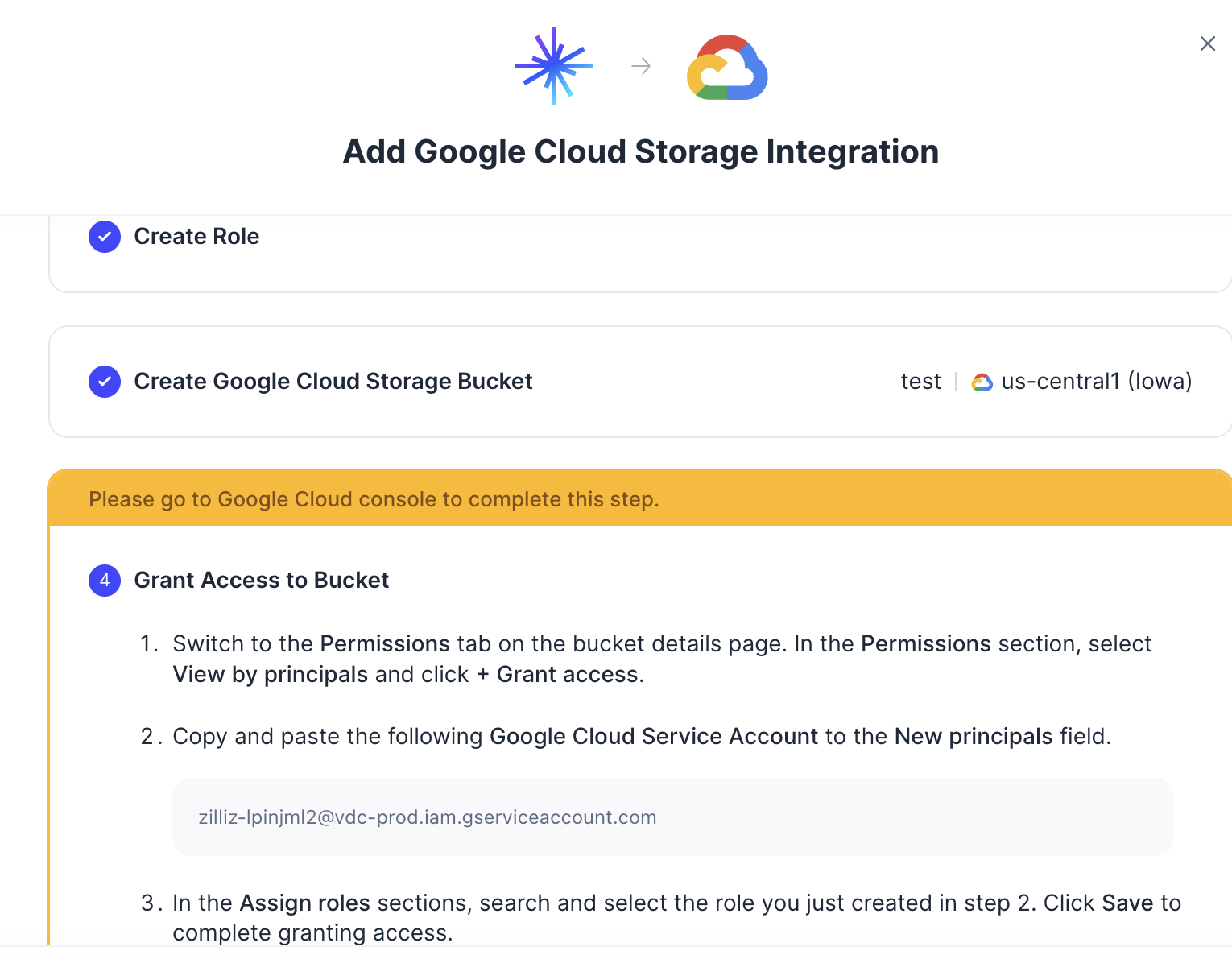
ステップ 4: BYOC ストレージ GSA にアクセス権を付与する
対象のバケットの詳細ページで、Permissions タブを開きます。
View by principals を選択し、+ Grant access をクリックします。
Zilliz Cloud 統合ウィザードのステップ 4 で、表示されている Google Cloud Service Account のメールアドレスをコピーし、New principals に貼り付けます。この表示されているアカウントがストレージ GSA です。
Assign roles で、ステップ 2 で作成したカスタムロールを選択します。
Save をクリックします。
Principal
<BYOC_STORAGE_SERVICE_ACCOUNT>@<BYOC_PROJECT_ID>.iam.gserviceaccount.com

Role
projects/<BUCKET_PROJECT_ID>/roles/<CUSTOM_ROLE_ID>

Scope
Target Cloud Storage bucket
メールアドレスを命名規則から推測したり、GKE ノードサービスアカウント、管理サービスアカウント、ブーターサービスアカウント、または Kubernetes サービスアカウントで代用したりしないでください。現在の統合に表示されている値をコピーしてください。
ステップ 5: 統合を検証して追加する
Zilliz Cloud に戻り、Validate Integration をクリックします。
ロールを最近付与した場合は、Google Cloud IAM の反映を待ってから検証を再試行してください。
ステータスが Successful に変わったら、Add をクリックします。これで、同じ Zilliz Cloud プロジェクトおよびリージョン内のサポート対象ワークフローで Google Cloud Storage 統合を利用できるようになります。
セキュリティに関する推奨事項
-
バケット統合用の専用カスタムロールを作成し、一覧に示した 4 つの権限のみに制限してください。
-
ロールは、プロジェクトまたは組織スコープではなく、対象のバケットに付与してください。
-
別のワークロードに明確な要件がない限り、Public Access Prevention を有効にしたままにしてください。
-
サービスアカウントキーを作成しないでください。データプレーンは、GKE Workload Identity を通じてストレージ GSA を使用します。
-
組織ポリシー、IAM 拒否ポリシー、VPC Service Controls の境界、または Cloud KMS ポリシーが適用される場合は、必要なデータパスが許可されていることを確認してください。
トラブルシューティング
| 検証結果 | 想定される原因 | 確認する項目 |
|---|---|---|
bucket region not match | バケットのロケーションが、選択した BYOC データプレーンのリージョンと異なります。 | データプレーンのリージョンと完全に一致するリージョナルバケットを使用してください。 |
verify bucket access failed | サービスアカウントがバケットのメタデータを読み取れません。 | カスタムロールに storage.buckets.get が含まれ、正しいバケットに付与されていることを確認してください。 |
| Principal not found | 表示されたストレージ GSA のメールアドレスが誤ってコピーされたか、別の統合のものです。 | 現在の Zilliz Cloud 統合ウィザードのステップ 4 から Google Cloud Service Account をもう一度コピーし、IAM の付与を再試行してください。 |
| 統合の検証は成功するが、後続のワークフローで読み取りまたは書き込みができない | オブジェクトの権限が不足しているか、別のポリシーによってブロックされています。 | storage.objects.get、storage.objects.list、storage.objects.create を確認し、さらに組織の拒否ポリシーと KMS ポリシーも確認してください。 |