グローバルクラスターの管理
この機能は、Business Critical (SaaS) および BYOC デプロイメントでのみ利用できます。
この機能は、すべての AWS リージョンと、次の Google Cloud リージョンで利用できます:gcp-us-central1 および gcp-us-east4。Microsoft Azure では利用できません。
このページでは、セカンダリクラスターの追加と削除、グローバルクラスターから通常のクラスターへの変換、およびグローバルクラスター全体の削除について説明します。
事前準備
-
Project Admin であること。
-
プライマリクラスターとセカンダリクラスターの両方ともサスペンドできない点に注意すること。
セカンダリクラスターを追加する
リージョンカバレッジを向上させるには、既存のグローバルクラスターに、異なるリージョンのセカンダリクラスターをさらに追加できます。
グローバルクラスターに作成できるセカンダリクラスターは最大 5つです。
新しいセカンダリクラスターを追加すると、Zilliz Cloud がそれをプロビジョニングし、プライマリクラスターからのデータレプリケーションを開始します。新しいセカンダリクラスターは CREATING ステータスで表示され、初回のデータ同期が完了すると RUNNING に移行します。
-
Web コンソールを使用する場合
次のデモでは、1 つ以上のセカンダリクラスターを追加する方法を示しています。
-
RESTful API を使用する場合
次の例では、AWS ap-southeast-1 にデプロイされた
secondary-cluster-apという名前の新しいセカンダリクラスターを追加します。API の詳細については、Add Secondary クラスター を参照してください。bashcurl --request POST \--url "https://api.cloud.zilliz.com/v2/globalClusters/glo-xxxxxxxxxxxxxxxx/secondaryClusters" \--header "Authorization: Bearer ${API_KEY}" \--header "Accept: application/json" \--header "Content-Type: application/json" \--data-raw '{"secondaryClusters": [{"clusterName": "secondary-cluster-ap","regionId": "aws-ap-southeast-1"}]}'出力例は以下の通りです。
bash{"code": 0,"data": {"jobId": "job-xxxxxxxxxxxxxxxx"}}
セカンダリクラスターを削除する
そのリージョンでのカバレッジが不要になった場合や、コストを削減したい場合は、セカンダリクラスターを削除できます。
セカンダリクラスターを削除すると、次のようになります。
-
削除されたセカンダリクラスターは、グローバルクラスターのトポロジーから除外されます。
-
そのセカンダリクラスターへのデータレプリケーションは即座に停止します。
セカンダリクラスターは、Web コンソールまたは RESTful API のいずれかを使用して削除できます。
-
Web コンソールを使用する場合
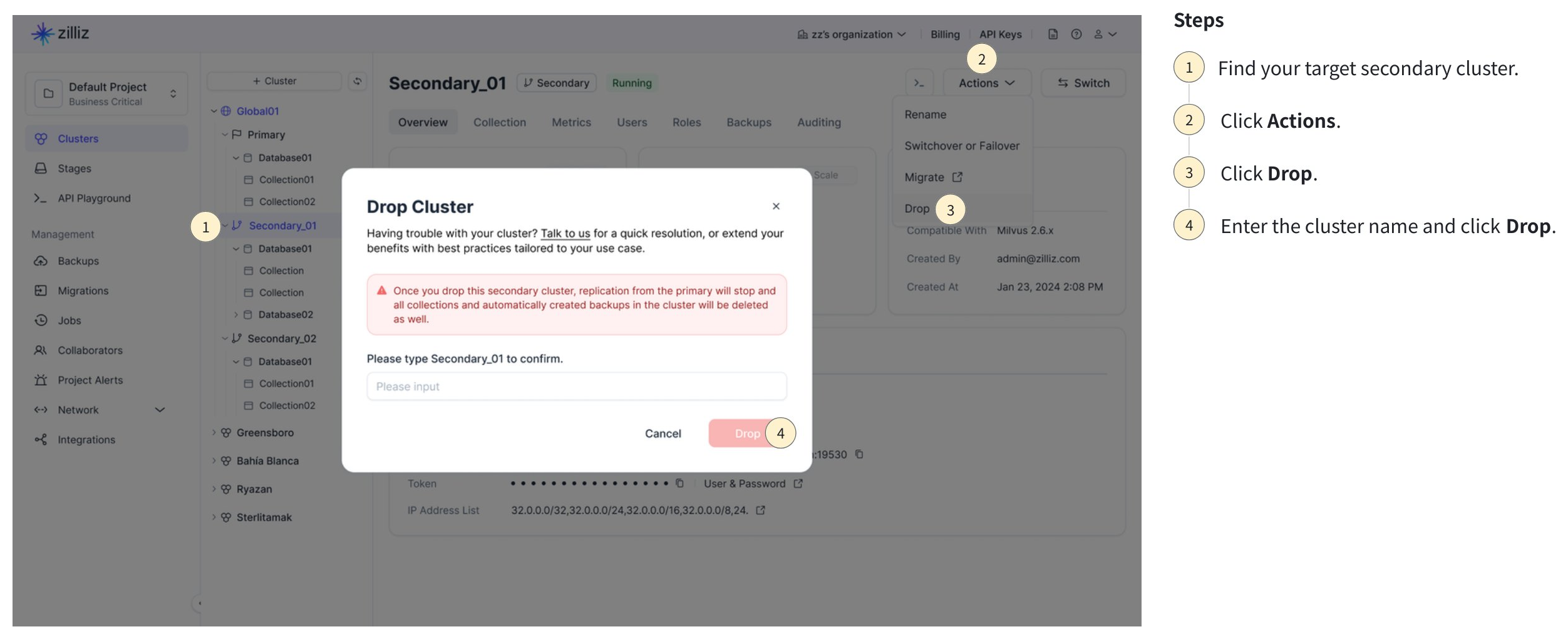
次のスクリーンショットは、セカンダリクラスターを削除する方法を示しています。
-
RESTful API を使用する場合
次の例では、セカンダリクラスターを削除します。API の詳細については、Delete Global Member Cluster を参照してください。
bashcurl --request DELETE \--url "https://api.cloud.zilliz.com/v2/globalClusters/glo-xxxxxxxxxxxxxxxx/clusters/in01-xxxxxxxxxxxxxxx" \--header "Authorization: Bearer ${API_KEY}" \--header "Accept: application/json"出力例は以下の通りです。
bash{"code": 0,"data": {"globalClusterId": "glo-xxxxxxxxxxxxxxxx","clusterId": "in01-xxxxxxxxxxxxxxx","prompt": "The cluster has been deleted. If you consider this action to be an error, you have the option to restore the deleted cluster from the recycle bin within a 30-day period. Kindly note, this recovery feature does not apply to free clusters."}}
グローバルクラスターを通常のクラスターに変換する
マルチリージョン機能が不要になったものの、プライマリクラスターとそのデータを保持したい場合は、グローバルクラスターを通常の Dedicated クラスターに戻すことができます。
グローバルクラスターを通常のクラスターに変換するには、次の手順を実行します。
すべてのセカンダリクラスターを削除します。
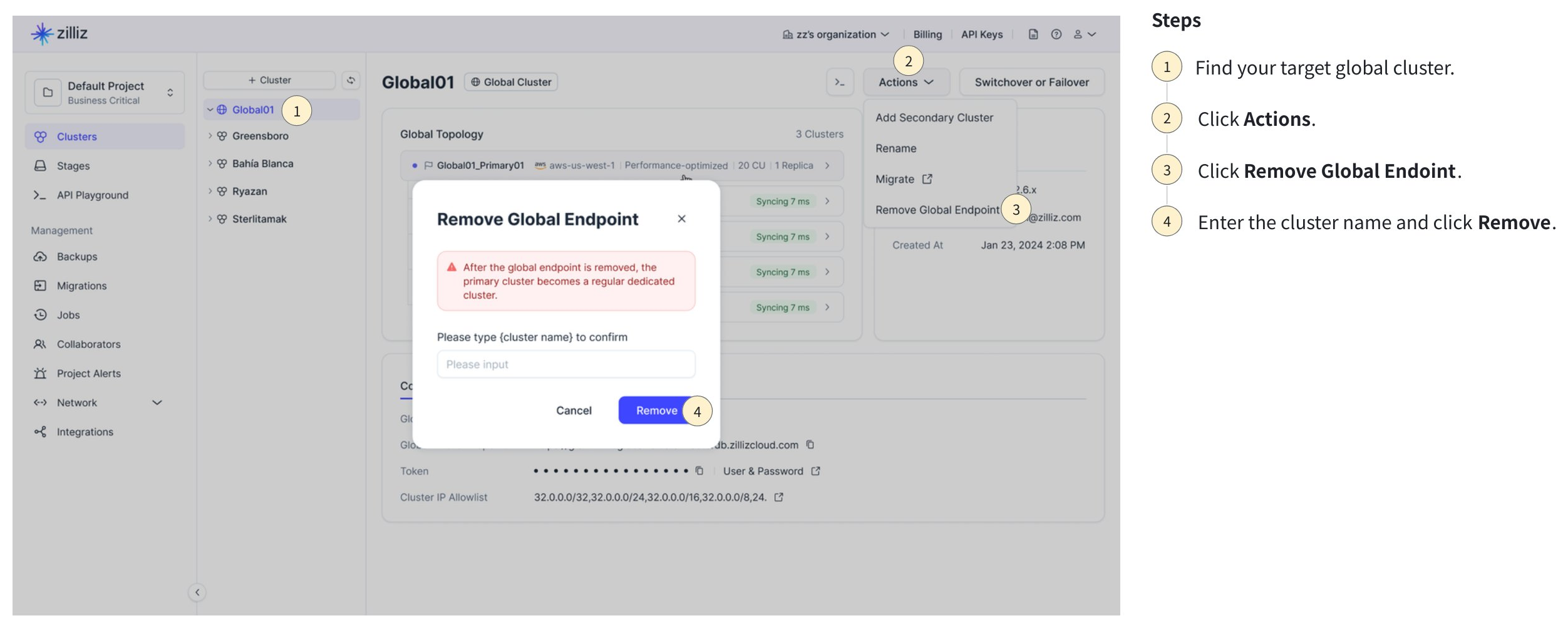
Global Cluster ページで、Actions ドロップダウンから Remove Global Endpoint をクリックします。
グローバルエンドポイントは、RESTful API を使用して削除することもできます。以下はその例です。詳細については、Remove Global Endpoint を参照してください。
curl --request POST \
  --url "https://api.cloud.zilliz.com/v2/globalClusters/glo-xxxxxxxxxxxxxxxx/removeGlobalEndpoint" \
  --header "Authorization: Bearer ${API_KEY}" \
  --header "Accept: application/json"
グローバルエンドポイントを削除すると、グローバルエンドポイント経由で接続しているすべてのアプリケーションは即座に切断されます。アプリケーションコードの接続エンドポイントを必ず更新してください。次の表は、変換後に何が起こるかを示しています。
| 項目 | 動作 |
|---|---|
| グローバルエンドポイント | 即座に削除されます。これを使用しているクライアントは切断されます。 |
| プライマリクラスター | 通常の Dedicated クラスターになります。すべてのデータを保持したまま稼働を続けます。 |
| データレプリケーション | 停止します。データレプリケーションのメトリクスは削除されます。 |
| グローバルクラスターのメタデータ | クリアされます(グローバルクラスター ID、トポロジー)。 |
| バックアップポリシー | 元のプライマリクラスターに変更なく保持されます。 |
| 請求 | データ転送 の料金は停止します。残りのクラスターは通常の Dedicated クラスター として課金されます。 |
グローバルクラスターを削除する
グローバルクラスターを完全に削除するには、まずすべてのセカンダリクラスターを削除し、次にプライマリクラスターを削除します。グローバルクラスターは、プライマリクラスターが削除されると自動的に削除されます。