Google Cloud Marketplace でプライベートオファーに登録する
Google Cloud Marketplace のプライベートオファーは、Zilliz がお客様の組織向けに作成するカスタム購入オプションです。Google Cloud Marketplace の製品ページに記載された標準価格・条件が適用されるパブリックオファーとは異なり、プライベートオファーでは交渉済みの価格、カスタム契約条件、特定の契約期間、指定した支払いスケジュールを含めることができます。
Zilliz Cloud のプライベートオファーをご希望の場合は、Zilliz のアカウントエグゼクティブにお問い合わせください。その際、オファーを受け取るための Google Cloud 請求先アカウント ID とメールアドレス、想定される契約期間、利用要件、および組織で必要な調達・請求関連の要件をお伝えください。
このガイドでは、Google Cloud Marketplace で Zilliz Cloud のプライベートオファーを承諾し、Zilliz Cloud 組織にリンクする手順を説明します。
事前準備
プライベートオファーを承諾する前に、以下の条件を満たしていることを確認してください。
-
有料の Google Cloud 請求先アカウントを保有していること。無料トライアルの Google Cloud 請求先アカウントは使用できません。
-
Cloud 請求先アカウントに対して、次のいずれかの必要な権限を持っていること。
-
Billing Account Administrator(
roles/billing.admin) -
Billing Account User(
roles/billing.user)および Consumer Procurement Order Administrator(roles/consumerprocurement.orderAdmin)
必要な権限がない場合は、Billing Administrator または Organization Administrator に、アクセス権の付与またはオファーの承諾を依頼してください。
-
-
Zilliz Cloud で Organization Owner または Organization Billing Admin であること。これらの権限は、Marketplace サブスクリプションを Zilliz Cloud 組織にリンクするために必要です。
プライベートオファーへの登録
以下に登録プロセスの概要を示します。
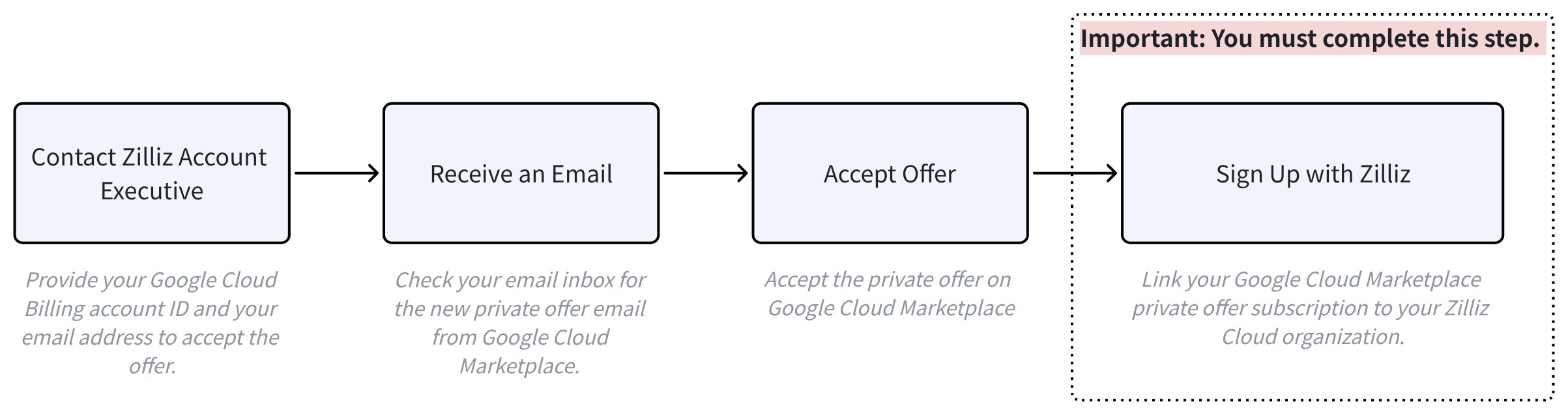
以下の詳細な手順に従って、Google Cloud Marketplace でプライベートオファーに登録してください。
プライベートオファーについて Zilliz のアカウントエグゼクティブに連絡します。
Zilliz のアカウントエグゼクティブに連絡する際は、Google Cloud 請求先アカウント IDとプライベートオファーの受取先メールアドレスをお伝えください。
メールの受信トレイを確認します。
件名が New Private Offer from Zilliz となっている Google Cloud Marketplace からのメールを探し、メール内の Review Offer ボタンをクリックします。
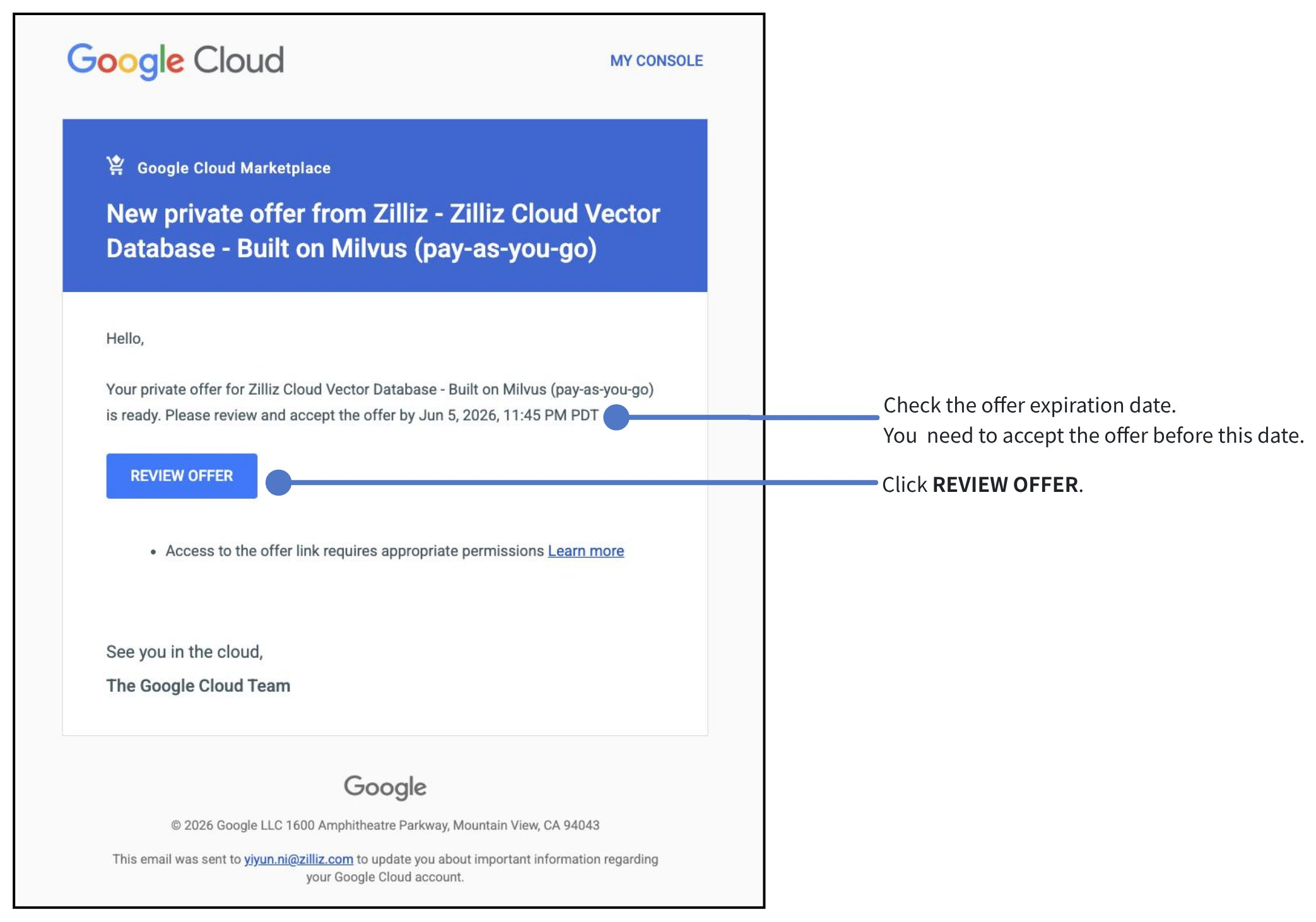
オファーは有効期限内に承諾する必要があります。有効期限が切れている場合は、アカウントエグゼクティブにお問い合わせください。
オファーの詳細を確認し、承諾します。
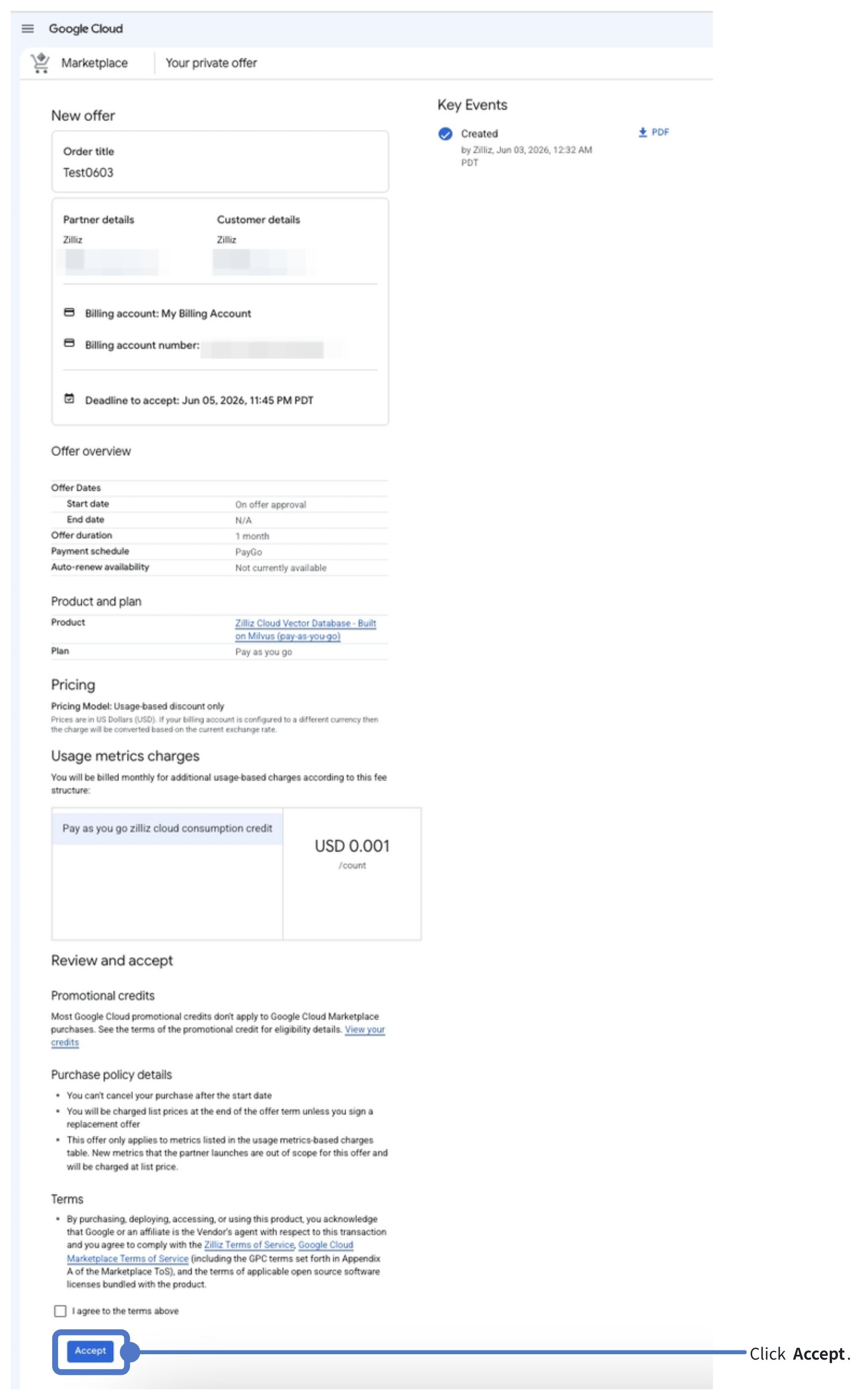
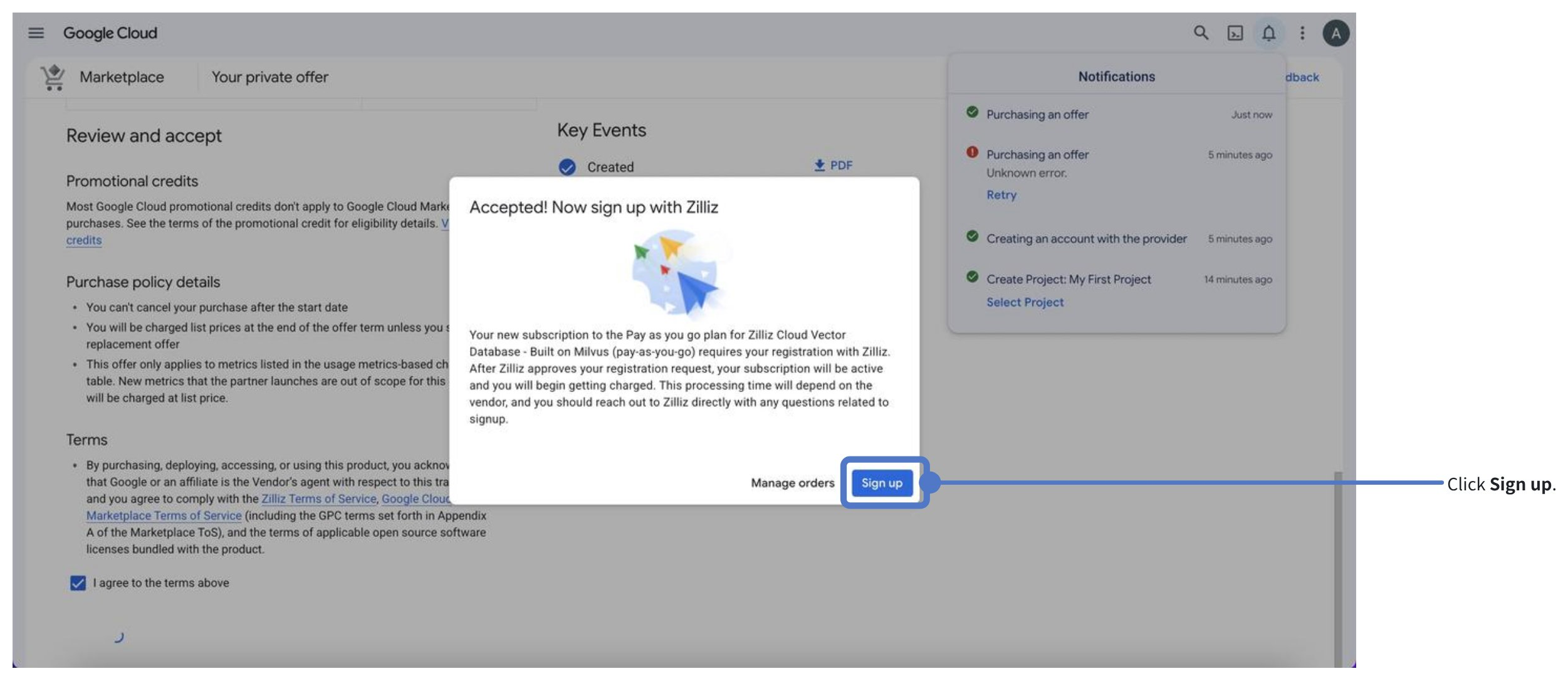
Zilliz にサインアップします。
オファーの購入が完了すると、Accepted! Now sign up with Zilliz というタイトルのダイアログボックスがページに表示されます。
Sign up をクリックすると、Zilliz Cloud にリダイレクトされます。
この手順は必須です。完了しないと、プライベートオファーのサブスクリプションが Zilliz Cloud 組織にリンクされません。
Marketplace サブスクリプションを Zilliz Cloud 組織にリンクします。
-
Zilliz Cloud アカウントにログインします。
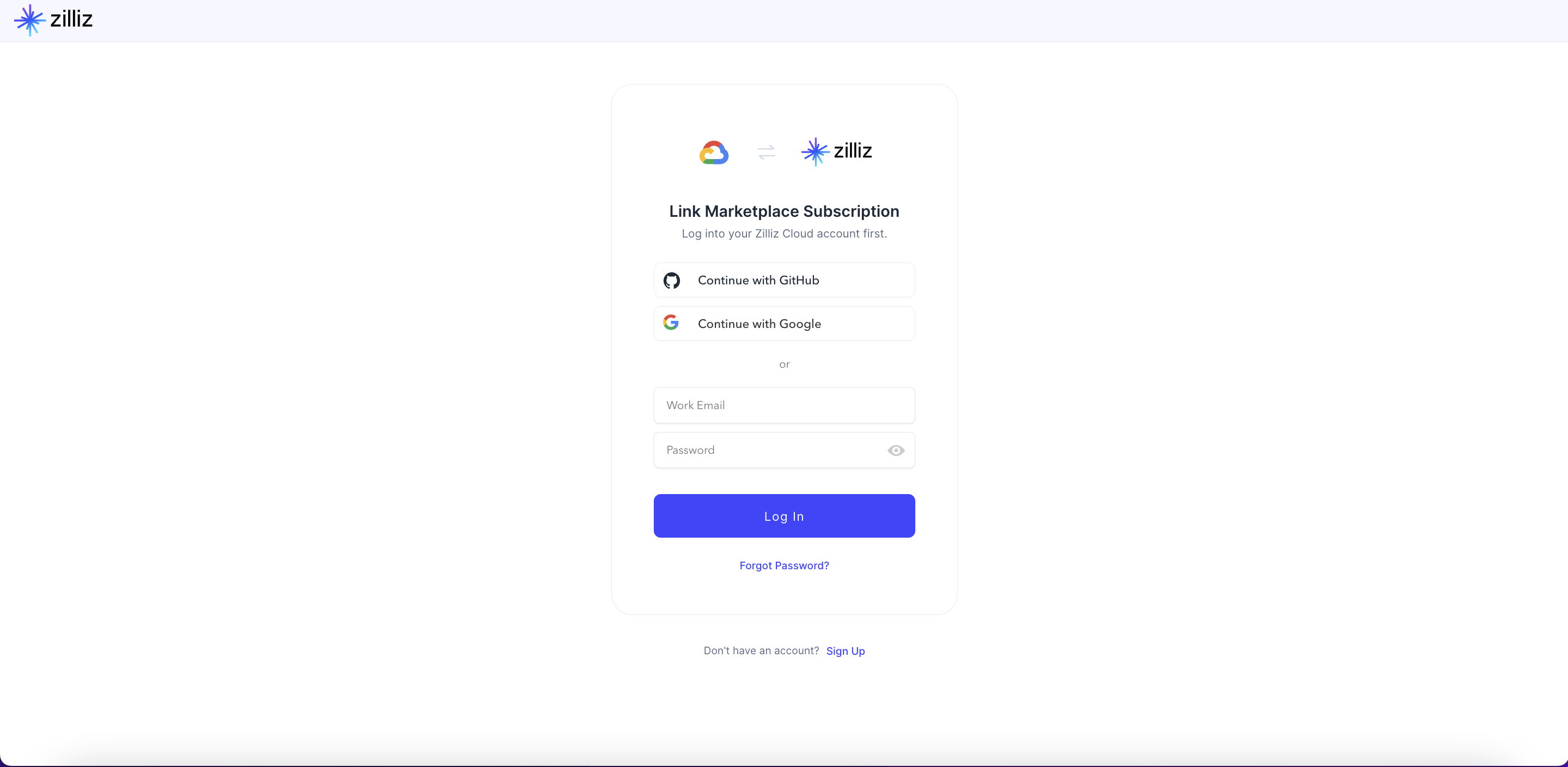
-
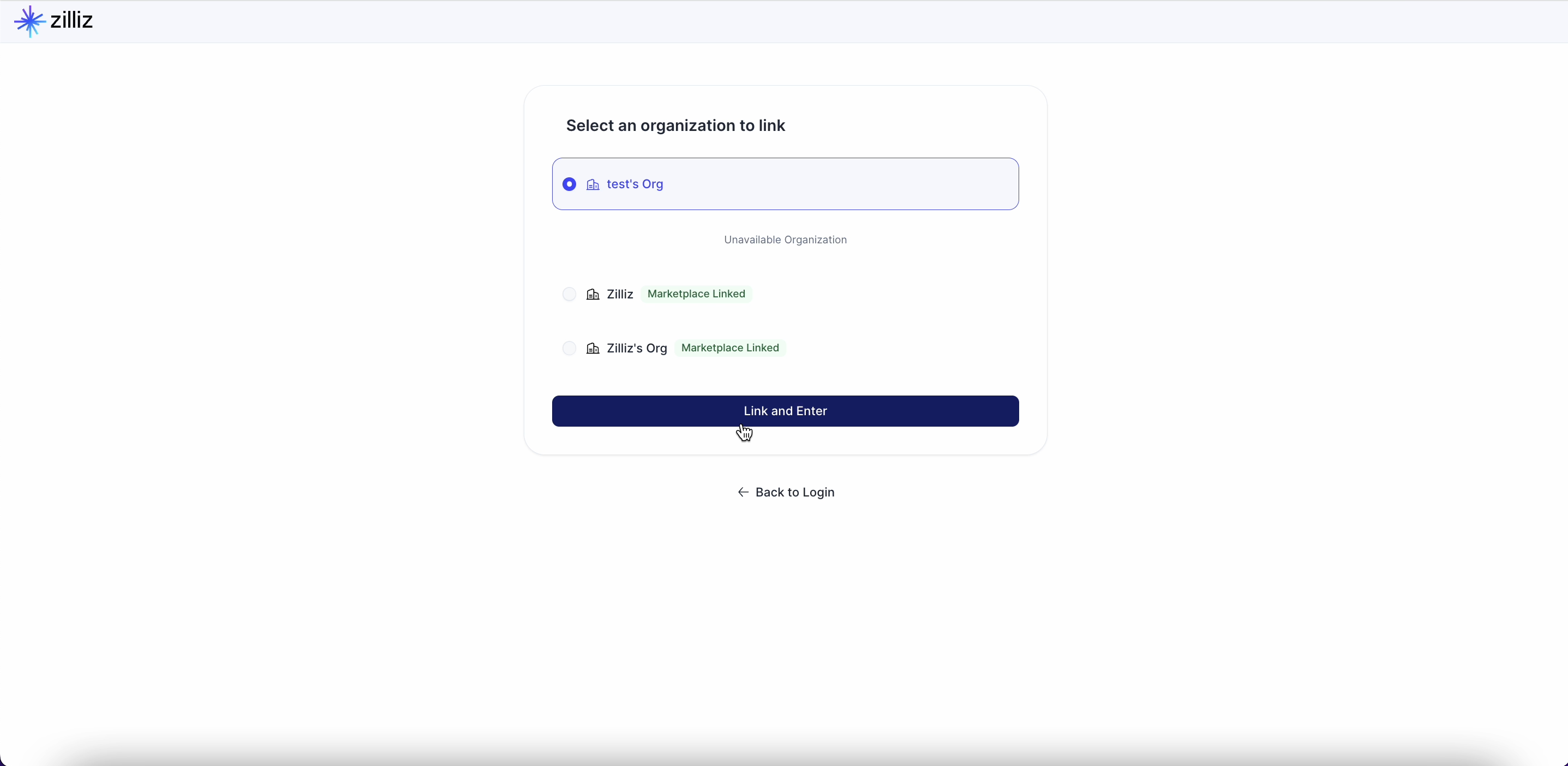
Marketplace サブスクリプションにリンクする Zilliz Cloud 組織を選択します。
選択できる組織がない場合やご不明な点がある場合は、Zilliz サポートにお問い合わせください。
-
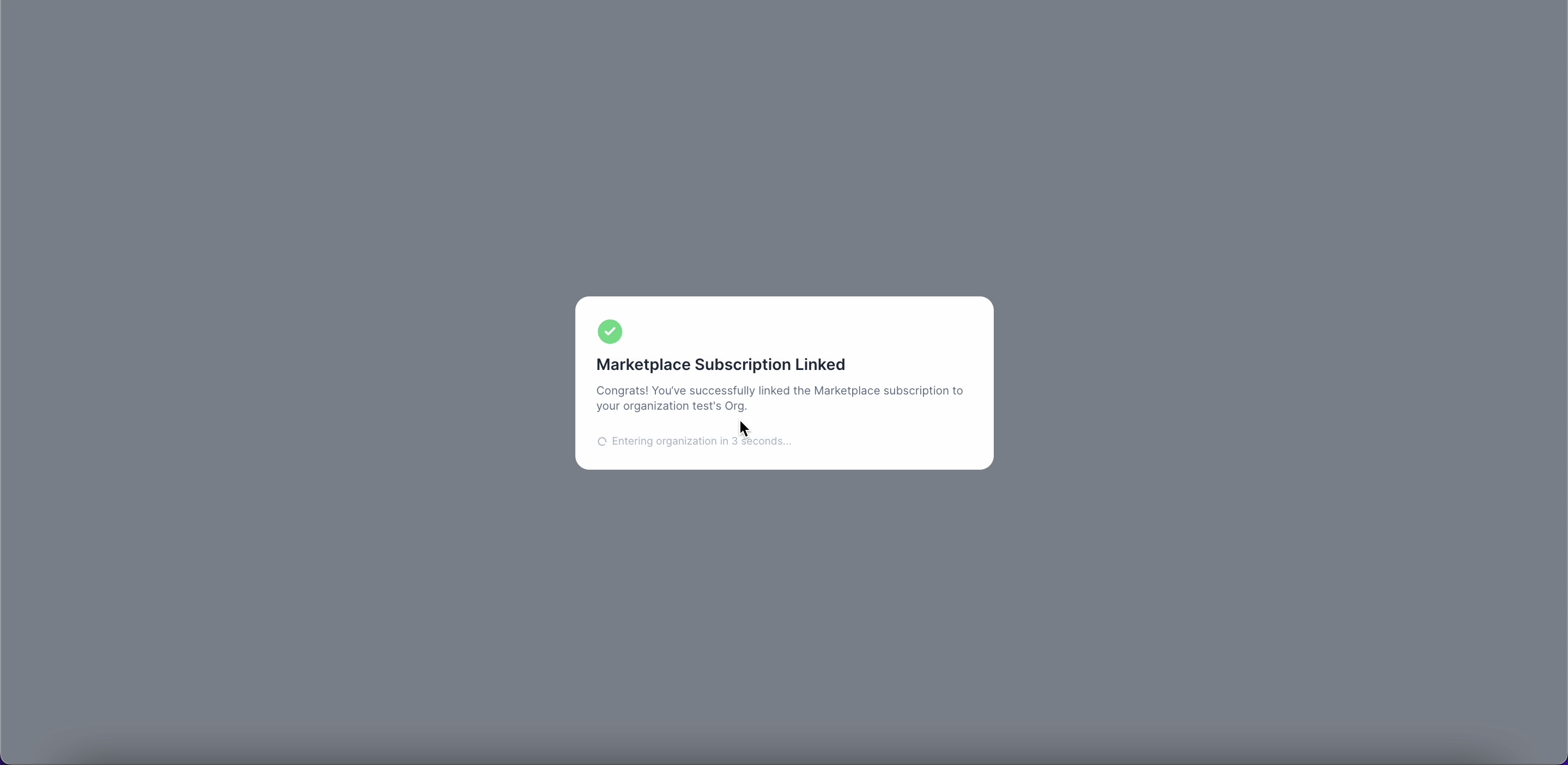
処理が完了すると、以下の確認ウィンドウが表示されます。
-
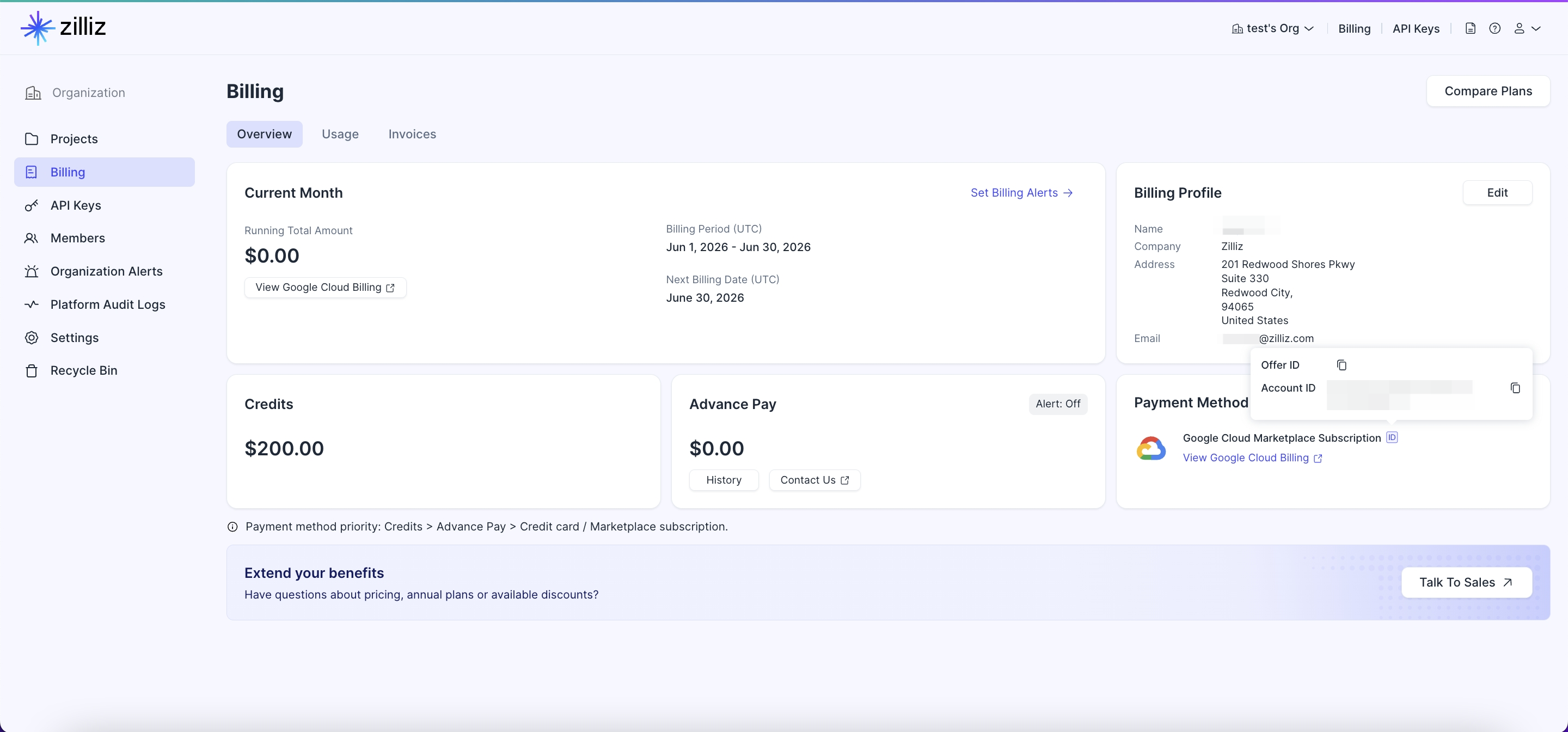
Zilliz Cloud の Billing ページにある Payment Method セクションで、ID アイコンにカーソルを合わせるとサブスクリプションを確認できます。
プライベートオファーの更新
プライベートオファーの有効期限が近づくと、Zilliz から更新用の新しいプライベートオファーリンクが送信されます。更新手続きについてご不明な点がある場合は、アカウントエグゼクティブにお問い合わせください。
Google Cloud Marketplace では、更新は既存のプライベートオファー注文に対して行われます。更新が有効になると現在のプライベートオファーサブスクリプションから継続されるため、サブスクリプションを Zilliz Cloud 組織に再度リンクする必要はありません。
以下に更新プロセスの概要を示します。
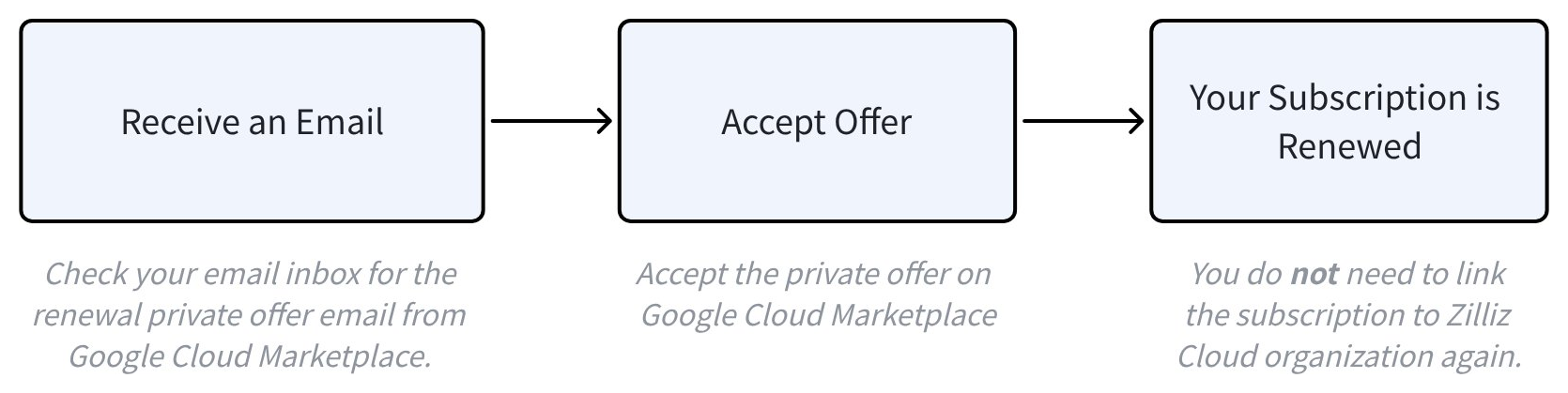
以下の詳細な手順に従って、Google Cloud Marketplace でプライベートオファーに登録してください。
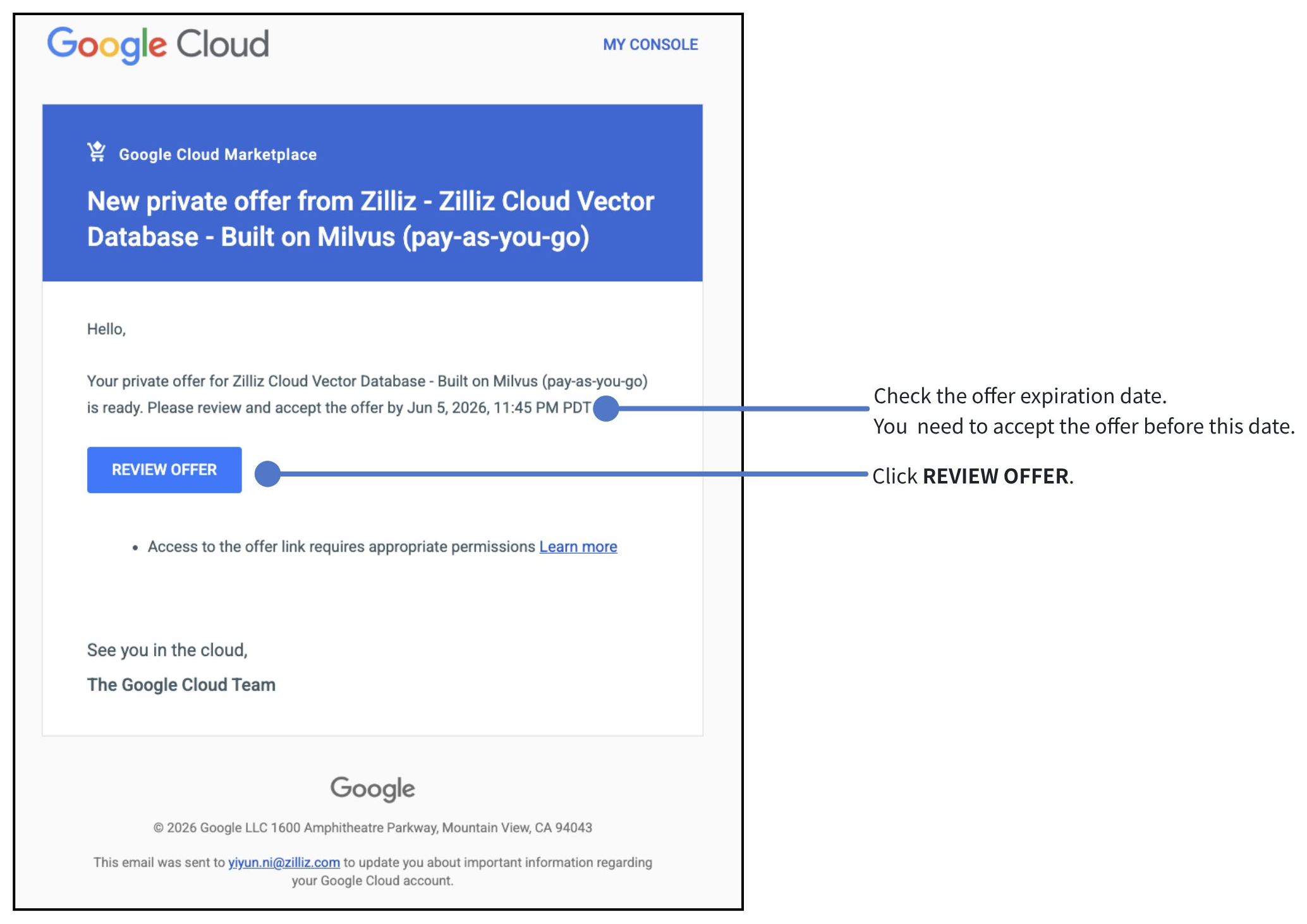
メールの受信トレイを確認します。
-
件名が New Private Offer from Zilliz となっている Google Cloud Marketplace からのメールを探し、メール内の Review Offer ボタンをクリックします。
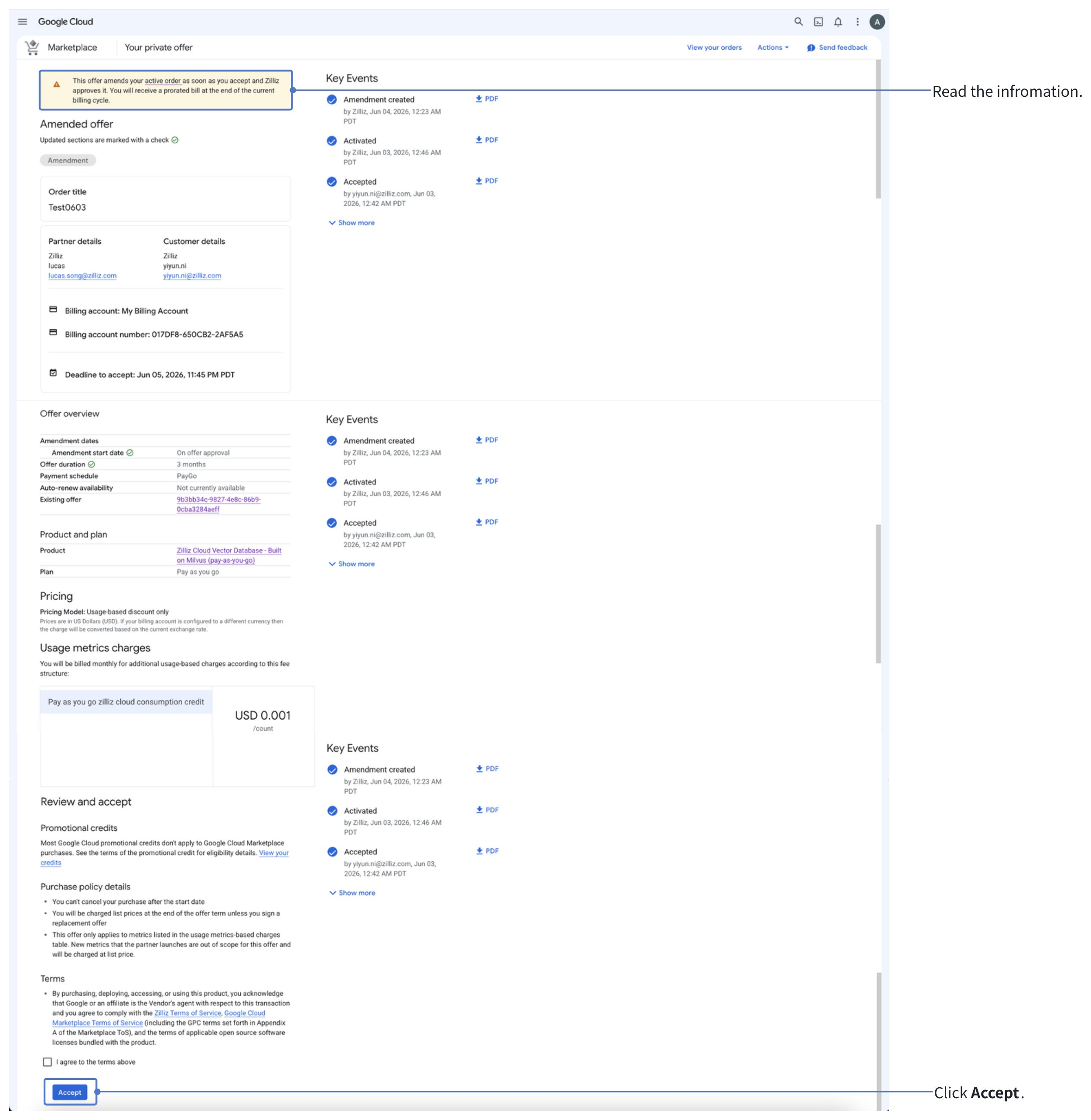
オファーの詳細を確認し、承諾します。
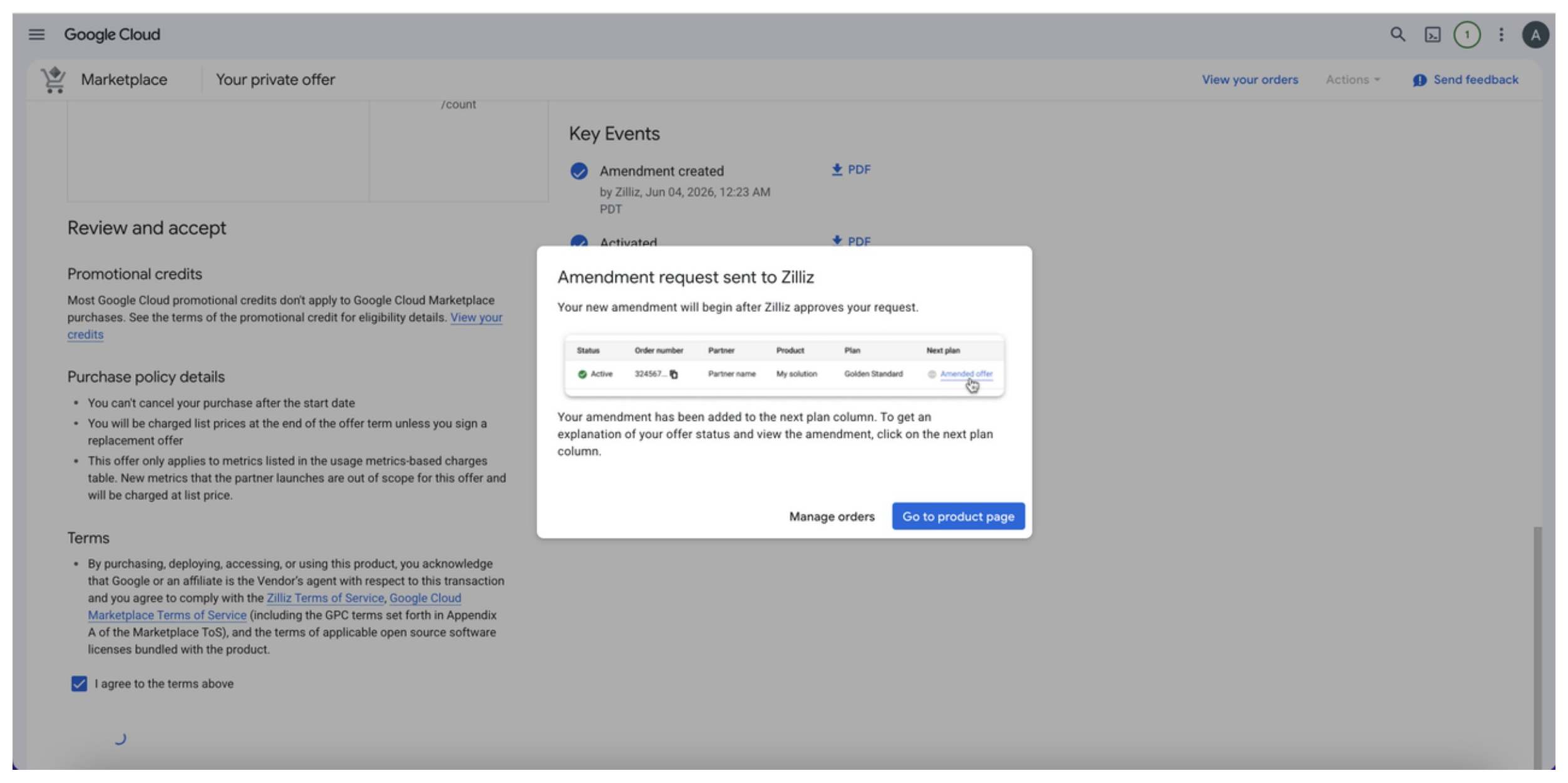
オファーが正常に更新されました。
Amendment request sent to Zilliz というタイトルのダイアログボックスが表示されたら、Zilliz Cloud での更新プロセスは完了です。
更新内容を確認します。
-
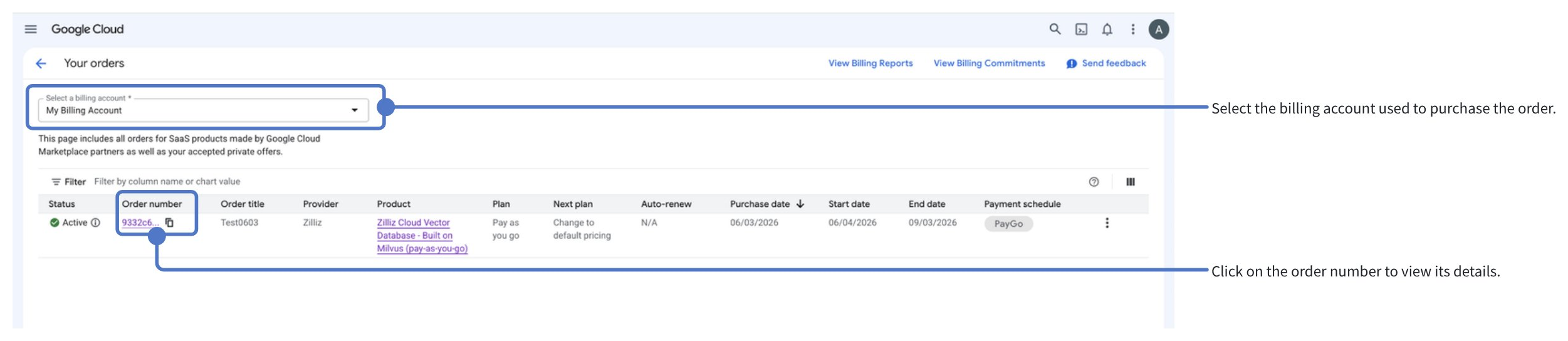
Google Cloud Orders ページに移動し、請求先アカウントを選択してから注文 ID をクリックして詳細を表示します。
-
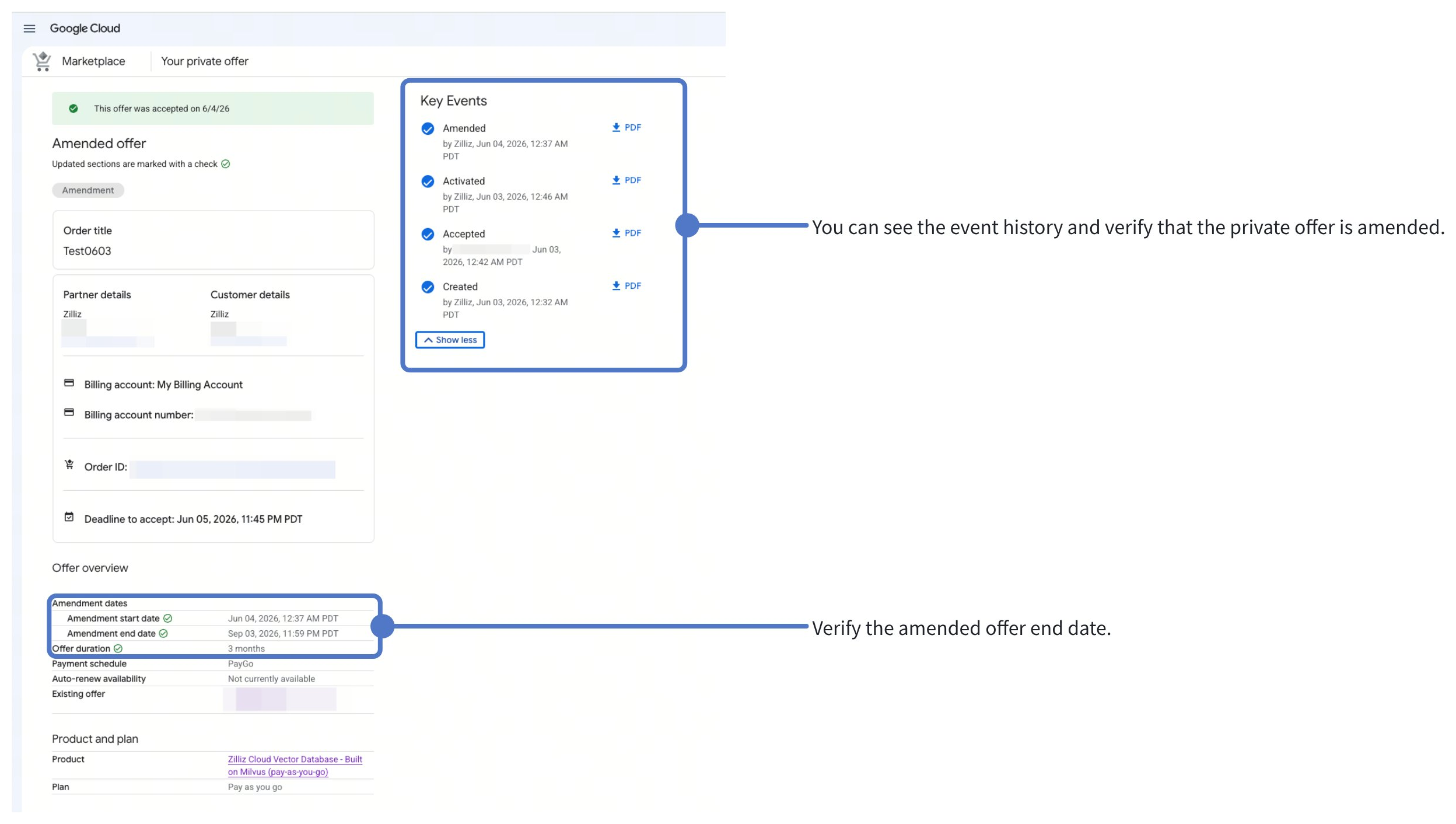
Key Events セクションで、既存の注文が正常に変更され、プライベートオファーが新しい契約終了日で更新されたことを確認できます。
パブリックオファーからプライベートオファーへの切り替え
プライベートオファーの更新と同様に、パブリックオファーからプライベートオファーへ切り替えるには、新しいプライベートオファーを承諾する必要があります。承諾後、新しいプライベートオファーが以前のパブリックオファーを自動的に置き換えます。なお、新しいオファーを Zilliz Cloud 組織に再度リンクする必要があります。
プライベートオファーのサブスクリプションをキャンセルする
プライベートオファーのサブスクリプションは、Google Cloud Marketplace からキャンセルできます。
サブスクリプションをキャンセルすると、組織は高度な Zilliz Cloud 機能にアクセスできなくなります。組織に残りのクレジットがない場合、またはすべてのクレジットが期限切れの場合、組織は直ちに凍結されます。
Google Cloud Orders ページに移動します。
該当する Cloud Billing account を選択します。
プライベートオファーの注文を探します。
Actions で Contact support をクリックします。Zilliz Cloud サポートポータルにリダイレクトされるので、有効なプライベートオファー注文のキャンセルを依頼するチケットを作成します。
アカウントエグゼクティブに連絡してキャンセルを依頼することもできます。
Zilliz がキャンセルリクエストを処理した後、Cloud Marketplace で注文をキャンセルできる旨の通知が Google Cloud に届きます。
詳細については、Manage your accepted offers を参照してください。
FAQ
プライベートオファーの有効期限が切れ、更新されなかった場合はどうなりますか?
プライベートオファーが更新されずに有効期限を迎えた場合、Google Cloud Marketplace のサブスクリプションからプライベートオファーの条件が失われます。Zilliz Cloud 組織に有効な支払い方法や残りのクレジットがない場合、高度な機能へのアクセスが無効になり、組織は凍結されます。
プライベートオファーを承諾したものの、Zilliz Cloud での Sign up を完了しなかった場合はどうなりますか?
プライベートオファーを承諾しても Sign up with Zilliz Cloud を完了しなかった場合、Marketplace サブスクリプションは作成されますが、どの Zilliz Cloud 組織にもリンクされません。その結果、組織はプライベートオファーを支払い方法として使用できません。
セットアップを完了するには、次の手順を実行します。
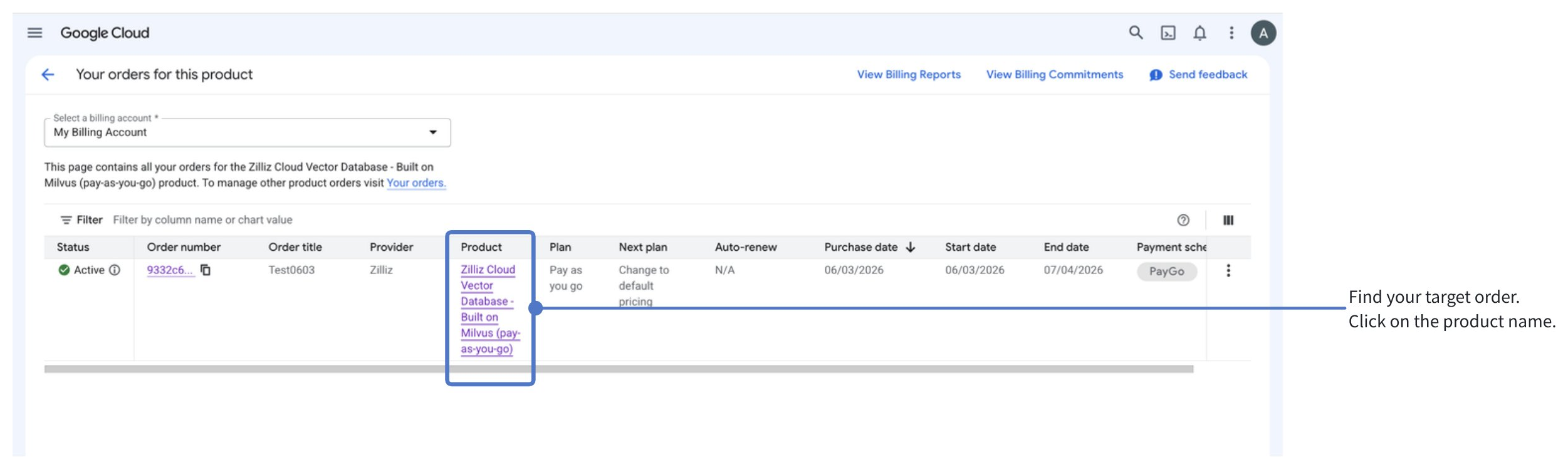
Google Cloud Marketplace > Your orders に移動し、Zilliz Cloud の注文を見つけて製品名をクリックします。
Manage on provider をクリックします。
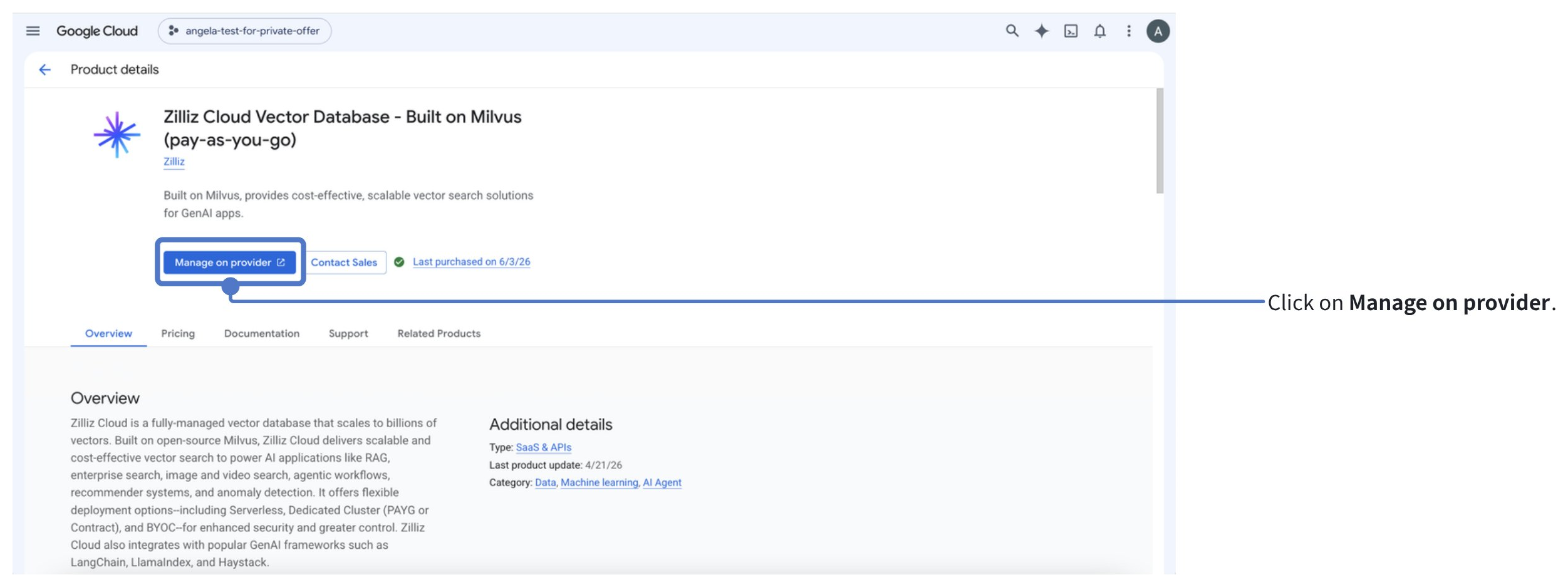
Zilliz Cloud にリダイレクトされます。Zilliz Cloud で操作を完了してください。
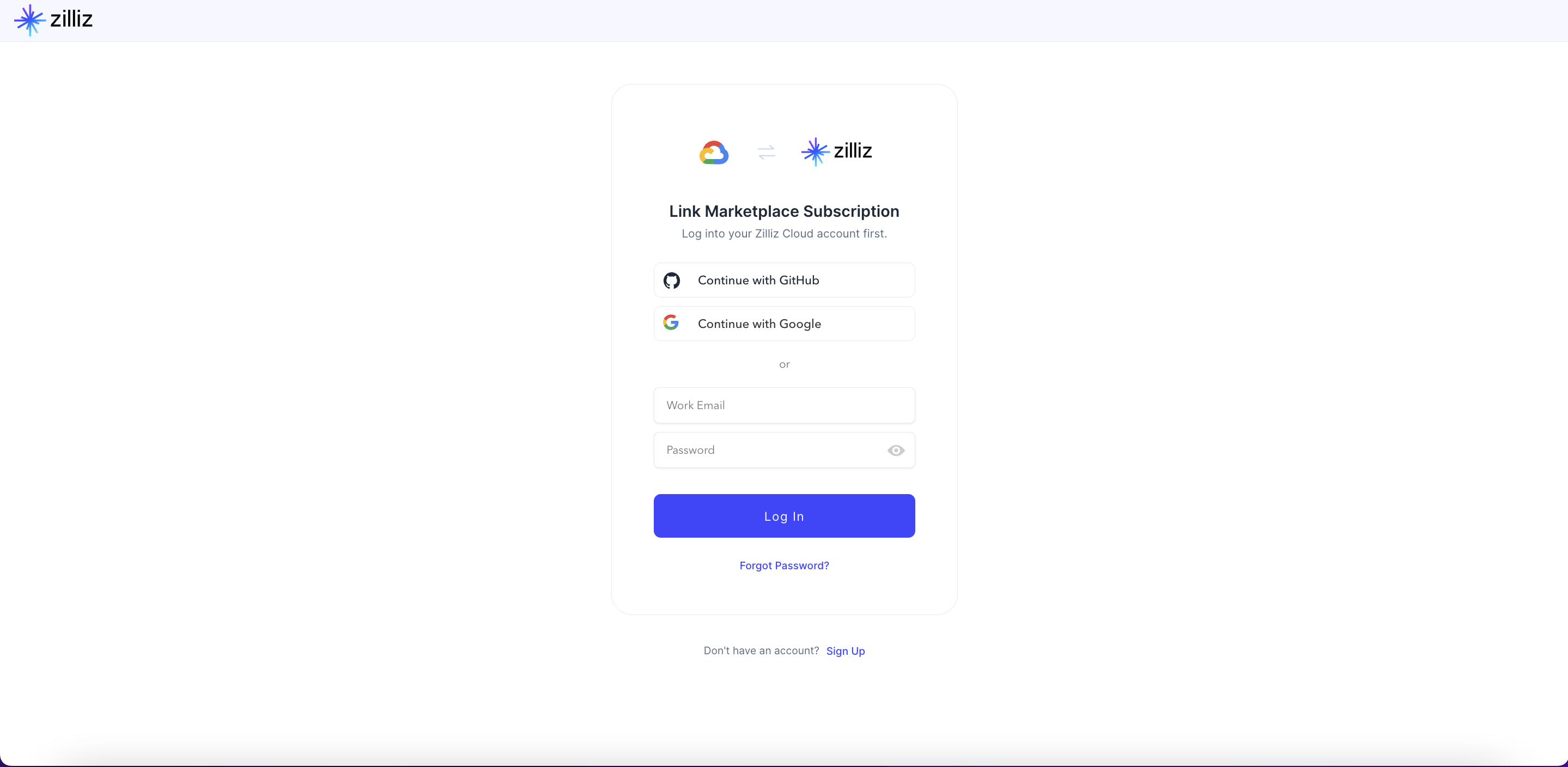
Marketplace サブスクリプションを Zilliz Cloud にリンクする際に、利用可能な組織がない場合はどうすればよいですか?
いくつかの原因が考えられます。
-
権限不足
十分な権限がない場合に発生します。利用できない組織の横に "Insufficient Permissions" タグが表示されます。
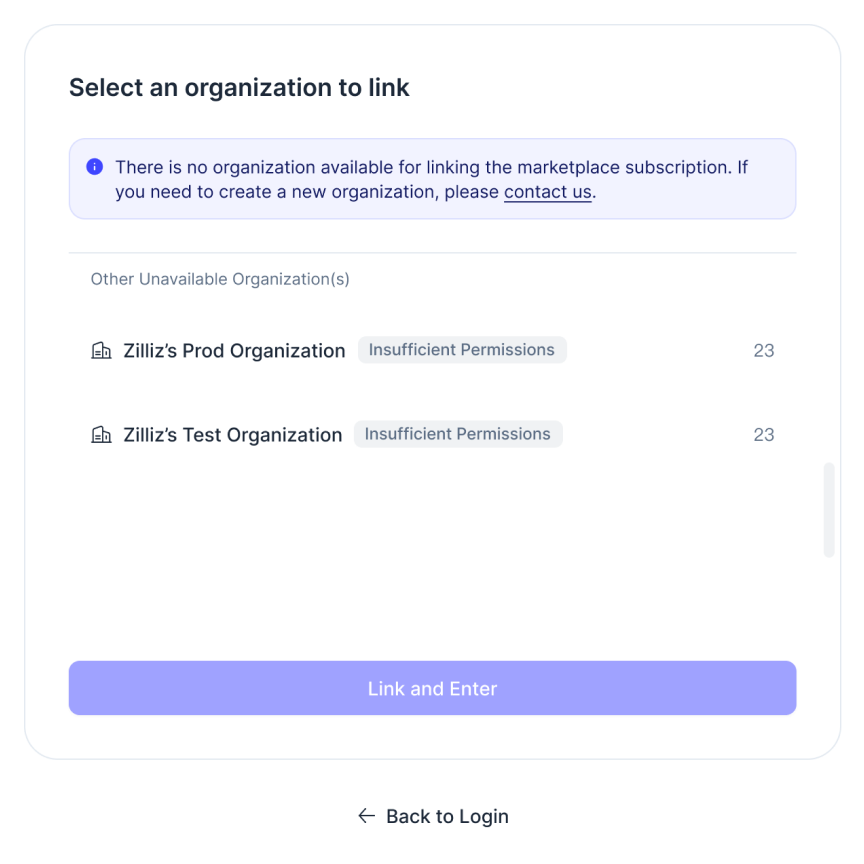
組織を Marketplace サブスクリプションにリンクするには、Organization Owner または Organization Billing Admin である必要があります。Organization Member のみの場合は必要な権限がないため、組織のオーナーに連絡して対応を依頼してください。
-
すべての組織がすでに Marketplace サブスクリプションに正常にリンクされている
すべての組織がすでに Marketplace サブスクリプションに正常にリンクされている場合に発生します。利用できない組織の横に "Marketplace Linked" タグが表示されます。
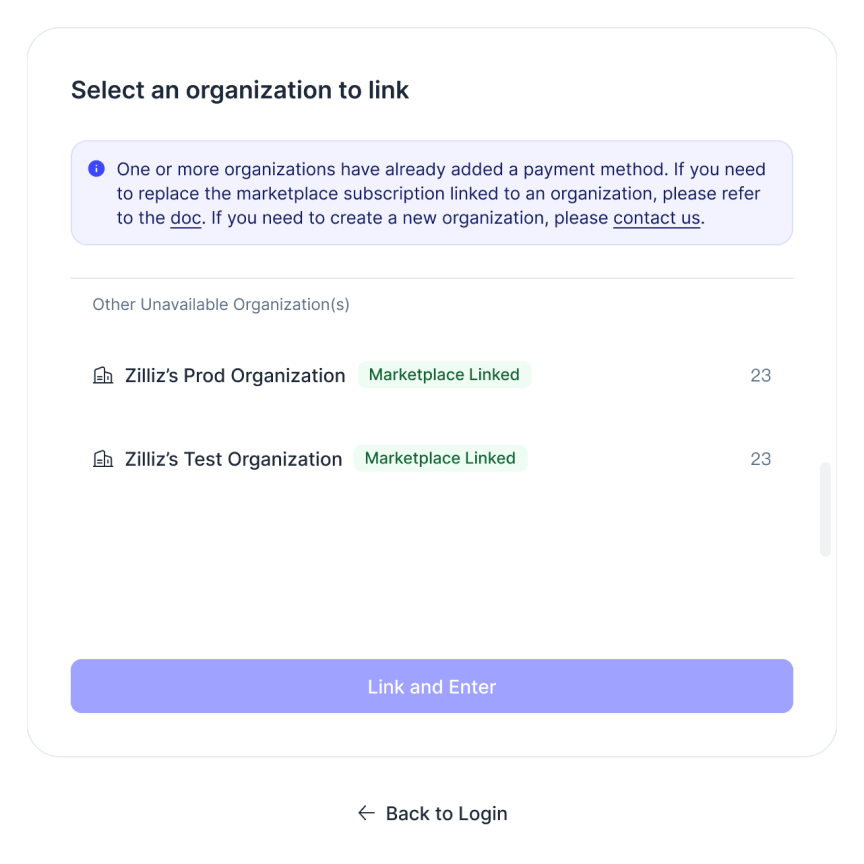
この場合は、以下の対応を行ってください。
-
既存の Marketplace サブスクリプションを更新する必要がある場合は、まず組織の現在のサブスクリプションのリンクを解除してから、新しいサブスクリプションを設定してください。
-
異なる Marketplace サブスクリプション用に複数の組織が必要な場合は、組織を作成できます。
-
-
リストに組織が表示されない
- アカウントが閉鎖された場合や、すべての組織から脱退した場合に発生します。UI は次のように表示されます。
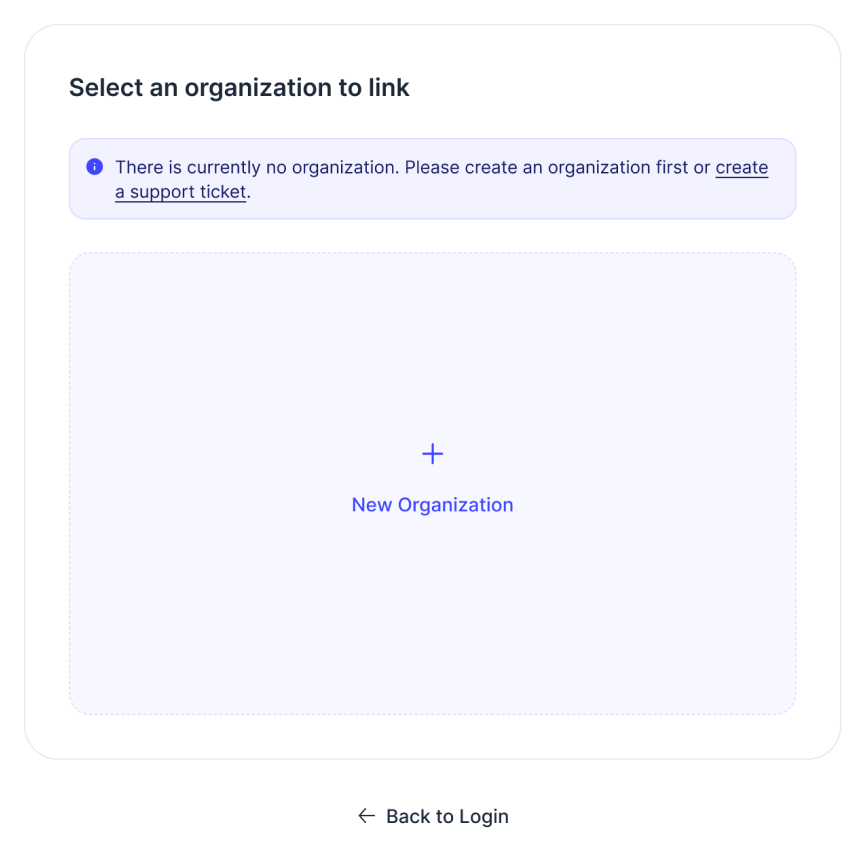
この場合は、以下のいずれかの操作を行えます。